Agenterm
Open-source MCP server for authorized remote terminal troubleshooting. The target user runs a client, approves access, and can watch commands and output or disconnect.
Hosted MCP Server
npx add-mcp 'https://agenterm.net/mcp'Installs into Claude Code, Codex, Cursor and more
Documentation

Agenterm
Let an AI agent assist with a remote computer through one authorized connection command.




🔗 Multiple devices · ⚡ One-click connection · 🪶 Lightweight CLI, just 1 MB · 🔓 No SSH required · 🤖 Agent-first
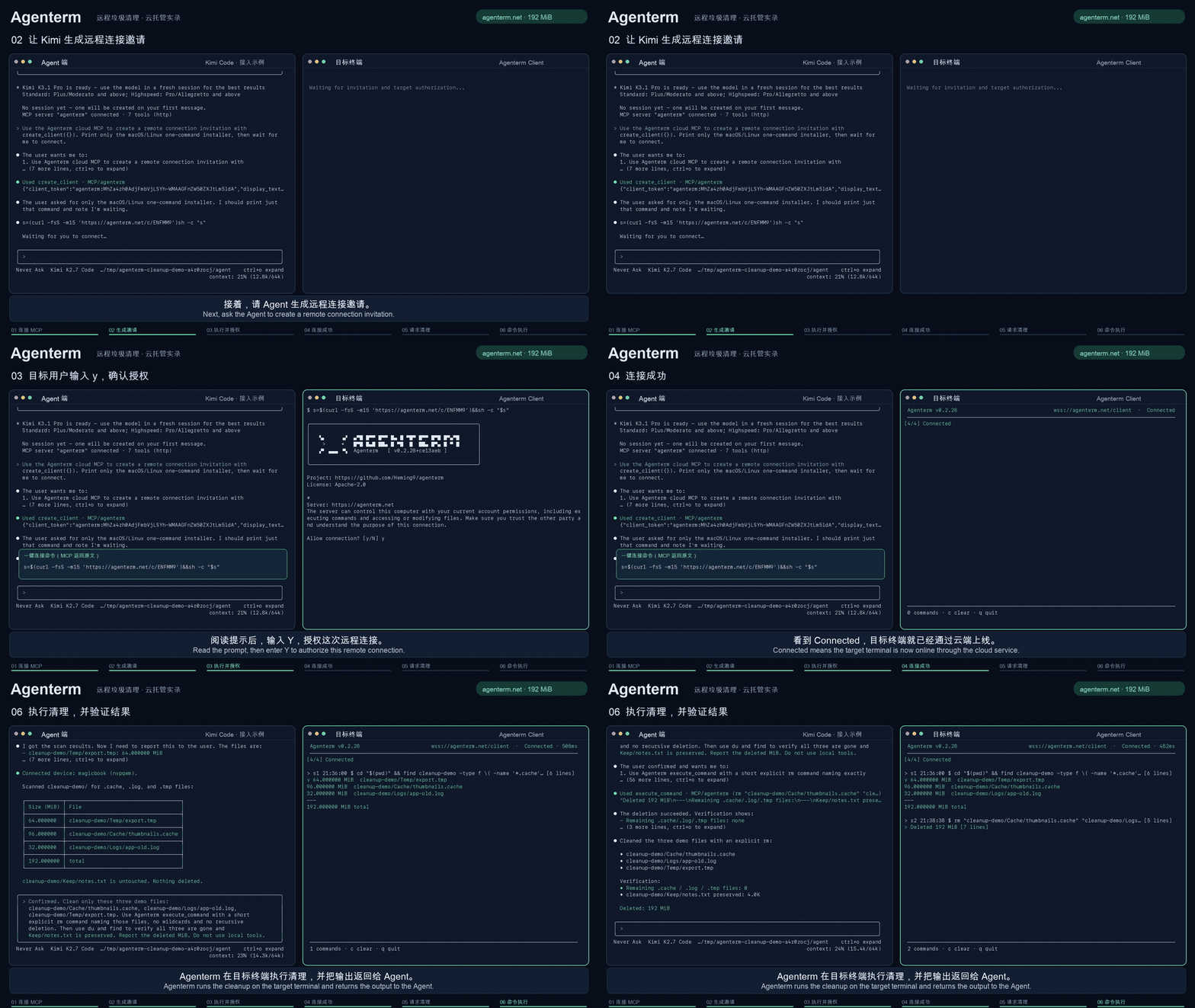
Create invitation → Authorize access → Connect device → Run task
Original demo · 1 min 42 sec · Earlier terminal interface
🚀 Quick start
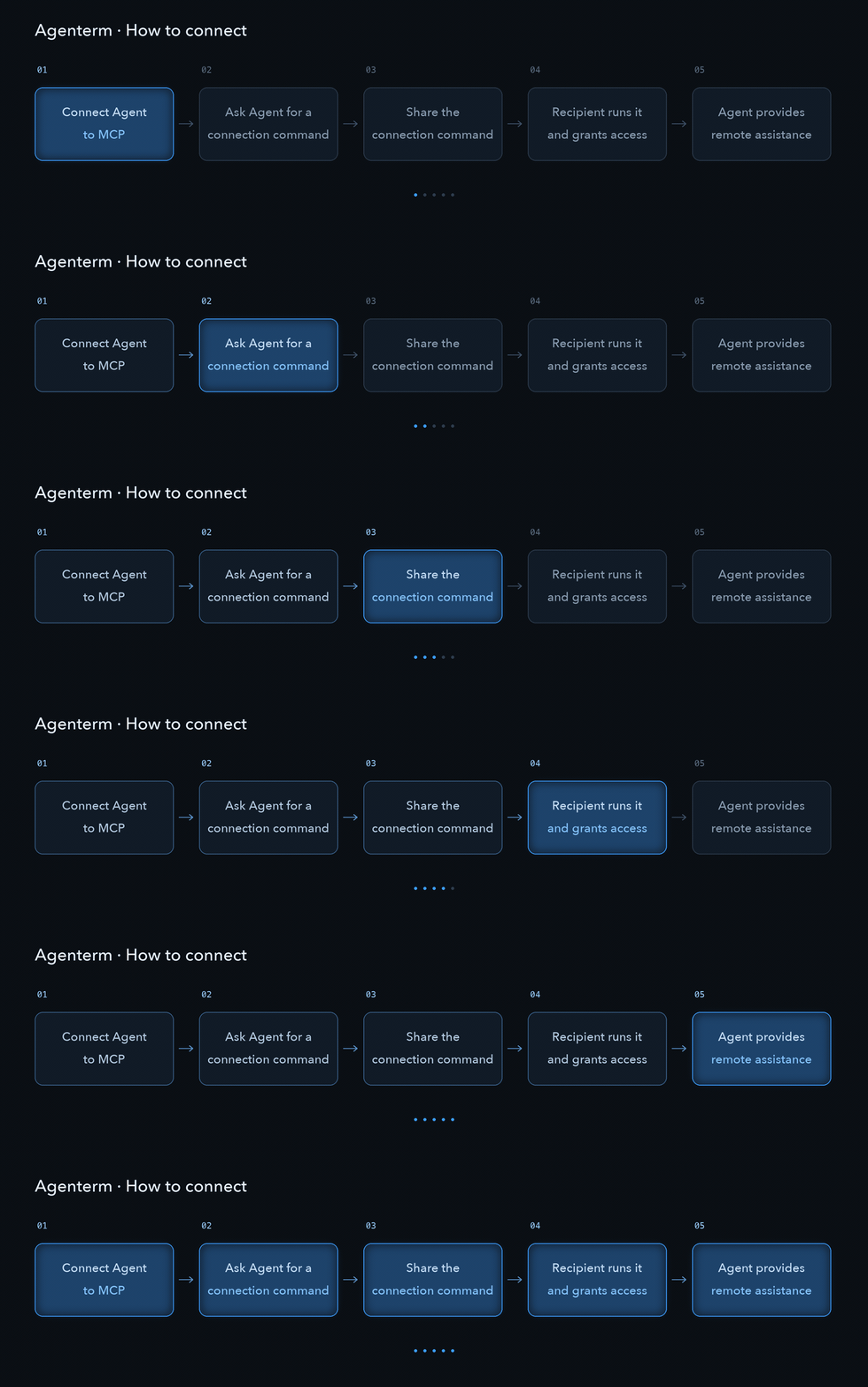
- Connect your agent: Add the MCP service
https://agenterm.net/mcpto an agent that supports Streamable HTTP. See configuration examples. - Invite and authorize: Ask the agent to create an invitation and privately share its short link, such as
https://agenterm.net/c/xef2k1. The recipient opens it on the computer that needs assistance and follows the instructions to authorize the connection. If your server does not issue short links, share the connection command for the recipient's operating system. - Start assisting: Once the device connects, tell the agent what to do. The other person can see commands and output and disconnect at any time.
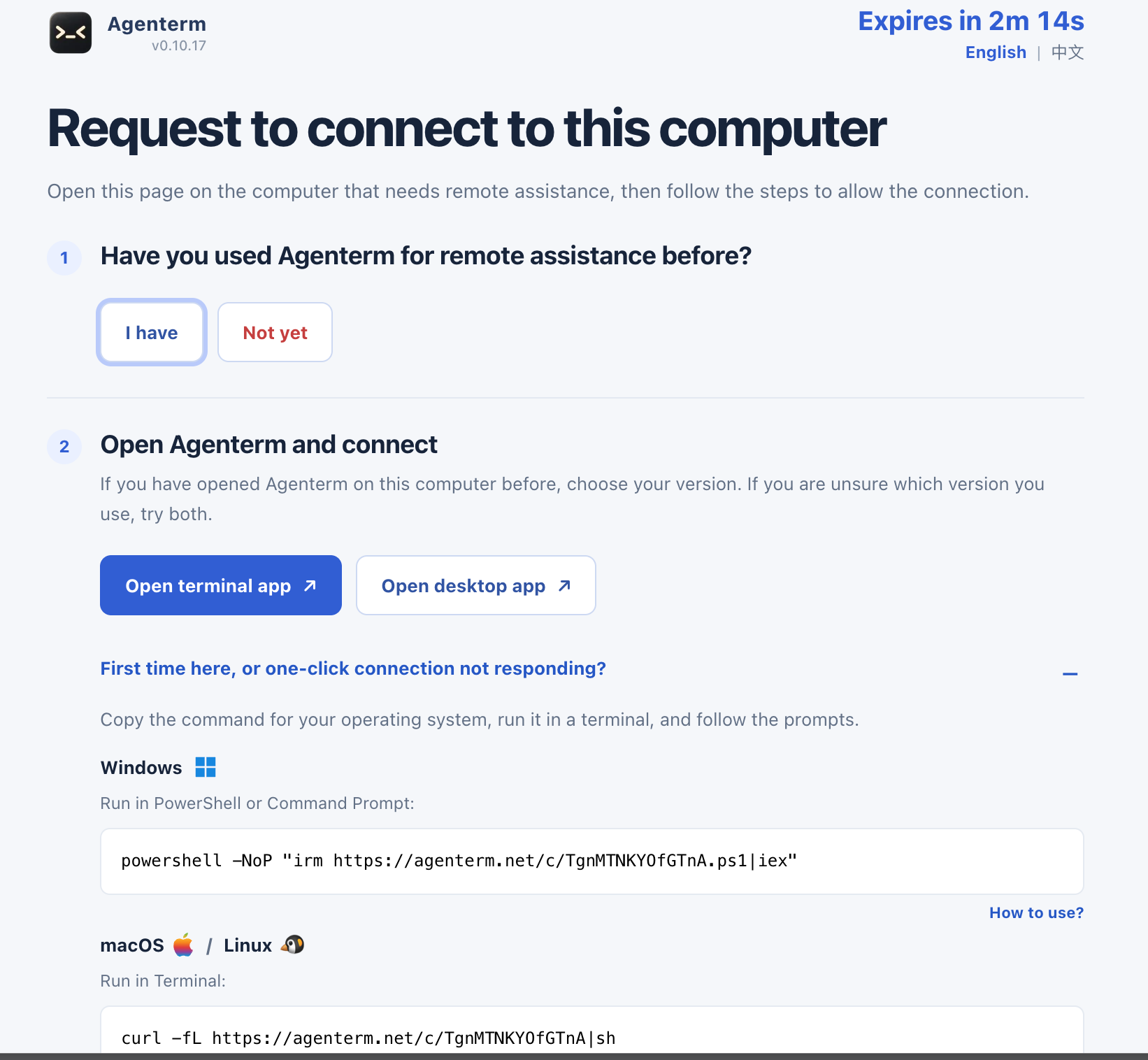
Share the short invitation link so the recipient can follow the page to authorize remote access.
Connections grant terminal access with the target computer's current user permissions. Only authorize people you trust.
💡 When to use it
- Help a colleague or customer troubleshoot: Let your agent inspect the remote environment and logs without passing commands and output back and forth.
- Help family with computer problems: Once they run the client and authorize access, use your familiar agent to assist through the terminal.
- Work on another development machine or server: Keep using your existing agent without configuring a full agent and model account on the target machine.
- Check multiple computers: Connect test machines, inspect their environments, and summarize the results.
Interactive terminal tasks are supported. Use the Rust CLI on the target computer to follow progress; the client automatically attempts to reconnect after temporary network failures.
🔗 How it works
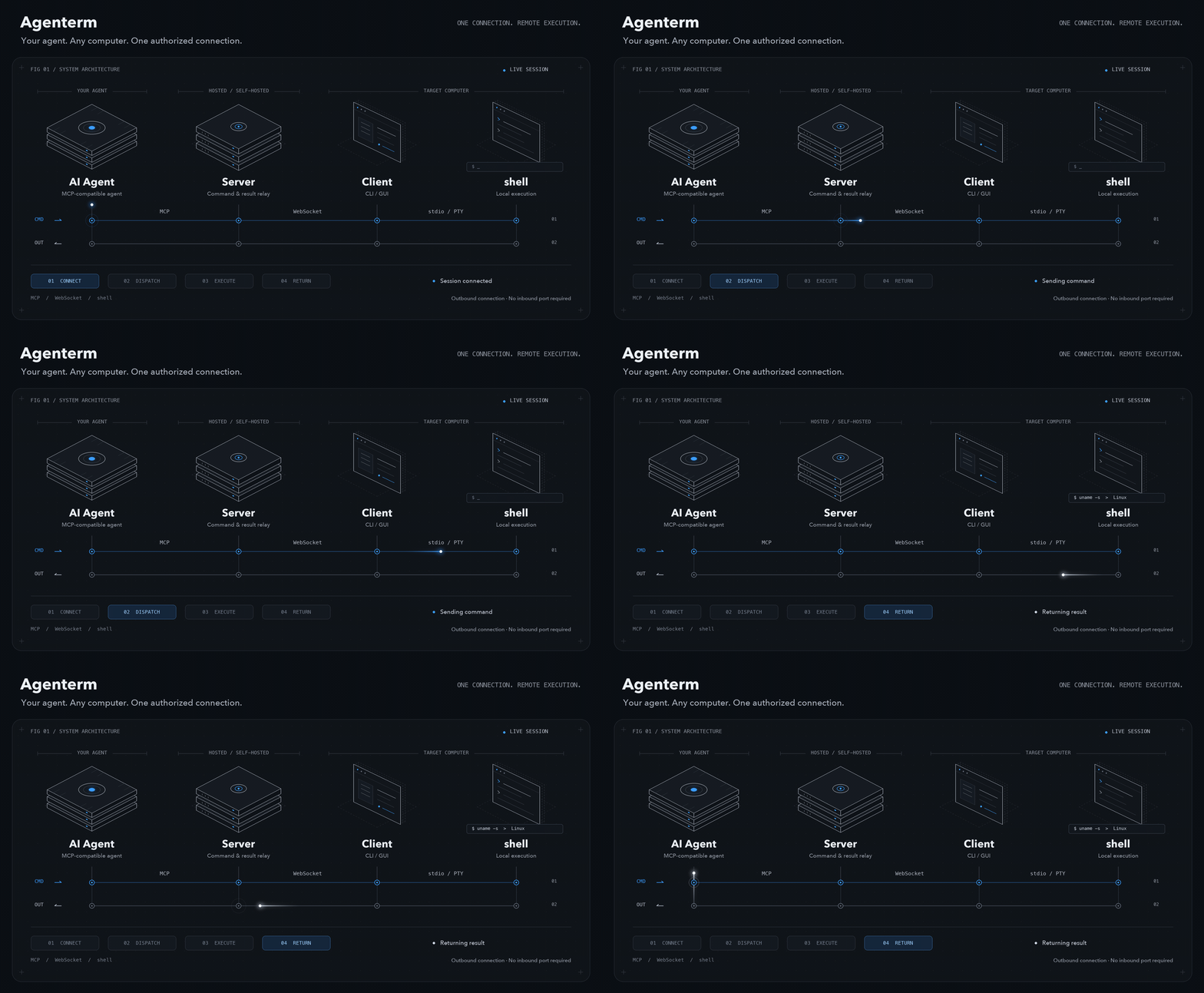
Terminal commands and results pass through the server as shown above. The target computer makes an outbound connection after its user authorizes access. Optional P2P file transfers use a separate direct connection between devices, with the server handling signaling. File transfer guide
Use the hosted service or deploy your own server.
☁️ One-Click Deploy

❓ FAQ
What if a connection fails or an invitation expires?
Check that both sides can reach the service. If an invitation no longer works, ask the agent to create a new one. For version mismatches, use the server and client from the same release. Connection troubleshooting.
Will tasks resume automatically after a disconnection?
The client attempts to reconnect but does not replay commands. Ask the agent to check the device and task state. Connecting a device does not wake an agent conversation that has already ended.
Can I control a desktop or connect several computers?
Agenterm provides terminal assistance, not a remote desktop. Ask the agent for a multi-device invitation to work across computers. Windows supports simple interactive prompts; full-screen programs requiring a real terminal may not work.
What are the hosted service limits?
Management access currently requires no authentication. The number of online devices is limited per invitation creator's IP address. The agent, server, and target client can see commands and output, so keep invitations and tokens private. Use HTTPS when self-hosting publicly.
User guide · Deployment and source builds · Report an issue · Apache-2.0