Gydmation
Build, check and fix n8n workflows from your AI assistant: 1,100+ n8n node definitions, curated templates and a validator.
Hosted MCP Server
npx add-mcp 'https://gydmation-relay.gydmationai.workers.dev/mcp'Installs into Claude Code, Codex, Cursor and more
Documentation
Gydmation MCP
Give your AI assistant Gydmation's n8n expertise. Claude Code, Claude Desktop, Cursor, Windsurf and VS Code — and Claude.ai and ChatGPT on the web and phone — can search 1,100+ n8n node definitions (every official node plus maintained community nodes) and 1,950+ curated templates, check and build workflows, and with Pro deploy, test and fix them in your own n8n.
Add Gydmation to Claude or ChatGPT
Paste this address as a custom connector, then sign in with a free gydmation.com account.
https://gydmation-relay.gydmationai.workers.dev/mcp
Claude
- Open Settings → Connectors and click Add custom connector.
- Name it Gydmation and paste the address.
- Click Connect, sign in to gydmation.com and click Allow.
ChatGPT
- Open Settings → Apps → Advanced and turn on Developer mode.
- Click Create app, paste the address and choose OAuth.
- Sign in to gydmation.com, click Allow, then add Gydmation from the + menu in a chat.
Free Search 1,100+ nodes and 1,950+ templates, and check, fix and explain workflows your assistant writes.
Pro With the Gydmation app linked: also save, run, test and self-heal workflows in your own n8n.
Works on the web, desktop and the mobile apps. Using Claude Code, Cursor, Windsurf or VS Code? Connect them with a key instead.
Overview
MCP (Model Context Protocol) is the standard way AI assistants use outside tools. Gydmation includes an MCP server, so the assistant you already work in can use the same verified node definitions, template library, validator and self-healing that power the Gydmation app.
- "Find a template that saves Gmail attachments to Google Drive and adapt it to my folder."
- "Build an n8n workflow that posts new Stripe payments to Slack, validate it and save it."
- "My 'Daily report' workflow fails — run it, find out why and suggest a fix."
It runs on your computer. The MCP server is part of your Gydmation install. Your workflows, n8n connection and keys stay on your machine. Desktop and editor apps talk to it directly; with Claude.ai or ChatGPT, their requests pass through our relay to your computer and back, without being stored.
What you need
- Gydmation running on your computer (install guide) and an account in it
- An MCP-capable assistant: Claude Code, Claude Desktop, Cursor, Windsurf or VS Code
- For tools that work with your n8n (save, run, fix…): Gydmation Pro and your n8n connected in Gydmation (Settings → General → n8n Connection)
1. Create a key
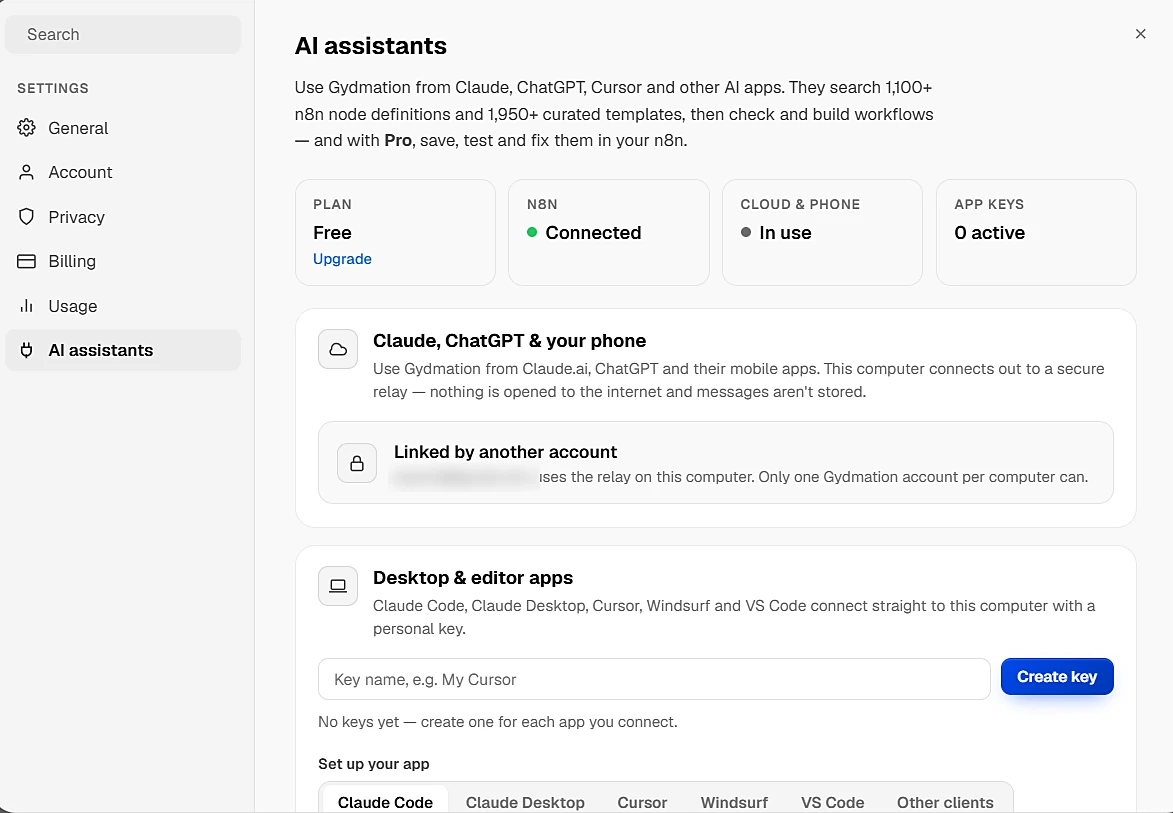
Settings → Gydmation MCP Create keys, link this computer for Claude and ChatGPT, and see every call your assistant makes.
- Open Gydmation and go to Settings → Gydmation MCP
- Type a name (for example My Cursor) and click Create key
- Copy the key — for security it's shown only once. The setup snippets on that page already include it.
Create one key per app so you can revoke one without affecting the others. A key acts as you: your plan, your n8n connection, your activity log.
2. Connect your assistant
The easiest way is to copy the ready-made setup from Settings → Gydmation MCP, which already contains your key and the right address. Here is what it looks like — replace YOUR_GYDMATION_MCP_KEY with your key, and 8080 if you changed Gydmation's port.
Claude Code
Run once in a terminal:
Claude Desktop
In Gydmation's Gydmation MCP page click Download Claude Desktop extension (.mcpb), double-click the file, and paste your key when Claude asks for it. No config files to edit.
Cursor
Cursor Settings → Tools & MCP → New MCP Server (or ~/.cursor/mcp.json):
{
"mcpServers": {
"gydmation": {
"url": "http://localhost:8080/mcp/mcp",
"headers": { "Authorization": "Bearer YOUR_GYDMATION_MCP_KEY" }
}
}
}
Windsurf
Windsurf Settings → Cascade → MCP Servers → View raw config:
{
"mcpServers": {
"gydmation": {
"serverUrl": "http://localhost:8080/mcp/mcp",
"headers": { "Authorization": "Bearer YOUR_GYDMATION_MCP_KEY" }
}
}
}
VS Code
Save as .vscode/mcp.json in your project:
{
"servers": {
"gydmation": {
"type": "http",
"url": "http://localhost:8080/mcp/mcp",
"headers": { "Authorization": "Bearer YOUR_GYDMATION_MCP_KEY" }
}
}
}
Other clients
Any client that supports Streamable HTTP: address http://localhost:8080/mcp/mcp with the header Authorization: Bearer YOUR_GYDMATION_MCP_KEY.
Keep Gydmation running while you use it — your assistant talks to the Gydmation app on your computer.
3. Try it
Ask your assistant: "Use Gydmation to check my setup." It calls get_status and tells you your plan, whether n8n is connected and what it's allowed to do. Then ask for a workflow in plain English.
Every call your assistant makes appears in Settings → Gydmation MCP → Recent activity.
Tools & plans
Free 11 tools
Look up nodes, templates and best practices; check, auto-fix and explain workflows; build them with an AI model.
Pro 23 tools
Everything in Free, plus save, edit, deploy, run, test and self-heal workflows in your own n8n.
Free
get_status— your plan, n8n connection and permissionssearch_nodes,get_node— verified n8n node definitions with exact types and parameterssearch_templates,get_template— search 1,950+ curated workflow templates by meaning, optionally only those using certain apps or starting from a certain trigger (webhook, schedule, form, chat, email…), and read any of themget_best_practices,get_ai_workflow_patterns— how to build reliable workflows and AI agentsvalidate_workflow— check workflow JSON against real node schemas and fix simple issuesdescribe_workflow— explain a workflow in plain words: its trigger, steps, apps, which credentials to set up in n8n and how to import itgenerate_workflow,autofix_workflow— build a workflow from a description, or fix one with AI (need an AI model — see below)
Pro — works with your n8n
save_workflow,update_workflow_partial,deploy_template— create and edit workflows (edits are validated before saving)list_workflows,get_workflow,list_credentials— read what's in your n8n (credential names only, never secrets)trigger_execution,list_executions,get_execution— run tests and see each node's real input, output and errorsself_heal_workflow— run, diagnose and fix a failing workflowset_workflow_active,delete_workflow— only after you allow it (see Safety)
Which AI model builds and fixes workflows?
generate_workflow, autofix_workflow and self_heal_workflow need an AI model. Gydmation uses, in this order:
- your assistant's own model, if it supports MCP sampling — most assistants, including Claude Code, Claude Desktop, Claude.ai and ChatGPT, don't yet;
- your Gydmation Pro plan (uses your Pro AI credits);
- a Groq API key set on your Gydmation install (
GROQ_API_KEY).
All other tools need no AI model. You can also let your assistant write the workflow JSON itself and check it with validate_workflow — that works on every plan. See pricing.
Rules for your assistant
Settings → Gydmation MCP has a short set of rules you can paste into Cursor Rules, CLAUDE.md or your assistant's instructions. They teach the reliable order: check setup → templates → look up nodes → generate → validate → save inactive → test & fix → activate.
Use it without installing
Already using ChatGPT or Claude? Add Gydmation to it and your assistant builds n8n workflows on 1,100+ real node definitions, 1,950+ curated templates and Gydmation's validator — no download, no n8n connection and no payment needed. All you need is a free gydmation.com account.
- Add the connector with this address:
https://gydmation-relay.gydmationai.workers.dev/mcp- Claude (claude.ai): Settings → Connectors → Add custom connector → paste the address.
- ChatGPT (chatgpt.com): turn on Developer mode in the Apps settings, create an app with the address and choose OAuth (OpenAI's guide).
- Claude (claude.ai): Settings → Connectors → Add custom connector → paste the address.
- Sign in to gydmation.com (or create a free account) and click Allow.
- Ask for a workflow, for example "Use Gydmation to build an n8n workflow that emails me the weather every morning." Your assistant writes it, Gydmation checks and repairs it, and you get the finished JSON to paste into n8n (click the canvas and press Ctrl+V).
Tip: ask for "the final JSON" (for example "…check it, and give me the final JSON to paste into n8n") to get the whole workflow in a code block, ready to paste. Without it, your assistant may just summarise the workflow — you can always ask for the JSON afterwards.
Set it up once on the web; it then works in the ChatGPT and Claude mobile apps too.
What works without the app
- Searching templates by meaning, with filters for apps and triggers, and getting their JSON
- Looking up n8n nodes, best practices and AI workflow patterns
- Checking and repairing workflow JSON (
validate_workflow) and explaining it with a credentials checklist (describe_workflow)
Installing the Gydmation app adds Gydmation's own AI builder and fixer, and with Pro it saves, deploys, tests and fixes workflows directly in your n8n.
Claude.ai, ChatGPT & mobile
Web and mobile assistants run in the cloud and can't reach an app on your computer directly. Gydmation solves this with a secure relay: your app connects out to it, so no port is opened on your computer, and your workflows, n8n and keys stay where they are.
- Link your computer. In Gydmation open Settings → Gydmation MCP, click Link this computer and confirm the code on gydmation.com.
- Copy the connector address shown under Claude, ChatGPT & your phone (also in Account → Connected apps).
- Add it to your AI app.
- Claude.ai (web, desktop and the mobile app): Settings → Connectors → Add custom connector → paste the address.
- ChatGPT (needs a plan with Developer mode): open Settings → Apps → Advanced, turn on Developer mode, click Create app, paste the address and choose OAuth. ChatGPT renames these menus often — see OpenAI's guide. Then, in a chat, pick Gydmation from the + menu.
- Claude.ai (web, desktop and the mobile app): Settings → Connectors → Add custom connector → paste the address.
- Sign in to gydmation.com and click Allow. Then ask, for example, "Use Gydmation to check my setup".
Keep Gydmation running on your computer to work with your n8n. When it's off — or before you've installed it — Gydmation's cloud still answers node look-ups, best practices, AI patterns and template search, and checks and explains workflow JSON your assistant writes (validate_workflow and describe_workflow give the same answers as the app). Tools that build with AI or work with your n8n tell your assistant to start the app. One computer per account answers at a time; linking or starting another one pauses the first (click Use this computer to switch back). You can remove computers and AI apps any time in Account → Connected apps.
Messages pass through the relay to your app and back; the relay doesn't store them. Claude.ai and ChatGPT don't share their own model with tools, so building or fixing workflows with AI uses your Gydmation Pro plan (or a Groq key on your install).
Troubleshooting
"Unauthorized" or the server won't connect
The key is missing, mistyped or revoked. Create a new key in Settings → Gydmation MCP and update your assistant's setup.
Connection refused
Gydmation isn't running, or it uses a different port. Start Gydmation and check the address in Settings → Gydmation MCP.
"… is a Gydmation Pro tool"
That tool works with your n8n and needs Pro. Free tools keep working.
"No n8n instance connected"
Connect your n8n in Gydmation (Settings → General → n8n Connection), then ask again.
"… runs in your Gydmation app, which isn't connected right now"
Start Gydmation on the computer you linked and keep it running. In Settings → Gydmation MCP the relay status should say Connected; if it says Paused, click Use this computer.
"This computer was removed from your account"
It was removed in Account → Connected apps. Click Unlink this computer in Gydmation, then link it again.
"No AI model available"
generate_workflow, autofix_workflow or self_heal_workflow needs an AI model, and your account isn't on Pro and no Groq key is set on your install. Upgrade to Pro, set GROQ_API_KEY on your install, or ask the assistant to write the workflow JSON itself and check it with validate_workflow.