Gadwal
Local MCP server built into the Gadwal Mac database client: AI agents read data and propose SQL, writes wait for your approval.
Documentation
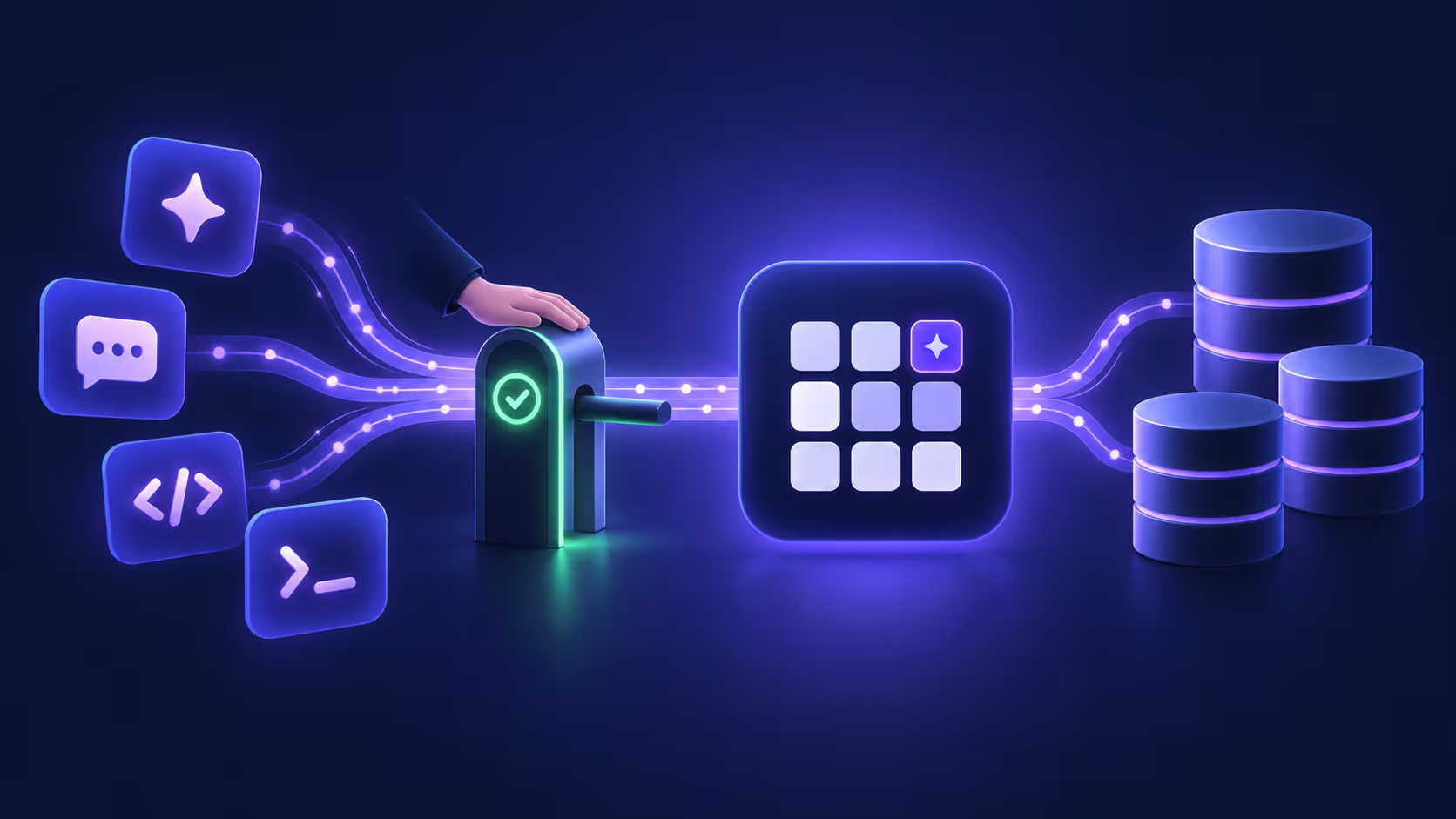
Illustration: AI app tiles on the left send requests along a glowing path through a gate where a hand approves them, into Gadwal's grid icon, which connects to databases on the right.
What is MCP?
The Model Context Protocol (MCP) is an open standard that lets an AI app call tools that another program provides. Gadwal provides database tools. Once you connect an AI app, it can list your connections, read schemas, run read-only queries and propose changes, all through Gadwal and under the rules you set for each connection.
Gadwal has no AI model of its own and no API keys. It doesn’t send your data to any AI company. The AI app you connect sends what it reads to its own provider, as it does with anything else you show it.
What Gadwal exposes
- 24 tools: explore (connections, schemas, tables, DDL, search), read (sample rows, read-only queries, EXPLAIN, BigQuery cost estimates), change data (SQL, structured inserts, updates and deletes, drop, truncate), WordPress, and follow a change you’re reviewing. See the tool reference.
- Resources: each connection’s schema (tables and visible columns), and one table at a time.
- Two prompts: “Explore a database” and “Write a migration”, for clients that show MCP prompts.
How a call flows
- 1 · Your AI app Claude, Cursor, Codex or VS Code on this Mac calls a tool
- 2 · HTTP + token
http://127.0.0.1:55183/mcpwith its ownBearertoken - 3 · Gadwal MCP Loopback only. Web pages (403) and bad tokens (401) stop here
- 4 · Policy The connection's AI level decides. Hidden columns are removed
Read
- Runs in a read-only session (Read-only and above)
- Result back to the AI, capped and without hidden columns
Write
- Staged in Review with the exact SQL (Ask before write; destructive at every level)
- You Approve or Reject
- Backup first if destructive, then the database runs it
- The AI learns the outcome (
wait_for_change)
What happens to every MCP call. Reads come straight back; writes wait for you.
Where it lives in Gadwal
The AI & MCP page is in the sidebar of the Connections window, Gadwal’s home (⌘ 2). The same page is a tab in Settings (⌘,). Its sidebar entry shows the server’s state: Off, Running · no apps yet, Running · 2 apps connected, or Couldn’t start.
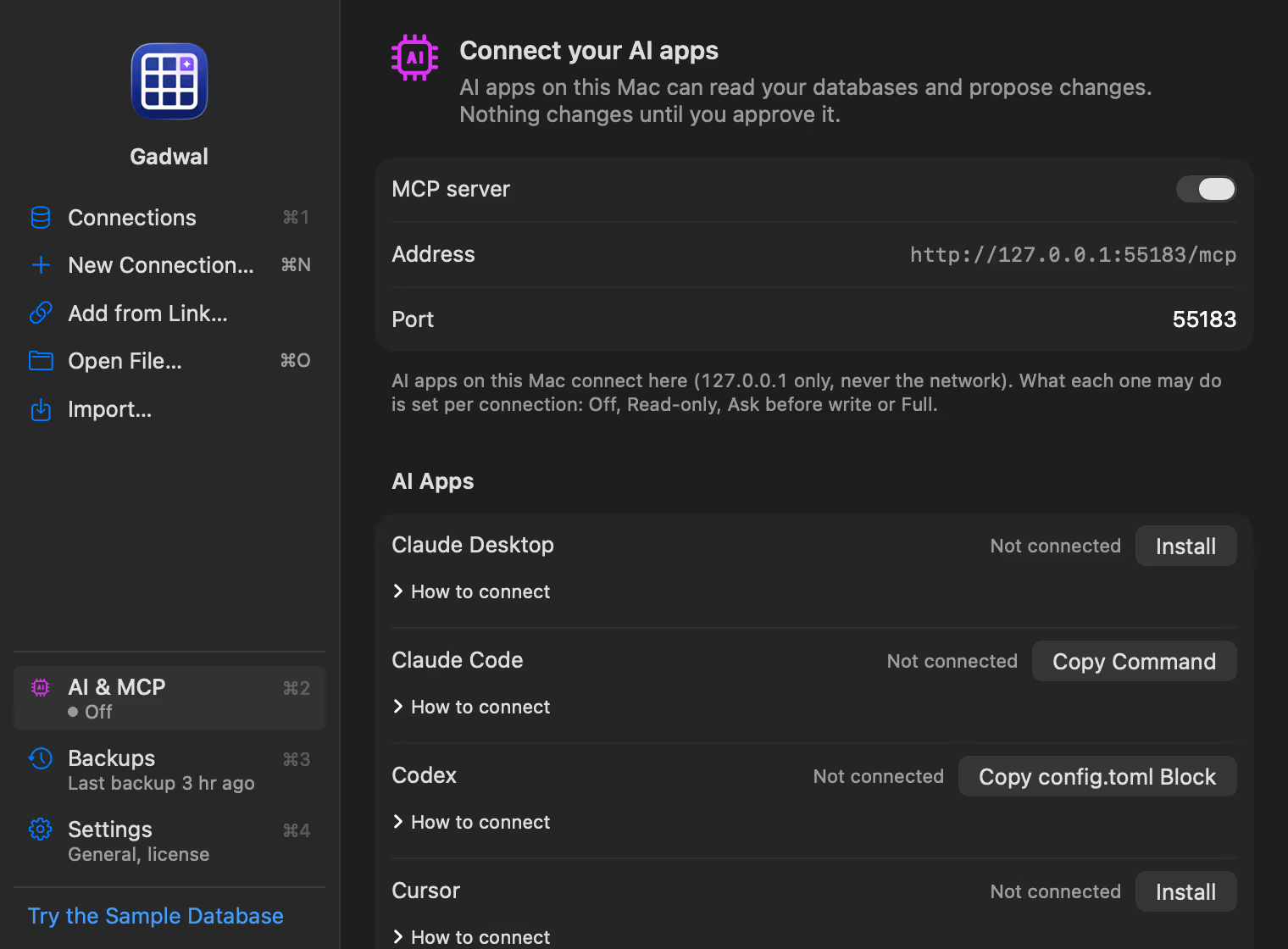
Home › AI & MCP (⌘2): the server switch, its address, and one row per AI app with its button and “How to connect”.
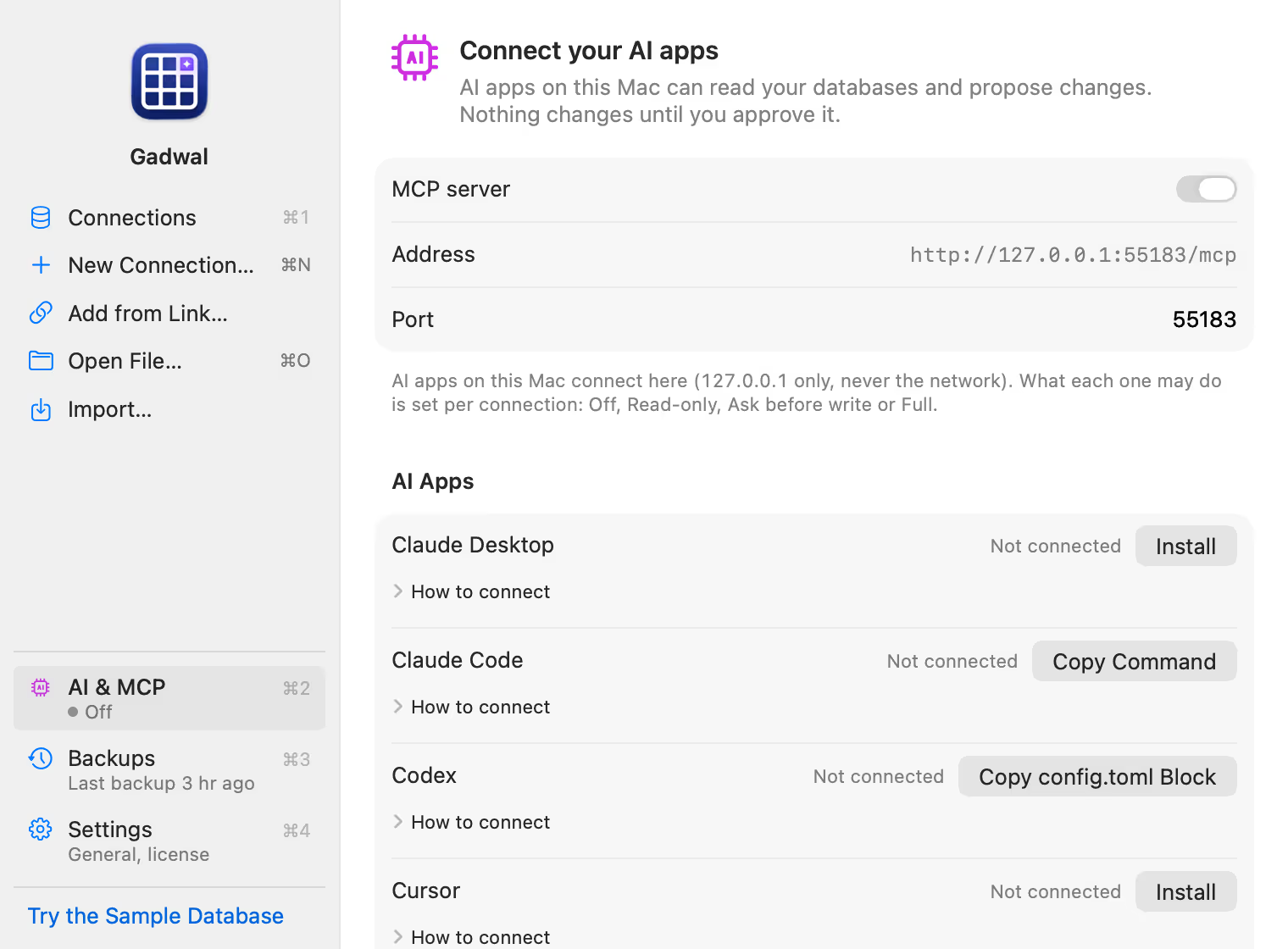
Home › AI & MCP (⌘2): the server switch, its address, and one row per AI app with its button and “How to connect”.
The server speaks Streamable HTTP at http://127.0.0.1:55183/mcp. It is off until you turn it on, listens on this Mac only and refuses requests from web pages. Under AI Apps each app has a status (Not connected, Token issued · no calls yet, or Connected · last call 2 min ago), one button, and a How to connect list with the exact steps.
Pick your AI app
| AI app | Button in Gadwal |
|---|---|
| Claude Desktop | Install |
| Claude Code | Copy Command |
| Cursor | Install |
| VS Code (GitHub Copilot) | Install |
| Codex | Copy config.toml Block |
| Other MCP clients | Copy JSON |
What the AI can do there
It depends on each connection’s AI level:
- Off: the AI can’t see the connection.
- Read-only: reads run in a read-only session; writes are refused with an explanation. Production connections start here.
- Ask before write: writes become pending changes in Gadwal’s Review list, with the exact SQL. You approve or reject, and the AI is told. Local, Development and Staging connections start here.
- Full: writes run right away and are logged.
At every level, destructive statements (DROP, TRUNCATE, DELETE or UPDATE without a WHERE, and similar) wait for your approval, and Gadwal backs up the affected tables before they run. BigQuery uses its built-in 7-day time travel instead. Read AI levels and hidden columns and How AI review works.
Results sent to the AI are capped at 200 rows by default (change it under Rows returned to AI), 2 KB per cell and 256 KB per answer.
Good to know
- Gadwal must be running. The server lives inside the app.
- AI tools are part of the 14-day trial and the lifetime unlock.
- Web apps such as ChatGPT.com and Claude.ai run in the cloud and can’t reach a server on your Mac. Use Codex, Claude Desktop or Claude Code.
- Every call appears in AI Activity… on the AI & MCP page. See Security and privacy.