FeedShine Google Shopping Feed
Grow sales on Google and beyond. Fix your Shopify product feeds and optimize every field in chat.
Hosted MCP Server
npx add-mcp 'https://feedshine.app/mcp'Installs into Claude Code, Codex, Cursor and more
Documentation
Connect AI assistants
On paid plans you can connect Claude, ChatGPT, Cursor or any other MCP client to the app. Once connected, you can ask the assistant to review feed settings, preview products, adjust attributes or run a feed, all from chat.
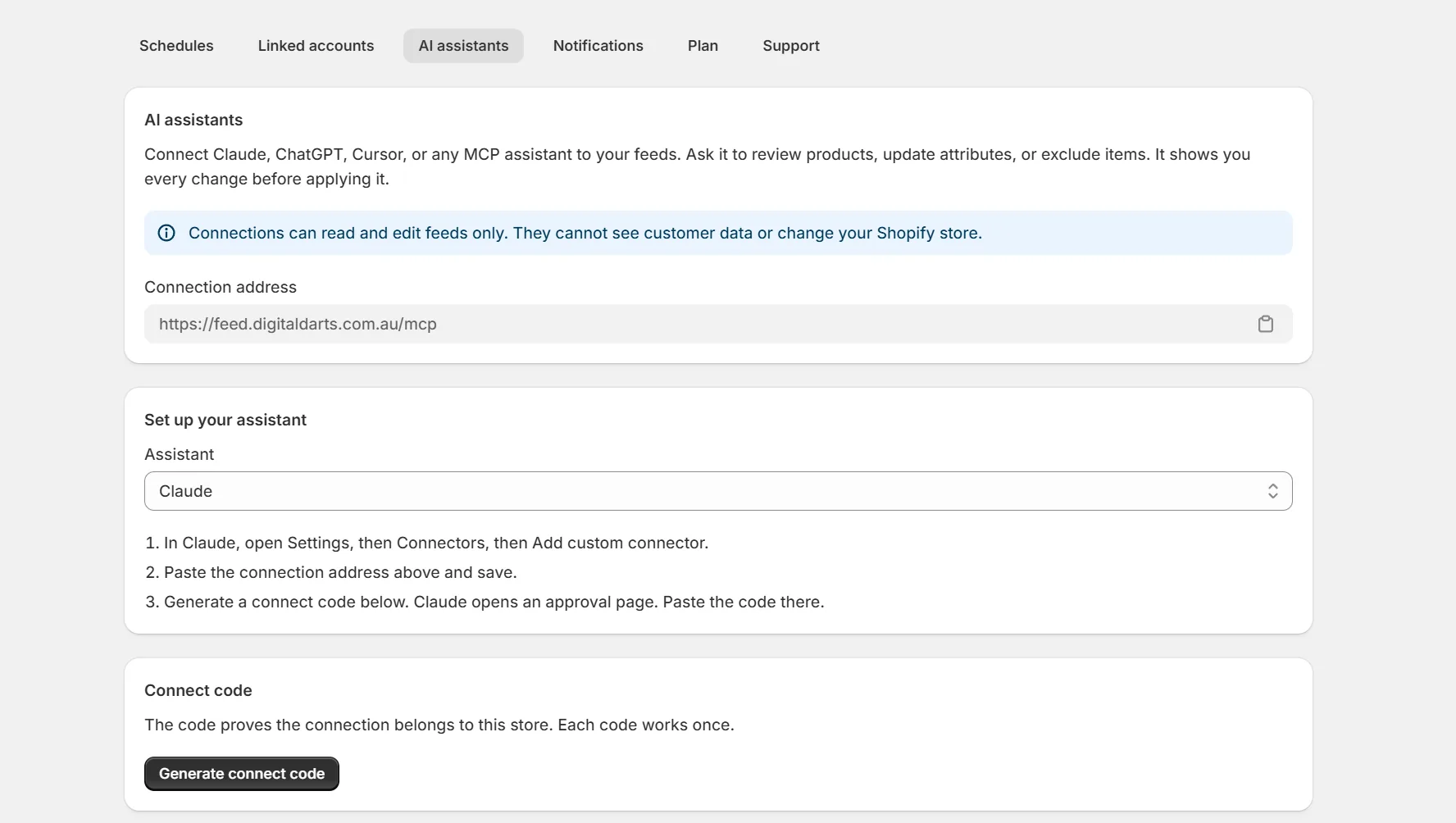
AI assistants settings with the Claude directory steps, connect code button and an active connection
Every assistant approves its connection with a connect code from the app's AI assistants settings page. The code proves the connection belongs to your store. Each code works once and expires after 10 minutes. Claude finds the app in its directory. Other assistants also need the connection address shown on the same page.
Claude
- Connect from the Claude directory Open the FeedShine listing in the Claude directory and click Connect. You can also find it in Claude under Settings, then Connectors.
- Approve with your code Claude opens an approval page. In the app, press Generate connect code and paste the code there. The connection appears in your settings list.
Claude Code
Run this command in your terminal.
claude mcp add --transport http feedshine https://feedshine.app/mcp
Start a chat and approve the connection when prompted. Paste a connect code on the approval page that opens.
ChatGPT
- Open the connector settings In ChatGPT, open Settings, then Connectors. Turn on developer mode under Advanced if custom connectors are hidden.
- Add the connector Add a new connector with the connection address from the app.
- Approve with your code Generate a connect code in the app and paste it on the approval page.
Cursor
Add this to your mcp.json file, then restart Cursor and approve the connection with a connect code.
{
  "mcpServers": {
    "feedshine": {
      "url": "https://feedshine.app/mcp"
    }
  }
}
Other MCP clients
The app is a standard remote MCP server. Any client that supports remote servers with OAuth can connect. Add the connection address, let the client register itself, and approve with a connect code.
Troubleshooting
- Code expired or already used. Codes work once and last 10 minutes. Generate a new one and try again.
- Connected to the wrong store. Revoke the connection in that store's settings, then connect again with a code from the right store.
- The assistant says AI assistant access isn't available. Your current plan no longer includes AI connections. Upgrade to reconnect.
- The connector shows no tools. Remove it in your assistant and add it again with a fresh code.
- The assistant reports a rate limit. Wait a minute and continue.
Safety
- Edits made by an assistant follow a preview then confirm flow.
- Plan rules apply to assistants exactly as they do in the app.
- Revoke any connection at any time from the settings page. Uninstalling the app revokes all connections.
Related articles
- What connected AI assistants can do
- Prompts for your AI assistant
- Ask Shopify Sidekick about your feed
- Data, privacy and security
- Optimize your Google Shopping feed
Still stuck?
Reach us on the support page or use the support form in the app under Settings. Support hours are 9am to 5pm Monday to Friday, Adelaide time.