Chartbrew MCP
Chartbrew + AI agents. MCP server exposing Chartbrew's documented API: teams, connections, datasets, dashboards, charts, live queries, and secure embedding. TypeScript · stdio · restricted/unrestricted tool modes.
Documentation

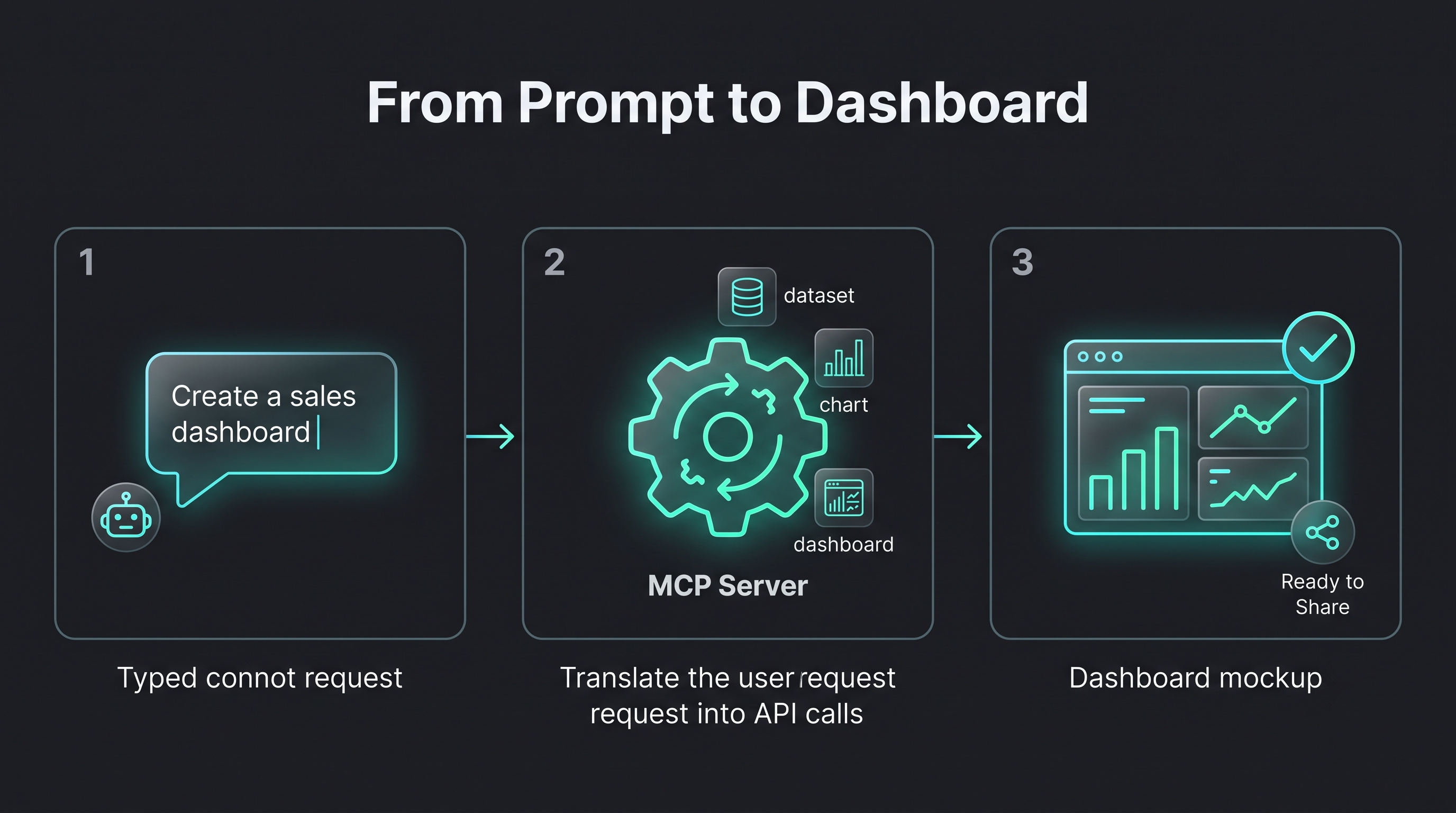
The Chartbrew MCP server exposes Chartbrew's documented API to AI coding agents and MCP-compatible clients — letting them list and inspect teams, connections, datasets, dashboards, and charts, run live queries, fetch data, manage share policies/tokens for secure embedding, and create or update resources, all through natural language.
Chartbrew MCP Server
TypeScript MCP server built on the official MCP SDK for documented Chartbrew API endpoints.


Showcase
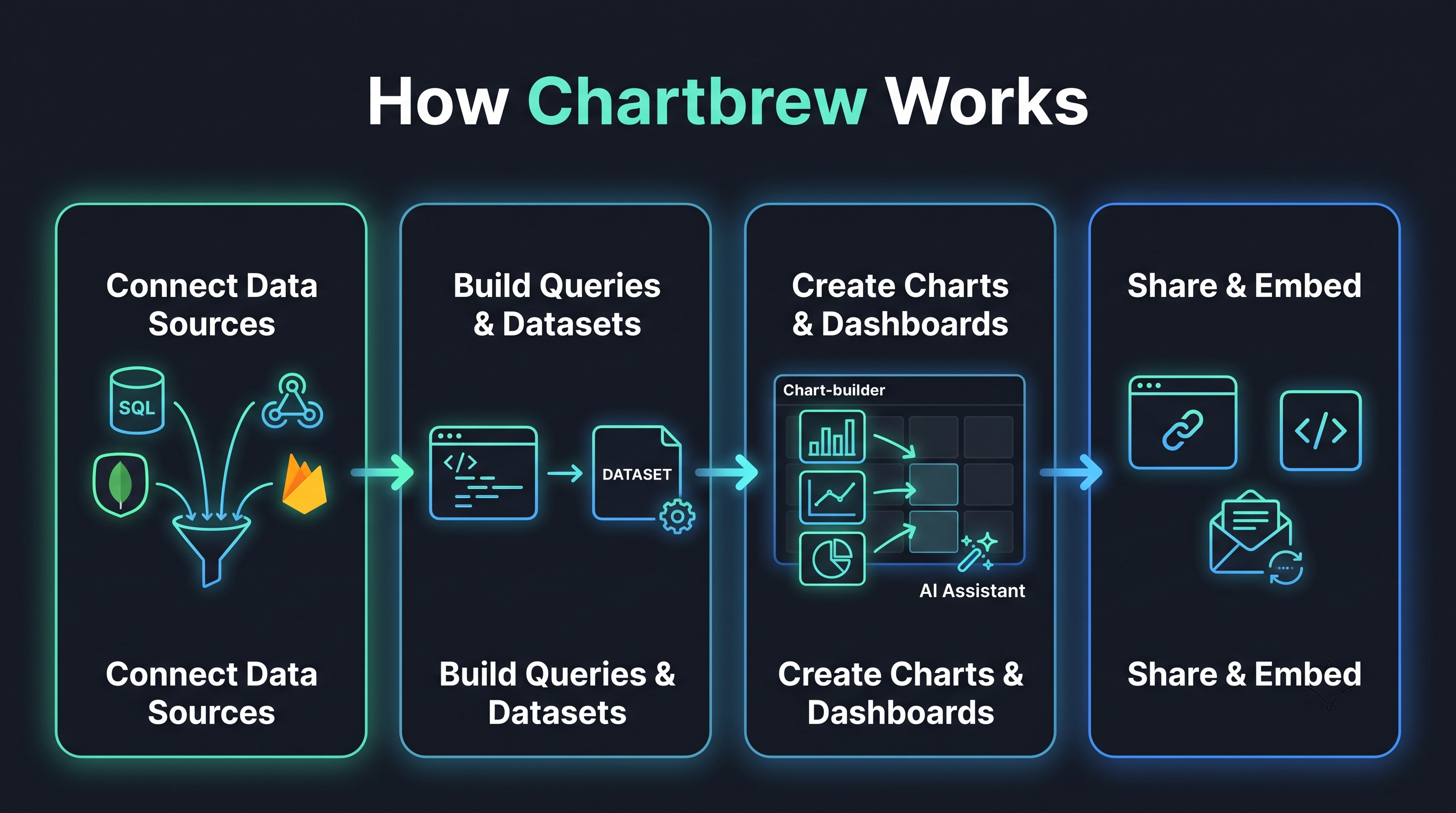
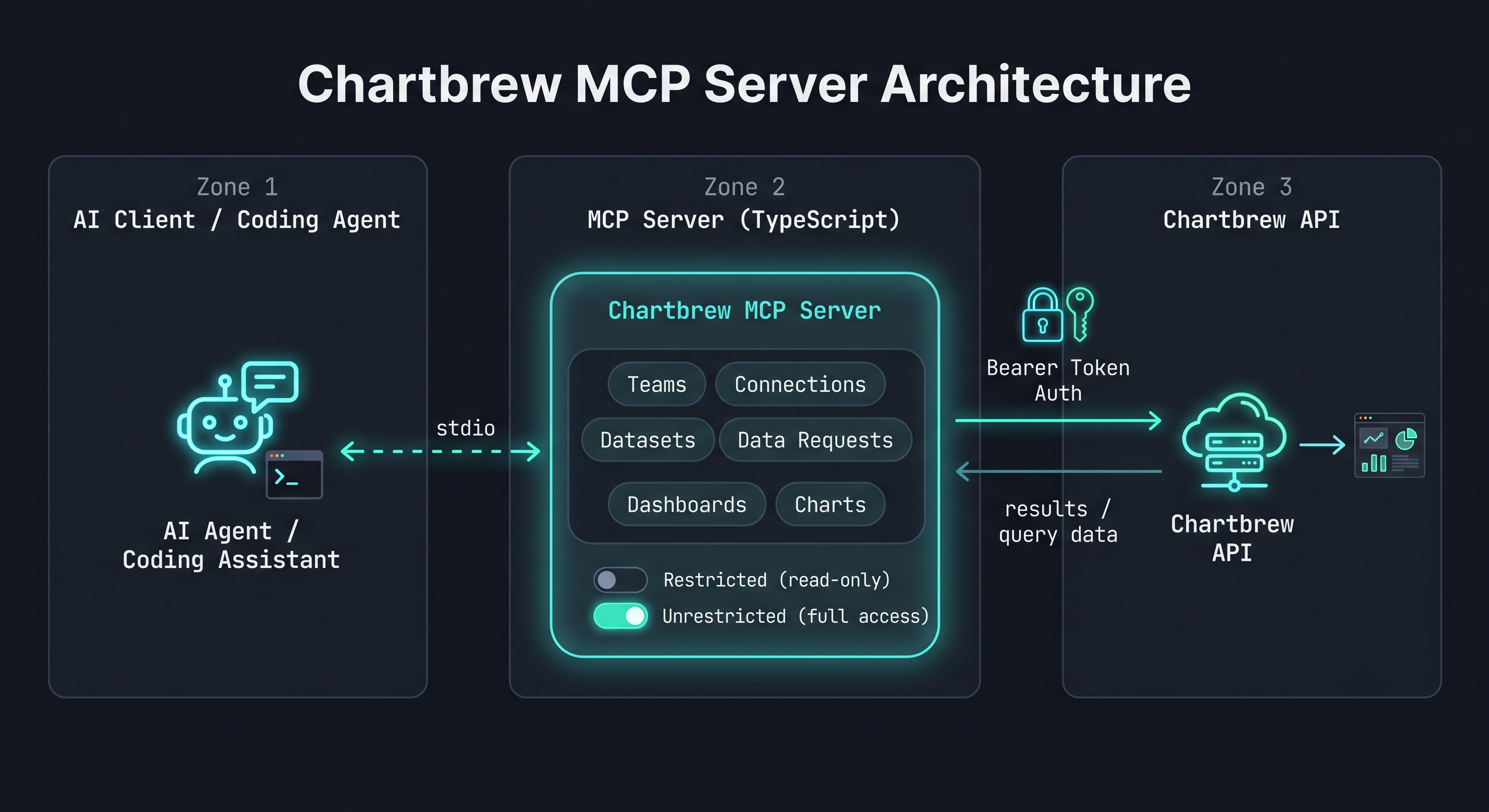
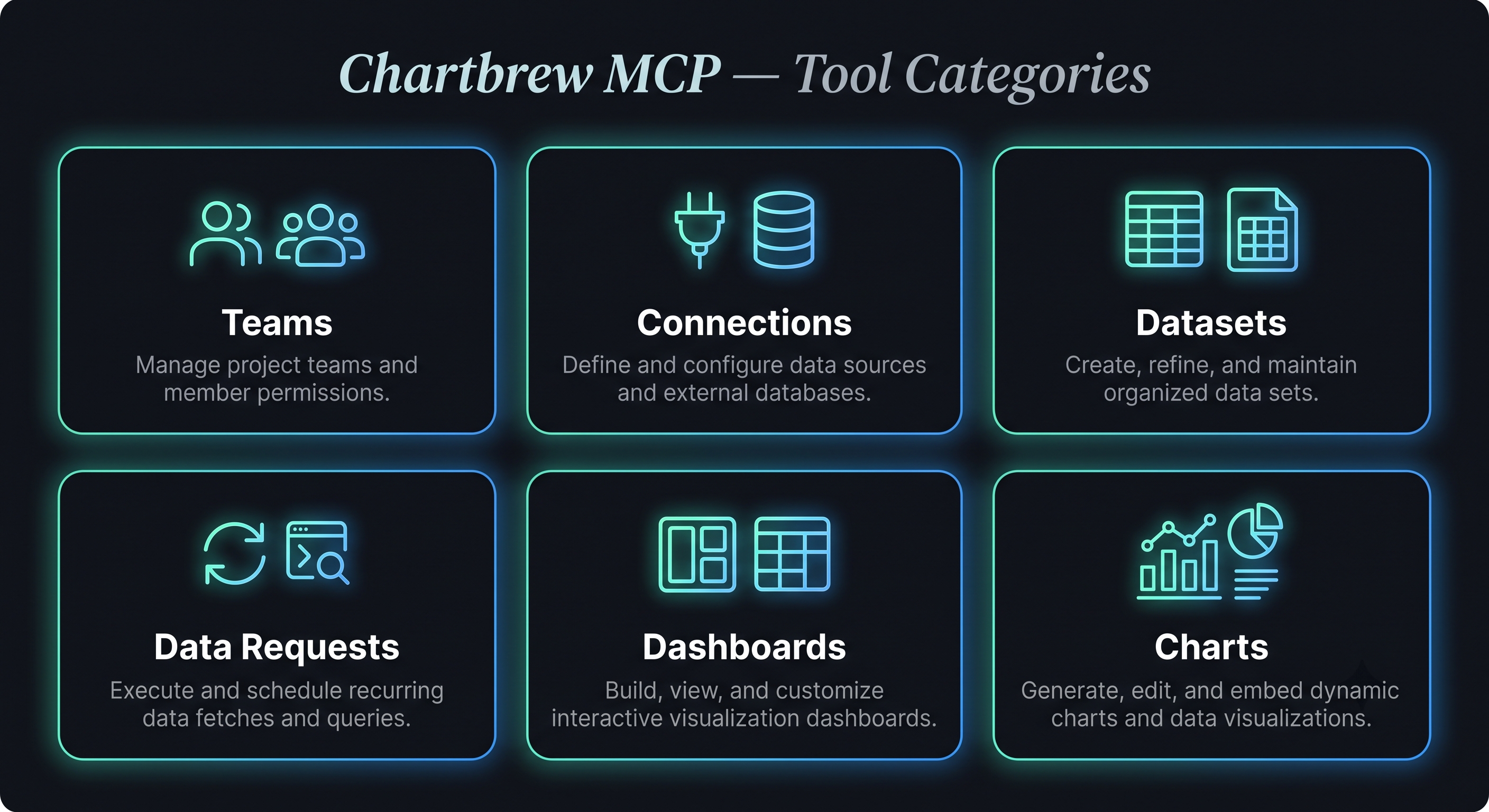
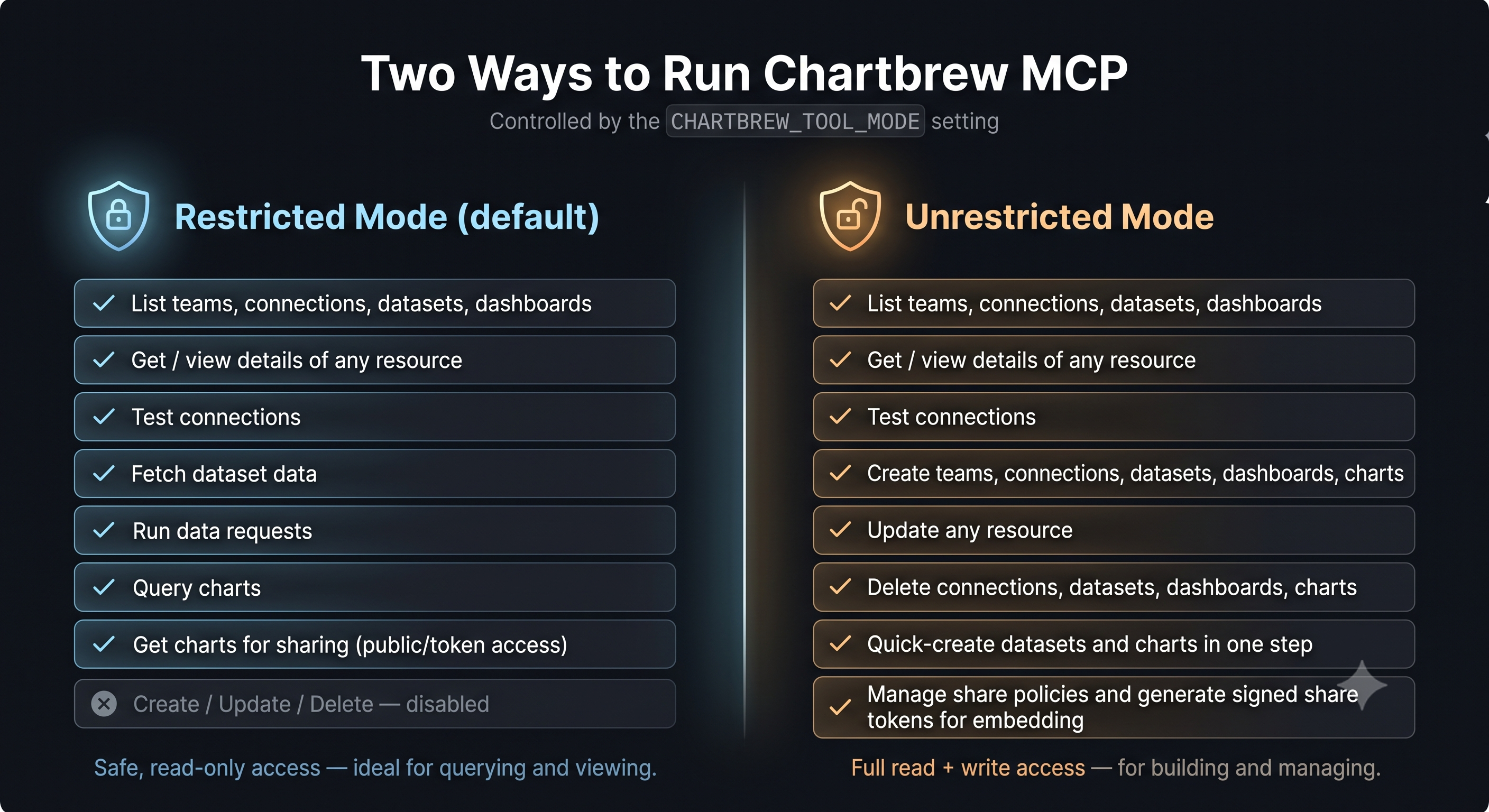
Chartbrew MCP in action — managing analytics resources through natural language.
 |  |  |
 |  |  |
Prerequisites
- Node.js and npm installed (used to install dependencies and build the server).
- A Chartbrew API key — create one in your Chartbrew account (cloud or self-hosted). See How to create API keys in Chartbrew.
- For a self-hosted Chartbrew instance, the API base URL of that instance (default
http://localhost:4019). - An MCP-compatible client to host the server (e.g. Claude Code, Claude Desktop, Cursor, VS Code, Codex, GitHub Copilot, OpenCode, Kimi Code).
Scope
This server only implements operations documented in the official Chartbrew API reference and avoids undocumented behavior.
Implemented resources:
- Teams: list, get
- Connections: list, get, test, create, update, delete
- Datasets: list, get, fetch data, create, update, delete
- Data Requests: list, run
- Dashboards (projects): list, get, create, update, delete
- Charts: get, create, query, delete
Not implemented in this version:
- Variable binding create/update endpoints
These can be added later if needed.
Authentication
Chartbrew API docs specify Bearer token authentication.
Required header used by this server:
- Authorization: Bearer <CHARTBREW_API_KEY>
Configuration Options
| Variable | Description | Required |
|---|---|---|
CHARTBREW_API_KEY | Chartbrew API key used for Bearer token authentication | Yes |
CHARTBREW_API_BASE_URL | API base URL. Use https://api.chartbrew.com for an official Chartbrew cloud account, or your self-hosted URL (default http://localhost:4019; change the port if yours differs) | No (default: https://api.chartbrew.com) |
CHARTBREW_REQUEST_TIMEOUT_MS | Request timeout in milliseconds to prevent hanging requests | No (default: 30000) |
CHARTBREW_TOOL_MODE | Tool exposure mode. Allowed values: restricted, unrestricted. If unset or set to any value other than unrestricted, the server runs in restricted mode | No (default: restricted) |
Tool mode behavior:
- unrestricted: all implemented tools are available.
- restricted: only data-retrieval/query tools are available (list/get/fetch/query/run/test). Create/update/delete tools are disabled.
You can provide these values in either of two ways (pick one):
.envfile in thismcpfolder — copy.env-templateto.envand fill in the values. The server auto-loads it on startup.- The
envblock of your coding agent's MCP config — set the variables directly in theenvobject of the server entry (e.g..mcp.jsonfor Claude Code, or the equivalent MCP config for Codex, GitHub Copilot, OpenCode, Kimi Code, etc.). Use this when you don't want a local.envfile.
Install
-
Change directory to
mcp. -
Install dependencies:
npm install -
Build:
npm run build -
Run
npm start
The server uses stdio transport and is intended to be launched by an MCP client host.
Standalone binary (no Node.js required)
Prefer not to install Node.js? Download a prebuilt binary from the Releases page and run it directly. Binaries are provided for:
| OS | x64 (Intel/AMD) | arm64 (Apple Silicon / ARM) |
|---|---|---|
| Windows | chartbrew-mcp-windows-x64.exe | chartbrew-mcp-windows-arm64.exe |
| Linux | chartbrew-mcp-linux-x64 | chartbrew-mcp-linux-arm64 |
| macOS | chartbrew-mcp-darwin-x64 | chartbrew-mcp-darwin-arm64 |
Setup:
Releases include both raw binaries and compressed archives (.zip for Windows, .tar.gz for Linux/macOS) — grab the archive for a smaller download, then extract it.
- Windows: download
chartbrew-mcp-windows-x64.zip(orarm64), extract, run the.exe. - macOS / Linux: download e.g.
chartbrew-mcp-darwin-arm64.tar.gz, extract, then make it executable once:chmod +x chartbrew-mcp-darwin-arm64 - macOS Gatekeeper: if macOS blocks the unsigned binary, remove the quarantine attribute:
xattr -d com.apple.quarantine chartbrew-mcp-darwin-arm64
You do not need a .env file — set configuration through your MCP client's env block (or the OS environment). Example for Claude Desktop / Claude Code (.mcp.json or claude_desktop_config.json):
{
  "mcpServers": {
    "chartbrew": {
      "command": "/absolute/path/to/chartbrew-mcp-darwin-arm64",
      "env": {
        "CHARTBREW_API_KEY": "your-api-key",
        "CHARTBREW_API_BASE_URL": "https://api.chartbrew.com",
        "CHARTBREW_TOOL_MODE": "restricted"
      }
    }
  }
}
Build the binaries yourself
From a checkout, install Bun (the compiler), then:
npm install
npm run build:bin   # writes binaries to dist-bin/
Full setup, Bun install commands, and the Windows cross-compile caveat are in CONTRIBUTING.md.
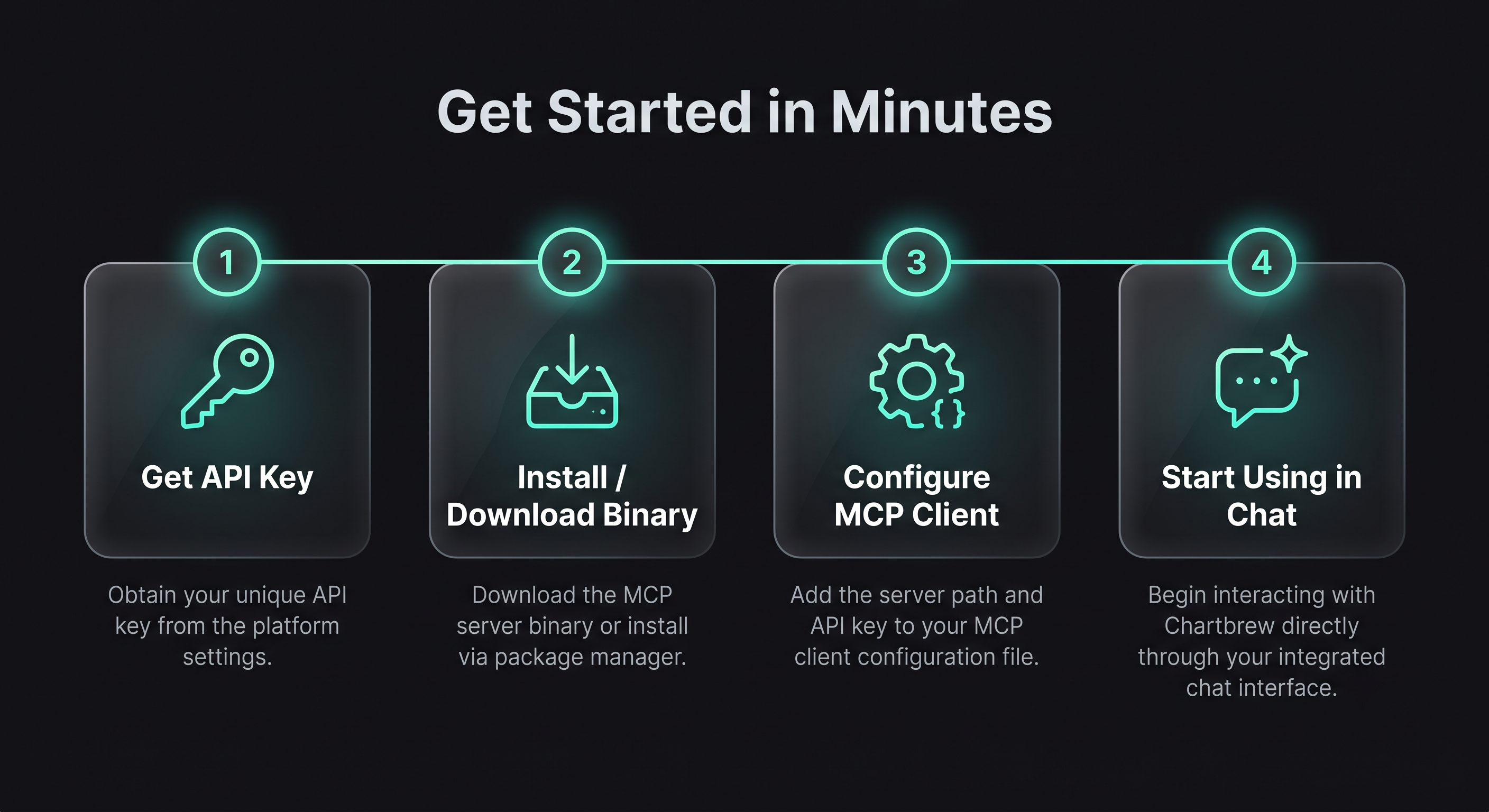
Add to an MCP client
After npm install and npm run build, register the server with your MCP host. The server runs over stdio via node dist/index.js. Replace <ABSOLUTE_PATH_TO_MCP_DIR> with the absolute path to this mcp directory and set your API key.
Claude Code CLI (claude mcp add)
If you use Claude Code, you can register the server directly from the terminal instead of editing a config file:
claude mcp add chartbrew \
  -e CHARTBREW_API_KEY=your-api-key \
  -e CHARTBREW_API_BASE_URL=https://api.chartbrew.com \
  -e CHARTBREW_TOOL_MODE=restricted \
  -- node <ABSOLUTE_PATH_TO_MCP_DIR>/dist/index.js
- Use
http://localhost:4019forCHARTBREW_API_BASE_URLon a self-hosted instance (change the port if yours differs). - Add
-s user(or-s project) to control the scope the server is registered in. - Verify with
claude mcp list; remove withclaude mcp remove chartbrew.
Claude Desktop / Claude Code (claude_desktop_config.json or .mcp.json)
{
  "mcpServers": {
    "chartbrew": {
      "command": "node",
      "args": ["<ABSOLUTE_PATH_TO_MCP_DIR>/dist/index.js"],
      "env": {
        "CHARTBREW_API_KEY": "your-api-key",
        "CHARTBREW_API_BASE_URL": "https://api.chartbrew.com",
        "CHARTBREW_TOOL_MODE": "unrestricted"
      }
    }
  }
}
Cursor / VS Code (settings UI → MCP servers)
{
  "mcpServers": {
    "chartbrew": {
      "command": "node",
      "args": ["<ABSOLUTE_PATH_TO_MCP_DIR>/dist/index.js"],
      "env": {
        "CHARTBREW_API_KEY": "your-api-key"
      }
    }
  }
}
API base URL: use
https://api.chartbrew.comfor an official Chartbrew cloud account. For a self-hosted instance use your local URL — defaulthttp://localhost:4019(change the port if yours differs).
Notes:
CHARTBREW_API_KEYis required. See How to create API keys in Chartbrew.- The MCP host launches the server; it does not need to be run manually.
- The default tool mode is
restricted(read/query only). SetCHARTBREW_TOOL_MODE: "unrestricted"to also enable create/update/delete tools. - Alternatively, set the env vars in a
.envfile in themcpdirectory and omit theenvblock.
Available Tools
| Tool | Category | Description |
|---|---|---|
chartbrew_teams_list | Teams | List teams available to the authenticated API key |
chartbrew_teams_get | Teams | Get details for one team by team_id |
chartbrew_teams_create | Teams | Create a new team; owner is derived from the authenticated API key |
chartbrew_teams_update | Teams | Update an existing team by team_id |
chartbrew_connection_providers_list | Connections | List all supported connection providers |
chartbrew_connections_schema_get | Connections | Get the schema structure for a specific connection |
chartbrew_connections_list | Connections | List all connections in a team |
chartbrew_connections_get | Connections | Get one connection by connection_id |
chartbrew_connections_test | Connections | Run the Chartbrew connection test for a team connection |
chartbrew_connections_create | Connections | Create a new connection in a team |
chartbrew_connections_update | Connections | Update an existing connection |
chartbrew_connections_update_files | Connections | Upload SSL CA/cert/key files (base64) for a connection via multipart — for PostgreSQL/MySQL SSL/TLS auth |
chartbrew_connections_delete | Connections | Delete a connection; optionally remove linked datasets |
chartbrew_datasets_list | Datasets | List datasets for a team |
chartbrew_datasets_get | Datasets | Get one dataset by dataset_id |
chartbrew_datasets_fetch_data | Datasets | Run a dataset request and return the dataset data |
chartbrew_datasets_create | Datasets | Create a new dataset in a team |
chartbrew_datasets_quick_create | Datasets | Create a dataset and all its data requests in a single call |
chartbrew_datasets_update | Datasets | Update an existing dataset by dataset_id |
chartbrew_datasets_delete | Datasets | Delete a dataset |
chartbrew_data_requests_list | Data Requests | List data requests for a dataset |
chartbrew_data_requests_run | Data Requests | Execute one dataset data request |
chartbrew_dashboards_list | Dashboards | List dashboards for a team |
chartbrew_dashboards_get | Dashboards | Get dashboard details by project_id |
chartbrew_dashboards_create | Dashboards | Create a new dashboard (Project); private by default |
chartbrew_dashboards_update | Dashboards | Update an existing dashboard by project_id |
chartbrew_dashboards_delete | Dashboards | Delete a dashboard by project_id |
chartbrew_dashboards_create_share_policy | Dashboards | Create a share policy for secure sharing via signed URLs |
chartbrew_dashboards_update_share_policy | Dashboards | Update a dashboard share policy (params, allow_params, expiration) |
chartbrew_dashboards_delete_share_policy | Dashboards | Delete a share policy for a dashboard |
chartbrew_dashboards_generate_share_token | Dashboards | Generate a signed JWT for secure dashboard embedding |
chartbrew_charts_get | Charts | Get a chart by project_id and chart_id |
chartbrew_charts_create | Charts | Create a chart inside a dashboard project |
chartbrew_charts_quick_create | Charts | Create a chart and its chart dataset configurations in a single call |
chartbrew_chart_dataset_configs_create | Charts | Attach a dataset to a chart via ChartDatasetConfig |
chartbrew_chart_dataset_configs_update | Charts | Update an existing ChartDatasetConfig by cdc_id |
chartbrew_chart_dataset_configs_delete | Charts | Delete a ChartDatasetConfig by cdc_id |
chartbrew_charts_query | Charts | Run the chart query endpoint and return result data |
chartbrew_charts_delete | Charts | Delete a chart by project_id and chart_id |
chartbrew_charts_create_share_policy | Charts | Create a share policy for a chart for secure embedding |
chartbrew_charts_update_share_policy | Charts | Update a chart share policy (params, allow_params, expiration) |
chartbrew_charts_delete_share_policy | Charts | Delete a share policy for a chart |
chartbrew_charts_generate_share_token | Charts | Generate a signed JWT for secure chart embedding |
chartbrew_charts_get_for_sharing | Charts | Retrieve a chart for embedding via public access or SharePolicy token |
Known documentation limitations reflected in implementation
- ID types are inconsistent in docs (number vs string), so tool inputs accept strings.
- Some create/update payload required fields are not consistently documented, so payload is typed as flexible object.
- Dataset fetch filters query-object encoding is undocumented; this server sends object values as JSON strings.
- Error response schemas vary by endpoint; parser handles both error and message fields when available.