BoardRepo
Search and review KiCad and Altium PCB projects through a read-only OAuth MCP server.
Documentation
Connect AI
Your AI, working on your hardware.
Save your assistant’s work, inspect the board, and continue in KiCad.
Claude ChatGPT Cursor Gemini
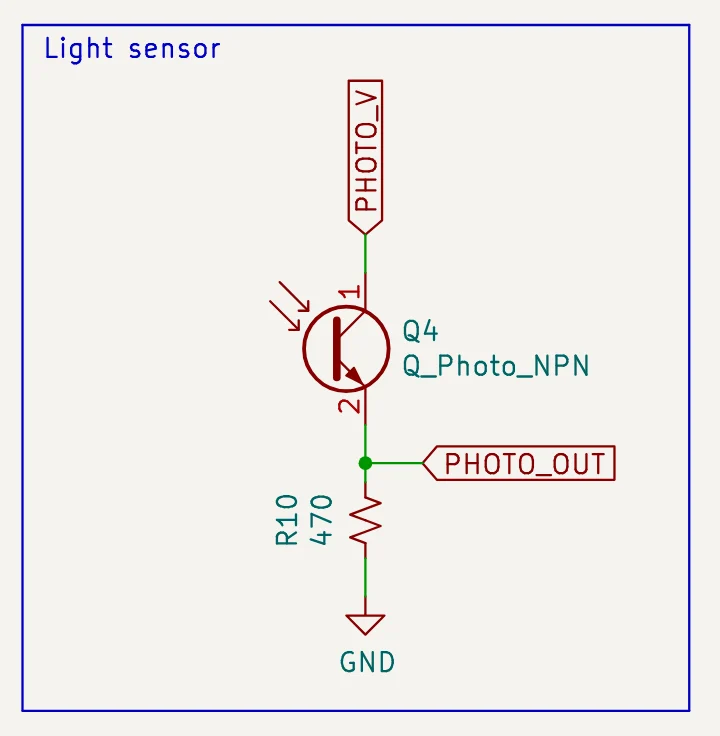
An example conversation with BoardRepo in an AI assistant: it finds the open-source b-parasite soil sensor and shows its schematic, PCB and 3D view; explains how its moisture sensing circuit works; then changes R10 from 470 Ω to 4.7 kΩ to make the light sensor more sensitive and saves a copy to the user's workspace.
Share•••
 BoardRepo find an open-source soil moisture sensor with Bluetooth that runs on a coin cell
Searching Open-Source Boards
BoardRepo
b-parasiterbaron · ★ 2.4kSchematicPCB3D
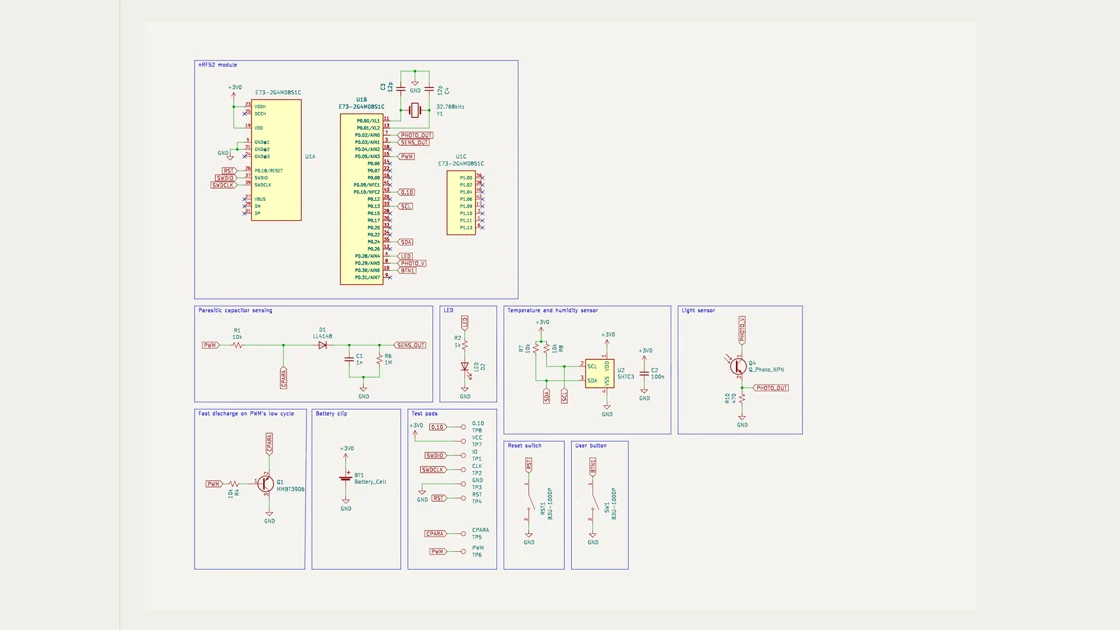
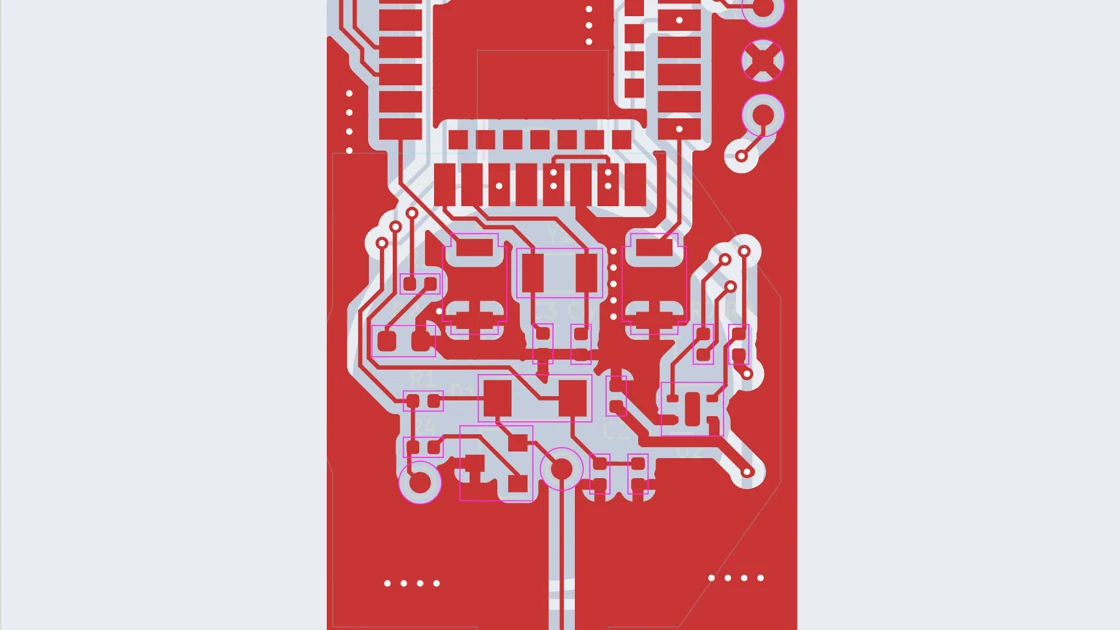 InspectMeasureFitLayers
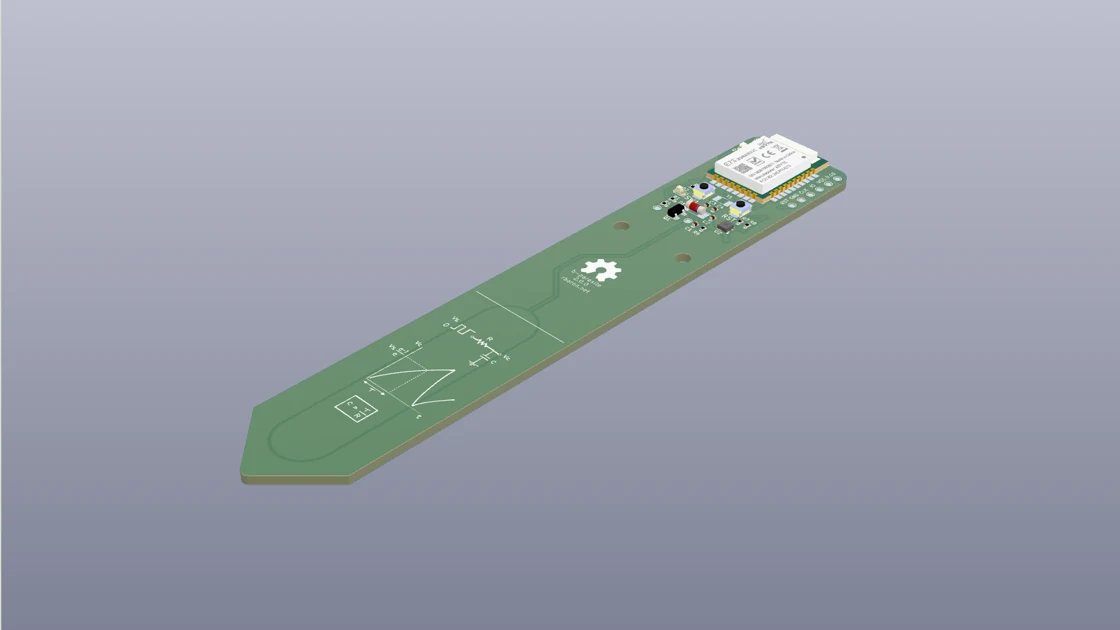 FitViewLightScale
b-parasite fits all three: an nRF52 Bluetooth module, a CR2032 holder, and 2.4k stars on GitHub.
How does it actually sense moisture?
Reading the b-parasite Schematic
BoardRepo
SchematicParasitic capacitor sensing
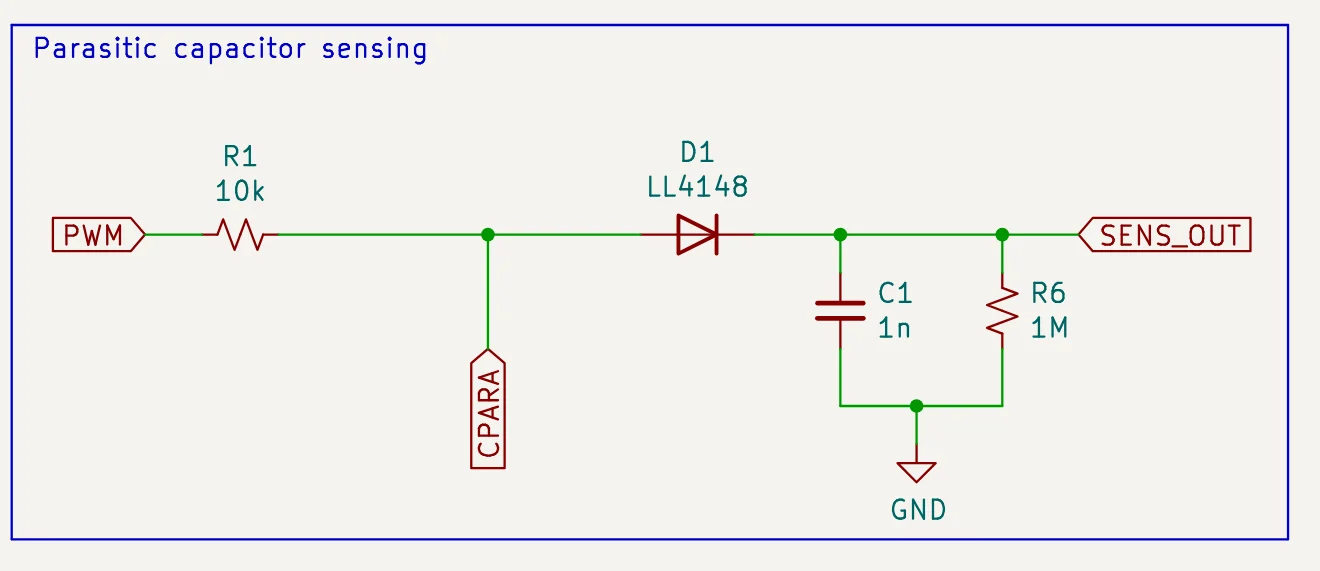
- R1Square wave in from P0.05
- CPARAProbe traces: wetter soil, more capacitance
- D1 C1 R6Hold the peak, lower when wetter
- SENS_OUTRead on P0.03
My plants are on a dim shelf. Make the light sensor more sensitive and save it to my workspace.
Editing R10 and Saving a Copy
BoardRepo
SchematicLight sensor
 4.7k
4.7k
R10470 Ω→4.7 kΩ
About 10× the signal in dim light
Save to my workspaceSaved · v1you/b-parasite
Saved as you/b-parasite v1, based on rbaron / b-parasite. R10 is now 4.7 kΩ and nothing else changed.
+Ask anything↑
R10470 Ω→4.7 kΩSaved · v1you/b-parasite
Example conversation · Saving requires your explicit write consent · b-parasite by rbaron, CC BY-SA 4.0
Answers grounded in the design.
Bring a BoardRepo link to the assistant you already use. It can follow connections, read component values, and inspect source files alongside you.
-
Find a starting point
Search real open hardware by what you want to build.
“Find a Bluetooth soil moisture sensor that runs on a coin cell.”
-
Understand the circuit
Trace a signal through the schematic, with parts and nets to inspect.
“How does b-parasite measure soil moisture? Show me the signal path.”
-
Check before you build
Review the BOM and run design checks before ordering parts or boards.
“Run the available design checks and explain what I should review.”
Example questions to try after connecting. Start with b-parasite by rbaron.
Keep the work after the conversation.
With explicit save permission and a client that can prepare and upload project files, your assistant can create a personal board or save a new version of one you own. A read connection cannot publish.
Inspect the saved version in the browser, compare revisions where available, then download the source or use BoardRepo for KiCad to continue in the editor. Separately approved organization access lets an assistant read shared context; organization writes are not part of the save permission. The live tool list and consent screen describe your connection's capabilities.
Connect your assistant
Your assistant reads the designs themselves: schematics, nets, BOMs, and source files. That covers every public board and the ones you store here, including private ones.
Let your agent set it upCopy prompt
Add the BoardRepo MCP server so you can search and read hardware boards for me.

It is a remote HTTP MCP server at https://boardrepo.com/mcp. Search and read public KiCad and Altium boards, their BOMs, schematics, and 3D views. Read access is the default. Saving boards, when available, requires my explicit write consent; set up read access for this request. Auth is OAuth via dynamic client registration, so there is no API key or secret to set.

Run the right command for my MCP client, then start the OAuth sign-in and tell me once it is connected. For Claude Code that is:
claude mcp add --scope user --transport http boardrepo https://boardrepo.com/mcp

If that command is not recognized, use my client's own way of adding a remote or HTTP MCP server with that URL.
Paste it into Claude Code, Cursor, Codex, Gemini CLI, or any coding agent, and it adds BoardRepo and signs you in for you.
Or paste this URL, no client ID or secret neededCopy URL
https://boardrepo.com/mcp
ClaudeWeb + desktop
Add BoardRepo to Claude (opens in a new tab)
Opens BoardRepo in Claude's connector directory. Press Connect, approve BoardRepo access, then ask Claude to search BoardRepo or to read a board's schematic and BOM. A connector belongs to your account rather than to one app, so it works in Claude on the web, in the desktop app, and on mobile without setting it up again.
Set it up by hand instead
- In Claude.ai or Claude Desktop, open Settings → Connectors → Add custom connector.
- Name it BoardRepo, paste
https://boardrepo.com/mcp, and click Add. - Click Connect, sign in to BoardRepo, review the access choice, and press** Allow**.
On a Team or Enterprise workspace, an Owner has to enable BoardRepo before members can connect it. Claude also limits free plans to one custom connector, which is the by-hand route above rather than the directory.
ChatGPTBetaWeb + desktop
- On a paid ChatGPT plan, open Settings → Connectors (or Apps & Connectors) → Advanced and turn on Developer mode.
- In Connectors, click Create, paste
https://boardrepo.com/mcpas the MCP server URL, and set Authentication to OAuth. - Create it, complete the BoardRepo sign-in, then turn the connector on in a chat to use it.
Developer mode is a beta feature on paid plans; on Business, Enterprise, and Edu an admin has to allow it. BoardRepo works as a chat connector. It will not show up as a Deep Research source, because it does not expose ChatGPT's search and fetch tools.
Claude CodeCLI
Run this once, then run /mcp and approve the browser sign-in:
claude mcp add --scope user --transport http boardrepo https://boardrepo.com/mcp
Drop --scope user to add it to the current project only.
OpenAI CodexCLI
Add the server, then start the OAuth login:
codex mcp add boardrepo --url https://boardrepo.com/mcp codex mcp login boardrepo
Remote MCP over OAuth is recent in Codex. If codex mcp add or codex mcp login is not recognized, update Codex (check codex --version).
CursorIDE
Add BoardRepo to Cursor
Cursor opens and asks you to sign in to BoardRepo. Approve it once and you are connected.
Set it up by hand instead
Add this to ~/.cursor/mcp.json, then click Login when Cursor shows "Needs login":
{ "mcpServers": { "boardrepo": { "url": "https://boardrepo.com/mcp" } } }
VS Code (Copilot)IDE
Add BoardRepo to VS Code (opens in a new tab)
VS Code opens and asks you to Allow the sign-in. Then, in Chat, switch to Agent mode and turn on the BoardRepo tools.
Set it up by hand instead
- Command Palette → MCP: Add Server → HTTP, paste
https://boardrepo.com/mcp, name it, and choose Global or Workspace. - Start the server and Allow the sign-in. It writes:
{ "servers": { "boardrepo": { "type": "http", "url": "https://boardrepo.com/mcp" } } }
Needs GitHub Copilot. An organization policy can disable MCP.
Gemini CLICLI
Run this once, then approve the sign-in in your browser:
gemini mcp add --transport http boardrepo https://boardrepo.com/mcp
Set it up by hand instead
Add this to ~/.gemini/settings.json. Use httpUrl, not url, or streaming HTTP will not work:
{ "mcpServers": { "boardrepo": { "httpUrl": "https://boardrepo.com/mcp", "authProviderType": "dynamic_discovery" } } }
Gemini appUS onlyWeb
- At gemini.google.com, open Settings & help → Connected Apps →** Add a custom app**.
- Paste
https://boardrepo.com/mcp, continue, and approve the sign-in.
Currently limited to personal Google accounts, ages 18+, in the US, with Activity on.
OpenCodeCLI
Add it to your OpenCode config: opencode.json in the project, or the global ~/.config/opencode/opencode.json. OpenCode runs the OAuth sign-in for a remote server itself, so there is no key to paste:
{ "$schema": "https://opencode.ai/config.json", "mcp": { "boardrepo": { "type": "remote", "url": "https://boardrepo.com/mcp", "enabled": true } } }
WindsurfIDE
Open Settings → Cascade → MCP Servers → Add custom server and paste https://boardrepo.com/mcp.
Set it up by hand instead
Edit ~/.codeium/windsurf/mcp_config.json. Windsurf calls the field serverUrl, not url:
{ "mcpServers": { "boardrepo": { "serverUrl": "https://boardrepo.com/mcp" } } }
Windsurf should open the BoardRepo sign-in in your browser. If it does not, update Windsurf. Never type your BoardRepo password into an assistant.
LM StudioDesktop
Add BoardRepo to LM Studio
LM Studio opens and adds BoardRepo. The button needs 0.3.17 or newer; signing in from inside LM Studio needs 0.4.10 or newer.
Set it up by hand instead
Open the Program tab in the right sidebar, choose Install → Edit mcp.json, and add:
{ "mcpServers": { "boardrepo": { "url": "https://boardrepo.com/mcp" } } }
On an older build, or if LM Studio never asks you to sign in, use the fallback under "Any other MCP client" below, which runs the sign-in in your browser instead.
Any other MCP clientMCP
BoardRepo is a standard remote MCP server (Streamable HTTP) at https://boardrepo.com/mcp. Any MCP client that supports Streamable HTTP and OAuth dynamic client registration can connect with just this URL.
My client asks for a command to run, not a URL
Older clients cannot call a remote server directly. Run BoardRepo through the mcp-remote bridge instead: it sits on your machine, talks to us over the network, and opens the BoardRepo sign-in in your browser the first time you use it.
{ "mcpServers": { "boardrepo": { "command": "npx", "args": ["-y", "mcp-remote", "https://boardrepo.com/mcp"] } } }
Needs Node.js installed. The bridge is a third-party package, not published by BoardRepo.
Prefer to browse first? Head to the board library.
Sign in to BoardRepo
New here? Signing in creates your account; there is no separate sign-up.
{"@context":"https://schema.org","@type":"Organization","name":"BoardRepo","url":"https://boardrepo.com","logo":"https://boardrepo.com/brand/boardrepo-icon-512.png","description":"Share, view, and version electronics projects from KiCad and Altium, with more EDA tools on the way. Open the schematic, PCB, and BOM in the browser, no install.","contactPoint":[{"@type":"ContactPoint","contactType":"customer service","email":"hello@boardrepo.com","availableLanguage":"en"},{"@type":"ContactPoint","contactType":"security","email":"security@boardrepo.com","availableLanguage":"en"},{"@type":"ContactPoint","contactType":"privacy","email":"privacy@boardrepo.com","availableLanguage":"en"}]}