Naver Shopping Scraper: Korea Products & Prices (Apify Actor)
Search Naver Shopping (Korea) by keyword and get product rows: price, lowest price, seller count, mall, brand, reviews, rating, category IDs, ad flag and links. Price filter, sorting, up to 1,000 products per keyword; no login. $1.50 per 1,000 products, $0.004 per run start; not-found and error rows are free. Runs as an Apify Actor, callable from MCP clients via the Apify MCP server (https://mcp.apify.com/?tools=cliqtomedia/naver-shopping-scraper).
Hosted MCP Server
npx add-mcp 'https://mcp.apify.com/?tools=cliqtomedia/naver-shopping-scraper'Installs into Claude Code, Codex, Cursor and more
Documentation
Naver Shopping Scraper: Korea Products & Prices (cliqtomedia/naver-shopping-scraper) Actor
Track prices and compare products on Naver Shopping (Korea): search by keyword and get price, lowest price, seller count, mall, brand, reviews, rating, category IDs, ad flag and links. Price filter, sorting, up to 1,000 products per keyword. No login.
- URL: https://apify.com/cliqtomedia/naver-shopping-scraper.md
- Developed by: Cliqto Media (community)
- Categories: E-commerce, Marketing
- Features: Limited permissions
- Stats: 5 total users, 3 monthly users, 100.0% runs succeeded, 1 bookmarks
- User rating: No ratings yet
Pricing
from $1.30 / 1,000 products
This Actor is paid per event. You are not charged for the Apify platform usage, but only a fixed price for specific events. Since this Actor supports Apify Store discounts, the price gets lower the higher subscription plan you have.
Learn more: https://docs.apify.com/actors/running/actors-in-store.md#pay-per-event
What's an Apify Actor?
An Actor is a serverless cloud program that runs on the Apify platform. It has two run modes. In Batch mode, an Actor accepts a well-defined JSON input, performs an action which can take anything from a few seconds to a few hours, and optionally produces a well-defined JSON output, datasets with results, or files in key-value store. In Standby mode, an Actor provides a web server which can be used as a website, API, or an MCP server.
Apify vocabulary and the platform model are defined once, in the agent quickstart at https://apify.com/agents.md.
How to integrate an Actor?
If asked about integration, you help developers integrate Actors into their projects. You adapt to their stack and deliver integrations that are safe, well-documented, and production-ready.
Do not guess an integration path. Every one of them is in the agent quickstart at https://apify.com/agents.md: the Apify MCP server, Agent Skills with the Apify CLI, the JavaScript and Python clients, the REST API, and the account-free path for an agent with no human to sign in. It also carries the rule on stating cost before the first paid run.
For examples already wired to this Actor's own input schema, see the API section below.
Each client library has reference documentation the quickstart does not restate: JavaScript/TypeScript (npm install apify-client) and Python (pip install apify-client).
README
Search Naver Shopping (네이버 쇼핑), Korea's largest shopping search, by keyword and get one row per product with price, lowest price, seller count, mall, brand, reviews, rating, ad flag and links.
Use it for Korean price research, competitor and brand tracking, or product lists. The smallest run is one keyword: 무선 이어폰 gives 20 products in about 15 seconds. No login, no cookies or API key from you.
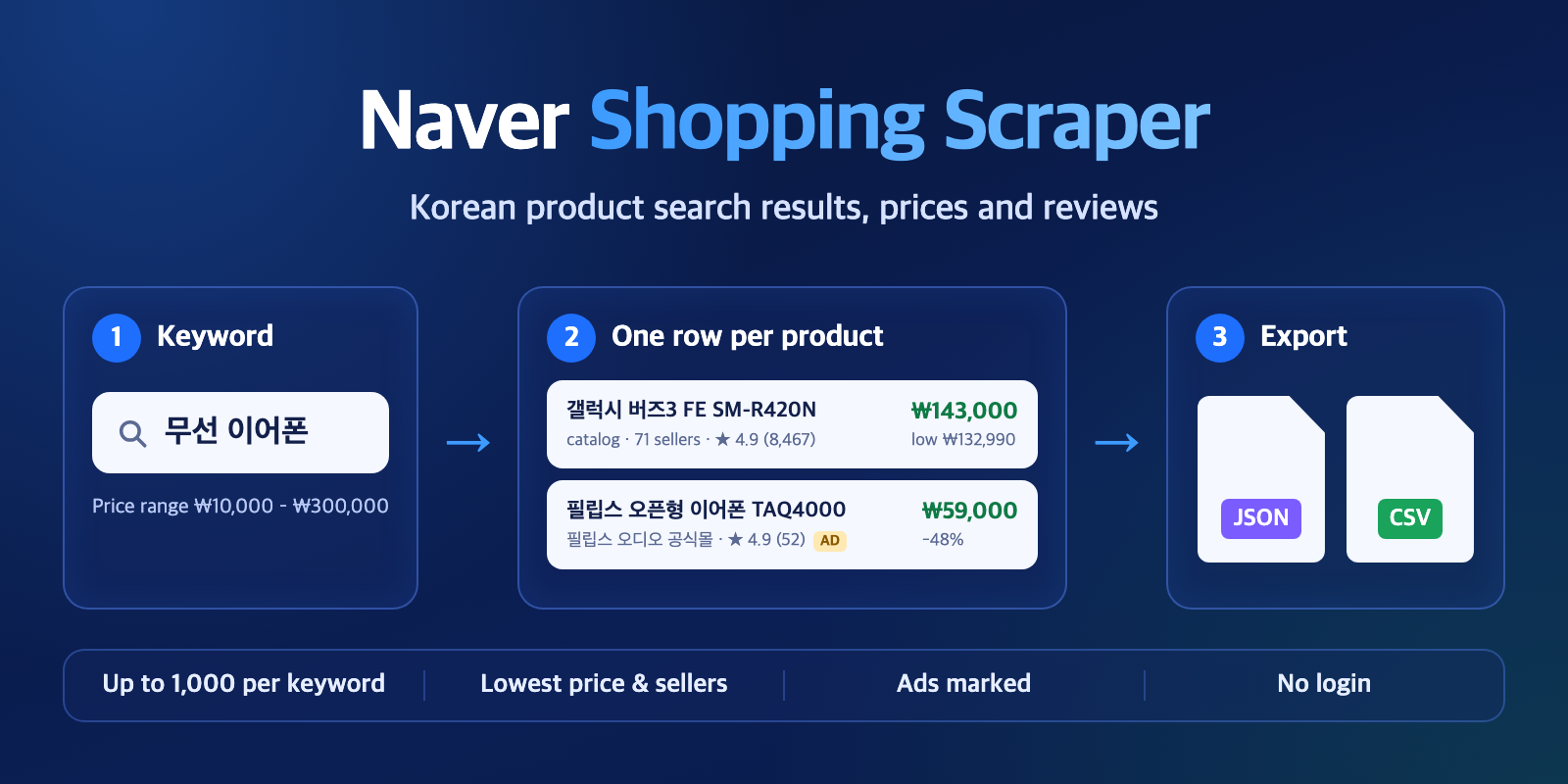
Table of contents
- What it does
- How it works
- Quick start
- Use cases
- Input
- Output
- Pricing
- Limits
- API, export and integrations
- Troubleshooting
- FAQ
- Related Actors
- Support
What it does
The Actor opens the public Naver Shopping search results for each keyword, the same list a shopper sees on a phone. It reads every product card and saves one clean row per product. It can go deeper than the first page: up to 1,000 products per keyword.
- Catalog cards (price comparison pages) give the shown price, the lowest price and the number of sellers.
- Single-seller cards give the price, the list price before discount, the discount, the mall name and the purchase count.
- Sponsored listings are kept and marked with
isAd: true. You can turn them off. - Each row has the keyword, its position, the source and the time we read it.
Good fit
- Check the market price of a product in Korea, with the lowest price across sellers.
- Watch which brands, malls and ads show up for your keywords.
- Build a product list for a category keyword with reviews and ratings.
Not a fit / limits
- Search results only. Product detail pages (options, stock, full review text, seller lists) are not included.
- Naver's ranking is personal and changes during the day. Two runs can show a different order.
- This is not a drop-in replacement for scrapers that expand each catalog into all its sellers.
How it works
- For each keyword, the Actor opens the public Naver Shopping mobile search, the same list a shopper sees. No login: it uses only the visitor session Naver gives every shopper, and keeps it in memory for that run.
- It reads every product card, applies your price range and ad setting, and goes deeper than the first page with narrower price ranges until it has the number of products you asked for.
- It saves one row per product to the Dataset, in Naver's order or sorted the way you chose. A keyword with no products or a Naver error gets one free status row, and the run summary (
RUN_SUMMARY) says how the run went.
Quick start
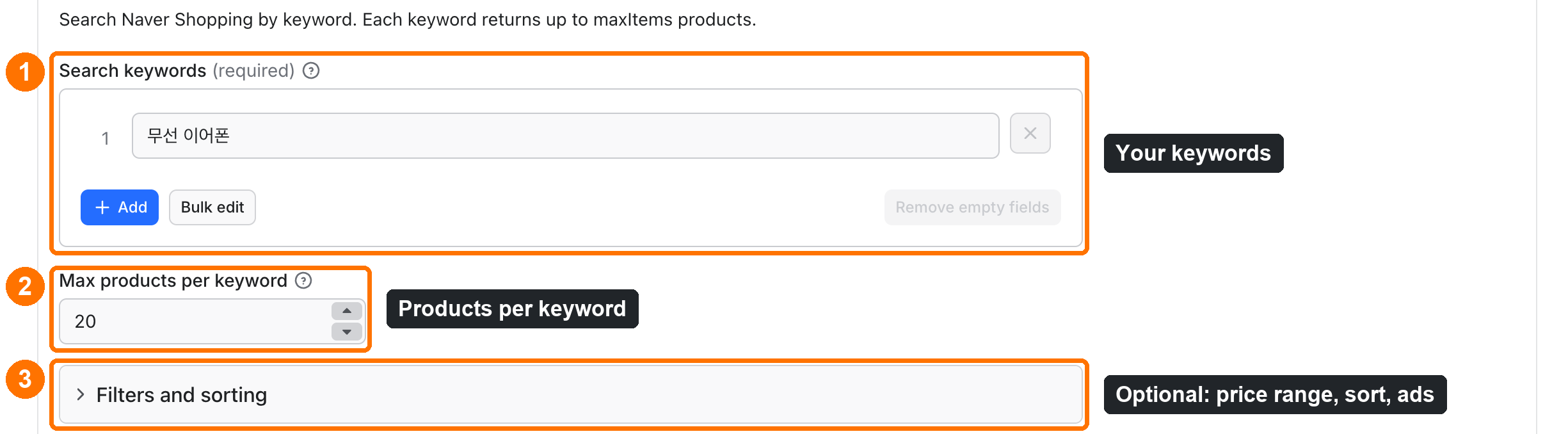
-
Open the Input tab. Search keywords (
queries) is prefilled with무선 이어폰(box 1). Replace it with your own keyword; Korean keywords give the best results. -
Keep Max products per keyword (
maxItems) at 20 for a first test (box 2). -
Optional: open Filters and sorting to set a price range, a sort order or leave out ads (box 3).
-
Click Start at the bottom of the Input tab.
-
Open the Output tab. The Products table shows one row per product with the title, price, lowest price, sellers and reviews.
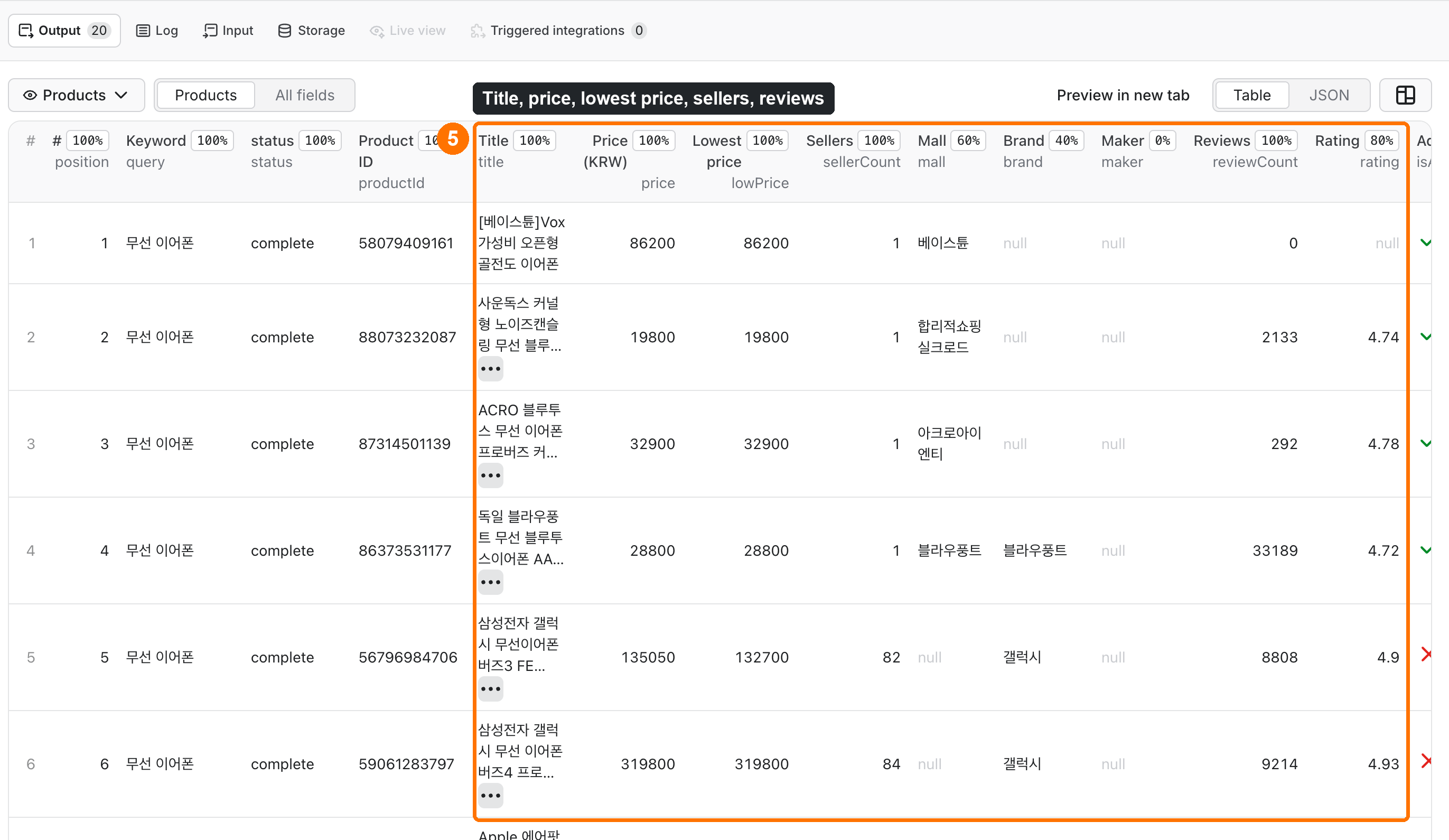
Expected result: 20 product rows for the keyword, each with title, price, reviewCount and url.
Use cases
| Buyer job | Input path | Output entity | Key fields | Next step |
|---|---|---|---|---|
| Price check for a product | queries + minPrice/maxPrice | product | price, lowPrice, sellerCount, mall | Export to a sheet, convert KRW |
| Brand and ad watch | queries, includeAds: true | product | brand, maker, isAd, position | Schedule a daily run |
| Category product list | queries, maxItems: 1000 | product | title, reviewCount, rating, categoryId | Load the dataset by API |
Input
Input fields
| Field | Plain name | Type | Required | Default / prefill | Allowed values | Effect | Example | Recommendation |
|---|---|---|---|---|---|---|---|---|
queries | Search keywords | array of strings | yes | prefill ["무선 이어폰"] | 1–20 keywords, each up to 100 characters | One search per keyword | ["선풍기", "립스틱"] | Use Korean words. Duplicates are run once. |
maxItems | Products per keyword | integer | no | default 50, prefill 20 | 1–1,000 | Stops each keyword after this many products | 300 | More products means more requests and a longer run. |
minPrice | Minimum price | integer (KRW) | no | empty | 0–1,000,000,000 | Naver filters by price | 10000 | Use with maxPrice to skip accessories. |
maxPrice | Maximum price | integer (KRW) | no | empty | 0–1,000,000,000 | Naver filters by price | 300000 | Must be ≥ minPrice. |
sort | Sort | string | no | relevance | relevance, price_asc, price_desc, review_count, rating | Orders the collected products | price_asc | See the note below. |
includeAds | Include sponsored listings | boolean | no | true | true / false | false drops ad cards | false | Keep true for ad research. |
addBrandNames | Add brand and maker | boolean | no | true | true / false | Fills brand and maker from Naver's filters | true | Turn off for slightly faster runs. |
deliveryConnector | Send results to | MCP connector | no | empty | your Slack, Notion or other connector | Posts a short run summary after the run | your Notion connector | See "Send results to Slack or Notion" below. |
deliveryTarget | Notion page or channel | string | no | empty | Notion page link or Slack channel ID | Where the summary goes | a Notion page link | Leave empty to let the connector decide. |
Empty queries or a wrong range stops the run at once with a clear message, names the field, shows an example, and charges nothing for products.
Field names from other scrapers also work: query, searchTerms or keywords are read as queries, and maxResults, limit or resultsLimit as maxItems. If both are set, queries/maxItems win. Unknown fields are ignored, logged as a warning and listed in RUN_SUMMARY.ignoredInputFields.
Send results to Slack or Notion
Optional. Pick your connector in Send results to (deliveryConnector; connect Slack or Notion once in Apify Console → MCP connectors). After the products are saved, the Actor posts a short summary there: status, product count, up to 25 product rows and links to the full dataset and the run. Put a Notion page link or a Slack channel ID in Notion page or channel (deliveryTarget): in Notion every run is added on top of that one page, so your workspace does not fill up. Without a page link, Notion creates a new private page for each run. A delivery error never fails the run and costs nothing extra; RUN_SUMMARY.delivery shows what happened. Without a connector nothing is sent.
Interacting settings
| When | Input A | Input B | Effective behavior | Cost/result effect |
|---|---|---|---|---|
Sort is not relevance | sort | maxItems | The Actor first collects maxItems products in Naver's order, then sorts them. price_asc gives the cheapest of those products, not the cheapest on all of Naver. | None |
| Ads are off | includeAds: false | maxItems | Ad cards are skipped and organic products fill the list. | Same price per product |
| Price range is set | minPrice / maxPrice | queries | Naver applies the range before the list is read. | Fewer products if the range is narrow |
Input examples
Price check with a price range
{
  "queries": ["무선 이어폰"],
  "maxItems": 100,
  "minPrice": 10000,
  "maxPrice": 300000,
  "includeAds": false
}
Expected behavior: one search, sponsored cards removed, prices between ₩10,000 and ₩300,000.
Expected output: up to 100 product rows with price, lowPrice, sellerCount, mall.
Several keywords, deep lists
{
  "queries": ["선풍기", "강아지 사료", "립스틱"],
  "maxItems": 300
}
Expected behavior: 900 rows in about 45 seconds (measured).
Output
Output example
A real row for 무선 이어폰 (some fields trimmed):
{
  "recordType": "product",
  "status": "complete",
  "query": "무선 이어폰",
  "position": 8,
  "productId": "56796984706",
  "title": "삼성전자 갤럭시 무선이어폰 버즈3 FE SM-R420N 노이즈 캔슬링 그레이",
  "price": 143000,
  "originalPrice": null,
  "discountRate": null,
  "lowPrice": 132990,
  "currency": "KRW",
  "listingType": "catalog",
  "sellerCount": 71,
  "mall": null,
  "brand": "갤럭시",
  "reviewCount": 8467,
  "rating": 4.9,
  "purchaseCount": null,
  "isAd": false,
  "url": "https://search.shopping.naver.com/catalog/56796984706",
  "source": "naver_shopping_mobile_search",
  "sourceUrl": "https://m.search.naver.com/search.naver?where=m_shop&query=%EB%AC%B4%EC%84%A0+%EC%9D%B4%EC%96%B4%ED%8F%B0",
  "fetchedAt": "2026-10-14T12:35:23.121Z"
}
Empty values are null, never 0. A 0 means a real zero (for example, free delivery).
Output fields
| Field | Meaning | Type | Can be empty? | Example / enum |
|---|---|---|---|---|
recordType | Row type | string | no | product, query |
status | Row quality | string | no | complete, partial (some fields missing); query rows: not_found, error |
query | Your keyword | string | no | 무선 이어폰 |
position | Place in the result list, starting at 1 | integer | no | 8 |
productId | Naver product ID (nvMid), stable | string | no | 56796984706 |
title | Product name, HTML removed | string | no | 필립스 ENC 블루투스 무선 오픈형 이어폰 TAQ4000 |
price | Price the shopper sees first, KRW | integer | yes | 59000 |
originalPrice | Price before discount | integer | yes | 115000 |
discountRate | Discount in % | number | yes | 48 |
lowPrice | Lowest price shown by Naver; for catalogs, across sellers | integer | yes | 132990 |
currency | Always KRW | string | no | KRW |
listingType | Catalog (price comparison) or one seller | string | no | catalog, single_seller |
sellerCount | Sellers in the catalog; 1 for single-seller cards | integer | yes | 71 |
mall | Store name (single-seller cards) | string | yes | 필립스 오디오 공식몰 |
brand / maker | Brand or manufacturer, from Naver's filters | string | yes | 삼성전자 |
categoryId / categoryIds | Naver category IDs, leaf and path | string / array | yes | 50002327 |
reviewCount | Number of reviews (catalogs: total across sellers) | integer | yes | 8467 |
rating | Average rating 0–5 | number | yes | 4.9 |
purchaseCount | Purchases shown by Naver (single-seller only) | integer | yes | 1200 |
wishlistCount | Wishlist (찜) count | integer | yes | 340 |
deliveryFee | Delivery fee, KRW; 0 = free | integer | yes | 0 |
isAd | Sponsored listing | boolean | no | true |
isSmartStore / isBrandStore / isOverseas | Store flags | boolean | yes | true |
smartStoreProductId | Smart Store product number | string | yes | 11223344556 |
url / mobileUrl | Product or catalog link | string | yes | https://search.shopping.naver.com/catalog/... |
image | Main image | string | yes | https://shopping-phinf.pstatic.net/... |
missingFields | Which key fields were missing | array | no | ["mall"] |
source | Where the row came from | string | no | naver_shopping_mobile_search |
sourceUrl | Search page for the keyword (without your filters) | string | no | https://m.search.naver.com/... |
fetchedAt | When we read it (UTC) | string | no | 2026-10-14T12:35:23.121Z |
message / errorCode | Query rows only: what happened | string | yes | Naver Shopping has no products for this keyword and filters |
Output entities and surfaces
| Situation | Where | Result shape | What to do |
|---|---|---|---|
| Normal product | Dataset, view Products | one product row per product | Export or use by API |
| Keyword with no products | Dataset | one free query row, status: not_found | Check the spelling or the price range |
| Keyword failed (block, timeout) | Dataset + RUN_SUMMARY | one free query row, status: error, errorCode | Run that keyword again later |
| Run summary | Key-value store RUN_SUMMARY | status, counts, per-keyword depth, warnings | Check status and message |
RUN_SUMMARY → status tells you the result: COMPLETE, NO_RESULTS, PARTIAL or CAPPED (your spending limit was reached). When a run stops early (PARTIAL or CAPPED), the run status message in Console also says why.
Pricing
Pricing unit
Pay per event. You pay for each product row saved, plus a small start fee per run. not_found and error rows are free. Platform usage is included: you do not pay for compute.
| Event | Free plan | Bronze | Silver | Gold and higher |
|---|---|---|---|---|
| Product (one row) | $0.0015 | $0.0014 | $0.00135 | $0.0013 |
| Run start | $0.004 | $0.004 | $0.004 | $0.004 |
A run with no products (all keywords not found, or a price range with no matches) costs only the start fee, $0.004. A partial run pays only for the rows it saved.
The start fee depends on run memory: it is charged once for runs with up to 1 GB (the default is 256 MB) and once more for each extra GB if you raise the memory in the run options.
Cost examples (Free plan)
| Scenario | Input scope | Products | Base charge | Optional charge | Stop/cap behavior |
|---|---|---|---|---|---|
| First test | 1 keyword × 20 | 20 | $0.034 | none | stops at 20 products |
| Normal | 3 keywords × 300 | 900 | $1.354 | none | stops at 300 per keyword |
| Large | 5 keywords × 1,000 | 5,000 | $7.504 | none | stops at 1,000 per keyword or at your cost limit |
| No results | 20 unknown keywords | 0 | $0.004 | none | start fee only |
If you set a maximum cost per run, the Actor stops before it goes over, keeps the rows it saved and ends with status CAPPED.
If you set Max items in the run options (the platform limit on paid results for the whole run), the Actor saves at most that many products across all keywords, ends as SUCCEEDED with limitReached: "MAX_ITEMS" in RUN_SUMMARY, and lists the keywords it did not reach.
Limits
- Up to 20 keywords and 1,000 products per keyword per run.
- Speed: about 1,000 products in 20 seconds. Each keyword takes at least 3–15 seconds, even for a few products, because brand names need extra requests (20 keywords × 1 product took about 3 minutes). Set
addBrandNamestofalsefor faster small runs. 20 keywords × 1,000 products took 350 seconds. The default timeout is 300 seconds, so for more than about 15,000 products set a longer timeout (for example 600 seconds) in the run options. If time runs out, the run keeps what it saved, ends asPARTIALand lists the keywords it did not start. - A few keywords show a short list on Naver (for example hotel or travel words). Then you may get fewer products than
maxItems. - If Naver fails for 3 keywords in a row, the run stops instead of waiting for the timeout. It keeps the products it saved and lists the keywords it did not start.
- If one keyword fails but others work, the run still succeeds: it ends as
PARTIAL, and that keyword gets a free error row. - Keywords are up to 100 characters. Prices in
minPriceandmaxPriceare 0 to 1,000,000,000 KRW. - One run makes at most 900 requests to Naver and stops after 25 minutes even with a longer timeout. One keyword uses at most 40 requests. For 20 keywords × 1,000 products, split them over two runs if the run stops early.
- If you set a maximum total charge for the run, the run stops when it is reached and ends as
CAPPED. - Max items in the run options limits products for the whole run, across all keywords. When it is reached, the run ends as succeeded,
RUN_SUMMARYshowsCOMPLETEwithlimitReached: "MAX_ITEMS", and the keywords it did not reach are listed as skipped and not charged. - Each request to Naver waits up to 25 seconds and is tried up to 3 times; one run waits at most 30 seconds in total between retries. A Naver answer larger than 6 MB is rejected for that keyword. The run timeout must be longer than 30 seconds.
API, export and integrations
- Export: download the dataset as JSON, CSV, Excel or HTML from the Output tab.
- API: start runs and read the dataset with the Apify API or the Apify client.
- Scheduling: run the same keywords every day with Apify schedules and compare
priceandpositionover time. - No-code: connect the dataset to Google Sheets, Make or Zapier through Apify integrations.
Use with AI agents (MCP)
- MCP server URL with only this Actor:
https://mcp.apify.com?tools=cliqtomedia/naver-shopping-scraper - Smallest useful input:
{ "queries": ["무선 이어폰"], "maxItems": 20 }
- Key output fields:
title(product name),priceandlowPrice(KRW),reviewCountandrating,isAd,url. - A 20-product call takes about 15 seconds and costs $0.034 on the Free plan. Keep to 20 keywords and 1,000 products per keyword.
Troubleshooting
The run stopped before all keywords
Symptom: the last keywords are skipped with "Not processed: run reached the Max items limit".
Likely reason: Max items in the run options is lower than keywords × maxItems.
Check: RUN_SUMMARY.limitReached is MAX_ITEMS.
Action: raise or clear Max items in the run options, or lower maxItems per keyword.
I got fewer products than maxItems
Symptom: the keyword has fewer rows than you asked for.
Likely reason: Naver shows a short list for this keyword or price range.
Check: RUN_SUMMARY → the keyword's depth, and the price range.
Action: widen the price range or use a broader keyword.
The run ended as PARTIAL with "reached the run time limit"
Symptom: some keywords are missing and the message says to give the run more time. Likely reason: many keywords × 1,000 products need more than the 300-second default. Action: set the run timeout to 600 seconds, or split the keywords over several runs.
A keyword has a row with status: error
Symptom: one query row with errorCode such as RATE_LIMITED or SOURCE_UNAVAILABLE.
Likely reason: Naver did not answer in time or blocked the request. This is not an empty result.
Check: the run itself ends as PARTIAL (not red) when other keywords worked.
Action: run that keyword again later. Error rows are free.
Error codes: SOURCE_TIMEOUT — Naver did not answer in 25 seconds; SOURCE_UNAVAILABLE — Naver answered with a server error; RATE_LIMITED — Naver asked to slow down; BLOCKED — Naver refused the request; SOURCE_SCHEMA_CHANGED — Naver's page or answer looks different from what the Actor reads (or is larger than 6 MB).
The run stopped with "keywords in a row failed"
Symptom: the run is FAILED and the message says 3 keywords in a row failed and some keywords were not processed.
Likely reason: Naver was unavailable or blocked requests for a while. The Actor stops early so you do not wait for the timeout.
Action: run the same input again later. You pay only for products already saved.
The run status is FAILED
Symptom: the run is red and the message says how many products were saved.
Likely reason: every keyword failed, or Naver stopped answering for 3 keywords in a row.
Check: the dataset still has the products saved before the failure, and you pay only for those rows (plus the start fee). RUN_SUMMARY lists which keywords failed.
Action: run the failed keywords again later.
brand and maker are empty
Likely reason: for some keywords (for example fashion), Naver shows no brand filter, so there is nothing to read. Action: none needed; the rest of the row is complete.
FAQ
Do I need a Naver account or API key?
No. The Actor reads public search pages. No login, and you don't provide cookies.
Why is a catalog price sometimes very low?
For catalog cards, Naver shows the lowest offer across all sellers. Sometimes that offer is a rental, a used item or an accessory (we saw rentals at ₩1). The Actor keeps Naver's number as shown; check sellerCount and listingType, or set minPrice.
Is the data the same as on Naver?
Yes, it is the order and prices that Naver's mobile search shows at fetchedAt. Naver personalises ranking and updates prices all the time, so runs at different times can differ. Reviews on catalog cards are Naver's total across sellers.
Can I use the data?
The Actor reads public pages. Naver's terms and robots.txt limit automated access, and you are responsible for how you use the data. If you need an official channel, Naver offers a Shopping Search API with your own developer key and a daily quota. This Actor is independent and not affiliated with Naver.
Related Actors
- AliExpress Scraper: Products, Prices & Reviews, No Login — compare the same products with AliExpress prices and reviews.
- Idealo Price Scraper: All Shop Offers, 6 Countries, No Login — all shop offers for a product in six European countries.
- Trendyol Scraper: Products, Prices & Reviews (No login) — products, prices and reviews from Turkey's largest marketplace.
- Historical Exchange Rates & Currency Converter (ECB) — convert KRW prices to USD or EUR for a date.
- Google Autocomplete Scraper: Keyword Suggestions — find more keyword ideas to search.
Support
Use the Issues tab of this Actor. Add the run ID, your keywords and the status or errorCode you saw. Do not send API tokens or private data.
⭐ Found it useful? Rate this Actor. Something wrong? Report a problem — we fix reported problems.
Changelog
This Actor's version history is a separate document: https://apify.com/cliqtomedia/naver-shopping-scraper/changelog.md
Actor input Schema
queries (type: array):
Keywords exactly as you would type them on Naver Shopping, in Korean or English, e.g. 무선 이어폰 or 아이패드. Up to 20 keywords per run; duplicates are searched once.
maxItems (type: integer):
How many products to return for each keyword (1–1,000). Naver lists ~90 products per filter; beyond that the Actor narrows by brand and price range to reach more. You pay per product returned.
minPrice (type: integer):
Only products priced at or above this many won. Applied by Naver. Leave empty for no lower limit.
maxPrice (type: integer):
Only products priced at or below this many won. Applied by Naver. Leave empty for no upper limit.
sort (type: string):
Order of the returned products. relevance keeps Naver's order; the other options sort the collected products by price, review count or rating.
includeAds (type: boolean):
Keep paid (ad) listings in the results; each row has isAd so you can filter later. Turn off for organic results only.
addBrandNames (type: boolean):
Fill brand and maker using Naver's brand and manufacturer filters (up to 16 extra requests per keyword, no extra charge). Products outside the top brands keep null.
deliveryConnector (type: string):
Your Slack, Notion or other MCP connector. After the run the Actor posts a short summary there. Connect services once in Apify Console → MCP connectors.
deliveryTarget (type: string):
Where to post the summary: a Notion page link (each run is added on top of that page) or a Slack channel ID. Leave empty to let the connector decide.
Actor input object example
{
  "queries": [
    "무선 이어폰"
  ],
  "maxItems": 20,
  "sort": "relevance",
  "includeAds": true,
  "addBrandNames": true
}
Actor output Schema
products (type: string):
Products as a table.
runSummary (type: string):
Status, counts per keyword, warnings and request statistics.
API
You can run this Actor programmatically using our API. Below are code examples in JavaScript, Python, and CLI, as well as the OpenAPI specification and MCP server setup.
JavaScript example
import { ApifyClient } from 'apify-client';

// Initialize the ApifyClient with your Apify API token
// Replace the '<YOUR_API_TOKEN>' with your token
const client = new ApifyClient({
    token: '<YOUR_API_TOKEN>',
});

// Prepare Actor input
const input = {
    "queries": [
        "무선 이어폰"
    ],
    "maxItems": 20
};

// Run the Actor and wait for it to finish
const run = await client.actor("cliqtomedia/naver-shopping-scraper").call(input);

// Fetch and print Actor results from the run's dataset (if any)
console.log('Results from dataset');
console.log(`💾 Check your data here: https://console.apify.com/storage/datasets/${run.defaultDatasetId}`);
const { items } = await client.dataset(run.defaultDatasetId).listItems();
items.forEach((item) => {
    console.dir(item);
});

// 📚 Want to learn more 📖? Go to → https://docs.apify.com/api/client/js/docs
Python example
from apify_client import ApifyClient

# Initialize the ApifyClient with your Apify API token
# Replace '<YOUR_API_TOKEN>' with your token.
client = ApifyClient("<YOUR_API_TOKEN>")

# Prepare the Actor input
run_input = {
    "queries": ["무선 이어폰"],
    "maxItems": 20,
}

# Run the Actor and wait for it to finish
run = client.actor("cliqtomedia/naver-shopping-scraper").call(run_input=run_input)

# Fetch and print Actor results from the run's dataset (if there are any)
print(f"💾 Check your data here: https://console.apify.com/storage/datasets/{run.default_dataset_id}")
for item in client.dataset(run.default_dataset_id).iterate_items():
    print(item)

# 📚 Want to learn more 📖? Go to → https://docs.apify.com/api/client/python/docs/quick-start
CLI example
echo '{
  "queries": [
    "무선 이어폰"
  ],
  "maxItems": 20
}' |
apify call cliqtomedia/naver-shopping-scraper --silent --output-dataset
MCP server setup
{
    "mcpServers": {
        "apify": {
            "type": "http",
            "url": "https://mcp.apify.com/?tools=fetch-actor-details,cliqtomedia/naver-shopping-scraper"
        }
    }
}
The hosted server signs you in with OAuth on first connect, so no API token belongs in this config. Clients without OAuth support can send an Authorization: Bearer <APIFY_API_TOKEN> header instead, using a token from API & Integrations in Apify Console (https://console.apify.com/settings/integrations).
OpenAPI specification
Download the OpenAPI definition: https://api.apify.com/v2/actors/owuOgUiujn7q1T1ex/builds/Uad8O1jn8FMG8tnDI/openapi.json