API-Supp WhatsApp MCP
Disclosure: I own API-Supp. OAuth cloud MCP connects QR-linked existing WhatsApp numbers, with multi-number access, text messaging and chat context. Files, voice notes and media download require the separate local MCP, which still uses our hosted backend. This is an unofficial bridge, not Meta's official Cloud API; restrictions and re-pairing can occur. $7.50 per number/month; account and sales-issued number activation code required.
Hosted MCP Server
npx add-mcp 'https://app.api-supp.com/api/mcp'Installs into Claude Code, Codex, Cursor and more
Documentation
Cloud MCP
Add our server URL to your AI agent and sign in. The agent can then work with every WhatsApp number on your account. There's nothing to install.
https://app.api-supp.com/api/mcp
You can also copy the URL in the portal, under AI agents in the menu. Prefer a server on your own computer, with files and voice notes? See Local MCP.
Connect your app
Follow the guide for your app.
ChatGPT
Step 1. In ChatGPT, open Plugins in the sidebar. Choose Add, then Add custom MCP server.
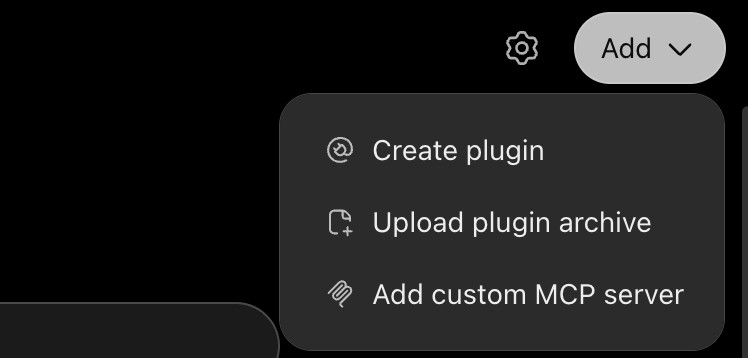
The Add menu on the Plugins page in ChatGPT
Step 2. Enter a name such as apisapp WhatsApp and paste the server URL. Keep OAuth as the authentication. Tick I understand and want to continue, then choose Create as a plugin.
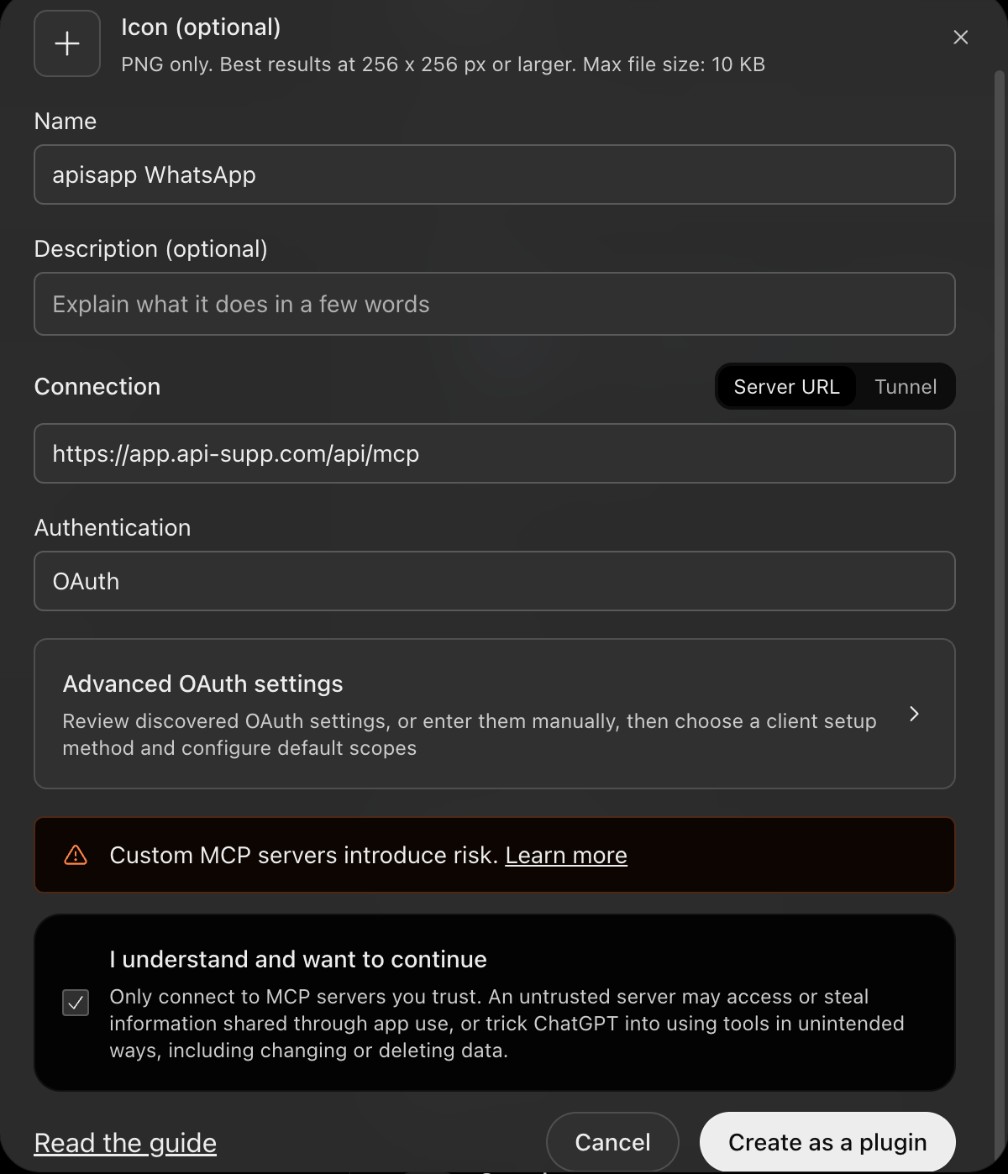
The Add custom MCP server form in ChatGPT with the server URL filled in
Step 3. ChatGPT checks the server, which can take up to half a minute. Then choose Connect.
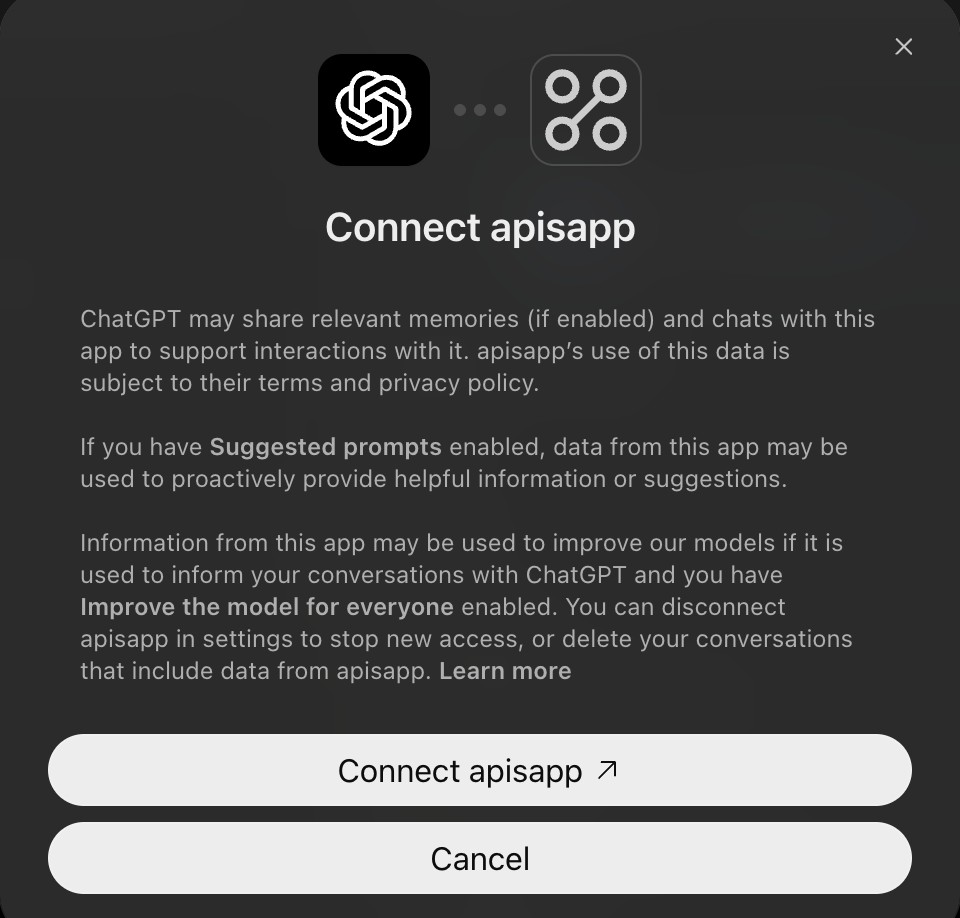
The Connect window in ChatGPT
Step 4. Sign in to your apisapp account if asked, and choose Approve.
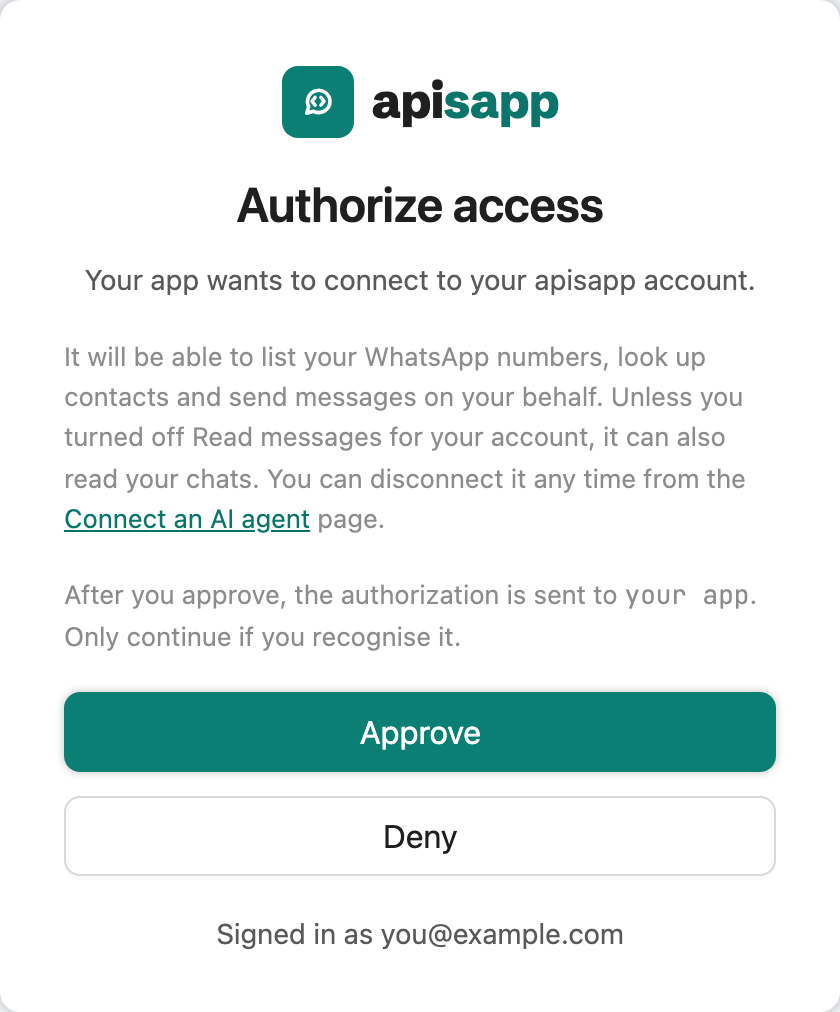
The apisapp screen asking you to approve access
Step 5. Open a new chat, type @ and pick the plugin, then ask something like "list my WhatsApp numbers".
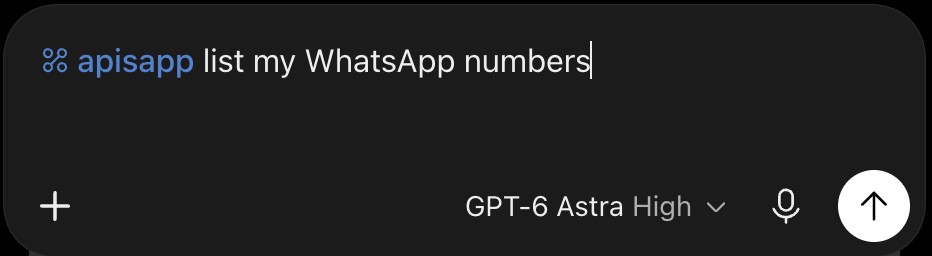
The plugin selected in a new ChatGPT chat
If you don't see Add custom MCP server, your ChatGPT plan or workspace may not allow custom servers.
Claude
Step 1. In Claude, open Customize, then Connectors. Choose Add, then Add custom connector.

The Add menu on the Connectors page in Claude
Step 2. Enter a name such as apisapp WhatsApp, paste the server URL and choose Continue.
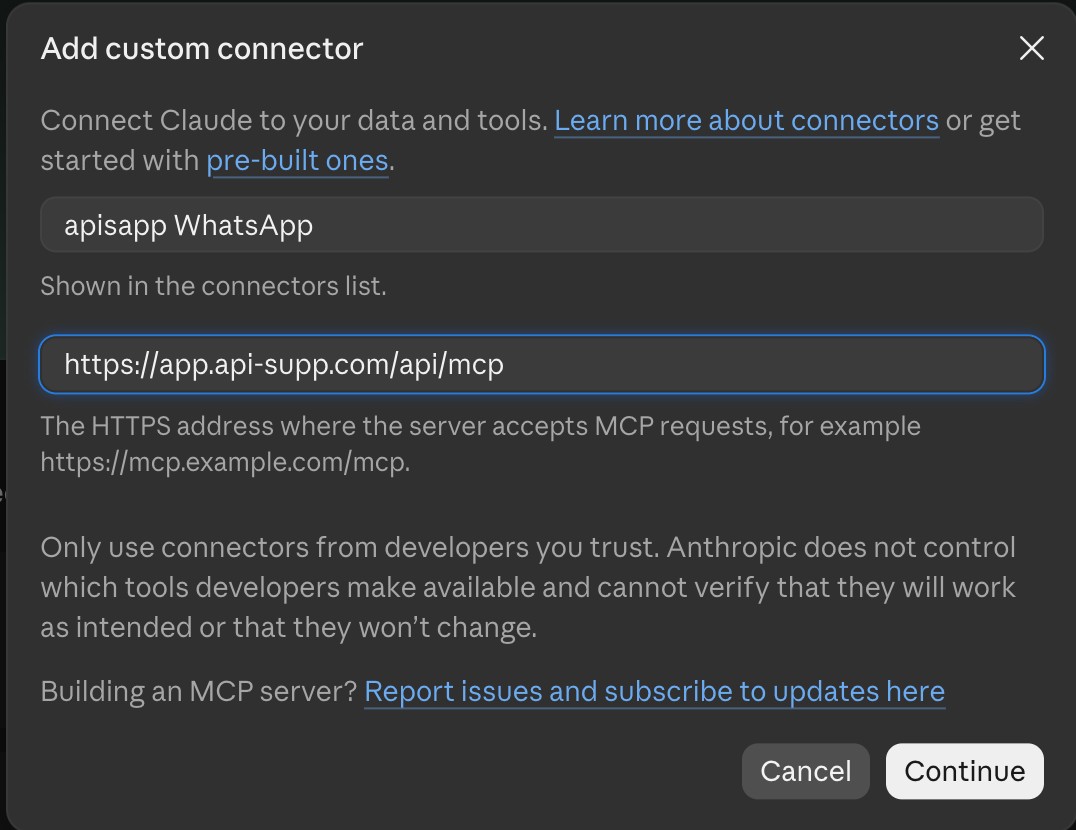
The Add custom connector form in Claude with the server URL filled in
Step 3. Claude detects the sign-in settings. Leave them as they are, scroll down and choose Add.
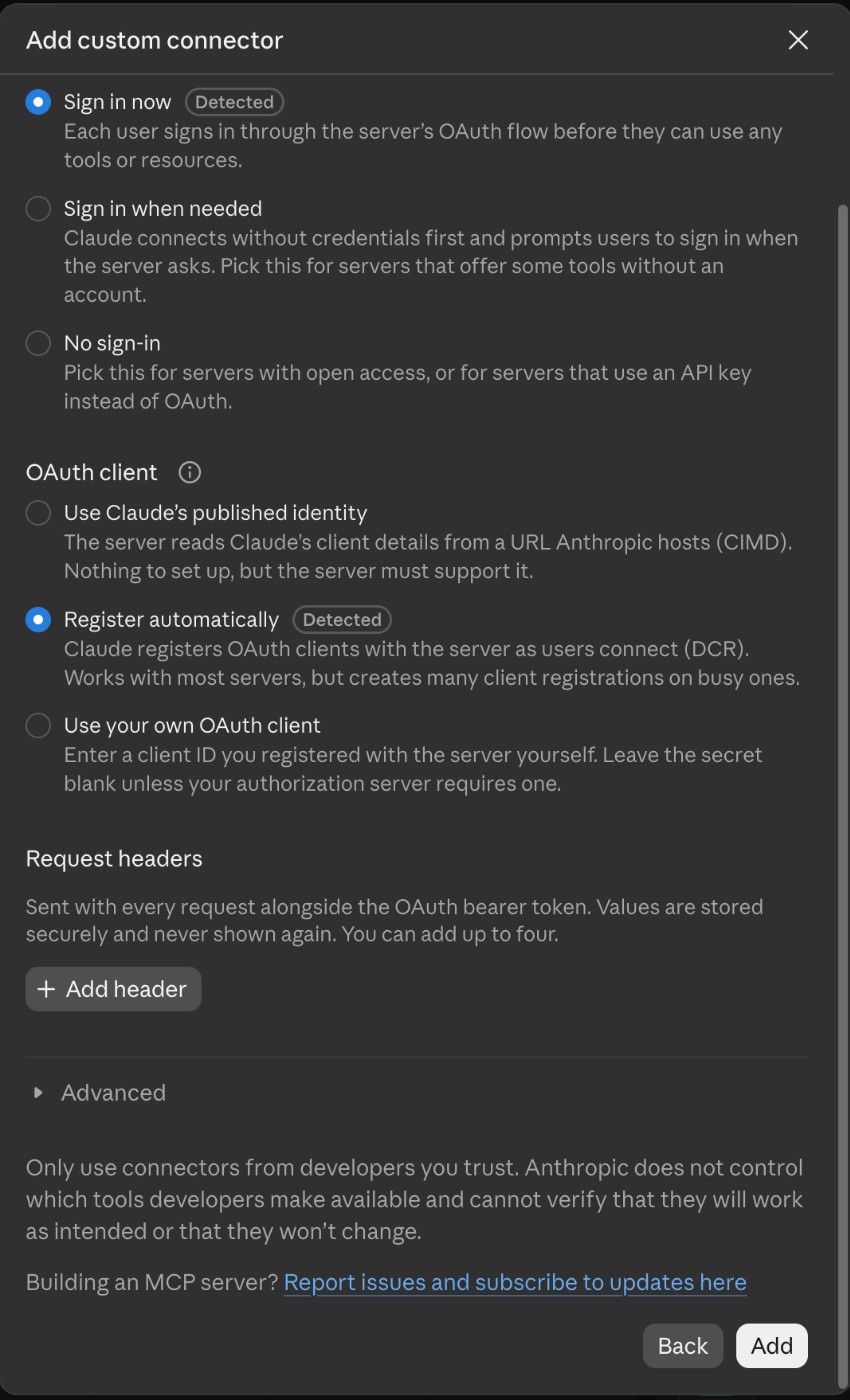
The sign-in options Claude detects, with the Add button
Step 4. Choose Connect.
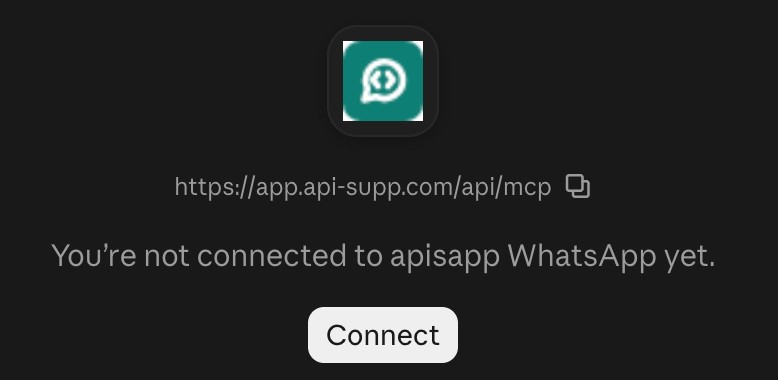
The Connect button on the new connector in Claude
Step 5. Sign in to your apisapp account if asked, and choose Approve.
The apisapp screen asking you to approve access
Step 6. Claude shows the connector as connected, with its tools. Each tool asks for your approval by default, and you can change that here.
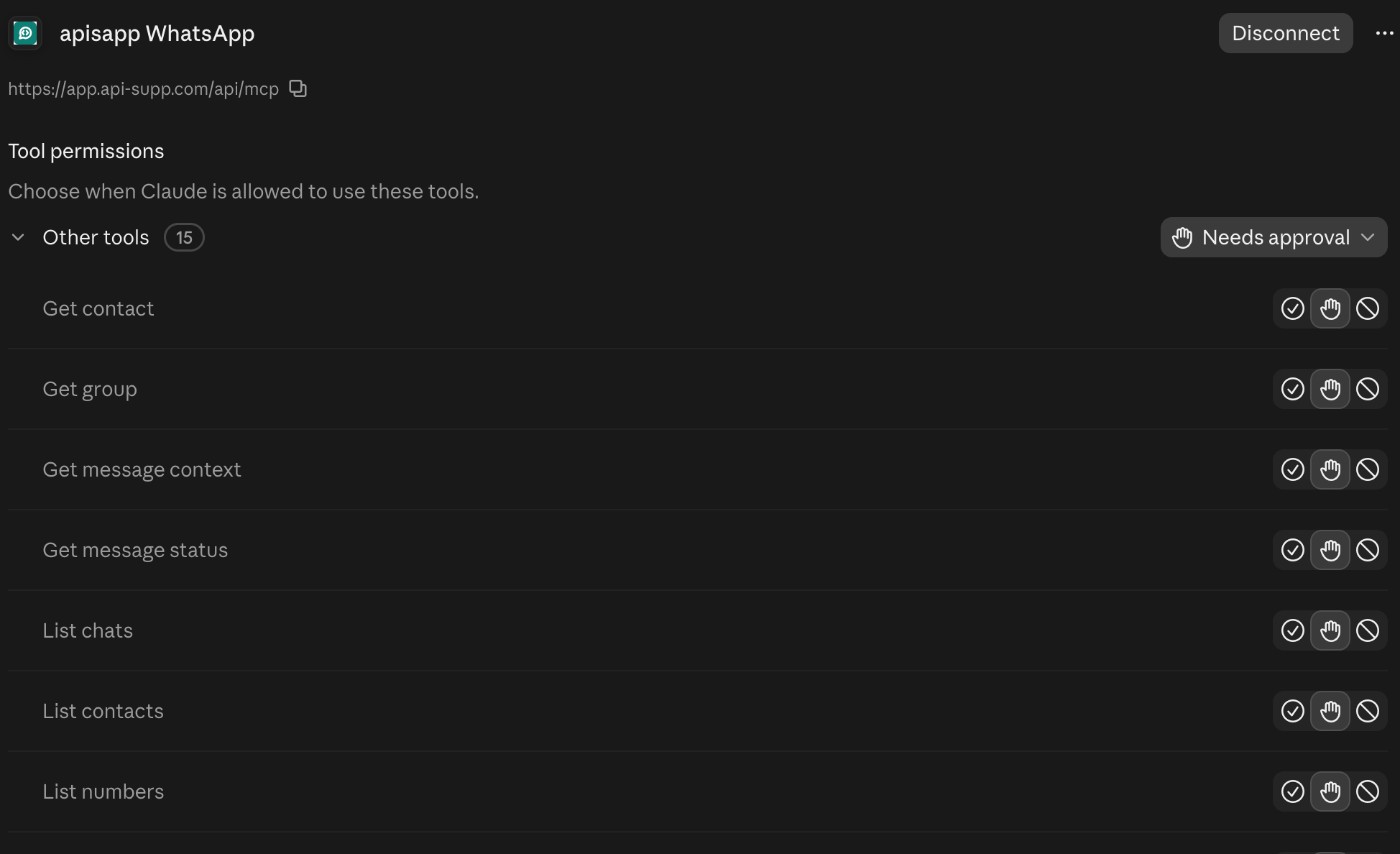
The connected connector in Claude with its tools
Step 7. In a new chat, ask something like "list my WhatsApp numbers". The first time Claude uses a tool, choose Allow once or Always allow.

Claude asking for approval to use a tool
Using Claude Code? Run this command, then type /mcp, choose whatsapp, sign in and approve:
claude mcp add --transport http whatsapp https://app.api-supp.com/api/mcp
After you connect
- The app appears in the portal under AI agents → Connected apps. Choose Disconnect to remove it. Removing the app inside ChatGPT or Claude doesn't do this for you, so disconnect it in the portal too.
- Access level sets what connected apps can do. Messaging can send messages, polls, buttons and contact cards, and find, add and edit contacts. Read messages can also read your chats, messages and groups, and add or remove group members where your number is an admin. Read messages is the default, and you can change it there.
- A sign-in lasts 30 days. After that, your app asks you to sign in again.
What your agent can do
26 tools. If you have more than one number, name the one to use, by its name or phone, like "send from the Sales line".
Messaging and Read messages
| Tool | What it does |
|---|---|
list_numbers | Your numbers, with each one's phone and status |
send_message | Send a text |
send_contact · send_poll · send_cta_url | Send a contact card, a poll or a link button |
send_buttons · send_list | Send reply buttons or a list. How they look depends on the recipient's app |
search_contacts · list_contacts · get_contact | Find contacts |
save_contact · update_contact | Add or edit a contact |
resolve_direct_chat | Find the chat with a phone number |
sync_history | Ask WhatsApp to send history again. The number reconnects for a moment |
sync_contacts | Ask WhatsApp to send your contacts again |
Read messages only
| Tool | What it does |
|---|---|
list_chats · get_chat | Your chats |
read_messages · get_message · get_message_context | Read messages, one message, or the messages around it |
get_message_status | Whether a message you sent was delivered and read |
get_contact_chats · get_last_interaction | Every chat with a person, and your last message with them |
list_groups · get_group | Your groups and their members |
modify_group_participants | Add, remove, promote or demote group members. Your number must be a group admin |
Files, voice notes and media download are in the Local MCP only.
Advanced: manual access token
For apps that can't sign in. In the portal, open AI agents → Advanced and generate a token. It's shown once, so copy it right away. Then add it to your app's MCP config:
{
  "mcpServers": {
    "whatsapp": {
      "url": "https://app.api-supp.com/api/mcp",
      "headers": { "Authorization": "Bearer mcp_YOUR_TOKEN" }
    }
  }
}