Amber Notes (ambernotes.app)
Search, read and edit your notes in Amber Notes, the notes app for iPhone and Mac, with read-only or read-and-edit access.
Hosted MCP Server
npx add-mcp 'https://mcp.ambernotes.app'Installs into Claude Code, Codex, Cursor and more
Documentation
Amber Notes, the notes app for iPhone and Mac, has a remote MCP server built in. This page is for developers and anyone curious how it works: the address, how an AI app signs in and gets approved, and every tool it can call.
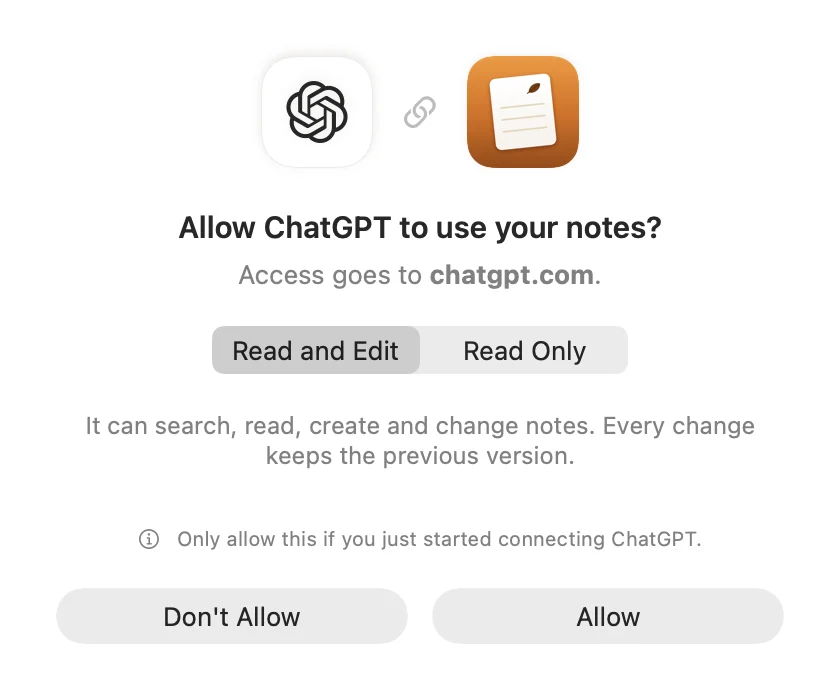
Amber Notes asking "Allow ChatGPT to use your notes?" with a choice of Read and Edit or Read Only, and Allow and Don't Allow buttons.
The address
https://mcp.ambernotes.app
- Transport: MCP Streamable HTTP, answering with JSON. There is no server-sent stream; clients post each request.
- Protocol versions: 2025-11-25, 2025-06-18, 2025-03-26 and 2024-11-05.
- Server name:
amber-notes. It sends instructions oninitializethat tell the model how the notes are laid out.
How access works
There are two ways in. Both need an Amber Notes account, and both are approved by the person.
Sign in with OAuth (ChatGPT, Claude and other apps)
- An unauthenticated request gets a 401 with a
WWW-Authenticateheader pointing to the protected resource metadata, at the address above plus/.well-known/oauth-protected-resource. - The client registers itself (dynamic client registration) and starts OAuth 2.1 with PKCE (S256). Scopes are
notes:readandnotes:write. - The authorization server metadata is at the address above plus
/.well-known/oauth-authorization-server. - The authorization step opens
ambernotes.app/connect. The person signs in there (email and password, or Sign in with Apple), and the page shows a two-digit number. Amber Notes on their iPhone or Mac asks “Allow [app] to use your notes?” and where access goes; they type the number, choose Read and Edit or Read Only, then Allow. With no device nearby, they can approve on the page with their recovery key. - The client gets an access token (valid for an hour) and a refresh token. The tokens only open this server.
Access token (Claude Code, Codex and scripts)
In Amber Notes, Settings, Connect an AI, Claude Code or Codex creates a token starting with pane_, read only or read and edit. Send it as Authorization: Bearer pane_…. The Claude Code and Codex guide has the exact setup.
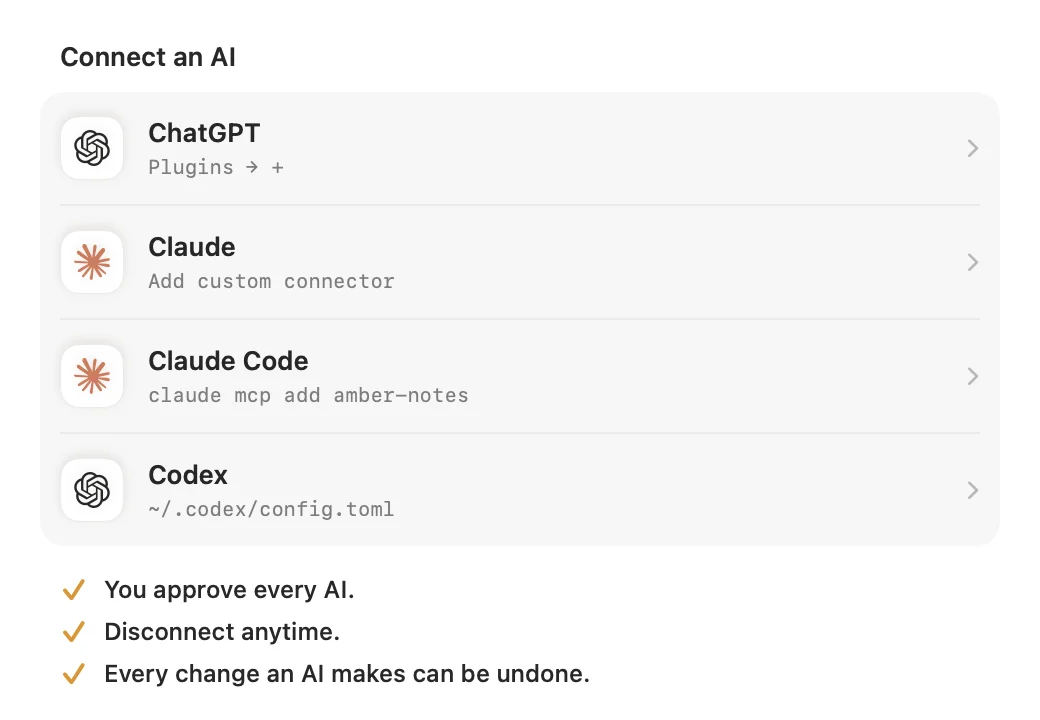
Settings, Connect an AI: guided setup for each app, and everything that's connected.
Every connection shows up in Amber Notes under Connected, and the person can disconnect it at any time. Each tool call runs as that person, with row-level security, so a token can only ever reach its owner's notes. Calls are rate limited per account.
Notes are end-to-end encrypted, so the server can't read them at rest. Approving a connection gives it a copy of the notes' key, locked with a secret derived from its own token. During each request the server unlocks the key in memory, decrypts what the call needs, and drops it when the request ends; disconnecting deletes that copy. Locked notes stay out of reach, since their key comes from the notes password. An encrypted notes app that ChatGPT and Claude can use explains the trade-off.
What happens to changes
- Every edit keeps the previous version.
note_historylists them andrestore_revisionputs one back. - In the app, the person sees what an AI changed, with Undo.
- Deleted notes go to Recently Deleted for 30 days and can be restored with
restore_note. - A read-only connection only sees the tools marked reads below.
Tools
Notes are markdown, and the first line is the title. Checklists are - [ ] lines, and tables are markdown tables. Start with get_overview or search_notes, and read a note before editing it.
get_overview(reads). An overview of the person's Amber Notes: folders with counts, pinned notes and the most recently edited notes.search_notes(reads). Full-text search across titles and bodies. Returns ranked notes with a highlighted snippet («match»). Locked notes are left out.list_notes(reads). List notes, newest first, optionally in one folder. Use for browsing; use search_notes to find something.read_note(reads). Returns a note's markdown with its folder, dates, version and outline. For long notes, read a line range; set line_numbers to see where headings are.create_note(changes). Creates a note from markdown. The first line becomes the title (write it as plain text or '# Title').edit_note(changes; can remove or replace). Precise edits: each old_text must match the note exactly once (copy it from read_note) and is replaced by new_text. Edits apply in order. Fails without changing anything if one doesn't match.append_to_note(changes). Adds markdown to the end of a note, or to the end (or start) of the section under a heading. Good for logs, lists and journals.replace_note_body(changes; can remove or replace). Replaces the whole note with new markdown. Use only for full rewrites; prefer edit_note. The person sees the change in Amber Notes with Undo, and the old version stays in history.set_checklist_item(changes). Checks or unchecks a '- [ ] item' line, matched by its text.move_note(changes). Moves a note to another folder, creating the folder if it doesn't exist. Use a path like "Work/Clients" to nest.pin_note(changes). Pins a note to the top of the list, or unpins it. Pinned state shows as `pinned` in every note listing.delete_note(changes; can remove or replace). Moves a note and its sub-notes to Recently Deleted. This can be undone: restore_note brings it back within 30 days.restore_note(changes). Brings a note (and its sub-notes) back from Recently Deleted.list_folders(reads). All folders as paths like "Work/Q4 planning", with how many notes each shows in the app.create_folder(changes). Creates a folder; use a path like "Work/Clients" to nest it.rename_folder(changes). Renames a folder in place. Its notes and sub-folders stay inside it.delete_folder(changes; can remove or replace). Deletes a folder and its sub-folders. Their notes (and those notes' sub-notes) go to Recently Deleted, and each can be brought back with restore_note within 30 days; the folders themselves are not restored.note_history(reads). Earlier versions of a note, newest first, with who changed it (app or an AI client).restore_revision(changes; can remove or replace). Puts an earlier version (from note_history) back as the note's body. The current body is kept in history too.create_sub_note(changes). Creates a note that lives inside another note: it's linked from the parent (a [Title](pane-note:id) line added at the end, or under a heading) and doesn't show in the main list.list_files(reads). Files kept in Amber Notes (PDFs, spreadsheets, images…), newest first, with the notes that embed them.get_file(reads). A file's details and its contents: text files (CSV, JSON, markdown…) as text, images as an image, PDFs and other files as an attached resource. Files over 8 MB can only be opened in Amber Notes.read_table(reads). Reads a table in a note: its columns (with types and allowed values for trackers) and its rows as objects. Use before logging so you use the right column names and values.log_table_row(changes; can remove or replace). Adds a row to a table. In a tracker with a date column it updates that date's row if there is one (the date defaults to today). Values are checked against each column's type: scales must be in range, choices one of the options, Yes/No also takes true/false.delete_table_row(changes; can remove or replace). Removes the row for a date (trackers) or at a 0-based row index from a table.search(reads). Search the person's Amber Notes by words or phrases. Returns note ids and titles; read one with fetch. Locked notes are left out.fetch(reads). Fetch an Amber Notes note by id (from search) as its full markdown, with folder, pinned state and last edit time.
search and fetch follow the shape ChatGPT expects for searching and reading. Every tool carries MCP annotations (readOnlyHint, and destructiveHint where it applies), so clients can ask before a change.
Install in your AI tool
Each of these adds the address above. The first time the tool connects, your browser opens ambernotes.app/connect: sign in there, then approve on your iPhone or Mac by typing the number the page shows, and choose Read and Edit or Read Only. You need the free app and an account.
Claude Code
claude plugin marketplace add emilwagman/amber-notes
claude plugin install amber-notes
The plugin adds the server and a skill that tells Claude how your notes are laid out. Then run /mcp in Claude Code, pick amber-notes and sign in.
Or add only the server, for every project:
claude mcp add --scope user --transport http amber-notes https://mcp.ambernotes.app
Codex
codex mcp add amber_notes --url https://mcp.ambernotes.app
Codex starts the sign-in straight away. To sign in again later, run codex mcp login amber_notes.
Gemini CLI
gemini extensions install https://github.com/emilwagman/amber-notes
Then run /mcp auth amber-notes in Gemini CLI to sign in.
VS Code
code --add-mcp '{"name":"amber-notes","type":"http","url":"https://mcp.ambernotes.app"}'
The first time VS Code starts the server, it asks you to sign in.
Incredible
- Open Apps and search for Amber Notes.
- Choose Connect, then Allow in Amber Notes.
- Back in Incredible, choose Let's go.
Amber Notes shows it as an app on this computer that calls itself "incredible", starting at Read Only. On an older version of Incredible, choose Add it here at the bottom of Apps (or Add another MCP server), paste https://mcp.ambernotes.app, then Continue and Sign in, and Add server after you allow it.
With a token instead of signing in
Any of these tools can use an access token instead. In Amber Notes, open Settings, Connect an AI, Codex, and choose Create Access Token. The token works in any MCP client; send it as an Authorization: Bearer pane_… header, the way the Claude Code and Codex guide shows. It's shown once, so keep it private.
Connect it
- Connect ChatGPT or Claude to your notes: add the address as a custom app or connector.
- Use your notes from Claude Code and Codex: one command, or a few lines of config.
- Gemini CLI, VS Code and Incredible: the steps for each are above.
- Anything else that speaks MCP: add the address and sign in when it asks.
Choosing a notes app for an agent? The best notes app for AI agents sets out the criteria. Coming from Apple Notes? Apple Notes MCP servers compared covers the local servers for Notes on a Mac, and how they differ from this one. Obsidian MCP servers compared does the same for Obsidian vaults.
The server is open source. Read it in supabase/functions/mcp on GitHub.
Checked against the app on .