searchnapply
Search 500K+ open jobs taken straight from company career sites, save searches as monitors, and tailor your resume and cover letter to the job you pick.
Servidor MCP hospedado
npx add-mcp 'https://api.searchnapply.com/mcp'Instala no Claude Code, Codex, Cursor e outros
Documentação
How to use the website step by step, how to connect your own AI agent, and how to run your job search from it.
Use the website
1.Create your account
Sign up with your email, or press Start with your resume on the home page. Open the confirmation link we email you.
2.Set up your profile
Upload your resume and we'll fill your profile for you, or answer a few short steps by hand. You can change anything later. Resumes are PDF or DOCX up to 4.5 MB.
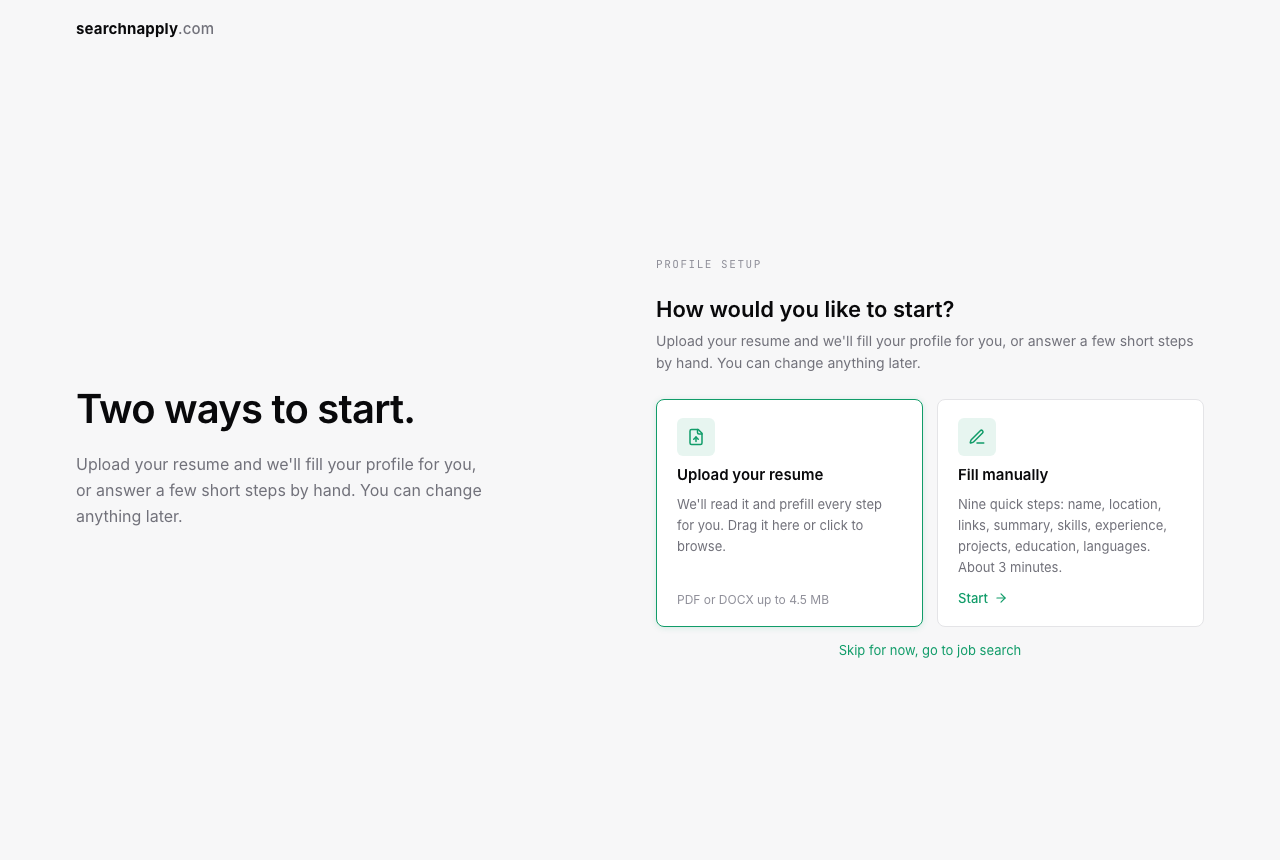
Profile setup. Screenshot of the app.
3.Search
Type a job title and a place. The filter button opens the rest: Roles, Work format, Date posted, Companies, Department, Experience level, Employment type, Salary range and keywords. Open a posting to read it next to the list.
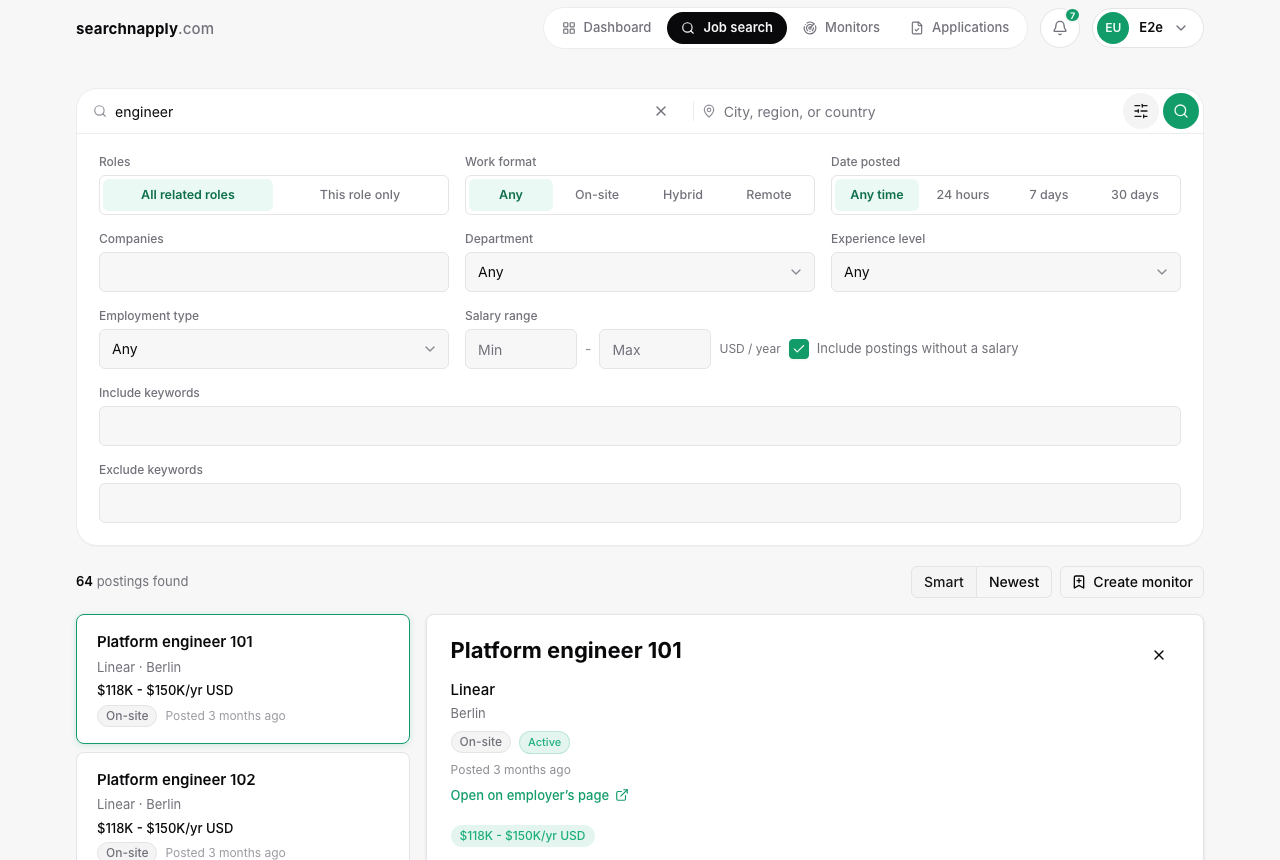
Job search. Screenshot of the app, example data.
4.Save a monitor
Press Create monitor. We keep running the search, and new matching postings show up in your notifications as soon as we find them. Each monitor sorts its postings into New, Applied and Skipped.
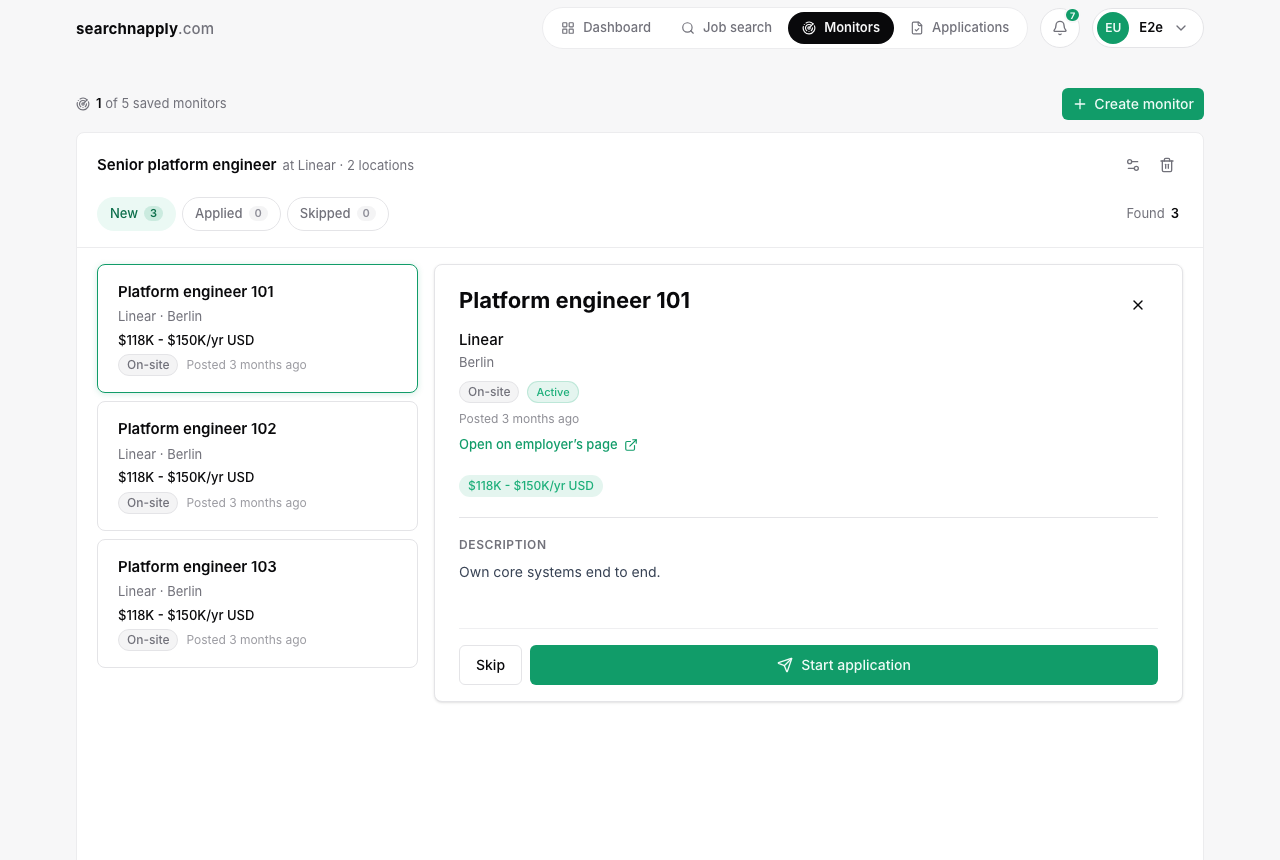
Monitors. Screenshot of the app, example data.
5.Apply with a tailored resume
Press Start application on a posting. We write a resume and a cover letter for it from your profile. Review them, download the PDFs and apply on the employer's page, then mark the posting applied. searchnapply does not apply on your behalf.
6.Pick the AI model
In Settings, AI, pick the default model for every new resume and cover letter. Your assistant over MCP always picks its own.
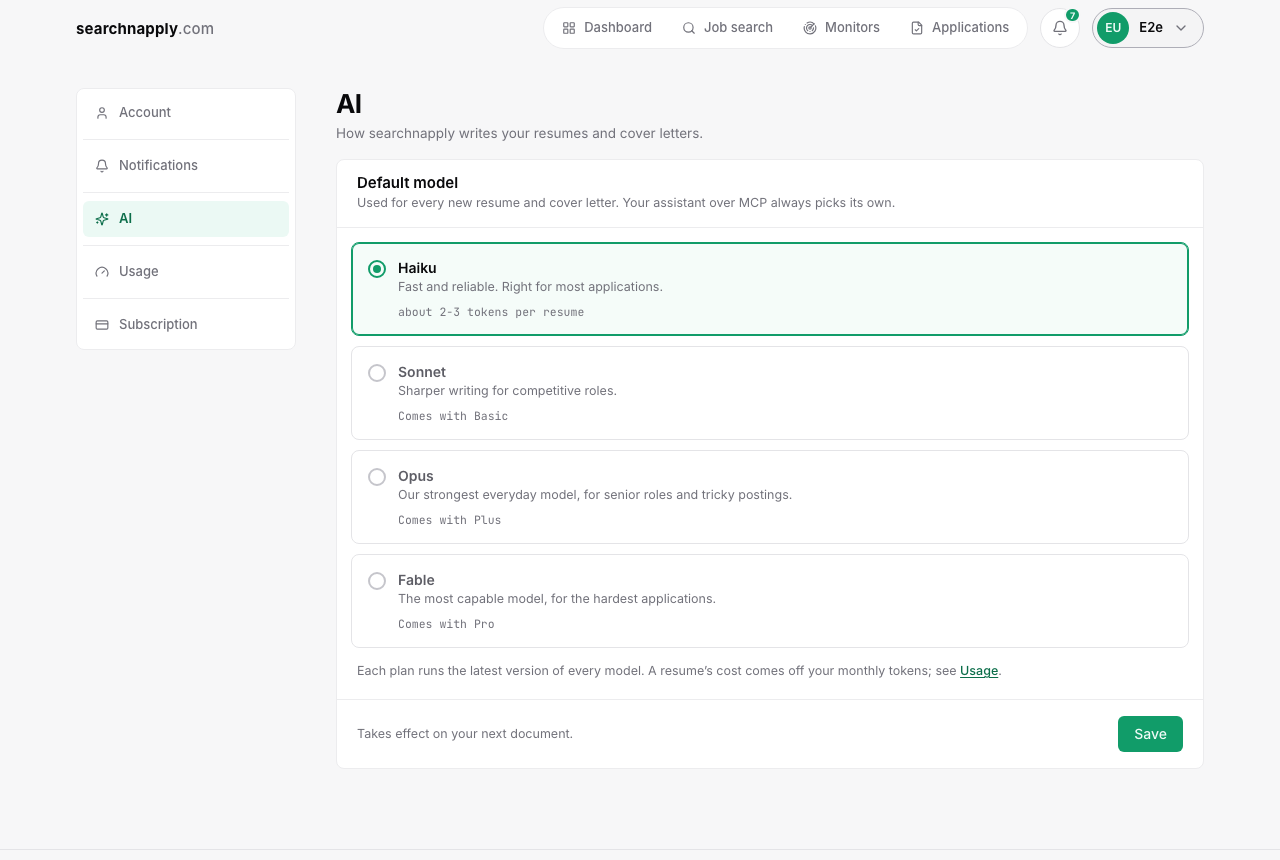
Settings, AI. Screenshot of the app.
7.Track applications
Applications keeps every posting you applied to, with its date, status and the documents you sent.
Connect your AI agent
searchnapply speaks MCP, the open protocol AI assistants use to call tools. One URL, the same for every client:
https://api.searchnapply.com/mcp
Signing in happens in your browser. The client opens searchnapply, you approve what it asks for, and the connection is live. You never paste a key anywhere.
Claude
One click adds the connector to your Claude account and opens the sign-in.
By hand:
- Open Customize, then Connectors.
- Click + Add, then Add custom connector.
- Name it searchnapply, paste the connector URL and click Continue.
- Keep the sign-in settings Claude detects and click Add, then sign in and approve.
- In a chat, open the + menu, then Connectors, and turn searchnapply on.
Claude's Free plan allows one custom connector.
Source: support.claude.com/en/articles/11175166, checked October 15, 2026.
ChatGPT
- Open chatgpt.com/plugins.
- Select the plus button, then Add custom MCP server.
- Enter the name searchnapply and a description, and paste the connector URL under Connection.
- Set up authentication, read the risk warning and select I understand and want to continue.
- Select Create as a plugin, then sign in and approve.
OpenAI decides which ChatGPT plans can add a custom MCP server; its help article lists them.
Sources: developers.openai.com/plugins/deploy/connect-chatgpt and help.openai.com/en/articles/12584461, checked October 15, 2026.
Gemini
- Open gemini.google.com, click Settings, then Connected Apps. If you don't see it, click Personal Intelligence first.
- Under Custom apps, click Add a custom app.
- Paste the connector URL and click Next.
- Follow the on-screen steps to sign in and approve.
Google requires a personal Google Account, age 18 or over, the US, English and Keep Activity on. You connect on the web; the app then works in the Gemini mobile app too.
Source: support.google.com/gemini/answer/17209137, checked October 15, 2026.
Grok
- Open grok.com/connectors.
- Click New Connector, then select Custom.
- Paste the connector URL and sign in. Grok then finds the searchnapply tools.
On Grok Business and Enterprise, a team admin provisions the connector first.
Source: docs.x.ai/grok/connectors, checked October 15, 2026.
Muse
Meta's help center does not describe adding a connector by its MCP URL in the Muse app; it says you ask Muse to create a custom connector and Muse guides you. [needs: confirm in the Muse app that a custom MCP URL is accepted]
Muse Code, Meta's terminal agent, takes MCP servers in the mcp_servers block of its settings file:
"searchnapply": { "transport": "streamable_http", "url": "https://api.searchnapply.com/mcp" }
Then sign in with muse mcp login searchnapply.
Sources: meta.com/help/artificial-intelligence/1687253048996149 and dev.meta.ai/docs/muse-code/extending, checked October 15, 2026.
Claude Code
Run this in your terminal:
claude mcp add --transport http searchnapply https://api.searchnapply.com/mcp
Then run /mcp inside Claude Code and follow the browser sign-in.
Source: code.claude.com/docs/en/mcp, checked October 15, 2026.
Run your job search with your agent
Talk to your assistant in your own words. These are examples; each line names the tool it calls.
- Ask for jobs: "Find remote senior product manager roles in the US." It searches and lists title, company, location, salary and a link.
job_postings_search - Ask it to open one: "Open the second one." It reads the full posting.
job_postings_get_full_description - Ask for a tailored resume or cover letter: "Tailor my resume for it." It reads the posting and your profile, asks about any gaps, then writes it with you.
profile_get - Ask it to watch the search: "Watch this search for me." A monitor needs a title and one real place.
monitor_create - Come back later: "What's new in my monitors?"
monitor_list,monitor_get - Tell it what you did: "I applied to this one" or "Skip it." Both can be undone.
monitor_decide
Your assistant never applies to a job for you. Over MCP it spends none of your monthly tokens.
Tool reference
Your assistant picks the tool it needs. The tools page lists every tool with what it is for, what it takes and what it returns.
Access and turning it off
The consent screen lists exactly this, and nothing is granted until you approve it:
- Read your profile
- Search job postings
- Create and manage your job monitors
- Stay connected between conversations
The connection reads and writes only what you could do on the site yourself. It never applies to a job for you.
Disconnect the connector in your assistant, or end the connection from here: open Account settings and revoke the row under Active sessions. The next call from that assistant is refused until you connect again.