RomeoSEO
Acesse seu plano de SEO, sua pesquisa de palavras-chave e os resultados do Google Search Console, e gerencie o trabalho de SEO pelo seu assistente de IA.
Servidor MCP hospedado
npx add-mcp 'https://app.romeoseo.com/mcp'Instala no Claude Code, Codex, Cursor e outros
Documentação
Set up in a minute
4 steps
- Copy the RomeoSEO address
https://app.romeoseo.com/mcp - Add it to your AI app Sign in when the app asks; new to RomeoSEO, that creates your account. Claude Code, Codex or something else? Steps for every app
- Ask your first question Use RomeoSEO to check my connection and list my websites. Don't start any research or tasks.
- Start your 3-day free trial New here? Romeo asks for your website, starts researching it and gives you the link to your trial, right in the chat. Already a customer? Skip this one.
Romeo did that. Now he takes requests from Claude.
That is the Search Console of the founder's own product. The SEO system behind it is Romeo, and it took the product to 30,000 clicks a month from Google. The same Romeo sits behind every tool on this page.
- 30,000 clicks a month from Google for the founder's own product
- 4 articles written and sent as pull requests in one day, all from Claude
Made through this MCP: four articles in one day.
On 9 November 2026 we ran romeoseo.com's SEO from Claude. Romeo wrote these from his SEO plan, with their images, and sent each one to our GitHub as a pull request with publish_task. We fixed a few details, merged them, and they are live.
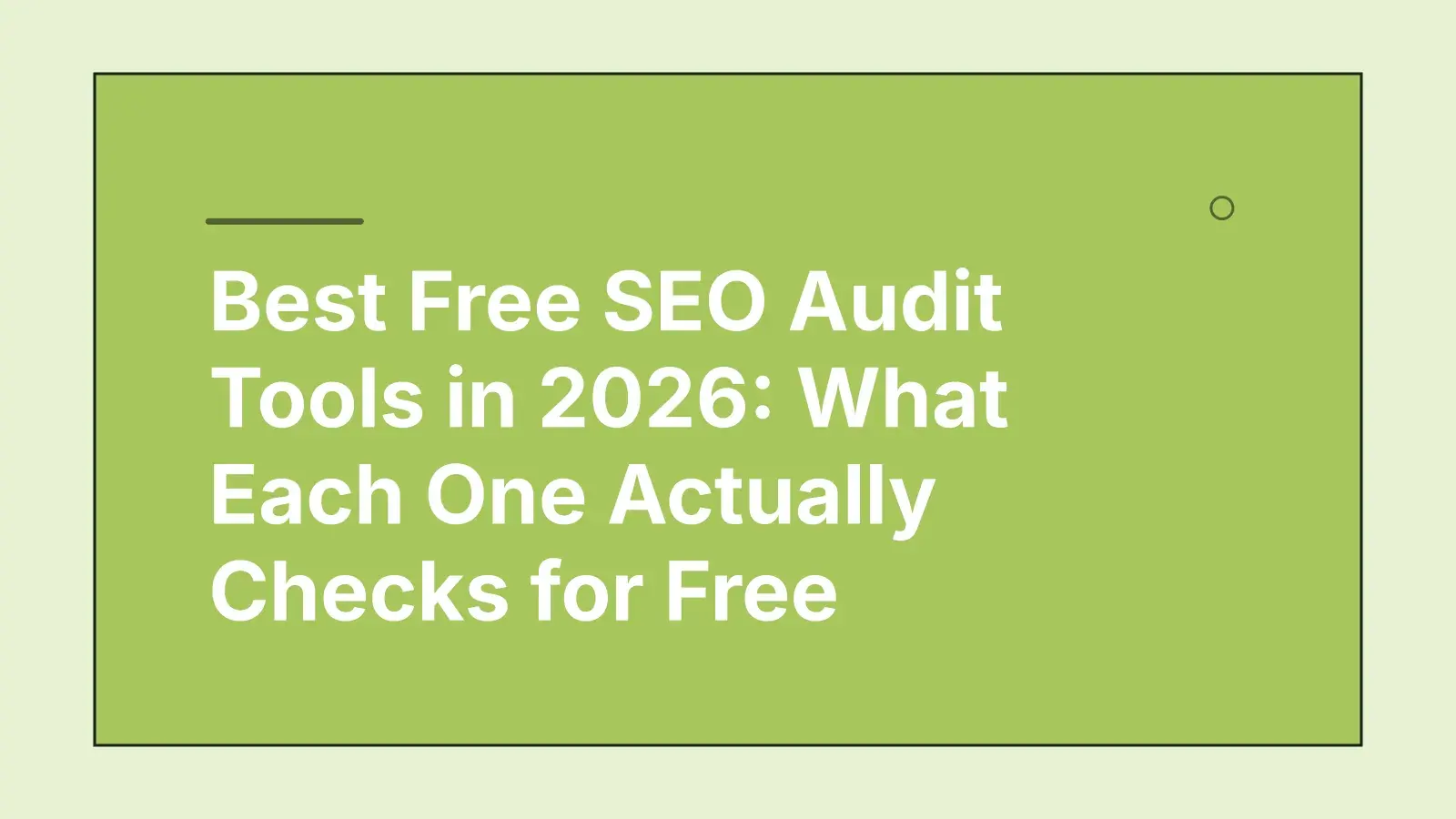 Written by Romeo · sent as a pull request Best Free SEO Audit Tools in 2026 (Compared)
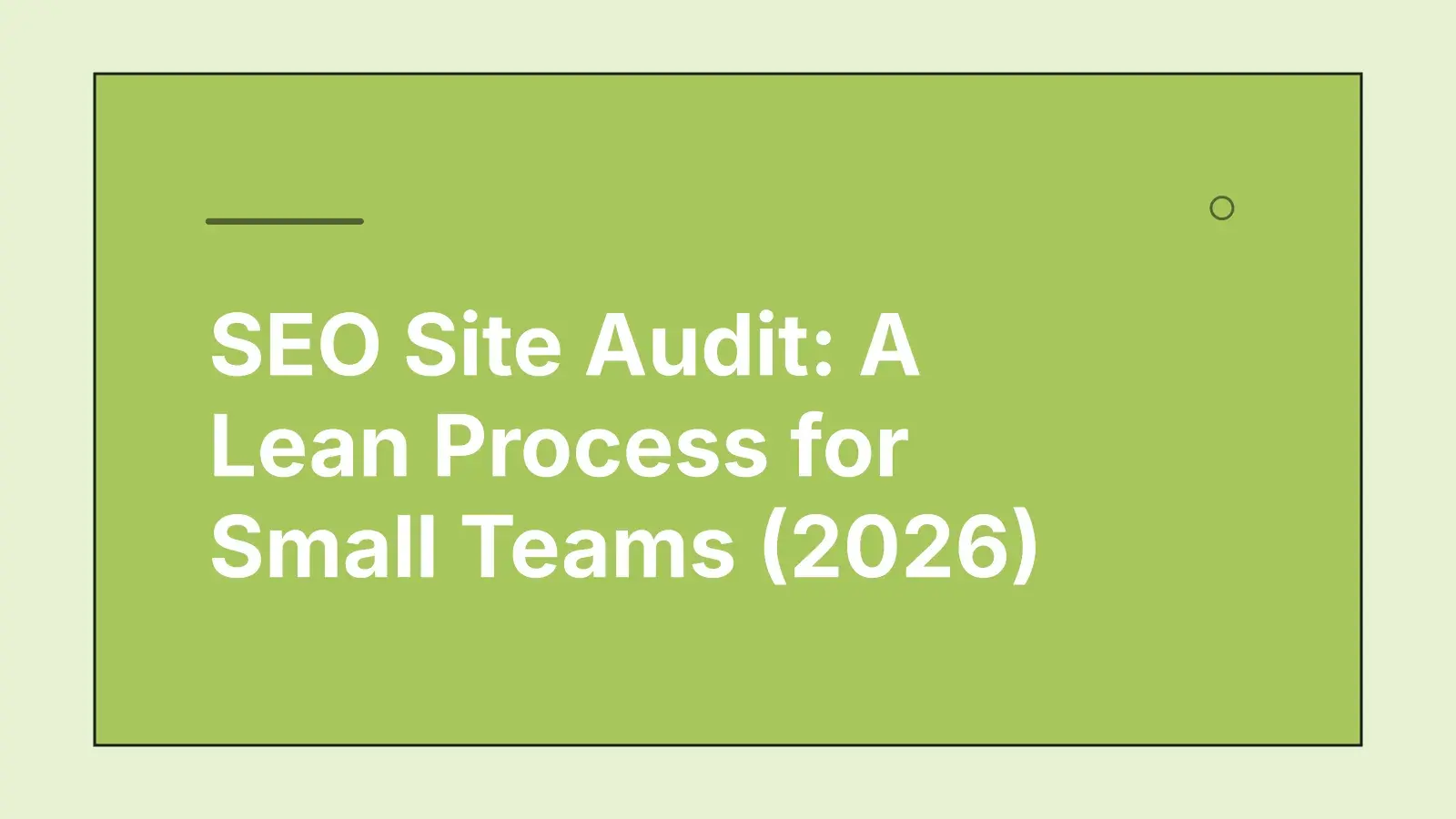 Written by Romeo · sent as a pull request SEO Site Audit: A Lean Process for Small Teams
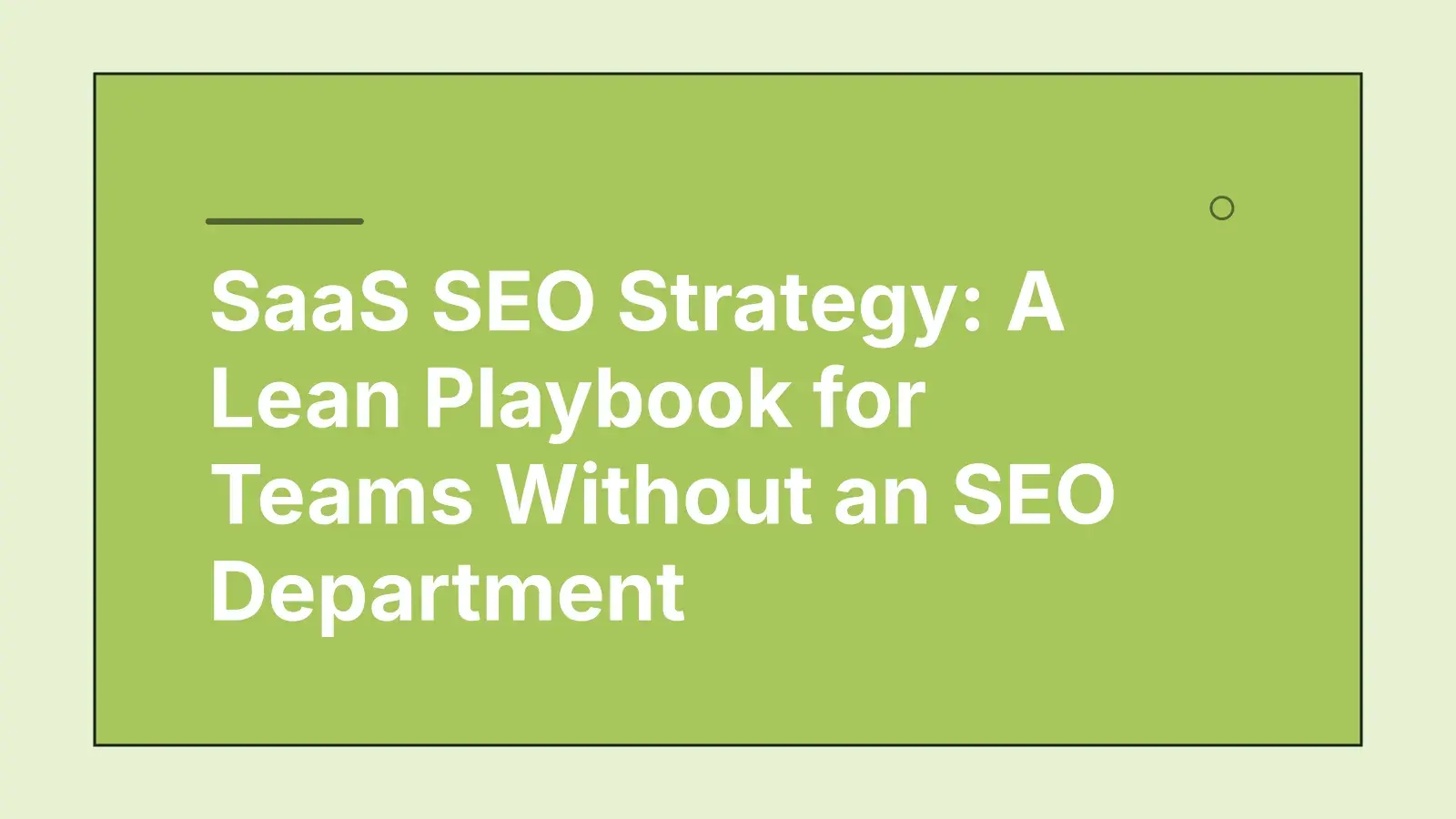 Written by Romeo · sent as a pull request SaaS SEO Strategy: A Lean Playbook for Teams
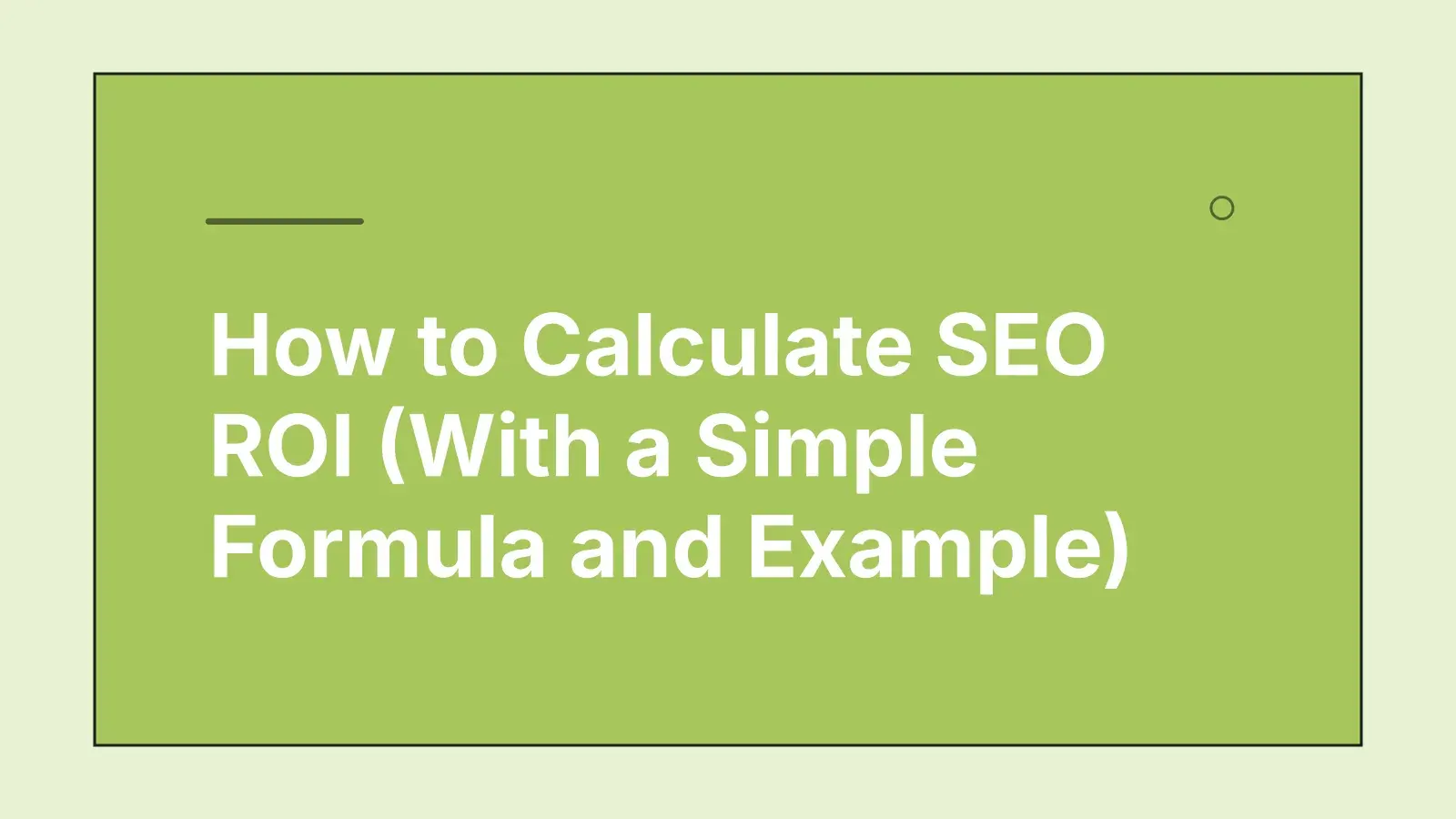 Written by Romeo · sent as a pull request How to Calculate SEO ROI: Formula and Example
One MCP for Google and for AI answers.
Buyers now find you in Google and in ChatGPT, Gemini and Google's AI answers. Romeo works on both, from the same chat.
- SEO MCP
Get clicks from Google
Live Search Console data and keyword checks with today's top 10, then the work those numbers point to: new articles, page improvements and content gap fixes, checked once they are live.get_search_console_reportcheck_keywordsrequest_article
- AEO MCP
Get named in AI answers
Every week Romeo asks ChatGPT, Gemini and Google AI Mode the questions your buyers ask, and checks Google's AI Overviews. Ask your AI app who they name instead of you and which pages they cite.get_ai_answers
- LLM SEO
Become the page AI tools quote
Turn those answers into work: ask Romeo for the comparison page AI tools are missing, fix the facts they get wrong on your pages, and keep your business profile current so every article gets them right.request_page_improvementupdate_business_profile
Other SEO MCPs fetch data. Romeo does the SEO.
A Google Search Console MCP shows your AI app your clicks. A keyword data MCP shows it someone else's numbers. Romeo has both, knows your site, and does the work those numbers point to.
| Search Console MCP | Keyword data MCP | RomeoSEO | |
|---|---|---|---|
| Your Search Console clicks, searches and pages | |||
| Keyword searches, difficulty and today's top 10 | |||
| Whether ChatGPT, Gemini and Google's AI name you | Checked weekly | ||
| Knows your pages, your business and your plan | |||
| Article ideas checked against pages you already have | |||
| Writes articles and improves pages | |||
| Sends finished work to your website | Draft or pull request | ||
| Checks the change went live, then tracks it | |||
| Setup | Google Cloud project and keys | API key, paid per lookup | Sign in once |
27 tools. Ask in plain words, Romeo picks.
You never type a tool name: your AI app reads them and calls the right ones. Grouped by the job they do.
- Reads your data
- Does work (See and work only)
06 tools
See how you do on Google and in AI
Your Search Console, what AI answers say about you, live keyword numbers and every page of your site.
- Google stats
get_google_stats - Search Console report
get_search_console_report - AI answers
get_ai_answers - Check keywords
check_keywords - Find pages
find_pages - Re-read a page now
reread_pageWhat each one does
Google stats
Visitors, times shown, keywords on page one, top pages, what went up or down, and how the pages Romeo wrote did.
Search Console report
Live top pages, drops, gains and searches for 7 to 90 days. Brand and bot-like searches are flagged.
AI answers
Romeo's weekly check of ChatGPT, Gemini and Google's AI answers: whether they name you, who they name instead, the pages they cite and facts they get wrong.
Check keywords
Monthly searches, difficulty, cost per click, intent and trend, plus today's Google top 10 and where you rank.
Find pages
Any page Romeo read: title, headings, word count, buttons, links in and out, robots, structured data and speed.
Re-read a page now
Reads one page live and shows what changed since Romeo's last read. Handy right after you edit it.
07 tools
Plan what to do next
Romeo's keyword and page research, and the SEO plan he works from, day by day.
- Website overview
get_site_overview - Your SEO plan
get_seo_plan - Research results
get_research - Start research
start_research - Add to plan
add_to_plan - Move task
move_task - Skip task
skip_taskWhat each one does
Website overview
What Romeo is doing now, what is next this week and what is waiting for you.
Your SEO plan
Every planned, running, finished and skipped article and page improvement, with its day.
Research results
Article ideas with their searches, pages losing visitors, and pages close to Google's first page.
Start researchSee and work
New keyword or page research, optionally around topics you name. Good ideas join the plan by themselves.
Add to planSee and work
Puts one researched article idea on your plan.
Move taskSee and work
Moves a task to another day. Two tasks of the same kind swap days.
Skip taskSee and work
Skips one task or several at once, so Romeo stops work on them.
07 tools
Do the SEO work
Articles, page improvements and competitor comparisons, written in the background while you get on with your day.
- Ask Romeo for an article
request_article - Ask Romeo to improve a page
request_page_improvement - Start content gap analysis
start_content_gap_analysis - Content gap analysis
get_content_gap_analysis - Let Romeo make these changes
add_content_gap_to_plan - Start task
start_task - Task details
get_taskWhat each one does
Ask Romeo for an articleSee and work
An article on a topic you name. Romeo checks your pages and plan first, then puts it at the front of the queue.
Ask Romeo to improve a pageSee and work
A change to one of your pages, in your own words: "make my homepage get more sign-ups".
Start content gap analysisSee and work
Reads the pages that beat yours on Google for your page's own searches.
Content gap analysis
What those pages cover that yours does not, ideas none of them have, and what your page already does well.
Let Romeo make these changesSee and work
Turns the analysis into a page improvement on your plan.
Start taskSee and work
Starts an article or page improvement now instead of on its day.
Task details
Where a task stands, why Romeo planned it, its SEO title and description, and its result.
02 tools
Send it to your website
Finished work goes where your site is connected. Romeo checks when it is live.
- Send to my website
publish_task - Mark as done
mark_task_doneWhat each one does
Send to my websiteSee and work
Sends finished work as a GitHub pull request, or a Webflow or WordPress draft. Several tasks at once if you like.
Mark as doneSee and work
For work you did by hand. Romeo then checks the live page for the change.
05 tools
Keep Romeo up to date
The business notes every article is written from, and answers about RomeoSEO itself.
- List my websites
list_sites - Business profile
get_business_profile - Change the business profile
update_business_profile - How RomeoSEO works
read_product_guide - Send feedback
send_feedbackWhat each one does
List my websites
Your websites, their plan and how much Romeo can still start today.
Business profile
What you sell, who for, your goal, competitors and the topics Romeo should push.
Change the business profileSee and work
A new offer, audience, competitor or goal, saved in one step.
How RomeoSEO works
Publishing, connections, research, billing: how RomeoSEO works, with links into the app.
Send feedback
A bug, an idea or praise, straight to the RomeoSEO team.
One question. The whole job.
Ask in plain words; you do not need to know any SEO. Your AI app picks the Romeo tools it needs, in order, and answers with your own data. Articles and research keep running after you close the chat, so ask again later and it checks.
- 01
Which of my pages lost visitors from Google this month, and what should we do about them?
get_search_console_reportSearch Console report 2.get_researchResearch results 3.request_page_improvementAsk Romeo to improve a page You get: The pages that dropped, with their numbers, and an improvement for the worst one on your plan.
- 02
Write an article about our new booking feature and send it to the blog when it is done.
request_articleAsk Romeo for an article 2.start_taskStart task 3.get_taskTask details 4.publish_taskSend to my website You get: A researched article written for your business, sent as a draft or pull request.
- 03
Why does my pricing page rank below my competitors on Google?
start_content_gap_analysisStart content gap analysis 2.get_content_gap_analysisContent gap analysis 3.add_content_gap_to_planLet Romeo make these changes You get: What the pages above you cover that yours does not, and Romeo making those changes.
- 04
Find 10 keywords around wedding photography I could realistically rank for.
get_researchResearch results 2.start_researchStart research 3.check_keywordsCheck keywords 4.add_to_planAdd to plan You get: Ideas with monthly searches and difficulty, checked against your site, and the best ones on your plan.
- 05
I just changed my homepage title and heading. Did it work?
reread_pageRe-read a page now You get: Your homepage as it is right now, next to Romeo's last read, with every change named.
- 06
What is Romeo doing this week? Send everything that is finished to my website.
get_site_overviewWebsite overview 2.get_seo_planYour SEO plan 3.publish_taskSend to my website You get: This week's plan in plain words, and every finished article sent where your site is connected.
Asked from Claude, written like Romeo.
An article you ask for in ChatGPT is not a quick chat reply. It goes through the same steps as every article in RomeoSEO, and lands on your plan and in Chat with Romeo.
See everything the AI SEO agent does
-
Reads what already ranks
Today's Google results for the keyword, and the pages that rank there. -
Checks your site first
Your existing pages, so he refreshes one instead of repeating it. -
Writes for your business
From your business profile: what you sell, who for and what a reader should do next. -
Visuals and links
Images in your site's look, and links to your other pages. -
Edited before it is done
An editorial review, and a rewrite when a draft falls short. -
Followed up
Romeo checks the page once it is live and watches how it does on Google.
You decide what each app may do.
Connected with See and work, an AI app can do most of what you can do in RomeoSEO. Work it starts counts toward the same daily limits as work started in the app.
-
Only apps you allow
An AI app only reaches your account after you sign in to RomeoSEO and allow it. You see the app's name and what it will be able to do first. -
See only, if you prefer
Choose See only and the app can look at everything but change nothing. See and work also lets it start research and tasks. -
Disconnect any time
Every app you connect is listed under AI apps in RomeoSEO. Disconnect one and it loses access straight away. -
Keys are shown once
Personal keys for scripts are shown once, when you create them. RomeoSEO stores only a scrambled fingerprint, so nobody can read a key back.
What an AI app cannot do
- Put a page live from an AI app. Work arrives as a draft or a pull request; Webflow posts go live from the RomeoSEO app.
- Change your billing or your plan.
- Delete your websites or your account.
- Change anything at all, when you connect it with See only.
Before you connect.
Is this a Google Search Console MCP?
Yes, and more. Once your Search Console is connected to RomeoSEO (read-only), your AI app can read your clicks, searches and pages live. It also gets keyword data, Romeo's research and your SEO plan, and it can ask Romeo to write articles, improve pages and send the work to your website. There is no Google Cloud project, API key or service account to set up: you sign in to RomeoSEO and allow the app.
Is it an AEO or LLM SEO MCP too?
Yes. AEO (answer engine optimization) and LLM SEO mean getting your business named and cited in AI answers. Every week Romeo asks ChatGPT, Gemini and Google AI Mode the questions your buyers ask and checks Google's AI Overviews. Your AI app reads that with the AI answers tool: whether you are named, who is named instead, which pages are cited and which facts are wrong. Then you can ask Romeo for the pages and fixes that change those answers.
How is it different from other SEO MCP servers?
Most SEO MCP servers give your AI app data: Search Console rows, or keyword and backlink numbers from a database. Your AI app then has to work out what to do. RomeoSEO is an SEO agent, so its MCP does the work too: research checked against your own pages, articles written for your business, page improvements, content gap analyses and delivery to your website, with live checks afterwards.
What does it cost?
Using Romeo from AI apps is included on every RomeoSEO plan. Monthly is $69 per site, after a 3-day free trial (card required). There are no per-call credits: work started from an AI app counts toward the same daily limits as work started in RomeoSEO. Some AI apps only let you add custom connectors on their own paid plans, so check yours.
Which AI apps work?
Claude, ChatGPT, Cursor, VS Code, Claude Code and Codex, plus any other app that can connect to a remote MCP server and sign in. Scripts and automation tools that cannot sign in can use a personal key instead.
Can it publish to my website?
Romeo sends finished work the way your site is connected: a GitHub pull request, or a Webflow or WordPress draft. From an AI app it never puts a page live by itself; you merge the pull request or publish the draft. You can also turn on automatic publishing in RomeoSEO, so finished articles are sent without asking.
How long does the work take?
Reading your data takes seconds. Research, articles and page improvements run in the background: an article usually takes 10 to 20 minutes. Your AI app gets an answer at once and can check on the task whenever you ask.
Do I need an AI app to chat with Romeo?
No. Chat with Romeo is built into RomeoSEO on every plan, including the trial: ask about your site in plain English and Romeo answers from your pages, Search Console, plan and research, and suggests articles and fixes you add to your plan in one click. Articles and page changes you ask for from an AI app are saved there too.
Is my data safe?
An AI app only gets in after you sign in and allow it, and you can give it See only. You can disconnect any app at any time from AI apps in RomeoSEO. The AI app sees the answers Romeo sends it, so its own privacy terms cover those.
What does MCP mean?
MCP stands for Model Context Protocol. It is a standard way for AI apps to use other apps, so Claude or ChatGPT can ask RomeoSEO for your data, or ask Romeo to start work, without you copying anything between them.
Fixes for the usual hiccups.
My AI app answers without my RomeoSEO data
RomeoSEO is not connected in that chat yet. Open your AI app's connector, app or MCP settings, choose Connect next to RomeoSEO and sign in. Then start a new chat, pick RomeoSEO (type @ in ChatGPT and Codex) and ask it to list your websites.
Codex says it could not load RomeoSEO's connection details
Add RomeoSEO to Codex as an MCP server instead of a ChatGPT app: open Settings, then MCP servers, choose Add server, pick Streamable HTTP, paste the RomeoSEO address and sign in. Or run the two Codex commands above.
The sign-in window never opens
Allow pop-ups for your AI app and try Connect again. In Codex and Claude Code, the sign-in opens in your browser, so check for a new browser tab.
It connected, but there are no websites
The connection works; your account has no website yet. Romeo's answer has a link to add one, and he starts researching it right away. If you work on a teammate's account, sign in with the email they invited.
Sign-in keeps failing
Remove RomeoSEO from your AI app, add it again with the address above and sign in once more. You can also disconnect the old connection under AI apps in RomeoSEO.