Improvado
Marketing data for AI agents: query ads, CRM and analytics data in your Improvado workspace.
Servidor MCP hospedado
npx add-mcp 'https://report.improvado.io/experimental/agent/api/mcp-customer/v1/invoke/'Instala no Claude Code, Codex, Cursor e outros
Documentação
The Concept
Closed-Loop Marketing Execution
Your marketing team plans in decks. Launches in platform UIs. Measures in spreadsheets. Reports in yet another tool. Every handoff costs days. Context disappears between steps.
Closed-loop execution fixes that. Your AI agent runs the entire cycle — from hypothesis to better-performing campaign — across every channel, with every metric unified and every action governed. No handoffs. No context lost. And it gets smarter each cycle.
Ideate → Launch → Measure → Analyze → Report → Iterate ↻
Improvado MCP Powers the Loop
Model Context Protocol (MCP) is how AI agents talk to external tools. Anthropic built the standard. OpenAI and Google adopted it. Improvado's MCP server is the marketing-specific implementation — giving your AI agent read and write access to 1,400+ data sources through one governed connection. No engineering. No platform-by-platform integration.
Unified Data
46,000+ metrics harmonized via MCDM. "Cost" in Google Ads and "spend" in Meta resolve to the same field.
Governed Processes
Pre-built rules enforce naming, budgets, and KPI thresholds. Every query auditable. Every account change confirmed first.
Enterprise Security
Zero-trust proxy architecture. AI agents never see credentials. SOC 2, GDPR, HIPAA.
30 hrs
Per week saved in manual data aggregation and report assembly. Marketing teams shift from pulling data to acting on insights.
The Product
What Is Improvado MCP
MCP is the open standard for connecting AI to external tools. Anthropic built it. OpenAI and Google adopted it. 97 million SDK downloads a month — it's the way AI talks to the outside world now.
Improvado's MCP server exposes your entire marketing data platform — 1,400+ data sources, governed transformations, real-time analytics — to any AI agent through one secure interface. Ask a question, get real numbers. Not estimates. Not hallucinations. Numbers.
Technical Teams
Your Agent, Our MCP
Connect Claude, Cursor, Windsurf, or any MCP client directly. Full JSON-RPC 2.0 access. Your tools, our governed data layer.
Marketing Teams
Improvado AI Agent
Just chat. The AI Agent is the native MCP client — same 84 tools, no setup. Ask a question, get an answer with real numbers.
What Your Team Can Do — Mapped to the Loop
IdeateHistorical Insight Engine
"What creative format drove the lowest CPA for our fintech audience last quarter?" Real numbers from 1,400+ data sources. One question.
LaunchCampaign Execution
Build campaigns, configure A/B tests, set UTMs, push live — all through conversation. 1,400+ data sources behind the scenes.
MeasureAlways-On Governance
Budget pacing off? Caught hourly. Naming conventions broken? Flagged before it corrupts reports. Creative fatiguing? Detected and paused.
AnalyzeUnified Attribution
Cross-channel attribution where "cost" and "spend" are already the same field. CPA by segment, stat significance by variant.
ReportExecutive Reporting
CMO gets a strategic summary. Analysts get methodology. Finance gets budget impact. Same data, shaped for each audience.
IterateLearning Loop
"Variant B won by 34% — next test: same format, narrower audience, bigger budget." Agent proposes it. You approve. Cycle restarts.
↔
Same engine, two interfaces. Every tool above runs natively inside Improvado AI Agent. Your data team gets protocol-level control. Everyone else gets the same capability through conversation.
Getting Started
Connect Improvado MCP to Your AI Agent
Customer MCP uses OAuth — your existing Improvado credentials, no new tokens to manage. Eight methods depending on your environment. Most take under five minutes; Microsoft Copilot first needs a one-time OAuth application from Improvado.
Prerequisite
✓Access to your Improvado account (OAuth — no separate API key needed)
✓MCP endpoint: https://<your-domain>/experimental/agent/api/mcp-customer/v1/invoke
⚠️Every URL below uses <your-domain> — your Improvado domain. For a standard account use report.improvado.io, so the full endpoint URL is:
https://report.improvado.io/experimental/agent/api/mcp-customer/v1/invoke
If your organization uses a custom (whitelabel) domain, use that domain instead (e.g. acme.improvado.io). On a whitelabel domain, report.improvado.io will not authenticate you.
1
Claude Desktop App
Best for individual use. Connects in three clicks.
1
Open Connector Settings
In Claude Desktop, navigate to Customize → Connectors and click Add custom connector.
2
Paste the MCP URL & Connect
Enter the endpoint URL and click Connect. OAuth flow starts automatically.
https://<your-domain>/experimental/ agent/api/mcp-customer/v1/invoke
Replace <your-domain> with report.improvado.io (standard accounts) or your organization's whitelabel domain, e.g. acme.improvado.io.
3
Authorize & Verify
Follow OAuth prompts with your Improvado credentials. Connector appears in active list once authorized.
2
Claude Code / Config File
Best for teams and programmatic access. Works in any project.
1
Option A: Add via CLI
claude mcp add --transport http improvado \ https://<your-domain>/experimental/\ agent/api/mcp-customer/v1/invoke/
Replace <your-domain> with report.improvado.io (standard accounts) or your organization's whitelabel domain, e.g. acme.improvado.io.
2
Option B: Add to .mcp.json
Add to your project's config file:
{ "improvado": { "type": "http", "url": "https://<your-domain>/ experimental/agent/api/ mcp-customer/v1/invoke/" } }
Replace <your-domain> with report.improvado.io (standard accounts) or your organization's whitelabel domain, e.g. acme.improvado.io.
3
Authenticate via OAuth
On first use, authorize with your Improvado account. All subsequent calls are automatic.
3
ChatGPT App
Best for marketers using ChatGPT. The same connection also exposes Improvado MCP inside OpenAI Codex and Codex CLI — no extra setup.
Improvado AI Agent in the ChatGPT App Store: find Apps in the left sidebar, then search Improvado ChatGPT New chat Search chats Library Apps Codex More Pinned Apps Chat with your favorite apps in ChatGPT Improva im Improvado AI Agent Work with marketing data ›
1
Open the ChatGPT App Store
In ChatGPT, click Apps in the left sidebar and search for Improvado.
2
Add the Improvado AI Agent app
Click the Improvado AI Agent result → Connect. OAuth flow starts automatically.
3
Authorize & use anywhere
Sign in with your Improvado credentials. Improvado is now available in any ChatGPT conversation, plus in Codex and Codex CLI through the same authorization.
4
Codex Plugin (Direct Install)
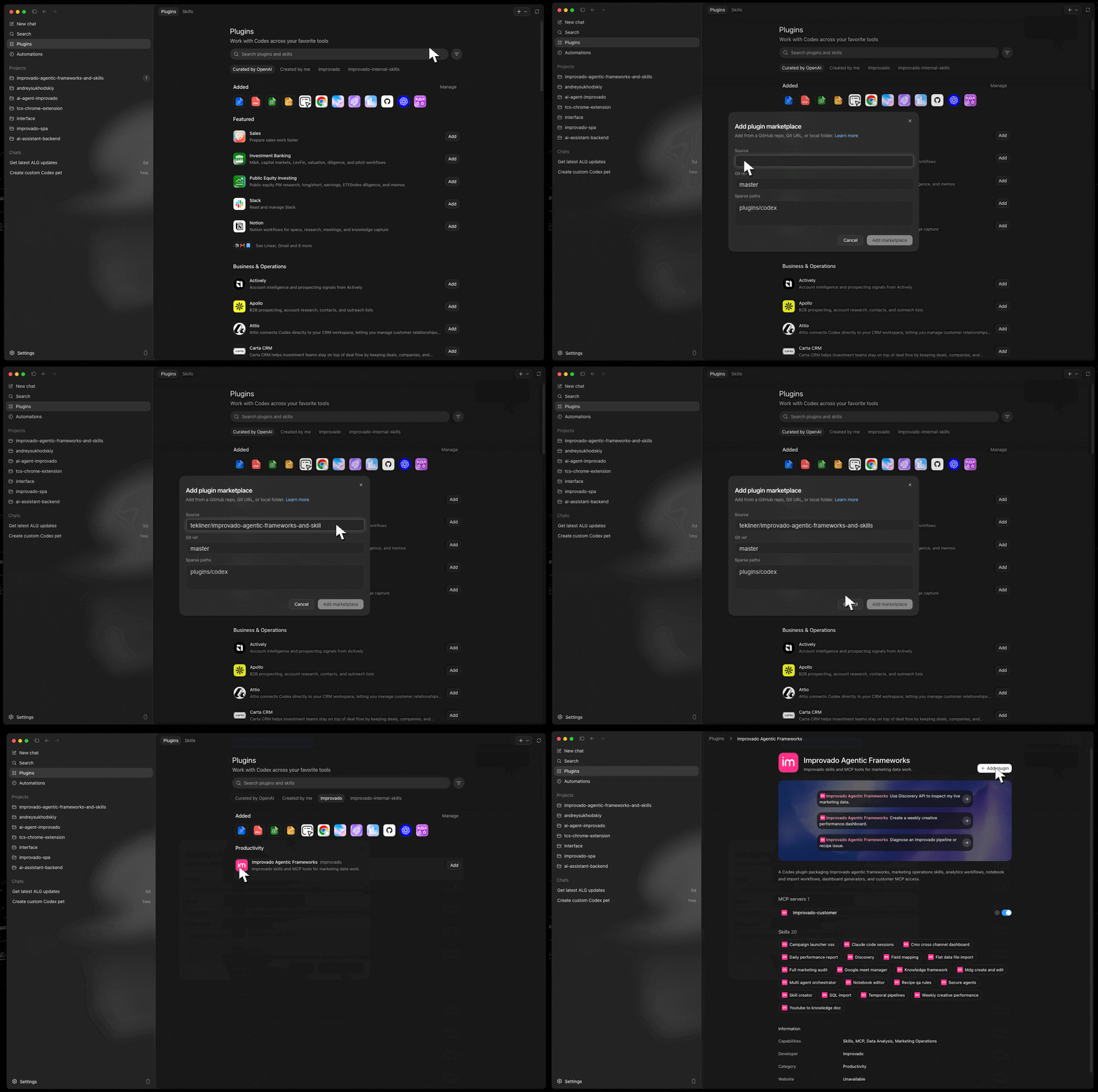
Best for engineers using OpenAI Codex directly. Adds Improvado as a Codex plugin available in both Codex and Codex CLI, including 20+ pre-built marketing skills (see list below).
1
Open Codex Plugins
In Codex, click Plugins in the left sidebar, then click the + button in the top-right to add a new plugin.
2
Enter the plugin settings
Fill the form with these values:
Source tekliner/improvado-agentic-frameworks-and-skills
Git ref master
Sparse pathsleave empty
3
Click Install
Codex pulls the plugin from the Improvado repository and adds it to your Added plugins list. The same Improvado tools are now available in both Codex and Codex CLI.
5
Gemini CLI
Best for engineers using Google's Gemini in the terminal. Note — the Gemini web app can't connect; Improvado MCP requires a local OAuth + HTTP MCP client (Gemini CLI or Antigravity).
1
Open the global config at ~/.gemini/settings.json and paste this into your mcpServers section. Reliable OAuth-scope configuration.
{ "mcpServers": { "improvado": { "url": "https://<your-domain>/experimental/agent/api/mcp-customer/v1/invoke/", "type": "http", "oauth": { "scopes": ["mcp:customer"] } } } }
Replace <your-domain> with report.improvado.io (standard accounts) or your organization's whitelabel domain, e.g. acme.improvado.io.
2
Option B: Add via CLI
Run this in your terminal, then open ~/.gemini/settings.json and append the OAuth scopes to the new improvado entry.
gemini mcp add --transport http improvado \ https://<your-domain>/experimental/\ agent/api/mcp-customer/v1/invoke/
"oauth": { "scopes": ["mcp:customer"] }
Replace <your-domain> with report.improvado.io (standard accounts) or your organization's whitelabel domain, e.g. acme.improvado.io.
3
Authorize
Inside an active Gemini CLI chat, run /mcp auth improvado to start the browser-based OAuth flow and connect your Improvado account.
6
Antigravity
Antigravity uses the same MCP server schema as Gemini CLI — add the Improvado entry to its MCP configuration, then authorize over OAuth.
1
Open the MCP configuration
In Antigravity, go to Settings → MCP servers → Manage MCP servers and open the JSON configuration for editing.
2
Add the improvado server
Paste the same block used for Gemini CLI:
{ "mcpServers": { "improvado": { "url": "https://<your-domain>/experimental/agent/api/mcp-customer/v1/invoke/", "type": "http", "oauth": { "scopes": ["mcp:customer"] } } } }
Replace <your-domain> with report.improvado.io (standard accounts) or your organization's whitelabel domain, e.g. acme.improvado.io.
3
Save & authorize
Save the configuration and reload the MCP server. On first connect, complete the browser-based OAuth flow to link your Improvado account. Verify by opening the MCP panel — improvado should appear as connected.
Before you connect Microsoft Copilot
The clients above register with Improvado automatically. Microsoft Copilot does not support dynamic client registration, so methods 7 and 8 need an OAuth application issued for your organization first.
1.Request an OAuth application. Contact your Customer Success Manager and ask for an Improvado MCP OAuth application for Microsoft Copilot. You will receive a Client ID and a Client Secret.
2.Allow-list your redirect URI. If your first authorization stops on an Improvado page saying the redirect URI is not registered or does not match, that is expected. Copy the full URL from the browser address bar and send it to your CSM. Once it is allow-listed, connect again.
7
Microsoft Copilot Studio
Best for teams building custom agents in Copilot Studio. Requires the OAuth application from your CSM (see above).
1
Open your agent
Go to Copilot Studio → Agents, then create a new agent or open an existing one.
2
Add an MCP tool
In the agent settings panel, click Add a tool, then + Add (top right) → Model Context Protocol (MCP). Improvado is not in the MCP tab catalog, so use + Add.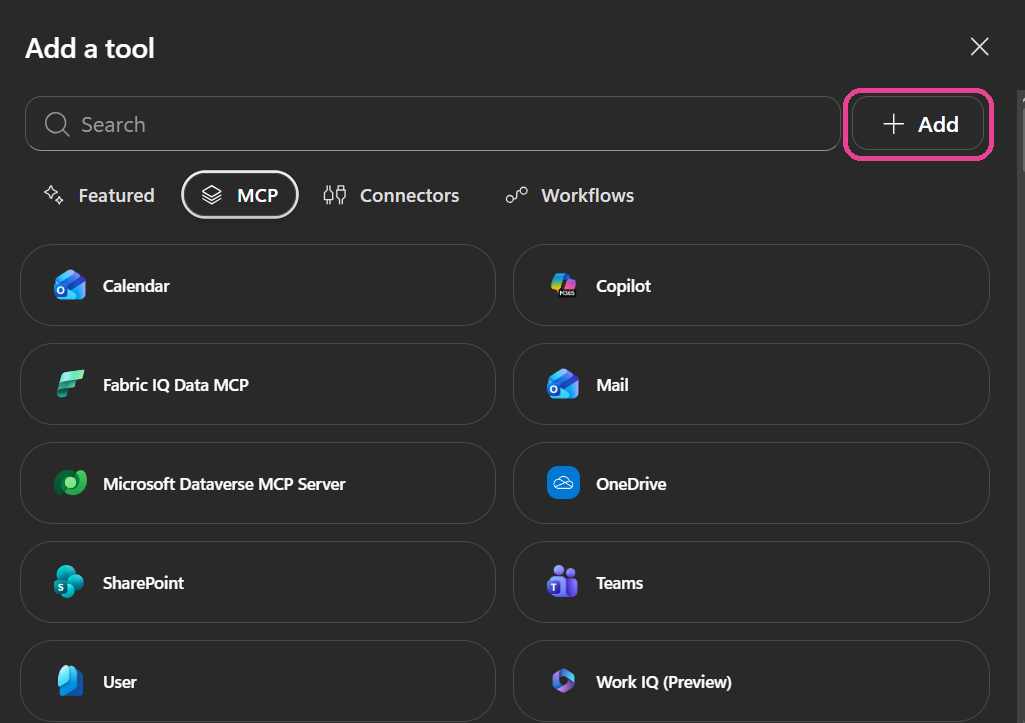
3
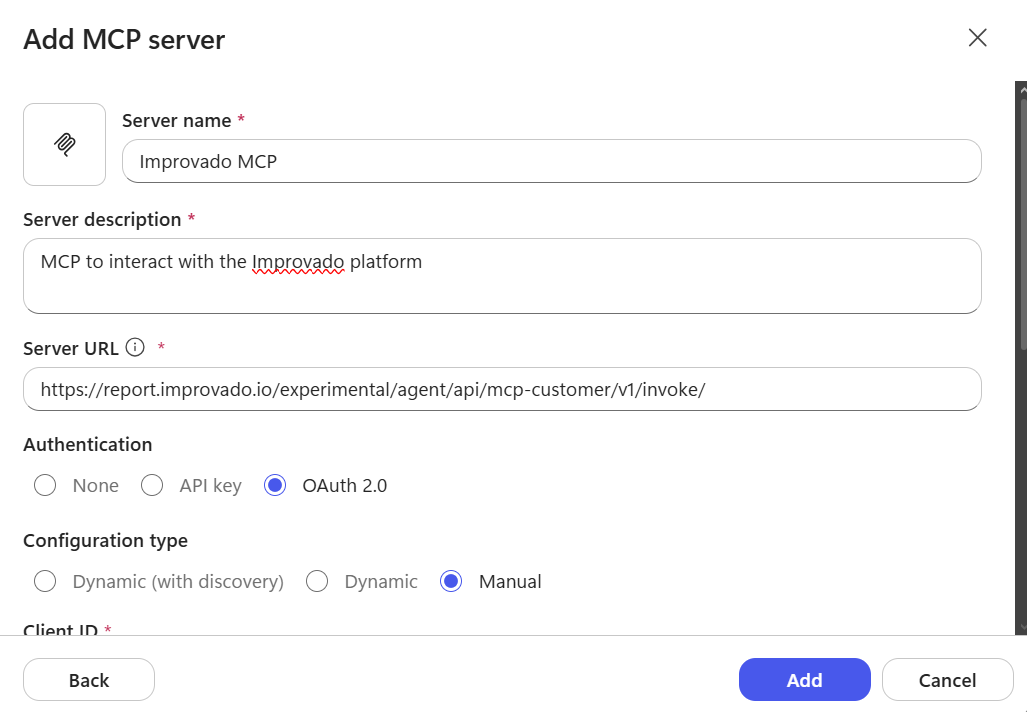
Fill in the MCP configuration
Server name: any name, e.g. Improvado MCP
Server description: e.g. MCP to interact with the Improvado platform
Server URL
https://report.improvado.io/experimental/agent/api/mcp-customer/v1/invoke/
Authentication: OAuth 2.0
Configuration type: Manual
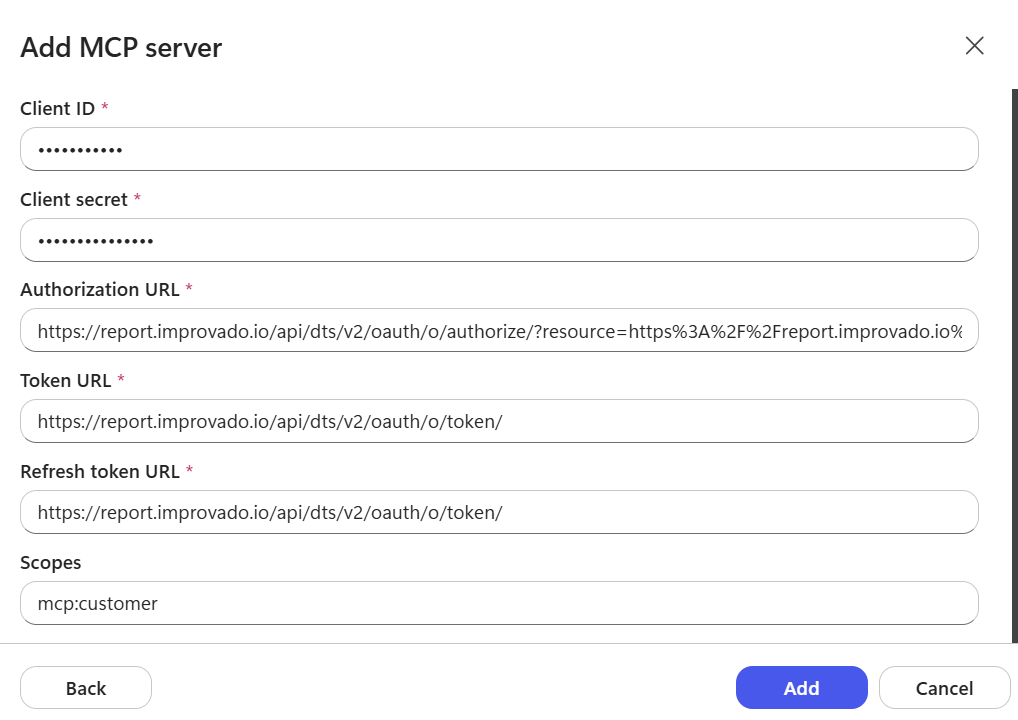
Client ID / Client Secret: the values from your CSM
Authorization URL
https://report.improvado.io/api/dts/v2/oauth/o/authorize/?resource=https%3A%2F%2Freport.improvado.io%2Fexperimental%2Fagent%2Fapi%2Fmcp-customer%2Fv1%2Finvoke%2F&client_id=<client_id>&x=
Token URL and Refresh token URL
https://report.improvado.io/api/dts/v2/oauth/o/token/
Scopes: mcp:customer
In the authorization URL, replace <client_id> with your Client ID and keep the trailing &x= exactly as shown: Copilot appends its own parameters after it.
On a whitelabel domain, replace report.improvado.io with your domain in every URL, including the encoded copy inside resource=.
4
Create a connection
Click Add, then create a new connection to test the MCP. Sign in to Improvado if prompted. On the first attempt you will land on the redirect URI error: send that URL to your CSM (step 2 of Before you connect).
5
Reconnect & save
Once your CSM confirms the redirect URI is allow-listed, create the connection again and save the MCP configuration. Improvado MCP is now available to your agent.
8
Microsoft 365 Copilot (Desktop / Web)
Best for making Improvado available to Microsoft 365 Copilot agents. Requires access to Teams Developer Portal and the Microsoft 365 admin center, plus the OAuth application from your CSM.
1
In Teams Developer Portal, open Tools → OAuth client registration and fill in:
Registration name: any name, e.g. Improvado MCP
Base URL: https://report.improvado.io
Restrict usage by organization / by Teams app: per your policy
Client ID / Client Secret: the values from your CSM
Authorization endpoint
https://report.improvado.io/api/dts/v2/oauth/o/authorize/?resource=https%3A%2F%2Freport.improvado.io%2Fexperimental%2Fagent%2Fapi%2Fmcp-customer%2Fv1%2Finvoke%2F&client_id=<client_id>&x=
Token endpoint and Refresh endpoint
https://report.improvado.io/api/dts/v2/oauth/o/token/
Scope: mcp:customer
Enable PKCE: On
Client password authentication method: Request body parameters (default)
In the authorization URL, replace <client_id> with your Client ID and keep the trailing &x= exactly as shown: Copilot appends its own parameters after it.
On a whitelabel domain, replace report.improvado.io with your domain in every URL, including the encoded copy inside resource=.
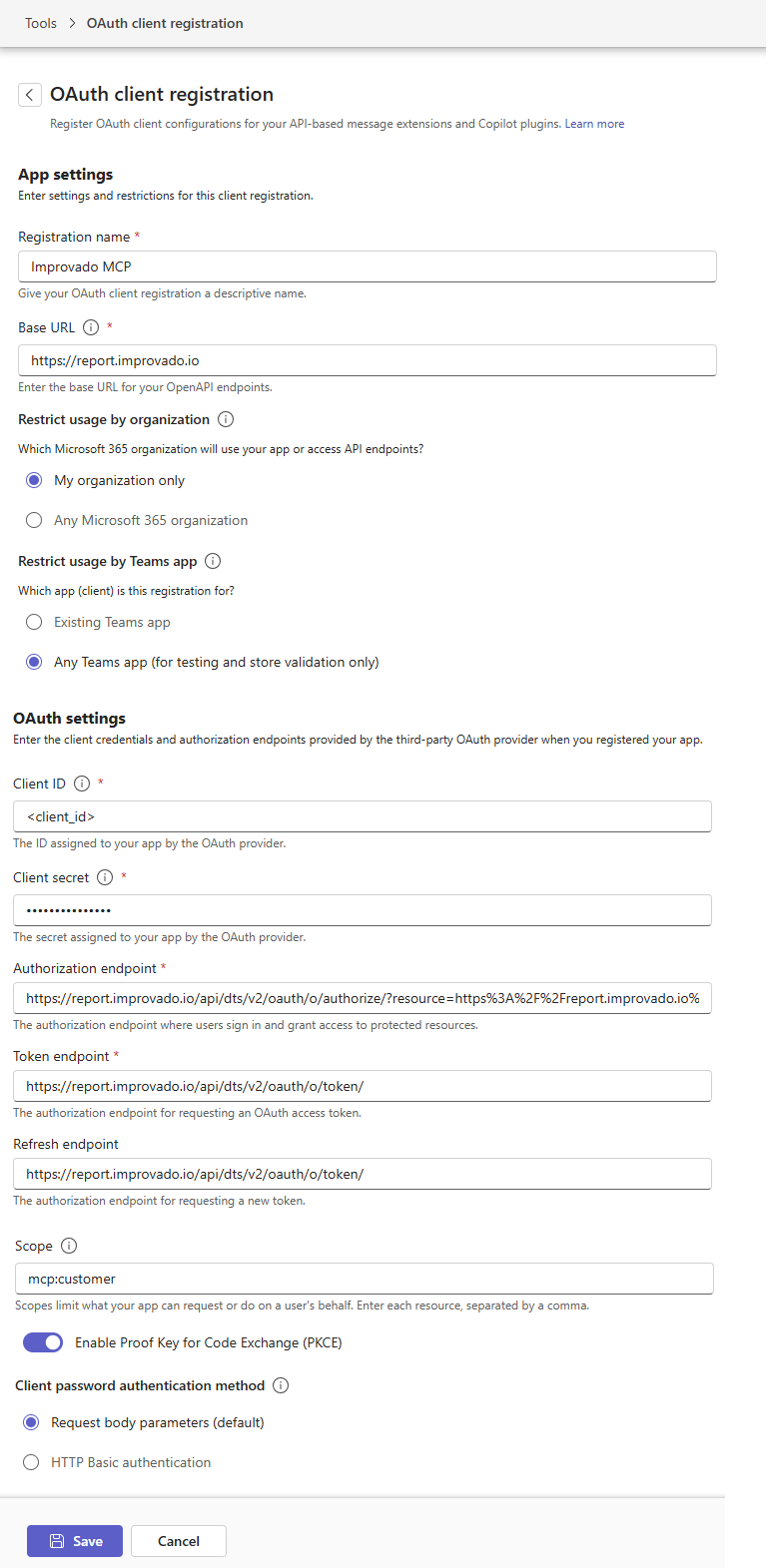
Save, then copy the OAuth client registration ID; you need it in the next step.
2
Create the connector
In the Microsoft 365 admin center, choose Created by your org → Create a new connector → Add and fill in:
Display name: e.g. Improvado MCP
MCP endpoint URL
https://report.improvado.io/experimental/agent/api/mcp-customer/v1/invoke/
Authentication type: OAuth 2.0
Reference ID: the OAuth client registration ID from step 1
3
Connect it to an agent
In Microsoft 365 Copilot, open the agent, go to Settings → Sources, find the Improvado connector and click Connect. Complete the Improvado sign-in. Improvado MCP is now available to the agent.
Marketing skills included with the plugin
The Codex plugin ships with 20+ pre-built skills covering common marketing workflows. Highlights:
CMO cross-channel dashboard
Executive marketing dashboard across spend, funnel, and attribution views.
Daily performance report
Operational daily performance console for multi-channel paid media.
Weekly creative performance
Creative dashboard with thumbnails, fatigue segments, Discovery API data.
Full marketing audit
Read-only paid-media audit: connection checks, per-channel review, synthesis.
Campaign launcher (OSS)
Open-source multi-channel campaign planning and launch workflow.
MDG create & edit
Marketing Data Governance rule creation, editing, testing, and alerts.
Discovery API
Live platform data access through Improvado Discovery API tools.
Recipe QA & rules
Recipe QA flow: topology discovery, QRDs, duplicate & discrepancy checks.
i
Once connected, the full 84 tools are available: query any metric, run governance checks, explore connectors, manage extracts, and more — all governed through Improvado's security layer.
Use Case
MCP + Knowledge Graph: Full Campaign in 1 Prompt
🧠
Knowledge Graph
ICP, brand guidelines, past experiments, budget rules, and channel history — all in persistent memory the agent reads before acting.
⚡
Improvado MCP
Live connection to 1,400+ data sources, email tools, and analytics APIs. The agent doesn't just read — it writes, launches, and adjusts.
Connect Improvado MCP to your AI agent and point it at your Knowledge Graph. A two-sentence prompt becomes a live multichannel campaign.
Prompt
"Run a new experiment called 'Marketing on Autopilot' — where Improvado agents plan, create, and launch marketing campaigns."
01
Read & Plan
Agent reads ICP, brand guidelines, and past experiments from the Knowledge Graph. Builds campaign plan: targeting, budget split, channel mix, KPIs. Asks for one validation.
→
02
Build in Parallel
Sub-agents fire simultaneously: banners generated (brand guidelines enforced), landing page built with all tracking pixels pre-wired, ad copy written, keyword lists created.
→
03
Launch & Enroll
Campaigns pushed live via MCP to Google Ads, Facebook, and email. Agent scores the lead database and auto-enrolls matched prospects into outreach sequences.
Google Ads
4 ad groups · responsive ads · sitelink extensions · new landing page linked
Facebook Ads
Enterprise broad + website retargeting · on-brand creatives · brand compliance enforced
Email + LinkedIn
LinkedIn invite · 2-email sequence · 50 pre-scored leads enrolled automatically
40–50
minutes prompt to live
3
channels launched in parallel
50
leads auto-enrolled
0
platform logins required
Who Benefits & How It Fits
Brand Roles That Benefit
One platform. Every marketing function accelerated.
CMO / VP Marketing
Cross-channel ROI in secondsBudget optimizationData-driven board reports
Marketing Analyst
Zero data wranglingAttribution modelingSelf-serve cross-platform queries
Marketing Ops Manager
Automated pipeline managementNaming convention governanceCampaign QA before launch
Performance Manager
Real-time budget pacingCreative fatigue detectionAutonomous optimization
Data / BI Engineer
No connector maintenanceStandard JSON-RPC protocolAny MCP client supported
Inside the Platform
Where MCP fits in Improvado's stack.
AI Agent + MCP
84 tools, any AI client
Dashboards & Reporting
15+ templates, native + BI
Marketing Data Governance
Pre-built rules for campaign health
Transform & Model
MCDM, 46K+ metrics unified
Extract & Load
1,400+ data sources, 20+ destinations
Enterprise Security
✓
Zero credential exposure. AI agents never see OAuth tokens or API keys. All credentials encrypted in a secure vault.
✓
Secure proxy architecture. MCP acts as authenticated intermediary. No direct API access from AI layer.
✓
Prompt injection immunity. Even if injection succeeds, nothing to exfiltrate — credentials never in agent context.
✓
Privacy-first LLM usage. Only metadata shared with AI models. Raw data never leaves your environment.
✓
SOC 2 Type II · GDPR · HIPAA. Enterprise compliance at every layer.
Appendix A
16 Use Cases
Marketing capabilities unlocked with Improvado MCP — common use cases across enterprise brands, agencies, and data teams.
Creative Analytics MCP as Agent Data Layer Data Quality Security & Infra Attribution
Creative Analytics · UC-01
Creative Image & Tag Data Direct to Data Warehouse
Top priority for enterprise teams: get raw creative image URLs, performance metrics, and AI-generated tags (archetype, tone, CTA type) from every ad platform directly into your data warehouse — no manual dashboard exports, no copy-paste between platforms.
discoveryRequestToolcreateExtractToolqueryDestinationTool
Raw URLs
not just creative IDs
10+ platforms
in a single pipeline
0
manual exports required
Creative Analytics · UC-02
Cross-Channel Creative Performance in Native Format
Many enterprises prefer raw, per-platform data over forced normalization due to very different ad units across platforms. MCP delivers channel-native creative performance — your own data warehouse models handle internal mapping, preserving existing architecture.
discoveryRequestTooldiscoveryListConnectorsToolclickhouseTool
Native
format per platform
250+
media properties
0
forced normalization
Creative Analytics · UC-03
Marketing Executive Dashboard with Custom Visualizations
Build interactive dashboards that combine cross-channel performance data with custom visualizations — heatmaps, funnel charts, trend analysis. CMO gets strategic KPIs, analysts get drill-down capability. One prompt, full dashboard.
clickhouseToolvisualizationToolheatmapVisualizationTool
Custom
visualizations
Real-time
data refresh
Executive
-ready output
MCP as Agent Data Layer · UC-04
Native MCP Endpoint for Your Internal Agents
Building multi-tenant AI agents in-house? MCP provides the marketing data retrieval endpoint those agents need — no Improvado agent required. Your agents call MCP tools through your AI gateway after a single security review.
getCurrentWorkspaceToolswitchWorkspaceToolmcpListToolsTool
1 review
unlocks all 84 tools
84 tools
MCP tool catalog
0
manual data pulls
MCP as Agent Data Layer · UC-05
Live Spend Data for Budget Management Automation
Use MCP data for budget management. Discovery API delivers today's spend vs. budget from all active channels without ETL lag — giving your internal budget agents real-time data to act on, not yesterday's batch report.
discoveryRequestToolclickhouseTooldiscoveryListConnectorsTool
60 min
pacing cycle vs 24h
250+
channels live
Real-time
not batch data
MCP as Agent Data Layer · UC-06
Self-Serve Marketing Queries — No Data Engineer Bottleneck
When only a few data engineers have platform access, marketers pull data from native platform UIs. MCP exposes unified marketing data to your agent layer — enabling natural-language marketing queries without creating a ticket to the data team.
clickhouseToolvisualizationToolfindChat
1→many
analyst access
0
tickets to data team
Natural
language queries
Data Extraction · UC-07
Extract Data from 1,400+ data sources
Connect to any marketing data source — ad platforms, analytics tools, CRM systems, email providers. Improvado's 1,400+ data sources handle authentication, pagination, rate limiting, and schema mapping automatically. One API, unified access.
discoveryListConnectorsToolcreateExtractToolcreateConnectionTool
1,400+
data sources
46K+
unified fields
0
connector maintenance
Data Quality · UC-08
Clean Marketing Data Inputs for ML Models
Enterprises deploying ML models at scale need clean inputs. Stale or corrupted marketing channel data silently degrades recommendation quality and conversion rates. MCP's MDG layer monitors data freshness and schema integrity at the connector level before it reaches the model pipeline.
createMdgViewToolgetMdgRuleLibraryExampleToollistAllExtractsTool
1000s
models need clean inputs
Hourly
freshness checks
0
silent degradation
Data Quality · UC-09
Campaign Naming Governance for Data Warehouse Join Integrity
Malformed UTMs and inconsistent naming break attribution lookups when you join Improvado data with internal data warehouse tables. MDG enforces naming at ingestion — every ad campaign record reliably joinable to your conversion event data.
createMdgViewToolgetMdgRuleLibraryExampleTooltestMdgNotificationTool
MDG
rules enforced
Ingest
-point enforcement
0
broken DW joins
Data Quality · UC-10
Quality Gate for New Ad Network Onboarding
Actively adding new ad networks? Each new connector introduces schema formats that can corrupt existing attribution joins. MCP validates new source data against your taxonomy before it lands in your data warehouse.
createConnectionToolcreateExtractToolcreateMdgViewTool
1,400+
data sources available
Auto
schema validation
0
schema breaks
Security & Infrastructure · UC-11
MCP Through Your AI Gateway — Single Security Review
Enterprise security teams require review for every new AI integration. Improvado MCP's workspace-scoped OAuth session model is designed to pass security review cleanly — no direct IAM, no credential exposure. One review unlocks all 84 tools, not one per platform.
getCurrentWorkspaceToolgetConnectionsToolswitchWorkspaceTool
1 review
for all 84 tools
OAuth
not direct IAM
0
credentials exposed
Security & Infrastructure · UC-12
Native Data Warehouse Access Avoids IAM Security Reviews
Many enterprises route destinations through their data warehouse to avoid direct IAM access triggering multiple security reviews. MCP's queryDestinationTool queries your BigQuery/Snowflake natively — no direct IAM, no new credentials, no additional security review.
queryDestinationToolgetDestinationConnectionsToolclickhouseTool
BQ-native
no IAM required
0
additional reviews
Matches
enterprise DW patterns
Operational Efficiency · UC-13
Discovery API Reduces Unnecessary Extraction Volume
Many enterprises don't use their full annual row contract. Discovery API enables real-time ad-hoc queries against live platform APIs — reducing scheduled extraction volume while providing fresher data for time-sensitive queries. Fewer rows consumed, better data quality.
discoveryRequestToolpauseExtractToollistAllExtractsTool
50%+
row contract unused
Discovery
for live queries
Fewer
scheduled extractions
Attribution & Measurement · UC-14
Paid Spend → Conversion Attribution Loop
Query paid media spend (Improvado MCDM) and join with conversion events from your data warehouse in one MCP session. This is the core measurement problem every performance marketing team needs to solve — revenue traced back to campaign impression.
clickhouseToolqueryDestinationToolvisualizationTool
2 layers
1 MCP session
Impression
→ revenue closed
0
data exports needed
Attribution & Measurement · UC-15
90-Day Multi-Touch Attribution for High-Consideration Products
High-consideration purchase decisions take 30–90 days. A prospect sees an ad in January and converts in March. MCP's 90+ day MCDM history enables multi-touch attribution across the full consideration window — connecting the January impression to the March conversion.
clickhouseToolqueryDestinationToolcreateRecipeTool
90-day
lookback window
Multi-touch
not last-click
46K+
unified metrics
Attribution & Measurement · UC-16
Revenue Yield Optimization by Channel & Creative
High-value conversions drive revenue. MCP enables revenue-per-impression analysis by channel, daypart, creative archetype, and audience segment — shifting optimization from click rate to conversion rate, the metric that actually drives revenue.
clickhouseToolqueryDestinationToolvisualizationTool
High LTV
per conversion
Conversion
rate not click rate
Revenue
yield per impression
Appendix B — For Engineering, Data, & InfoSec Teams
Architectural Highlights
4 Improvado MCP design decisions that map directly to enterprise infrastructure constraints — AI gateway integration, data warehouse destination, security review process, and intraday data needs.
Architecture Highlight · AH-01
Workspace-Scoped Sessions Ready for Your AI Gateway
Common question: "Do we need our networking team involved?" Yes — and MCP is built for it. Every session is a workspace-scoped OAuth token (15-min Redis TTL) that passes through an AI gateway cleanly. Multi-tenant agent infrastructure maps 1:1 — each agent gets its own scoped session, preventing cross-tenant leakage by architecture, not policy.
15 min
session TTL, Redis-backed
0
cross-tenant leakage
1:1
agent-to-workspace scope
Architecture Highlight · AH-02
queryDestinationTool: Native Data Warehouse, No IAM Review
Many enterprises use BigQuery/Snowflake as primary destination — and route data through their warehouse specifically to avoid IAM-triggered security reviews. MCP's queryDestinationTool queries your own warehouse tables natively in the same session as MCDM data — enabling the spend-to-conversion join, with zero new IAM access required.
BQ-native
no IAM triggered
0
additional reviews
2 sources
1 MCP session
Architecture Highlight · AH-03
Zero Credential Exposure — Designed for Enterprise Security Review
Security teams will ask: "Can the AI agent see our platform credentials?" The answer is architecturally no. Your Google Ads, Meta, and other OAuth tokens are stored AES-256 encrypted in Improvado's PostgreSQL vault. The MCP server calls platform APIs internally — credentials never appear in any tool response, LLM context window, or network log. SOC 2, GDPR, CCPA compliance is structural, not a configuration option.
0
credentials in agent context
SOC 2
Type II certified
AES-256
at-rest encryption
Architecture Highlight · AH-04
Three Data Layers in One Session: Live + Historical + DW
Common question: "Does MCP retrieve only, or does it analyze?" It retrieves from three layers simultaneously — Discovery API for real-time platform data (no ETL), ClickHouse MCDM for 90+ days of harmonized history, and queryDestinationTool for your own data warehouse. Your agents then own the analysis layer — which is exactly what most enterprises want.
<60s
live platform data
90+ days
MCDM history
3 sources
1 agent session
Appendix C — Public Endpoint
MCP Tool Reference
Complete tool inventory for Improvado MCP public endpoint. Every tool is accessible via JSON-RPC 2.0 after OAuth authentication — no per-tool setup required. Tool categories below match the use cases in Appendix A.
Data Query & Visualization 5 tools
clickhouseToolExecute SQL against ClickHouse warehouse — customer workspace scope
queryDestinationToolQuery downstream destinations directly (BigQuery, Snowflake, Redshift)
visualizationToolGenerate charts — line, bar, area, pie, scatter, table
heatmapVisualizationToolCreate heatmaps for time-based metric analysis
sendEmailToolSend reports and visualizations via email
Discovery API — Live Platform Access 5 tools
discoveryListDataSourcesToolList all data sources available in the workspace
discoveryListConnectorsToolList connectors/integrations by data source name
discoveryListAccountsToolList ad accounts within a specific connector
discoveryRequestToolExecute live query against any of 1,400+ data sources (Google Ads GAQL, Meta, etc.)
discoveryWebSearchToolSearch documentation and support resources for a data source
Connections & Accounts 3 tools
getConnectionsToolGet all connections for a datasource in current workspace
getConnectionAccountsToolGet ad accounts associated with a specific connection
getDestinationConnectionsToolList destination connections (where data lands)
ETL — Extract Management 15 tools
createExtractToolCreate a new scheduled data extraction from a source
updateExtractToolUpdate extract schedule, accounts, or field selection
getExtractByIdToolGet details of a specific extract by ID
getExtractTemplatesToolList available extract templates
getExtractTemplateByIdToolGet a specific extract template by ID
listAllExtractsToolList all extracts in the workspace with status; filter by data table, account, status or title
pauseExtractToolPause a running extract (stops scheduled pulls)
unpauseExtractToolResume a paused extract
discoverFileFieldsToolDiscover available fields for a file-based data source
bulkRunExtractsToolRun many extracts at once, selected by ID or by data table
bulkPauseExtractsToolPause many extracts at once
bulkUnpauseExtractsToolResume many paused extracts at once
bulkEditExtractsToolChange settings for many extracts in one request (replace, add, remove or update values)
getExtractionBulkTaskToolCheck the status and result of a bulk action
ETL — Load Management 8 tools
createLoadToolCreate a new load to push data to a destination
updateLoadToolUpdate load destination or schedule settings
getLoadToolGet details of a specific load by ID
getLoadsToolList loads with filtering options
listLoadsToolList all loads in the workspace
deleteLoadToolDelete a load permanently
pauseLoadToolPause a running load
unpauseLoadToolResume a paused load
ETL — Run Management 4 tools
runLoadToolManually trigger a load run immediately
getPipelineRunsToolGet run history for a pipeline
getPipelineRunResultToolGet detailed results of a specific pipeline run
generateFlatDataSampleToolGenerate a data sample from a flat file source
Pipelines 6 tools
createCustomPipelineToolCreate a custom SQL/Python transformation pipeline
updateCustomPipelineToolUpdate pipeline logic or schedule
deleteCustomPipelineToolDelete a pipeline
listCustomPipelinesToolList all pipelines in workspace
executeCustomPipelineToolExecute a pipeline immediately
runCustomPipelineCodeToolRun pipeline code with custom parameters
Marketing Data Governance / MDG 7 tools
createMdgViewToolCreate a governance rule/view (naming, budget, classification)
getMdgRuleLibraryExampleToolGet examples from the pre-built MDG rule library
testMdgNotificationToolTest MDG alert and notification configuration
previewEmailImportAddressToolPreview email import address for data ingestion
uploadFlatDataFileToolUpload CSV or Excel file for processing
uploadNewFileToExtractToolUpload a new file version to an existing extract
createFlatDataExtractToolCreate an extract pipeline from flat file data
AI Recipes / Notebooks 13 tools
createRecipeToolCreate a new composable AI analysis notebook
updateRecipeToolUpdate recipe settings, cells, or parameters
getRecipeToolRetrieve a recipe by ID
getRecipeTemplatesToolList available recipe templates (attribution, reporting, etc.)
createRecipeStepToolAdd a SQL or Python step to an existing recipe
getRecipeStepToolGet a specific step within a recipe
listRecipesToolList all recipes in the current workspace
activateRecipeToolActivate and run a recipe
nameRecipeToolSet or update the display name of a recipe
createLesIntegrationChatToolCreate a LES integration chat session for guided setup
createAgentAutomationToolSchedule the agent to run a prompt once or on a recurring schedule (an agent automation)
getAgentAutomationsToolList agent automations with their latest run status
deleteAgentAutomationToolDelete an agent automation and stop its future runs
Dashboards 3 tools
getDashboardToolRetrieve a dashboard by ID
listDashboardsToolList all dashboards in the workspace
getCustomDashboardsAndDecksPromptToolGet context prompt for custom dashboards and decks
Documents · Chat · Knowledge · Data Tables 11 tools
createDocumentCreate a new document in the workspace
editDocumentEdit content of an existing document
getDocumentRetrieve a document by ID
deleteDocumentDelete a document permanently
listDocumentsList all documents in the workspace
findChatSearch past AI conversations by query
getChatGet full conversation context and history by ID
getManagedConnectionCredentialsToolGet connection credential metadata (IDs/status — never raw secrets)
documentationToolQuery Improvado product documentation
retrieveDocumentationToolRetrieve specific documentation files by path
listDataTablesToolList all data tables available in current workspace
Workspace · MCP Protocol · Connection Setup 9 tools
getCurrentWorkspaceToolGet current workspace context — agency, workspace ID, name
switchWorkspaceToolSwitch to a different workspace within allowed agencies
getWorkspacesToolList all workspaces available to the authenticated user
mcpListToolsToolDynamically list all available MCP tools at runtime
mcpCallToolToolCall any MCP tool by name (meta-wrapper for agents)
mcpListResourcesToolList MCP resources available in current context
mcpReadResourceToolRead a specific MCP resource by URI
createConnectionToolCreate a new data source connection in the workspace
customConnectorFormToolAccess custom connector configuration form
Questions? The Improvado team is always happy to help. Send us an email, contact your Customer Success Manager, or raise a request in the Improvado Service Desk.