Configure Memory
Traga o contexto de projeto e as preferências escolhidas pelo usuário para suas ferramentas de IA. Um perfil de memória persistente e pesquisável com OAuth, importações e salvamentos explícitos.
Servidor MCP hospedado
npx add-mcp 'https://mcp.configure.dev/'Instala no Claude Code, Codex, Cursor e outros
Documentação
Configure is infrastructure to connect agents, apps, and chats. The user approves the connection in a flow inside the AI platform they are using, and your agent knows them from the first message.
It works with ChatGPT, Claude, Gemini, and Grok, and with any agent that can use MCP or an API. The user brings what those assistants know about them, and can connect apps such as Gmail and Calendar. An approved agent reuses those app connections, so the user does not authorize each app again. Your agent reads that context, and what it learns goes back into it. The user approves every app and can revoke access at any time.
The connection continues across conversations. Memory is one form of context it carries, and importing what an assistant already knows is one part of connecting. Configure does not support MCP Events subscriptions yet: see Ongoing connections and MCP events.
TIP
Fastest path: paste Read https://configure.dev/skill.md and add Configure to this project. into your coding agent. See Skills.
How it works
The examples on this site use Remy, the research assistant, and Nova Sandbrook, the test user in every Configure sandbox.
1. The user clicks the chip
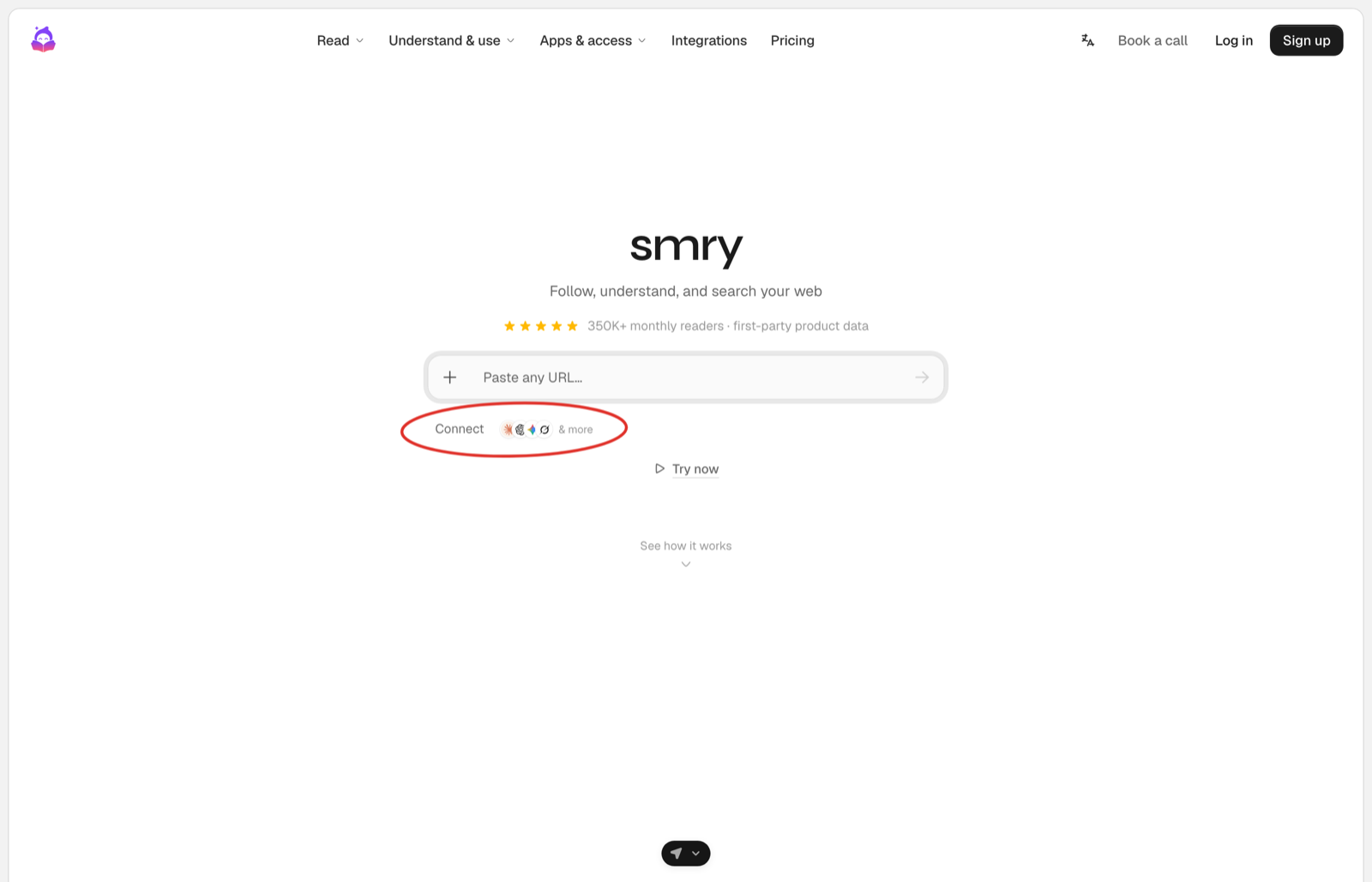
The chip sits under the composer. One click takes the user to Configure.
2. The user brings their context on Configure's page
They see your logo next to Configure's, import memories from an assistant or connect an app, confirm their phone number with a code, and see what came in. Finishing approves your app.
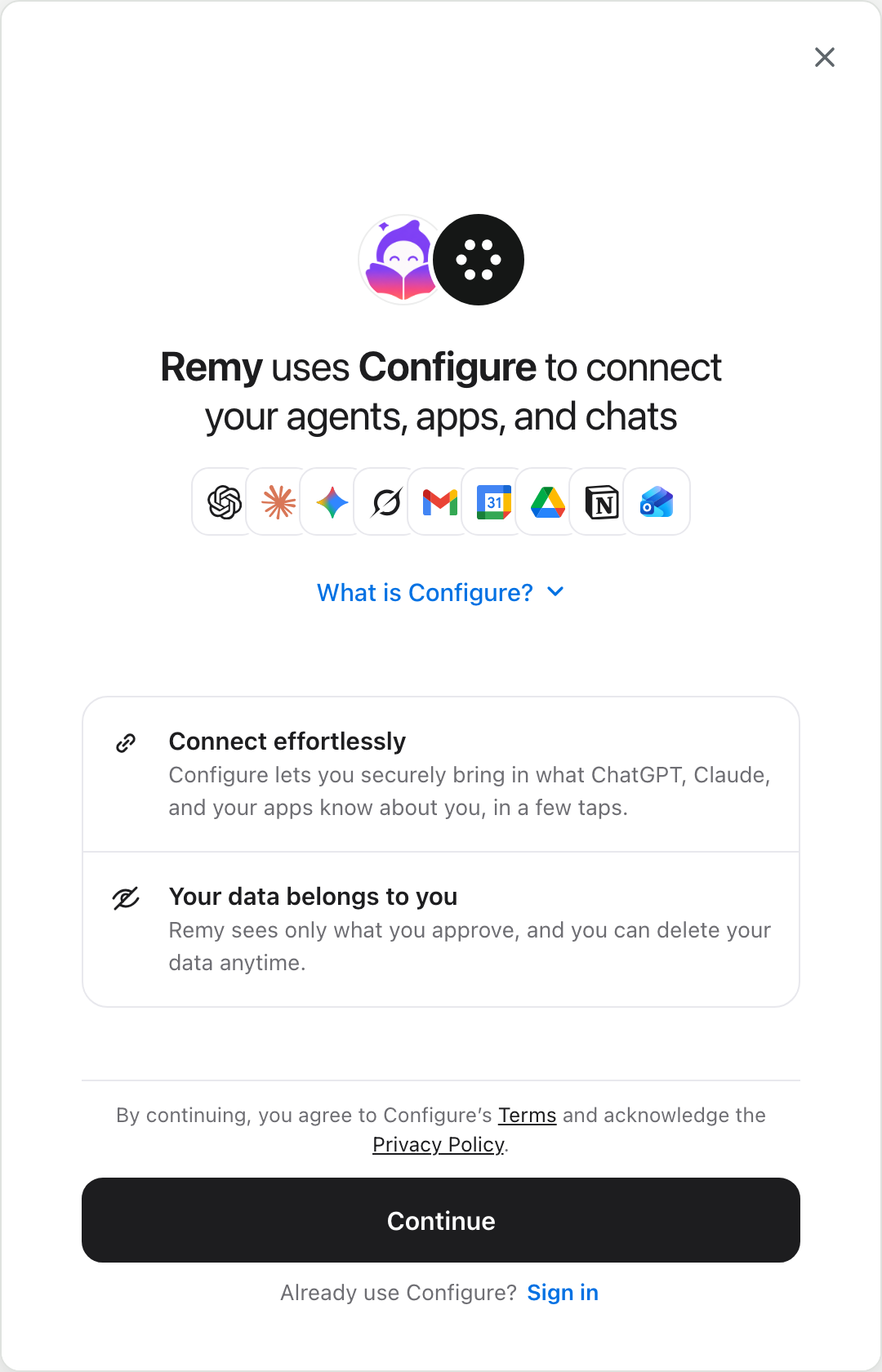
1. Your logo next to Configure's.
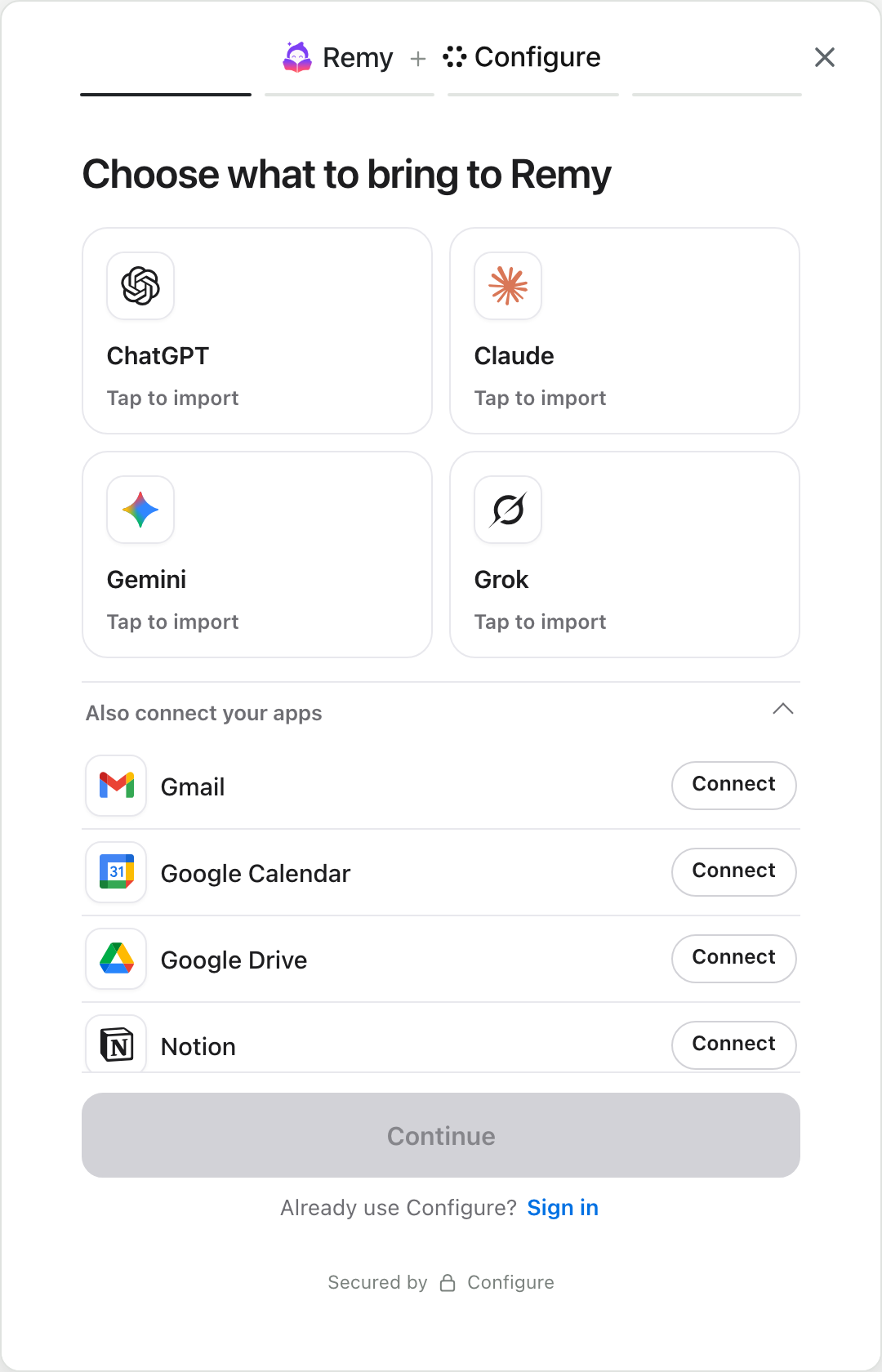
2. Choose what to bring.
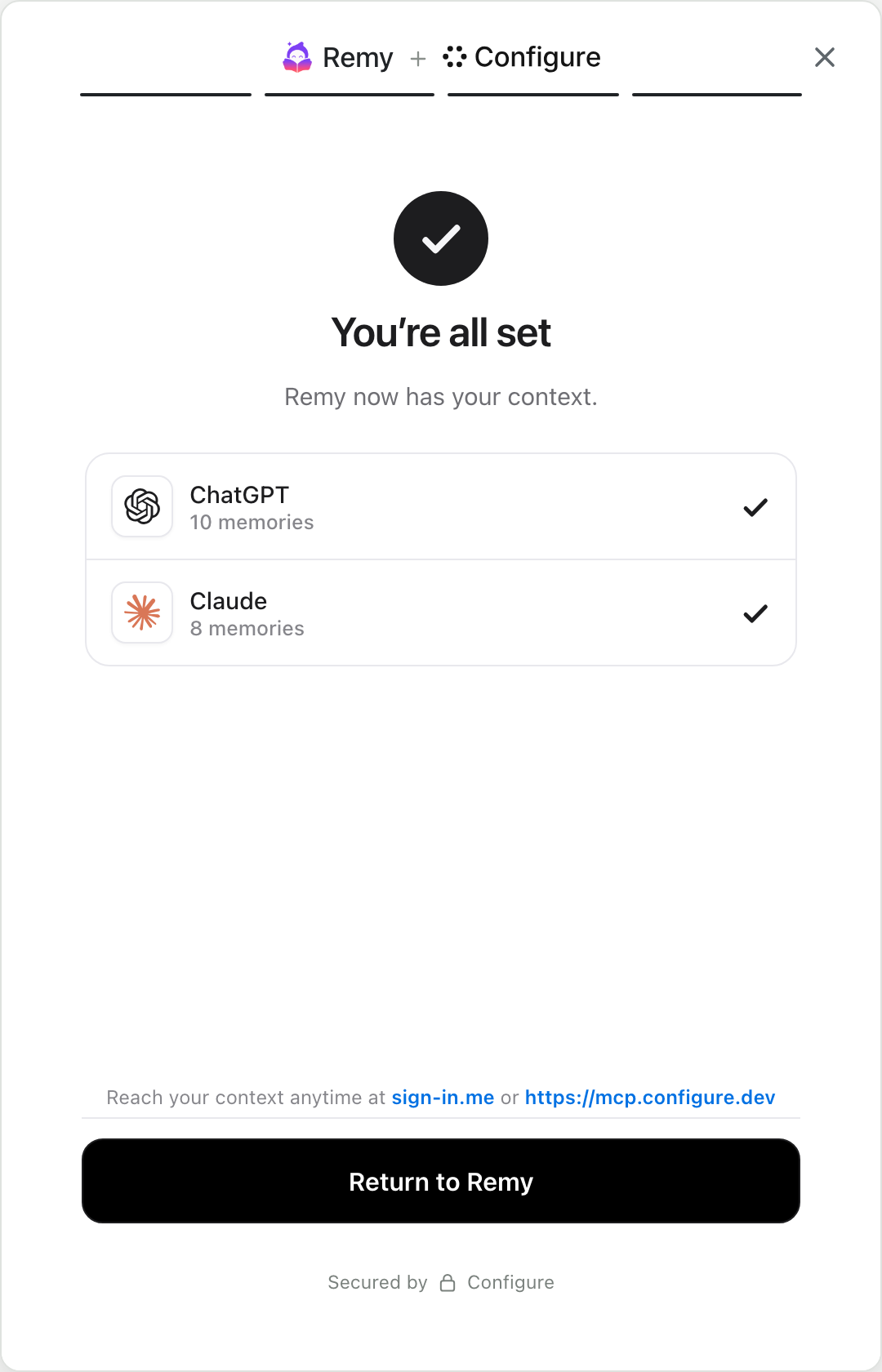
3. After the phone code: what came in.
3. The user comes back, and your agent knows them
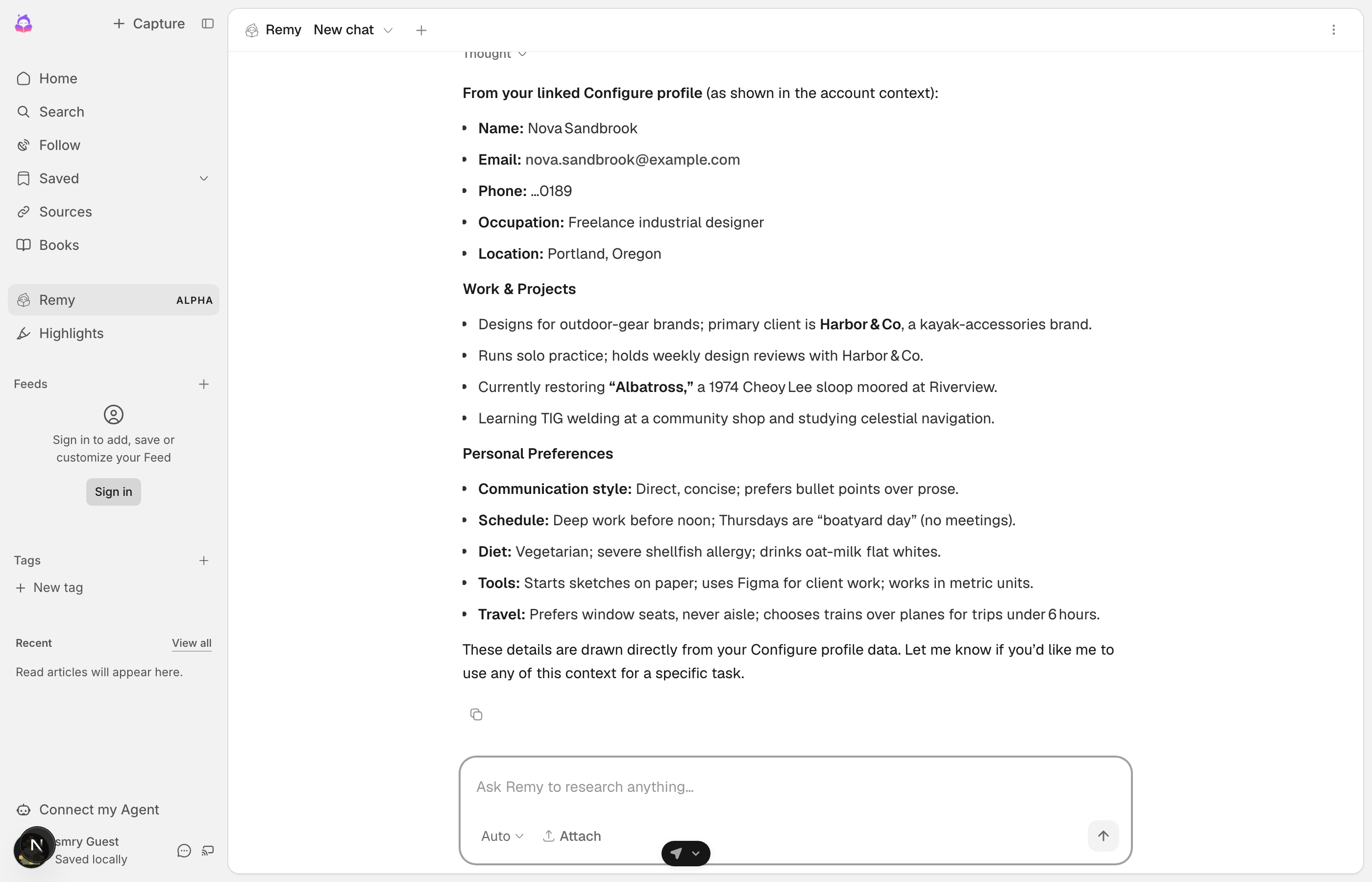
Nova's first chat with Remy. Remy answers from her Configure context.
Remy has never talked to Nova before. It knows her work, schedule, diet, and tools because she brought them with her.
Try it yourself. That link opens Configure's page as a user sees it.
The code
Your server makes every call. The Quickstart puts each line in place.
import { Configure } from "configure";
const configure = new Configure({ apiKey: process.env.CONFIGURE_API_KEY, agent: process.env.CONFIGURE_AGENT });
const profile = configure.profile({ externalId: user.id });   // one handle per user, keyed by your id

const { connect_url } = await profile.connect({ returnUrl });  // 1. the chip's route redirects the user here
const read = await profile.read({ sections: ["identity", "preferences", "summary"] });   // 2. read.profile.format() goes in the system prompt
await profile.commit({ messages: turnMessages });              // 3. save each turn to the profile
const session = await profile.mcpSession();                    // 4. optional: the Configure tools for the model
Choose your path
Quickstart Every step, end to end, for an app with its own server.Skills Paste one message into Claude Code, Cursor, or Codex and it builds the Quickstart for you.Onboarding The chip in an onboarding step, and a welcome screen that shows what the user brought.Components Configure's own buttons, which open Configure's page inside yours.Connect over MCP Connect an app you already use, or connect from your own server.Message agents SMS or voice, where a link replaces the chip.
For coding agents
If you are an AI agent adding Configure for a developer, follow the Quickstart from top to bottom. It covers the chip, the redirect to the connect_url from profile.connect(), and the return route. Add .md to any page URL for plain markdown, and read /llms.txt for the full index. From the server, inject the user's context on the first turn of each session, re-read it when the profile.updated webhook arrives, and commit every turn. Then give the model the configure_* tools over MCP. Never build a Configure link yourself. Use the one the SDK or Configure gives you: profile.connect() for the chip, auth.signInUrl() or auth.createMessageSignInUrl() for a sign-in, or the link in a configure_connect result.