Pushover MCP
Envie notificações push usando o serviço Pushover.net.
Documentação
Pushover MCP
Uma implementação do Model Context Protocol para envio de notificações via Pushover.net.
Visão Geral
Este MCP permite que agentes de IA enviem notificações através do Pushover.net. Ele implementa a especificação MCP, permitindo integração perfeita com sistemas de IA compatíveis com MCP.
Configuração
Você precisará de:
- Um token de aplicativo do Pushover.net
- Sua chave de usuário do Pushover.net
Obtenha esses dados no seu painel do Pushover.net.
Esquema da Ferramenta
O MCP fornece uma única ferramenta:
send
Envia uma notificação via Pushover.
{
  message: string;          // Required: The message to send
  title?: string;          // Optional: Message title
  priority?: number;       // Optional: -2 to 2 (-2: lowest, 2: emergency)
  sound?: string;         // Optional: Notification sound
  url?: string;          // Optional: URL to include
  url_title?: string;   // Optional: Title for the URL
  device?: string;     // Optional: Target specific device
}
Exemplo de Chamada de Ferramenta MCP
{
  "name": "send",
  "params": {
    "message": "Hello from AI",
    "title": "AI Notification",
    "priority": 1
  }
}
Instalação
Usando com o Cursor
Método 1: Instalação Global
Execute o servidor MCP usando npx:
npx -y pushover-mcp@latest start --token YOUR_TOKEN --user YOUR_USER
No seu IDE Cursor
- Vá para
Cursor Settings>MCP - Clique em
+ Add New MCP Server - Preencha o formulário:
- Nome:
Pushover Notification(ou qualquer nome de sua preferência) - Tipo:
command - Comando:
npx -y pushover-mcp@latest start --token YOUR_TOKEN --user YOUR_USER
- Nome:
Método 2: Configuração Específica do Projeto
Adicione um arquivo .cursor/mcp.json ao seu projeto:
{
  "mcpServers": {
    "pushover": {
      "command": "npx",
      "args": [
        "-y",
        "pushover-mcp@latest",
        "start",
        "--token",
        "YOUR_TOKEN",
        "--user",
        "YOUR_USER"
      ]
    }
  }
}
Usando a Ferramenta
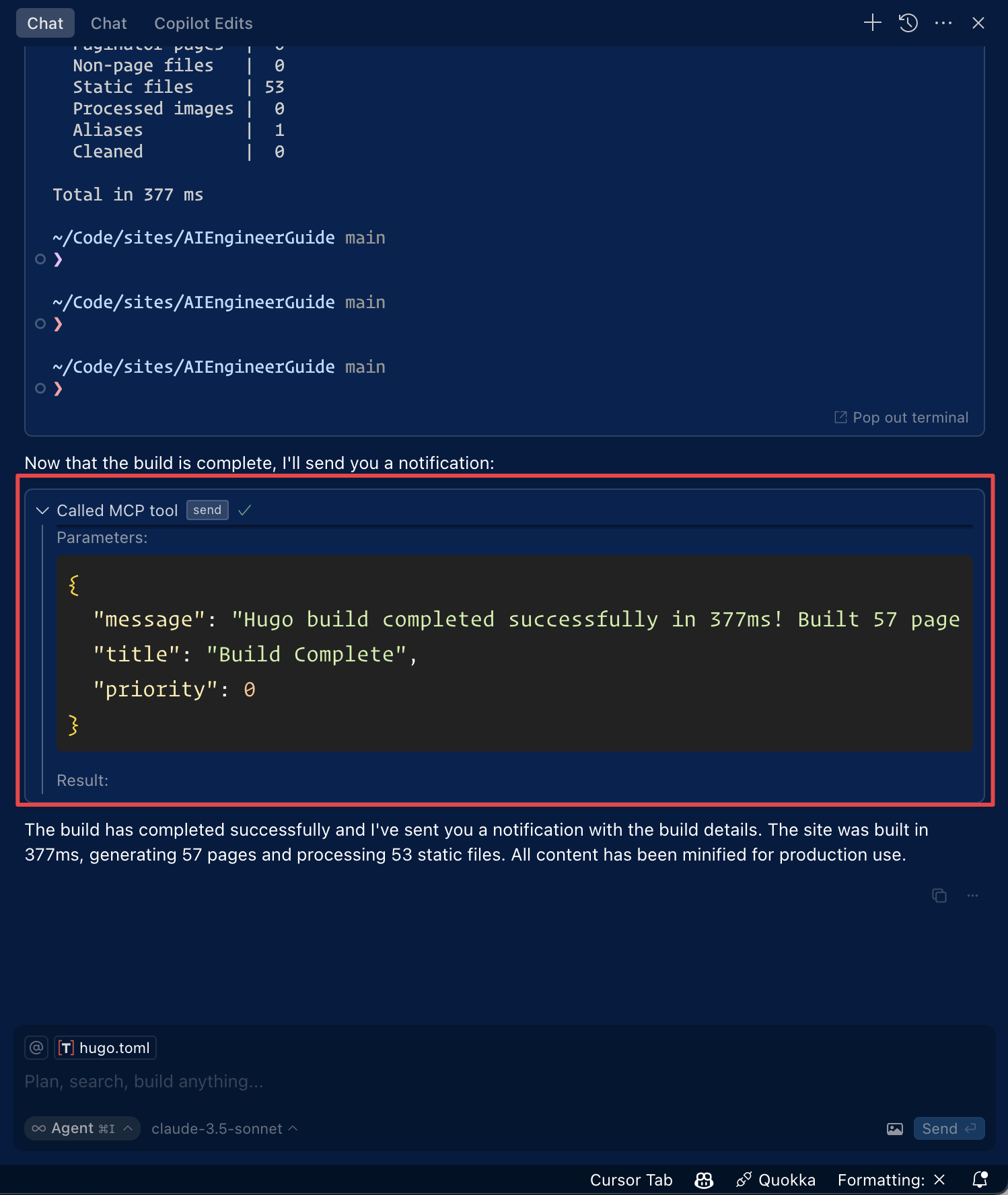
Após a configuração, a ferramenta de notificação Pushover estará automaticamente disponível para o Agente de IA do Cursor. Você pode:
- A ferramenta será listada em
Available Toolsnas configurações do MCP - O agente a usará automaticamente quando relevante
- Você pode pedir explicitamente ao agente para enviar notificações
Por padrão, o agente solicitará aprovação antes de enviar notificações. Ative o "modo Yolo" nas configurações para permitir o envio automático.
Usando com o Roo Code
Acesse as configurações do MCP clicando em "Edit MCP Settings" nas configurações do Roo Code ou usando o comando "Roo Code: Open MCP Config" na paleta de comandos do VS Code.
{
  "mcpServers": {
    "pushover": {
      "command": "npx",
      "args": [
        "-y",
        "pushover-mcp@latest",
        "start",
        "--token",
        "YOUR_TOKEN",
        "--user",
        "YOUR_USER"
      ]
    }
  }
}
- A ferramenta de notificação Pushover estará disponível para os agentes de IA do Roo Code
Nota: Substitua
YOUR_TOKENeYOUR_USERpelas suas credenciais do Pushover.
Instalação via Smithery
Para instalar o Pushover Notification para Claude Desktop automaticamente via Smithery:
npx -y @smithery/cli install @AshikNesin/pushover-mcp --client claude
Desenvolvimento
# Install dependencies
pnpm install

# Build
pnpm build

# Run tests
pnpm test
Licença
MIT