Schedchie
Jadwalkan, publikasikan, dan lacak postingan di 13 jejaring sosial dari asisten AI Anda. X adalah add-on berbayar.
Server MCP Terhosting
npx add-mcp 'https://mcp.schedchie.com/mcp'Terpasang ke Claude Code, Codex, Cursor, dan lainnya
Dokumentasi
Tell your AI. It’s scheduled.
Schedchie is a social media scheduler for social media managers and agencies: 20 platforms, from €9.99 a month. Its MCP server at mcp.schedchie.com gives Claude, ChatGPT or any MCP client up to 75 tools for scheduling, media, analytics, comments, reviews and approvals (ChatGPT a core set of 14), included on every plan.
14-day free trialCancel anytime, no questions asked
Setup for 38 assistants
Each page has that assistant’s own steps, what it needs first and how many of the 75 tools it gets.
-
[
ChatGPT New chat
ChatGPT
Schedule the launch post to LinkedIn andBluesky for Tuesday 10:00 and the reelto Instagram for Friday 18:00
SchedchieWants to run
schedule_postConfirm- LinkedInLaunch postTue 10:00SchedulingScheduled
- BlueskyLaunch postTue 10:00SchedulingScheduled
- InstagramReelFri 18:00SchedulingScheduled
Scheduled. 3 posts on your calendar.
+Ask anything
ChatGPTChat, browser sign-in
OpenAI’s assistant; custom MCP servers are added as plugins.
-
[
Claude New chat
Claude
Schedule the launch post to LinkedIn andBluesky for Tuesday 10:00 and the reelto Instagram for Friday 18:00
schedule_posts Schedchie
- LinkedInLaunch postTue 10:00SchedulingScheduled
- BlueskyLaunch postTue 10:00SchedulingScheduled
- InstagramReelFri 18:00SchedulingScheduled
Scheduled. 3 posts on your calendar.
+Reply to Claude…
ClaudeChat, browser sign-in
Anthropic’s assistant on claude.ai, Claude Desktop and mobile, with custom connectors.
-
[
claude
✻ Welcome to Claude Code!
/help for help, /status for your current setup
cwd: ~/launch
>Post the v2.4 notes fromCHANGELOG.md to LinkedIn andBluesky on Tuesday 10:00 andto Threads on Friday 18:00
⏺ schedchie - schedule_posts (MCP)
Do you want to proceed? ❯ 1. Yes
- LinkedInRelease notes v2.4Tue 10:00SchedulingScheduled
- BlueskyRelease notes v2.4Tue 10:00SchedulingScheduled
- ThreadsRelease notes v2.4Fri 18:00SchedulingScheduled
Scheduled. 3 posts on your calendar.
? for shortcuts
Claude CodeTerminal, browser sign-in
Anthropic’s coding agent, in the terminal, in editors and in the Claude desktop app.
-
[
Cursor
ChatAgent
Post the v2.4 notes fromCHANGELOG.md to LinkedIn andBluesky on Tuesday 10:00 and toThreads on Friday 18:00
Using Schedchie ·
schedule_postsRun tool
- LinkedInRelease notes v2.4Tue 10:00SchedulingScheduled
- BlueskyRelease notes v2.4Tue 10:00SchedulingScheduled
- ThreadsRelease notes v2.4Fri 18:00SchedulingScheduled
Scheduled. 3 posts on your calendar.
Plan, search, build anything
CursorEditor, browser sign-in
An AI code editor; remote MCP servers go in .cursor/mcp.json.
-
[
codex
>_ OpenAI Codex
directory: ~/launch
›Post the v2.4 notes fromCHANGELOG.md to LinkedIn andBluesky on Tuesday 10:00 andto Threads on Friday 18:00
• Called schedchie.schedule_posts(…)
- LinkedInRelease notes v2.4Tue 10:00SchedulingScheduled
- BlueskyRelease notes v2.4Tue 10:00SchedulingScheduled
- ThreadsRelease notes v2.4Fri 18:00SchedulingScheduled
Scheduled. 3 posts on your calendar.
CodexTerminal, browser sign-in
OpenAI’s coding agent for the terminal and IDEs, configured in config.toml.
-
[
OpenClawagent
Schedule the launch post toLinkedIn and Bluesky for Tuesday10:00 and the reel to Instagramfor Friday 18:00
ran schedchie.schedule_posts
- LinkedInLaunch postTue 10:00SchedulingScheduled
- BlueskyLaunch postTue 10:00SchedulingScheduled
- InstagramReelFri 18:00SchedulingHeld for approval
Scheduled 2 posts. The reel waits for approval.
On Ultra, a teammate’s post waits for your approval.
OpenClawAgent gateway, browser sign-in
An open-source personal agent gateway that answers in your chat apps.
Setup for ChatGPT, Claude, Cursor and VS Code
From your assistant to twenty platforms
MCP, the Model Context Protocol, is the open standard that lets an assistant use real tools.
ChatGPTClaudeClaude CodeCursorVS Code
The assistant you already use
MCP
 Your Schedchie account
publishes
InstagramFacebookTikTokLinkedInPinterestYouTubeThreadsBlueskyMastodonTelegramGoogle Business ProfileDiscordSlackWordPressDev.toHashnodeGhostPixelfedListmonkX
Twenty platforms, X included, in every plan.
One request, three accounts
A clip, a cover and one sentence: three accounts scheduled with the thumbnail you picked.
ChatGPTSchedchie connected
launch-clip.mp4Video · 4.2 MBcover.pngImage · 240 KB
Monday, 09:00, on YouTube, Instagram and LinkedIn. Use cover.png as the thumbnail.
Steps per client
Three steps in any client: copy the URL, add it, sign in.
1
Open Plugins and add a custom server
Plugins › + › Add custom MCP server
On ChatGPT on the web, go to Plugins, select the plus button, then Add custom MCP server.
2
Name it and paste the URL
Connection › Server URL
Name: Schedchie, with a short description if you like. Under Connection, paste the address below as the Server URL.
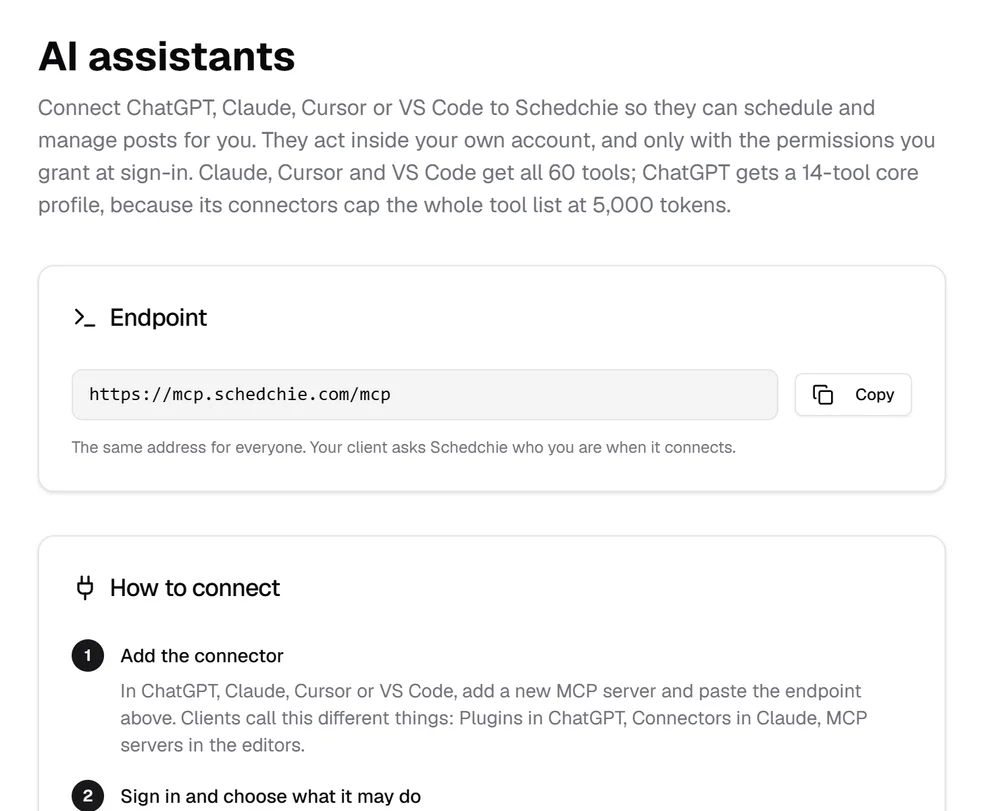
https://mcp.schedchie.com/mcp
3
Choose OAuth and create the plugin
OAuth › I understand and want to continue › Create as a plugin
Set authentication to OAuth and leave the client credentials empty, since ChatGPT registers itself with Schedchie. Select I understand and want to continue, then Create as a plugin.
4
Install it and sign in
Find Schedchie in your personal plugins and install it. On the Schedchie screen, tick the groups this connection may use and sign in.
5
Call it in a chat
@ › Schedchie
In the prompt box type @, select Schedchie and ask for your connected accounts. ChatGPT asks you to confirm write actions such as scheduling a post.
ChatGPT gets a 14-tool core set: scheduling, editing, retries, media, approvals and two analytics reads.
1
Open Customize, Connectors
Customize › Connectors › + Add › Add custom connector
On claude.ai, go to Customize, then Connectors. Click + Add, then Add custom connector.
2
Name it and paste the URL
Name › MCP server URL › Continue › Continue
Name: Schedchie. Paste the address below as the MCP server URL and click Continue, then Continue again on the detected settings.
https://mcp.schedchie.com/mcp
3
Choose the sign-in settings
Authentication › Sign in now › OAuth client › Register automatically › Add
Under Authentication choose Sign in now, and under OAuth client choose Register automatically, so Claude registers itself with Schedchie. Leave Request headers empty and click Add.
4
Connect and sign in to Schedchie
Connect › + › Connectors
Click Connect on the Schedchie connector, tick the groups this connection may use on the Schedchie screen and sign in. In a chat, click +, then Connectors, and switch Schedchie on.
5
On Team or Enterprise
Organization settings › Connectors › Add › Custom › Web
An Owner adds it under Organization settings, Connectors: Add, Custom, Web, the same URL and settings, then Add. Each member then clicks Connect on it under Customize, Connectors.
1
Add the server
Run it in your project folder. It is saved for you in that project; add --scope user to have it in every project.
Command
claude mcp add --transport http schedchie https://mcp.schedchie.com/mcp
2
Sign in
Your browser opens the Schedchie screen, where you tick what Claude Code may use and sign in. Over SSH it prints the link instead: open it on your computer and paste back the address the browser lands on. Inside a session, /mcp does the same.
Command
claude mcp login schedchie
3
Check it, then call list_accounts
claude mcp get schedchie shows whether it still needs the sign-in. Then start claude and ask for your connected Schedchie accounts.
Copy and send this to Claude Code
claude mcp get schedchie
4
Already connected on claude.ai
/mcp
If Claude Code is signed in with your claude.ai account, a Schedchie connector added at claude.ai/customize/connectors already shows in /mcp. Nothing to add.
1
Add Schedchie to mcp.json
.cursor/mcp.json
Open .cursor/mcp.json in your project, or ~/.cursor/mcp.json for every project, and add this entry. Leave out headers and auth: Cursor registers itself with Schedchie.
Config
{ "mcpServers": { "schedchie": { "url": "https://mcp.schedchie.com/mcp" } } }
2
Turn it on in Customize
Customize
Open Customize in the sidebar. Schedchie is listed with your MCP servers; make sure its toggle is on.
3
Sign in to Schedchie
Start the sign-in Cursor shows for Schedchie. Your browser opens the Schedchie screen: tick the groups Cursor may use and sign in.
4
Call list_accounts in Agent chat
In Agent chat, ask Cursor to list your Schedchie accounts. Cursor asks for approval before each MCP tool call.
1
Open MCP Servers
Chat: Open Customizations › MCP Servers › Add Server (+)
With Copilot selected in the Session Target dropdown, run Chat: Open Customizations from the Command Palette, select MCP Servers, then Add Server (+) in the User group. MCP: Add Server starts the same flow.
2
Choose HTTP and paste the URL
HTTP (HTTP or Server-Sent Events)
Choose HTTP (HTTP or Server-Sent Events), paste the Schedchie URL and enter schedchie as the server ID.
https://mcp.schedchie.com/mcp
3
Save it for every workspace
Global › Copilot Global
Select Global, then Copilot Global. VS Code writes this entry to ~/.copilot/mcp-config.json.
Config
{ "mcpServers": { "schedchie": { "type": "http", "url": "https://mcp.schedchie.com/mcp" } } }
4
Sign in to Schedchie
Accept the trust and sign-in prompts. Your browser opens the Schedchie screen: tick the groups Copilot may use and sign in.
5
Call list_accounts in Copilot chat
In Copilot chat, ask for your connected Schedchie accounts. That runs list_accounts, which returns the account ids the other Schedchie tools take.
1
Give your client the URL
Add it as a remote server with the Streamable HTTP transport. The URL is the whole configuration.
https://mcp.schedchie.com/mcp
2
Let it find the sign-in
The first request gets a 401 whose WWW-Authenticate header points to the OAuth metadata. A client with MCP authorization registers itself at /register and opens the Schedchie screen: tick the groups and sign in.
3
No OAuth in your client
Send a connection token instead. Generate it in Schedchie under AI assistants, Connections and tokens. It carries posting, media and analytics and lasts 30 days.
Command
Authorization: Bearer
Signed up with Google and never set a password? Use the access-token tab on that screen and paste a connection token from Dashboard → AI assistants.
No Schedchie account yet? Start free trial, then connect it with the steps above.
The connection in numbers
75
tools on one connection
13
flagged destructive, each with a machine-readable warning
200MB
per file and 15 minutes per video; 5 MB inside the chat
€0
extra for the connection, on every plan and the 14-day trial
An open standard.
ChatGPT, Claude, Cursor and VS Code all speak MCP. Schedchie is listed in the official MCP Registry as com.schedchie.www/schedchie. Connecting is opt-in: the dashboard works the same without it.
You choose what it can touch.
You sign in to Schedchie yourself, so the assistant never sees your password, and tick the tool groups it may use. Unticked tools do not exist on that connection. Owner-only actions stay owner-only, and held posts still wait for approval.
Media, whatever the size.
Small files travel in the chat and links are fetched for you. In Claude, Cursor and VS Code it can hand you an upload link for the video on your phone; clients that render in-chat apps show a file picker.
75 tools by permission group
Every tool the server registers, grouped as the sign-in screen groups them, on the same routes and permissions as the web app.
Schedule and edit posts10
Draft, schedule and change posts, one at a time or up to 25 in one call. It sees which account missed and why, and retries only that one. Per-network fields travel too: Pinterest board and section, Instagram trial reels and collaborators, TikTok visibility and Commercial Music Library tracks, the Google Business Profile post type.
- schedule_post
- schedule_posts
- edit_post
- reschedule_post
- retry_post
- list_posts
- get_post
- pending_count
- reply_to_live_post
- delete_post ⚠
Upload media5
Images and video for every selected account, inline or by link; upload_media also takes a Google Drive share link for a file shared as “Anyone with the link”. Custom video covers: your own image on Instagram, Facebook, TikTok, Pinterest and YouTube, or a picked frame on Instagram, TikTok and Pinterest.
- upload_media
- request_media_upload
- get_media_status
- create_upload_slot
- confirm_upload
Read analytics11
Followers, views and engagement per account against the previous period, each account’s top posts, and the weekday and hour your own posts did best. It sees what is live on your accounts, posts made outside Schedchie included on most platforms, and answers comments on Facebook, Instagram, TikTok, LinkedIn, Threads, Bluesky, Mastodon and YouTube after showing you the text.
- get_analytics_overview
- get_account_analytics
- get_analytics_summary
- get_account_history
- get_best_times
- list_live_posts
- get_live_post_comments
- get_platform_analytics
- list_linkedin_live_posts
- get_linkedin_post_engagement
- get_x_usage
Team and approvals14
Client review links on any plan. On the Ultra plan (€24.99, three teammates included), your assistant also lists members, sends invites, approves or rejects held posts and creates client connect links, so a client connects their own Facebook Pages and Instagram accounts without a Schedchie account. Approval rules hold over MCP.
- list_members
- invite_member ✉
- update_membership
- remove_member ⚠
- list_pending_approvals
- approve_post ✉
- reject_post ✉
- get_team_activity
- create_client_review_link
- list_client_review_links
- revoke_client_review_link ⚠
- create_client_connect_link
- list_client_connect_links
- revoke_client_connect_link ⚠
Notes, presets and groups13
Content notes with tags and linked dates, publishing presets, account groups and connections, all by name from the conversation. For the post itself: Threads places to tag, and TikTok’s own hashtag suggestions and trending searches on the TikTok Business connection.
- list_notes
- save_note
- delete_note ⚠
- list_presets
- save_preset
- delete_preset ⚠
- create_account_group
- move_account_between_groups
- get_affected_post_count
- get_tiktok_creator_info
- lookup_platform_options
- disconnect_account ⚠
- delete_account_group ⚠
Comments, mentions and reviews19
On any plan it likes comments under your posts on Facebook Pages, LinkedIn Pages, Bluesky, Mastodon and TikTok, hides them on Threads and TikTok, and approves or rejects held Threads replies. On the Ultra plan it also reads mentions, searches public posts and runs keyword monitors on Threads, Bluesky and Mastodon (listening is in beta), records competitors’ follower counts and answers Google reviews. Before anything goes out in public, it shows you the text.
- moderate_comment
- list_pending_replies
- decide_pending_reply ⚠
- list_listening_accounts
- get_mentions
- search_public_posts
- lookup_profile
- reply_to_public_post
- list_monitors
- save_monitor
- delete_monitor ⚠
- get_monitor_hits
- run_monitor
- list_watched_profiles
- watch_profile
- unwatch_profile ⚠
- list_reviews
- reply_to_review ⚠
- delete_review_reply ⚠
On every connection3
Who you are, your connected accounts and their health, and your email preferences, whatever you tick.
- whoami
- list_accounts
- set_notification_preferences
⚠ cannot be undone: it deletes, disconnects, revokes or replaces something, or makes a held reply public. The eight that touch posts, accounts, teammates, client links or held Threads replies, or answer a Google review, make the assistant confirm with you first. ✉ sends an email when it runs: an invite, or an approval or rejection to the post's author. get_x_usage reads the X posting allowance, usage and credits.
Your assistant writes the posts; Schedchie schedules them. How that compares with schedulers that build AI in: the AI social media scheduler.
Writing your own code instead of connecting an assistant? The developer API is a REST API over the same workspace, with API keys, on Ultra and Ultra+.
Refusals and sign-ins
What each one means and what to do, plus how to disconnect on our side.
Sign-in fails
Signed in to Schedchie with Google? Make a connection token under AI assistants in the dashboard and paste it in the Access token tab. “Too many attempts” clears after a few minutes. “Start again from your app” means the sign-in form expired or belongs to another attempt: connect again from the assistant.
Tools missing after sign-in
The sign-in page lists permission groups, and a tool from a group you did not tick is not on the connection. A group granted read only refuses every tool that changes data. Disconnect, connect again and tick the group (with Read and write where you need it). ChatGPT gets a core set of 14 tools, sized to fit its connector.
Disconnecting
Remove Schedchie in your assistant's connector settings. To cut it off on our side as well, open AI assistants in the dashboard and revoke its token under Your connection tokens. It stops working within a minute.
“Resolve this in the Schedchie app”
Schedchie refused the request for a reason no tool can change, usually the account’s plan or a payment. Sign in to the web app and sort it there; in a team workspace the owner does. Retrying the same request gets the same answer.
No plan yet
A new account, including one made on the sign-in page, has no plan until you start one, so every tool that reads or changes its workspace is refused. Open the dashboard and start the free trial or choose a plan. The same connection works from then on, and anything already set up is kept.
Too many tool calls
The refusal says which limit it hit and how many seconds to wait: the per-minute limit or the hourly budget of the connection. Wait that long and retry. A client that opens a new session for every call, or polls faster than every 30 seconds, runs out first; reuse one session. The limits per plan are in the questions below.
Asked to sign in again
A connection token lasts 30 days. When it runs out, the assistant asks you to sign in again.
More about the MCP connection
Can I schedule social media posts from ChatGPT or Claude?
Yes, on every plan from €9.99, trial included. Point Claude, ChatGPT, Cursor or VS Code at mcp.schedchie.com and sign in on Schedchie's own page: Claude gets up to 75 tools, ChatGPT a core set of 14 (scheduling from ChatGPT needs its Business, Enterprise or Edu plan). Your assistant can schedule posts, retry failed accounts, pull analytics and approve team posts. It is opt-in: the dashboard stays exactly the same without it.
Which AI assistants work with Schedchie?
38 have their own setup page here: Claude Code, ChatGPT, Claude, Claude Cowork, Cursor, Codex, VS Code, OpenClaw, Hermes Agent, Gemini CLI, Grok Build, Kimi Code CLI, Windsurf, goose, opencode, Zed, Junie CLI, GitHub Copilot CLI, JetBrains AI Assistant, Paperclip, Cline, Warp, Claude Desktop, Perplexity, Mistral Le Chat, Gemini app, Grok, OpenAI dots, Claude Duet, Grok Bot, Muse, Cue, n8n, NanoClaw, Continue, Manus, Claude API and Agent SDK and OpenAI Responses API. Any other client that speaks Streamable HTTP uses the same URL, mcp.schedchie.com/mcp, and signs in on the Schedchie screen or sends a connection token.
Is there an API for scheduling social media posts?
Yes, on Ultra and Ultra+: a REST API over your workspace, with up to 5 keys on Ultra (10 on Ultra+) and 1,200 calls an hour per key; keys come after the first paid invoice. On every plan, Pro at €9.99 included, an AI agent connects to the MCP server at mcp.schedchie.com with up to 75 tools.
Is the MCP connection billed on top of the plan?
No. It is included on every plan and in the 14-day free trial. Pro is €9.99 a month, flat, X included under fair use, as in the web app.
Are there limits?
Each connection can make up to 120 tool calls a minute. On Pro it gets 300 tool calls an hour, plus 30 session opens that make no call; on Ultra four times that, 1,200 calls and 120 opens.
€9.99 a month, assistant connection included
Flat, for up to 300 accounts (15 on each platform) and no post limits: about 3 cents an account.
14-day free trialCancel anytime, no questions asked
Canonical HTML version: https://www.schedchie.com/ai Product facts: https://www.schedchie.com/index.md · Pricing: https://www.schedchie.com/pricing.md