ProtoJoint
Browser-based parametric CAD. A connected AI app models parts, adds joints and exports STEP, STL, or robots as URDF, SDF and MJCF, in the user's open editor tab. Needs an account (invite-only beta).
Server MCP Terhosting
npx add-mcp 'https://protojoint.ai/mcp'Terpasang ke Claude Code, Codex, Cursor, dan lainnya
Dokumentasi
Using AI with ProtoJoint
There are two ways. Eleph, the built-in AI design assistant, models in the open design when you ask it to. An MCP connection lets an AI app you already use, such as Claude Desktop, claude.ai, Claude Code, Cursor or ChatGPT, work on the design open in your browser tab. Both need a ProtoJoint account with a confirmed email address; accounts are by invitation during the beta. Every paid plan has Eleph; MCP connections come with Max, and Maker and Pro have 100 calls a month to try them. Modeling without AI stays free and needs no account.
What can the AI do in a design?
It uses the same tools you do, through a fixed set of actions:
- read the design (its components, bodies, features and parameters), any sketch in it and any feature’s settings;
- start a new design, start a sketch on the XY, XZ or YZ plane or one offset from it, on a flat face of a body (the sketch follows the face) or on any plane, draw in it (curves from an equation too: a cycloid, an involute, a cam), and add constraints and named dimensions;
- change a dimension or a parameter by name;
- extrude, revolve, fillet, chamfer and shell; coil a spring or a thread, sweep a profile or a pipe along a path, and loft through sections; drill holes, plain, counterbored or countersunk, to a diameter or as clearance and tapped holes for metric bolts, and thread a shaft or a hole; pattern bodies in a row, a grid, round an axis or along a path (a sketch curve, or an edge such as a coil’s helix), and mirror them across a plane; join bodies, cut one out of another or keep their overlap; delete a feature;
- put in a standard part from the library (servos, motors and wheels, rails and carriages, drone motors and propellers, sensors, boards, batteries), a template (boxes, a living hinge, gears, brackets, knobs, cases) or a T-slot aluminium frame;
- move bodies, name, colour or hide them, and check them for clashes;
- make parts of bodies, pin a part, put it on another, give it a material, and join parts with joints; turn the joints to a pose, run a motion and see what it runs into and which joints reach a limit, and delete a joint or a part that a change left behind;
- undo and redo;
- look at the model in a screenshot, and measure a body’s volume, mass, centre of mass and bounding box;
- read a body’s exact geometry (a plane’s normal, a cylinder’s axis and radius, a hole’s depth and its thinnest wall) in the world’s coordinates or a part’s own, measure the distance and the angle between two things, and work numbers out instead of rounding them;
- save the design to your computer as STEP, STL or a ProtoJoint file, or check it as a robot and save its URDF, MJCF, SDF and ROS 2 package.
Everything it builds is ordinary features on the timeline: you can edit, undo or delete them like your own.
How do I use Eleph?
Sign in, confirm your email address, click Eleph in the header, and describe what you want: “a 40 × 20 mm plate, 10 thick, with R3 corners and a 6 mm hole in the middle”. Eleph sketches, dimensions and builds it in the open design, where you can check and change every step. It runs on Claude Sonnet 5.5 with the Maker and Pro plans, and on Sonnet 5.5 or Opus 5.5 with Max. A free account that contributes its designs and AI sessions to improve ProtoJoint's AI gets 50 credits a month for it. Before a message goes, the chat shows an estimate of the credits it will use.
How do I show Eleph a picture or my own marks?
Paste a screenshot into the chat, drop picture files on the chat or the view, use the picture button under the chat’s input, or, on a phone or tablet, the camera button. A message can carry up to five pictures in PNG, JPEG, WebP or GIF; other formats the browser can read are converted first.
To point at something in the model, click Markup at the bottom left of the view and draw over it with the Pen, Arrow, Line, Dimension, Ellipse, Box, Text and Eraser tools. Send to Eleph attaches the view with your marks to the chat; Save image downloads it as a PNG and needs no account. The screenshots Eleph takes for itself appear in the chat under the step that took them, so you can see what it saw.
How do I connect Claude Desktop or claude.ai?
- In ProtoJoint, open your account menu and choose AI connections.
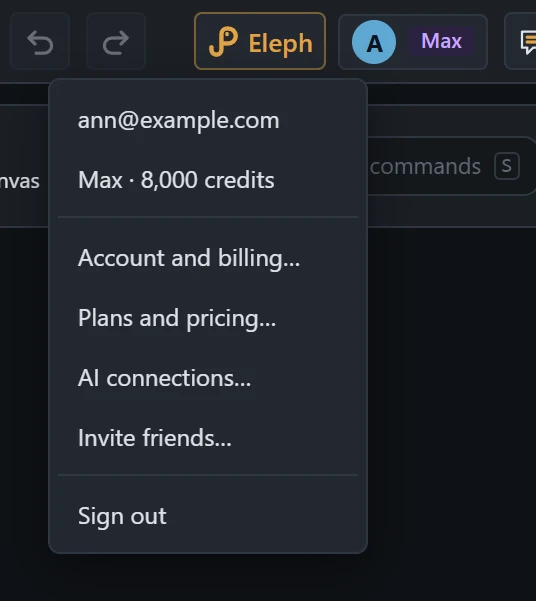 The account menu, under your initial at the right of the header.
- Turn on Let AI apps control this tab, and copy the MCP server URL:
https://protojoint.ai/mcp.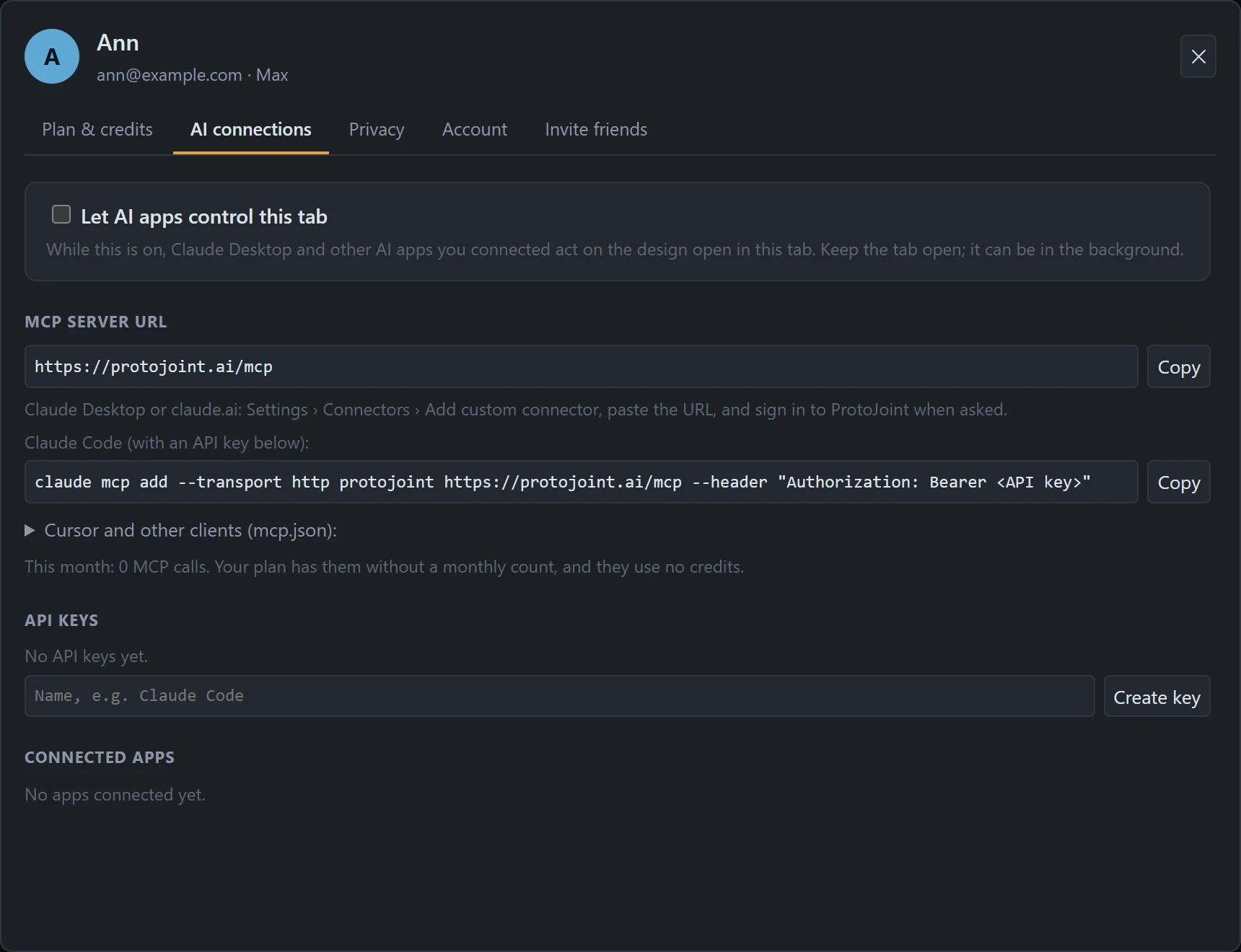 AI connections, before anything is connected.
- In Claude, go to Settings, Connectors, Add custom connector, paste the URL, and sign in to ProtoJoint when asked.
Keep the ProtoJoint tab open while the AI works; it can be in the background. The AI acts on the design open in that tab.
How do I connect Claude Code?
Create an API key under AI connections (it is shown once, so copy it), then run:
claude mcp add --transport http protojoint https://protojoint.ai/mcp --header "Authorization: Bearer <API key>"
How do I connect Cursor or another MCP client?
Add the server to the client’s mcp.json with an API key:
{
  "mcpServers": {
    "protojoint": {
      "url": "https://protojoint.ai/mcp",
      "headers": { "Authorization": "Bearer <API key>" }
    }
  }
}
Any client that speaks MCP over HTTP can connect the same way. ChatGPT, and other apps that add a remote MCP server by its URL, sign in to ProtoJoint when asked, as Claude does.
What does it cost?
Every paid plan has Eleph: Maker and Pro with Claude Sonnet 5.5, Max with Sonnet or Opus 5.5 (Opus works at high effort, and a message takes as many steps as the design needs). Chat messages use credits from your plan, and your account shows your balance. MCP connections use no credits: the AI app you connect is paid for by you. Max has them without a monthly count; Maker and Pro have 100 tool calls a month to try them, and so does a free account that contributes its designs and AI sessions. The AI connections panel shows the month's calls.
Each plan has two prices: the contributor's, when you share your designs and AI sessions to improve Eleph (never to train models), and a higher one when you do not. You choose in Account › Privacy, and the price follows your choice from your next renewal. Under Plan & credits you can set a limit that stops a chat message, and a monthly limit for the chat; neither is set unless you set it. Credits are never bought for you: when they run out, Eleph stops until your plan renews or you buy a pack. The plans are in beta, and their prices may change during it.
What is sent to the AI?
Only while you use it: your request, a description of the design, a picture of the view when Eleph asks for one, and any pictures you attach or markup you send. Pictures are re-encoded in your browser, which drops their EXIF data such as a photo’s GPS position, and our server passes them on to Anthropic with the request; it keeps them only when you contribute your AI sessions. Over MCP, the tool results, screenshots included, go to the AI app you connected, not to our AI provider; if you contribute your AI sessions, we keep of each call your tab answered only the tool’s name, whether it worked, the code or kind of error (not its words), its place in the session, how long it took, which design it was made in and, once for each session (or each day, for an app that names no session), the time, never what was sent to the tool or what it returned, screenshots included, and nothing of a call that no tab answered. If you contribute, your conversations with Eleph itself are kept whole, tool results and pictures included. Anthropic does not train its models on what our server sends it.
Are my designs used to improve Eleph?
On the free plan, the designs you make help improve Eleph, unless you turn that off: in Account › Privacy, or signed out with the note at the foot of the window. Imported 3D files (STEP,.sldprt, meshes) and pictures laid on a plane stay out, a drawing inserted from DXF or SVG goes with its sketch, and nothing carries your name. Contributors, on any plan, also share their sessions with the AI, the pictures in them included; a free account gets 50 AI credits a month for that, and a paid plan its lower price. In the European Economic Area, the United Kingdom, Switzerland and Quebec nothing is shared until you say so. What is shared is used to test and improve Eleph, its instructions, tools and test problems, never to train models and never sold; you can delete it any time. The Privacy Policy has the details.
How do I stop it?
Turn off Let AI apps control this tab, and the apps can no longer act on your design. In AI connections you can disconnect any app and revoke any API key; changing or resetting your password disconnects all of them.