MeetStream
Kirim bot AI ke Zoom, Google Meet, dan Microsoft Teams untuk merekam, mentranskripsikan, dan merangkum rapat. 19 alat yang mencakup siklus hidup bot, transkrip dan ringkasan AI, audio per peserta, garis waktu pembicara, obrolan langsung, dan penjadwalan kalender.
Server MCP Terhosting
npx add-mcp 'https://mcp.meetstream.ai/mcp'Terpasang ke Claude Code, Codex, Cursor, dan lainnya
Dokumentasi
MeetStream MCP Server
Give Claude - or any MCP-compatible client - direct access to the MeetStream meeting-bot API. Add one URL, sign in, and your assistant can run the full bot lifecycle (create, record, transcribe, summarize, interact live, manage calendar auto-join) through 19 tools.
https://mcp.meetstream.ai/mcp
MeetStream hosts the server. There is nothing to install or run on your machine, and it is always the current version.
Quick start
- Add
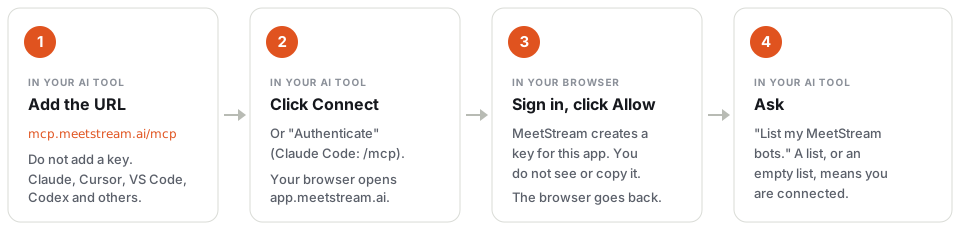
https://mcp.meetstream.ai/mcpto your AI tool. Do not add a key. - Click Connect (in Claude Code: run
/mcp, then choose Authenticate). Your browser opensapp.meetstream.ai. - Sign in to MeetStream, then click Allow. MeetStream creates an API key for this connection. You do not see or copy the key.
- Ask your AI tool: "list my meetstream bots". A list, or an empty list, means that you are connected.
The exact steps for each tool are in Connect.
Which URL to use
| URL | Use it for |
|---|---|
https://mcp.meetstream.ai/mcp | All current clients. Streamable HTTP. The replies stream as server-sent events (SSE), so you do not need a separate SSE setting. |
https://mcp.meetstream.ai/sse | Only clients that support just the older HTTP+SSE transport (2024-11-05). The sign-in and the API key work the same way. |
Your AI tool ──HTTPS + OAuth sign-in──► mcp.meetstream.ai ──► api.meetstream.ai
The old npm package
@meetstream/mcp(npx @meetstream/mcp) is frozen at 0.3.0 and no longer maintained. It predates the currentcreate_botdefaults and fixes. Use the hosted URL instead.
Connect
Add the URL with no key. Your client finds MeetStream's sign-in, opens app.meetstream.ai in your browser, and you click Allow. The dashboard creates an API key for that connection, named MCP · <app name> · <date> · <number>. To disconnect, delete that key on the API keys page.
This is the page that opens in your browser. If you are not signed in to MeetStream, you sign in first, then you see this page:
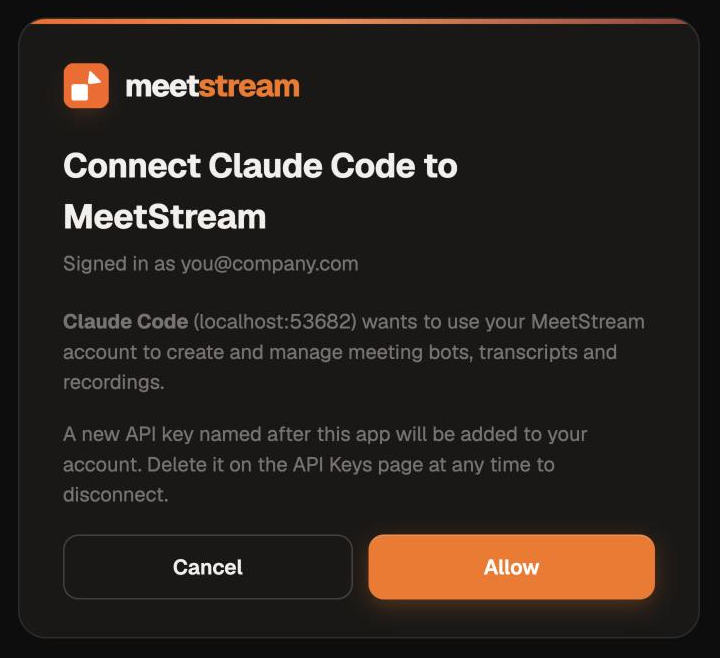
The page shows the name of the app that asked to connect. If you do not recognize the app, click Cancel. The sign-in link is valid for 15 minutes.
Claude Code
claude mcp add --transport http meetstream https://mcp.meetstream.ai/mcp
# then run /mcp in Claude Code and choose Authenticate
Claude (web and desktop)
Customize → Connectors → + → Add custom connector. Name it meetstream, set the URL to https://mcp.meetstream.ai/mcp, leave the OAuth fields blank, and click Connect.
Cursor
~/.cursor/mcp.json (or install the MeetStream Cursor plugin), then click Connect next to meetstream in Cursor Settings → MCP:
{
  "mcpServers": {
    "meetstream": { "url": "https://mcp.meetstream.ai/mcp" }
  }
}
VS Code
.vscode/mcp.json, then start the server and sign in when VS Code asks:
{
  "servers": {
    "meetstream": { "type": "http", "url": "https://mcp.meetstream.ai/mcp" }
  }
}
Windsurf
~/.codeium/windsurf/mcp_config.json. Cascade asks you to sign in on first use. If your Windsurf version cannot finish the sign-in, use an API key header (below):
{
  "mcpServers": {
    "meetstream": { "serverUrl": "https://mcp.meetstream.ai/mcp" }
  }
}
Codex
~/.codex/config.toml, then run codex mcp login meetstream:
[mcp_servers.meetstream]
url = "https://mcp.meetstream.ai/mcp"
Any other MCP client
Point it at https://mcp.meetstream.ai/mcp as a remote (Streamable HTTP) server. Clients that support MCP authorization sign in by themselves: protected resource metadata (RFC 9728), authorization server metadata (RFC 8414), dynamic client registration (RFC 7591) and the authorization code flow with PKCE. Access tokens last an hour and refresh automatically.
Or use an API key
For clients without OAuth, or for scripts and CI, create a key at app.meetstream.ai/api-keys and send it as a header:
{
  "mcpServers": {
    "meetstream": {
      "url": "https://mcp.meetstream.ai/mcp",
      "headers": { "Authorization": "Bearer ms_YOUR_API_KEY" }
    }
  }
}
- Claude Code:
claude mcp add --transport http meetstream https://mcp.meetstream.ai/mcp --header "Authorization: Bearer $MEETSTREAM_API_KEY" - Codex: add
bearer_token_env_var = "MEETSTREAM_API_KEY"to the[mcp_servers.meetstream]block. X-MeetStream-Api-Key: <key>works too. For connector UIs that cannot set headers,https://mcp.meetstream.ai/mcp?key=<key>. The server never logs query strings, but a key in a URL can end up in client-side history, so prefer OAuth or a header.
Older clients (HTTP+SSE)
/mcp is the main endpoint, and its replies already stream as server-sent events (text/event-stream). Clients that only speak the older 2024-11-05 HTTP+SSE transport connect to https://mcp.meetstream.ai/sse with the same sign-in or key options. The stream's first event names the per-session message endpoint; the key never appears in it.
Check it is connected
Ask your client something like "list my meetstream bots" - if it returns data (or a clean empty list) instead of an error, you are connected.
Then just ask
"Join my standup at https://meet.google.com/abc-defg-hij, record it with Deepgram transcription, and give me the transcript when it's done."
"List my bots from today and give me the AI summary of the 3pm customer call."
"Send 'we'll follow up by email' into the meeting the bot is in, then show them our logo."
"Schedule a bot for tomorrow's board meeting on my calendar."
Full capability list - 19 tools
Bot lifecycle
| Tool | What it does |
|---|---|
create_bot | Sends (or schedules, via join_at) a bot to a Zoom / Google Meet / Microsoft Teams meeting. Audio only by default; record_video turns video on and records it in speaker view unless video_layout: "grid_view" is asked for, and per-participant video stays off unless requested. Configurable: transcription provider + language, callback_url for webhooks, video recording, per-participant audio/video streams, MIA conversational agent, signed-in joins (google_login_domain / teams_login_domain, optional sign_in_email / strict_email, for domains already registered on your account), authenticated Zoom joins (zoom_zak_url / zoom_obf_url), custom attributes, retention window, idempotency key (safe retries - a repeat call returns the original bot, never a duplicate). Returns bot_id and transcript_id (when a provider is set). |
list_bots | Lists every bot on the account (paginated). |
get_bot_status | Current lifecycle status - one of Joining, InWaitingRoom, InMeeting, Recording, Leaving, Stopped, NotAllowed, Denied, Error, Done. |
get_bot_detail | Full session metadata: platform, timings, status timeline, the canonical transcript_id, caption_file (for the meeting_captions provider), and the original request payload. |
get_bot_summary | MeetStream's built-in AI meeting summary - no external LLM call needed. |
remove_bot | Makes the bot leave an active meeting immediately. Recorded data is kept. |
delete_bot_data | Permanently deletes a bot's audio, video, and transcripts. Requires confirm: true - only call this when the user has explicitly asked to delete data. Irreversible. |
Transcription
| Tool | What it does |
|---|---|
get_transcript | Fetches a transcript by bot_id. Automatically resolves the transcript_id (it is never delivered in webhooks) via /detail → /transcriptions. Set wait: true to poll until it's ready; raw: true for unprocessed provider output. Segments come back as { speaker, transcript, start_time, end_time }. |
list_transcriptions | Lists every transcription run for a bot - provider, status, and presigned download URLs (valid 1h). |
transcribe_audio | (Re-)transcribes a bot's recorded audio with a chosen provider - useful to retry with a different provider or language after the meeting. |
Media & meeting data
| Tool | What it does |
|---|---|
get_media_urls | Presigned URLs for audio (1h), video (10min), audio_streams/video_streams (per-participant - needs separate_audio_streams/separate_video_streams at creation), or screenshots. |
get_participants | Everyone detected in the meeting - display name, full name, status, stream ids. |
get_chats | In-meeting chat messages captured during the call. |
get_speaker_timeline | Who spoke and when, as a timeline of speaker segments. |
Live meeting interaction
| Tool | What it does |
|---|---|
send_chat_message | Posts a chat message into the live meeting through the bot. |
send_image | Displays an image or GIF as the bot's video frame. img_url must be publicly accessible (no base64). |
Calendar
| Tool | What it does |
|---|---|
list_calendar_events | Upcoming events from a connected Google Calendar. (Connecting a calendar - POST /calendar/create_calendar with OAuth credentials - is a one-time setup usually done via the MeetStream CLI or dashboard.) |
schedule_calendar_bot | Schedules (action: "schedule") or removes ("unschedule") a bot for a specific calendar event. |
Reference
| Tool | What it does |
|---|---|
webhook_events_guide | Returns the webhook reference - envelope shape (event and bot_event), the two-layer bot.stopped terminal model, status codes, and streaming-provider caveats, checked against captured production deliveries. Have your model call this before it writes any webhook handler code. |
What makes this different from just reading the docs
Every tool description and the webhook_events_guide bake in live-verified ground truth, confirmed against real production bot runs, that the public API docs currently get wrong:
- Every delivery carries
event, and most also carrybot_eventwith the specific name. Readeventto route,bot_eventfor detail. - Terminals are two-layer: every ending arrives once with
event: "bot.stopped", andbot_eventsays why (bot.stopped,bot.kicked,bot.notallowed,bot.denied,bot.failed). Lobby timeouts, denials and failures carrystatus_code: 500. Branch onbot_event, notbot_status- a kick and a clean exit both reportStopped. - Streaming-only transcription providers (
deepgram_streaming,assemblyai_streaming,jigsawstack_streaming,meetstream_streaming,meeting_captions) produce no post-call transcript, sotranscription.processednever fires.bot.donestill does. A post-call transcript fetch for them returns202indefinitely, so cap your polling. transcript_idis never in a webhook payload -get_transcriptresolves it for you automatically instead of making the model guess.- Safe defaults everywhere:
automatic_leavetimeouts on everycreate_botcall, andrecording_permission_denied_timeoutfloored at 60 (the API rejects lower values with a 400).
How it works
The server holds no API key of its own: each request (or SSE session) carries the caller's key or an OAuth token that wraps it. A request with no credentials gets a 401 with setup instructions and a WWW-Authenticate header pointing OAuth clients at the sign-in flow. Streamable HTTP is stateless, so the service scales horizontally with no shared state; OAuth tokens are encrypted, self-contained values, so there is no token database either.
MeetStream runs the server; it is written in Go and its source is not published. This repo holds the user docs and the MCP Registry entry (server.json). To report a problem, open an issue here.
Troubleshooting
| Symptom | Fix |
|---|---|
| Sign-in page says the link has expired | Sign-in links last 15 minutes. Start the connection again from your client |
401 from mcp.meetstream.ai | Sign in through your client (OAuth), or send Authorization: Bearer <key> / X-MeetStream-Api-Key - the server has no key of its own |
| Tool call returns a 401 from the API | The key is invalid or revoked (for OAuth connections, the key named after the app was deleted). Reconnect, or generate a new key at app.meetstream.ai/api-keys |
get_transcript returns ready: false | The meeting hasn't finished processing yet, or (for streaming providers) there is no post-call transcript - check get_bot_status first |
| Calendar tools return empty/errors | No calendar is connected yet - connect one via meetstream calendar connect in the CLI first |
| Your client only supports the old SSE transport | Use https://mcp.meetstream.ai/sse |
Prefer a terminal? See the MeetStream CLI. Docs: docs.meetstream.ai · API spec: openapi.json · Migrating from Recall.ai: @meetstream/migrate
Privacy and telemetry
The hosted server records anonymous counts of which tools are called and whether each call succeeded. It never records your API key, OAuth tokens, meeting URLs, transcripts, or any other content. Server logs contain the request path only, never the query string.
MIT © MeetStream.ai