Localcloud MCP
Lingkungan cloud lokal gratis untuk agen AI untuk membangun, menguji, dan men-debug aplikasi Google Cloud. CLI 0.1.9+. Situs web: https://local.cloud/
Dokumentasi
LocalCloud MCP for AI coding agents
Give AI coding agents a free local cloud environment to build, test, and debug Google Cloud applications through MCP.
Source: https://local.cloud/docs/mcp/
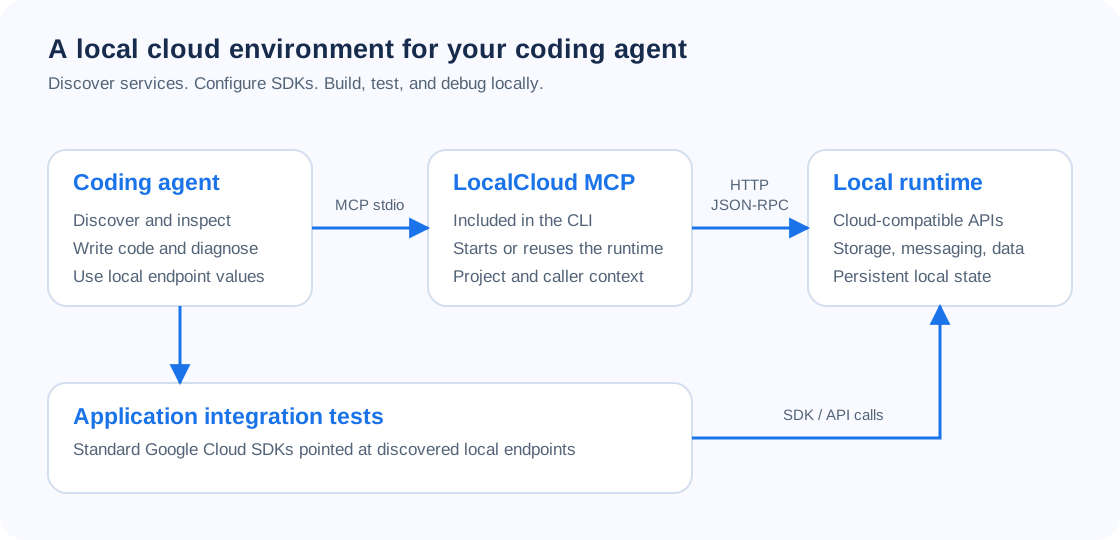
LocalCloud gives your coding agent a free local cloud environment for building, testing, and debugging Google Cloud applications. Through MCP, the agent can discover local services, obtain SDK configuration, inspect resources, query data, and diagnose application failures. Your application uses standard Google Cloud SDKs pointed at the local runtime.
The MCP bridge is included in LocalCloud CLI 0.1.9 and newer. Docker runs the cloud environment on your machine; a live Google Cloud project is not required for these local workflows.
Clients launch localcloud mcp over stdio. This page is setup documentation; do not enter https://local.cloud/docs/mcp/ as an MCP server URL.
Install and connect
On macOS, or Linux with Homebrew:
brew install LocalGCloud/tap/localcloud
lc --version
command -v localcloud
lc doctor
lc mcp install --client cursor
For an existing Homebrew installation, run brew update and brew upgrade localcloud. Confirm that lc --version reports 0.1.9 or newer.
On macOS or Linux without Homebrew:
curl -fsSL https://local.cloud/install.sh | sh
localcloud --version
command -v localcloud
localcloud doctor
localcloud mcp install --client cursor
Reload Cursor, enable the localcloud MCP server, and let it connect. The bridge starts or reuses the runtime automatically. The first connection can take longer while the runtime image downloads. To finish that download and deliberately bind newly started runtime ports to localhost first, run:
lc start --local-only
lc status
Wait for startup to finish before connecting. If command -v localcloud returns no path, complete installation and reopen your terminal.
The signed CLI releases include macOS ARM64/x86_64 and Linux ARM64/x86_64 binaries. macOS binaries require macOS 13 or newer; Linux binaries require glibc 2.35 or newer. Native Windows binaries are not shipped; Windows users need a suitable Linux/WSL environment and matching client configuration.
Runtime version and existing environments
Use runtime 0.1.5 or newer for validated strict-client tool input and output schemas. CLI and runtime versions are independent; connecting MCP or updating the CLI reuses an existing container.
Inspect lc status. To deliberately upgrade the selected runtime while retaining its named data volume:
lc restart --image agentcloud/localcloud:latest --pull
Use the same --data-volume and configuration file if you normally target a custom environment. The restart briefly interrupts clients; reconnect afterward.
Clients supporting desktop extensions can also install the LocalCloud MCP 0.1.9 bundle. The bundle includes the supported-platform CLI; Docker and runtime 0.1.5+ are still required.
Choose your coding client
Choose a direct registration below or the GitHub plugin. Enable only one LocalCloud MCP integration in each client to avoid duplicate tools.
| Client | Setup |
|---|---|
| Cursor | lc mcp install --client cursor |
| Claude Code | lc mcp install --client claude-code |
| Claude Desktop | lc mcp install --client claude-desktop |
| Windsurf | lc mcp install --client windsurf |
| Antigravity | lc mcp install --client antigravity |
| Codex | codex mcp add localcloud -- "$(command -v localcloud)" mcp |
| VS Code / GitHub Copilot | Add the stdio server to .vscode/mcp.json, as shown below |
| Cline | Add the server through Cline’s MCP settings editor |
| Gemini CLI | gemini mcp add --scope user localcloud "$(command -v localcloud)" mcp |
Use --client claude-code for Claude Code: the shorter --client claude alias configures Claude Desktop. CLI 0.1.9’s --client gemini alias targets Antigravity, not Gemini CLI. Its --client all option writes the Cursor, Claude Code, Claude Desktop, Antigravity, and Windsurf configurations even when those applications are absent. Select the clients you use; configure Codex separately with codex mcp add.
For desktop applications, use the absolute executable path from command -v localcloud. The LocalCloud installer resolves it automatically for user-scoped installations. Project-scoped installations use a bare command unless you pass --command-path. /opt/homebrew/bin/localcloud below is an Apple Silicon Homebrew example. Merge manual entries into your client’s existing configuration so other MCP servers are preserved.
Claude Code
In your terminal:
lc mcp install --client claude-code
claude mcp get localcloud
claude mcp list
The installer uses user scope by default. Start a new Claude Code session, open /mcp, and confirm that localcloud is connected.
To configure the current workspace with an absolute executable path:
lc mcp install --client claude-code --project --command-path "$(command -v localcloud)"
Approve the project MCP server in Claude Code when prompted. --project selects the client configuration scope; --project-id selects a LocalCloud data context.
For manual user-scoped registration instead of the installer:
claude mcp add --scope user localcloud -- "$(command -v localcloud)" mcp
See Claude Code’s MCP documentation for scopes and approvals.
Codex CLI and desktop
Register and inspect the stdio server:
codex mcp add localcloud -- "$(command -v localcloud)" mcp
codex mcp get localcloud --json
codex mcp list
These commands inspect configuration. Confirm the connection in a new local Codex chat or CLI session using the connection check below. In the CLI, /mcp shows active servers. Restart the desktop app if it has not loaded the new configuration.
For manual configuration or a longer startup timeout, merge this table into ~/.codex/config.toml instead of adding another server:
[mcp_servers.localcloud]
command = "/opt/homebrew/bin/localcloud"
args = ["mcp"]
startup_timeout_sec = 120
Replace command with your installed CLI’s absolute path. See Codex MCP configuration for client settings. A remote cloud session cannot automatically access your local Docker runtime.
Cursor, Claude Desktop, and Cline
For a client that uses the mcpServers format:
{
  "mcpServers": {
    "localcloud": {
      "command": "/opt/homebrew/bin/localcloud",
      "args": ["mcp"]
    }
  }
}
Cursor’s default configuration is ~/.cursor/mcp.json. Restart Cursor, open MCP settings, enable localcloud, and confirm that tools appear. For a workspace configuration in .cursor/mcp.json, use:
lc mcp install --client cursor --project --command-path "$(command -v localcloud)"
After lc mcp install --client claude-desktop, fully quit and reopen Claude Desktop, then start a new conversation. On macOS, its configuration is ~/Library/Application Support/Claude/claude_desktop_config.json. Check the local MCP server settings for localcloud and run the connection check.
Use Cline’s configuration editor rather than assuming an extension settings-file location. After installing Windsurf or Antigravity, restart the application and check its MCP settings.
VS Code
VS Code uses servers in .vscode/mcp.json:
{
  "servers": {
    "localcloud": {
      "type": "stdio",
      "command": "/opt/homebrew/bin/localcloud",
      "args": ["mcp"]
    }
  }
}
Run MCP: List Servers in the Command Palette, then start localcloud.
Optional GitHub plugin setup
The GitHub plugins include MCP and workflow guidance. Install one as an alternative to direct registration, disabling or removing the direct LocalCloud entry first. They require the installed CLI and Docker. GitHub installation is available independently of vendor directory review; it does not imply an approved official directory listing.
Claude Code plugin
Run inside Claude Code:
/plugin marketplace add LocalGCloud/localcloud-cli
/plugin install localcloud@localcloud
Enable LocalCloud, reconnect MCP, and check its tools in /mcp. Run the connection check in a new session. The launcher runs localcloud mcp and requires the CLI on Claude Code’s PATH. If it cannot find the command, disable the plugin’s MCP entry and use lc mcp install --client claude-code to record the absolute executable path.
To uninstall the plugin, run /plugin uninstall localcloud@localcloud in Claude Code. Ordinary Claude web or mobile chat cannot launch your local CLI or Docker engine.
Codex plugin
In your terminal:
codex plugin marketplace add LocalGCloud/localcloud-cli --ref main
codex plugin add localcloud@localcloud
codex plugin list
In Codex desktop, open the Plugins Directory, select the LocalCloud marketplace, and enable LocalCloud. Start a new local chat and run the connection check. Refresh plugins or restart the app if its tools have not appeared.
If codex plugin is unavailable in your version, use the direct codex mcp add setup above. Remove the plugin with codex plugin remove localcloud@localcloud. Uninstalling a plugin leaves Docker volumes intact.
The CLI marketplace guide covers both GitHub installation paths and their client requirements.
Verify the connection
Start a new conversation and ask:
Use the LocalCloud MCP tools to list local services, check readiness, and obtain SDK settings. Show the selected project and the local endpoints returned by the tools. Report unavailable services. Use only LocalCloud; do not use live Google Cloud or guess ports.
Expect actual tool results showing services, readiness, and SDK settings for the selected project. A configuration entry or mcp list output alone does not establish a working connection. Resolve missing tools or connection errors before asking the agent to build an application.
The first calls are localcloud_list_services with {}, followed by readiness and localcloud_get_env with {"format":"json"}. Generated endpoint values account for the running runtime’s port mappings.
Give your agent its first task
Copy this prompt into your coding client:
Build and test a Python workflow that uploads a JSON object to Cloud Storage and reads it back through LocalCloud. Discover readiness, compatibility, and SDK settings first. Create uniquely named test resources, assert that the returned JSON matches, and show the test command and result. Use only discovered local endpoints and clean up only resources this test created. Stop if a required operation is unavailable; do not fall back to live Google Cloud.
The agent uses MCP to discover the environment, then writes and runs the SDK test. If your client cannot execute code, run the generated test yourself. SDK writes are separate from MCP management permissions.
| Task | Agent workflow |
|---|---|
| Build a storage and messaging feature | Discover Cloud Storage and Pub/Sub, configure the SDKs, upload a test object, publish a message, and verify the result |
| Explore local data | Browse datasets and tables, inspect database connection profiles, and run a supported query |
| Write an integration test | Read compatibility, create only test-owned resources, assert results, and clean up through the SDK |
| Debug a failure | Inspect readiness, logs, recent requests, endpoint configuration, and API schemas, then rerun the failing test |
Run the MCP walkthrough and three cloud workflows, or use the SDK examples and Terraform guide. Agents can also read the agent entry point and the machine-readable installation guide.
Services, tools, resources, and prompts
The runtime provides service and project inspection, a catalog of local management API operations, resource browsing, supported data queries, SDK/gcloud/Terraform configuration, compatibility checks, diagnostics, recipes, and test prompts.
Read the connected runtime’s tools/list, resources/list, resources/templates/list, and prompts/list results for its actual catalog. CLI versions and runtime versions are independent. Use localcloud_get_api_catalog before localcloud_call_api rather than guessing management routes.
The default data volume is shared across clients and repositories. --project-id selects a logical project; choose a separate --data-volume when you need an independent runtime. SDK operations can change local data, so tests should use their own resources and explicit cleanup.
Write and destructive MCP management operations depend on the runtime settings LOCALCLOUD_MCP_WRITE and LOCALCLOUD_MCP_DESTRUCTIVE, both disabled by default. Installing a client configuration does not enable those privileges. Local compatibility is service- and operation-specific; validate application release behavior against Google Cloud separately.
Troubleshooting
| Symptom | Next step |
|---|---|
mcp install is unavailable | Update to CLI 0.1.9+ and confirm the client launches the updated executable |
| Client rejects a tool schema or structured result | Check the running runtime version; use 0.1.5+ and reconnect after an explicit upgrade |
| Docker is unavailable | Run lc doctor, start Docker, and reconnect |
| Client cannot find the command | Check command -v localcloud, then restart the client. Direct registration supports an absolute path; Claude’s plugin requires the CLI on its PATH |
Claude Code has no tools after --client claude | Use --client claude-code; the shorter alias configures Claude Desktop |
lc mcp install --client codex fails | Use codex mcp add localcloud -- "$(command -v localcloud)" mcp |
| Server is listed but tools are unavailable | Open a new session, check the client’s active MCP servers, and run the connection-check prompt |
| Tools appear twice | Keep either the plugin or direct registration enabled; remove the redundant LocalCloud entry |
| First connection times out | Run lc start --local-only, wait for completion, then reconnect; Codex can use startup_timeout_sec = 120 |
| Runtime connection fails | Inspect lc status and lc logs --tail 100; try bridge argument --connect-timeout 60 |
| Write operation is rejected | Check its safety classification and runtime permissions; do not assume installation enabled writes |
| A tool or service is missing | Check the runtime image/version, discovered catalog, readiness, and compatibility |
To remove a direct user-scoped registration, run claude mcp remove --scope user localcloud or codex mcp remove localcloud. For a project-scoped Claude Code entry, use --scope project. For Cursor or Claude Desktop, remove only the localcloud entry from MCP settings and restart. Removing a client integration preserves Docker data.
The full MCP reference covers bridge architecture, flags, caller/project context, resources, and prompts. Review licensing and privacy for the artifact you install. For a problem report, include the CLI version, runtime image, client name, and sanitized error output in a CLI issue.