Pushover MCP
Mengirim pemberitahuan push menggunakan layanan Pushover.net.
Dokumentasi
Pushover MCP
A Model Context Protocol implementation for sending notifications via Pushover.net.
Overview
This MCP enables AI agents to send notifications through Pushover.net. It implements the MCP specification, allowing seamless integration with MCP-compatible AI systems.
Configuration
You'll need:
- An application token from Pushover.net
- Your user key from Pushover.net
Get these from your Pushover.net dashboard.
Tool Schema
The MCP provides a single tool:
send
Sends a notification via Pushover.
{
  message: string;          // Required: The message to send
  title?: string;          // Optional: Message title
  priority?: number;       // Optional: -2 to 2 (-2: lowest, 2: emergency)
  sound?: string;         // Optional: Notification sound
  url?: string;          // Optional: URL to include
  url_title?: string;   // Optional: Title for the URL
  device?: string;     // Optional: Target specific device
}
Example MCP Tool Call
{
  "name": "send",
  "params": {
    "message": "Hello from AI",
    "title": "AI Notification",
    "priority": 1
  }
}
Installing
Using with Cursor
Method 1: Install Globally
Run the MCP server using npx:
npx -y pushover-mcp@latest start --token YOUR_TOKEN --user YOUR_USER
In your Cursor IDE
- Go to
Cursor Settings>MCP - Click
+ Add New MCP Server - Fill in the form:
- Name:
Pushover Notification(or any name you prefer) - Type:
command - Command:
npx -y pushover-mcp@latest start --token YOUR_TOKEN --user YOUR_USER
- Name:
Method 2: Project-specific Configuration
Add an .cursor/mcp.json file to your project:
{
  "mcpServers": {
    "pushover": {
      "command": "npx",
      "args": [
        "-y",
        "pushover-mcp@latest",
        "start",
        "--token",
        "YOUR_TOKEN",
        "--user",
        "YOUR_USER"
      ]
    }
  }
}
Using the Tool
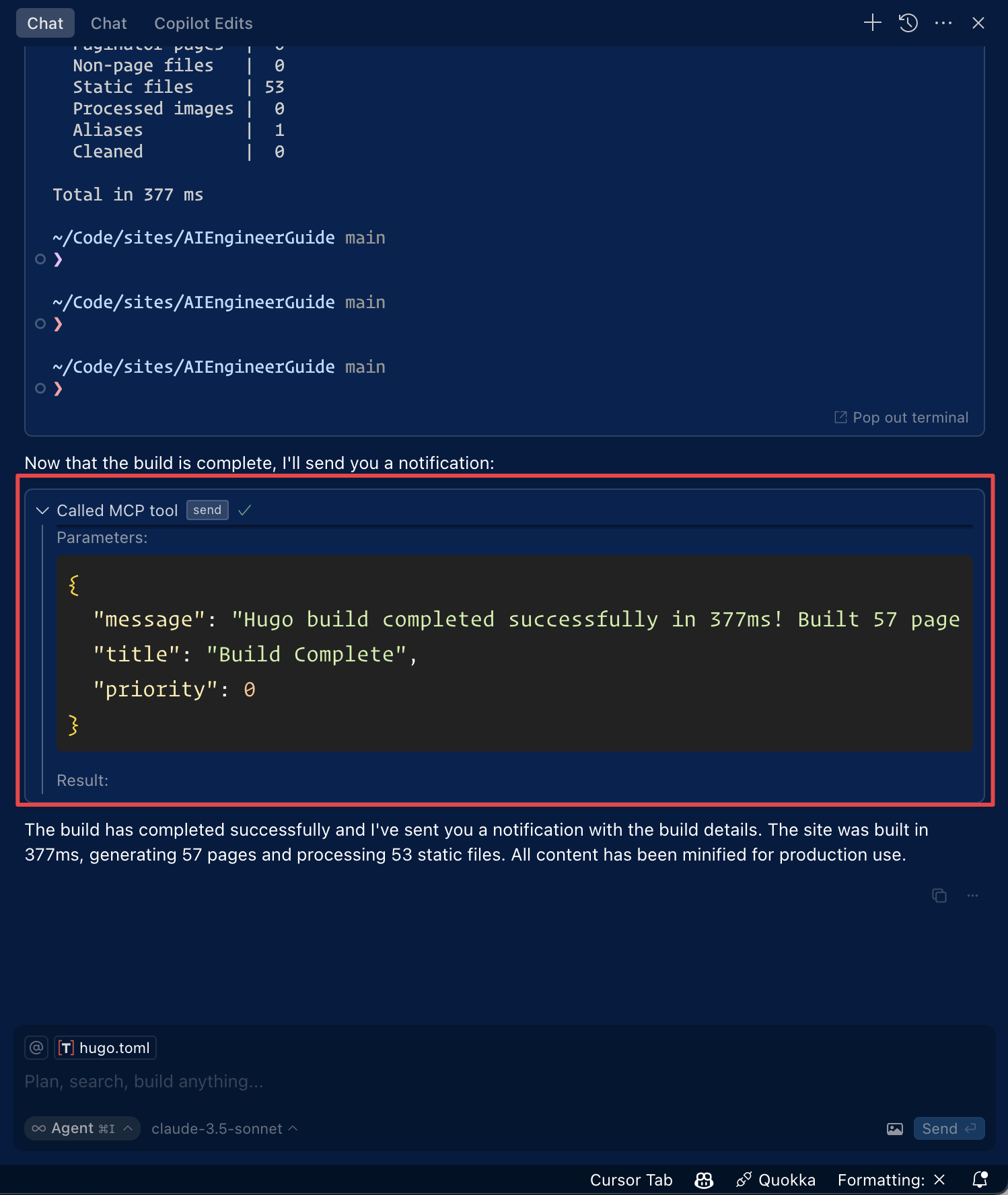
Once configured, the Pushover notification tool will be automatically available to the Cursor AI Agent. You can:
- The tool will be listed under
Available Toolsin MCP settings - Agent will automatically use it when relevant
- You can explicitly ask Agent to send notifications
By default, Agent will ask for approval before sending notifications. Enable "Yolo mode" in settings to allow automatic sending.
Using with Roo Code
Access the MCP settings by clicking “Edit MCP Settings” in Roo Code settings or using the “Roo Code: Open MCP Config” command in VS Code's command palette.
{
  "mcpServers": {
    "pushover": {
      "command": "npx",
      "args": [
        "-y",
        "pushover-mcp@latest",
        "start",
        "--token",
        "YOUR_TOKEN",
        "--user",
        "YOUR_USER"
      ]
    }
  }
}
- The Pushover notification tool will be available to Roo Code's AI agents
Note: Replace
YOUR_TOKEN&YOUR_USERwith your Pushover credentials.
Installing via Smithery
To install Pushover Notification for Claude Desktop automatically via Smithery:
npx -y @smithery/cli install @AshikNesin/pushover-mcp --client claude
Development
# Install dependencies
pnpm install

# Build
pnpm build

# Run tests
pnpm test
License
MIT