Talk with Your Database
Interactúa con bases de datos PostgreSQL, MySQL, MariaDB y SQLite usando SQLAlchemy.
Documentación
Habla con tu base de datos usando MCP
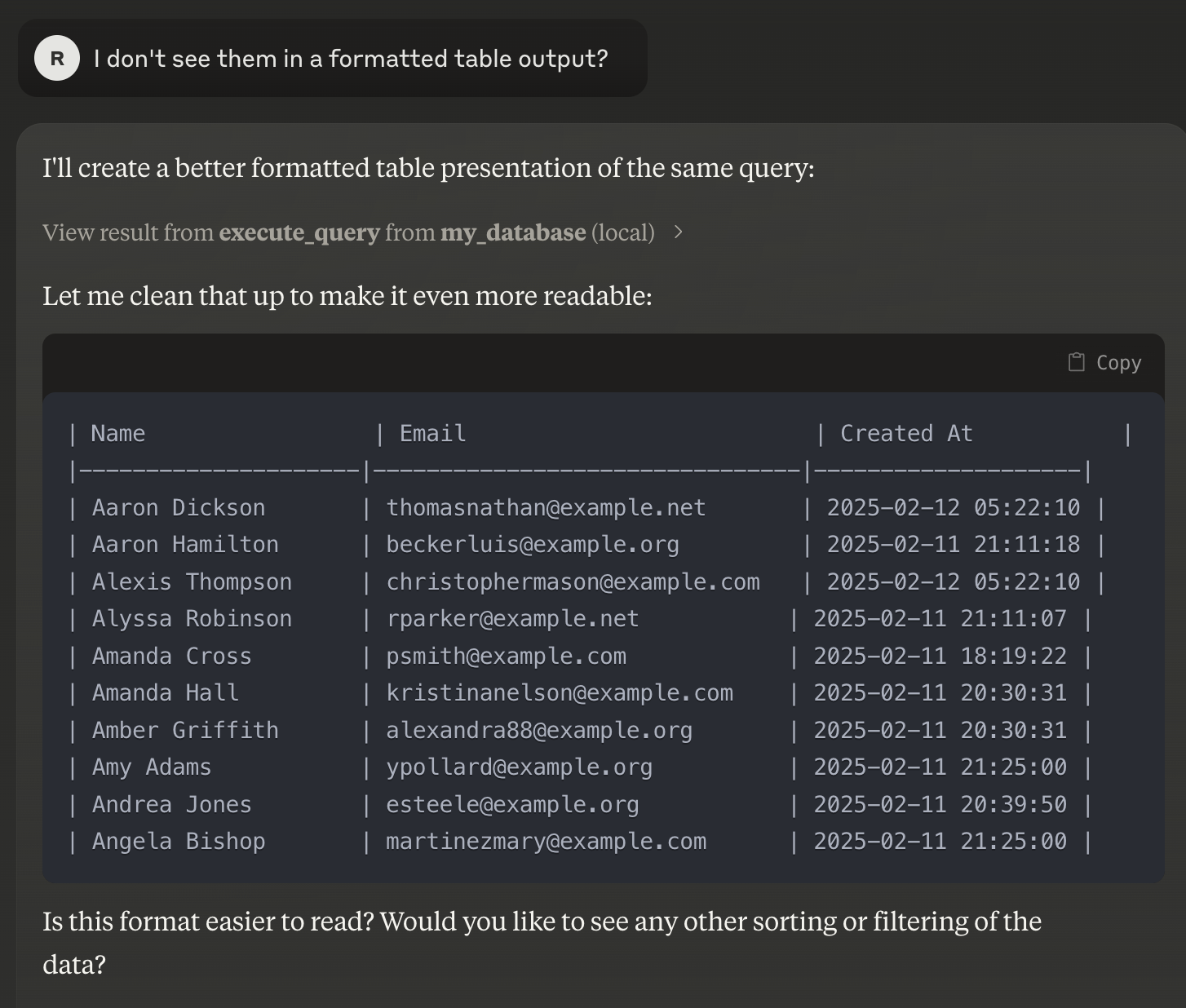
Esta guía explica cómo configurar y ejecutar tu servidor MCP para interactuar con tu base de datos PostgreSQL usando Claude Desktop. También debería funcionar con MySQL, MariaDB, SQLite, ya que utiliza sqlalchemy internamente. Este proyecto está construido sobre https://github.com/runekaagaard/mcp-alchemy
Nota: Esta guía asume que tienes un conocimiento básico de Docker, variables de entorno y uso de la CLI.
Requisitos previos
- Docker Compose: Instrucciones de instalación
- Claude Desktop: Descargar aquí
- uv: Un gestor de paquetes de Python moderno y de alto rendimiento. Si no está instalado, sigue las instrucciones a continuación.
1. Configurar variables de entorno
- Copiar y renombrar el archivo de entorno
Duplica el archivo.env.exampleproporcionado y renómbralo a.env:cp .env.example .env
2. Configurar Claude Desktop
- Descargar e instalar Claude Desktop
Visita la página de descarga de Claude Desktop e instala la aplicación.
3. Iniciar la base de datos PostgreSQL con datos de prueba
- Ejecutar Docker Compose
Asegúrate de que Docker Compose esté instalado y ejecuta:docker-compose up -d- Este comando iniciará una base de datos PostgreSQL en
localhost:5432y la poblará con datos de prueba.
- Este comando iniciará una base de datos PostgreSQL en
4. Instalar uv (si aún no está instalado)
- Instalar
uv
Ejecuta el siguiente comando para instalaruv:curl -LsSf https://astral.sh/uv/install.sh | sh
5. Configurar e iniciar el servidor MCP
-
Crear/Actualizar la configuración del servidor MCP
Guarda la siguiente configuración JSON en tu archivo de configuración del servidor MCP (ajusta las rutas si es necesario):{ "mcpServers": { "my_database": { "command": "uv", "args": [ "--directory", "/directory/where/this/app/is/located/app/", "run", "server.py" ], "env": { "DB_URL": "postgresql://postgres:password@localhost:5432/mydatabase" } } } }- Consejo: Si
uvestá instalado en una ubicación no estándar, actualiza el valor de"command"para reflejar la ruta completa al ejecutable.
- Consejo: Si
-
Iniciar el servidor MCP
Con la configuración en su lugar, el servidor MCP se iniciará automáticamente cada vez que se lance Claude Desktop.
6. Disfruta tu configuración
- Abre Claude Desktop.
- La herramienta llamará automáticamente a tu servidor MCP, permitiéndote interactuar con tu base de datos sin problemas.
Resumen
- Configurar variables de entorno: Copia
.env.examplea.env. - Instalar y ejecutar Claude Desktop: Descarga desde Claude Desktop.
- Iniciar PostgreSQL con Docker Compose: Ejecuta
docker-compose uppara iniciar la base de datos con datos de prueba. - Instalar
uv: Ejecuta el comando de instalación proporcionado si es necesario. - Configurar el servidor MCP: Actualiza el archivo de configuración y asegúrate de que las rutas y las variables de entorno sean correctas.
- Iniciar y disfrutar: Inicia Claude Desktop para comenzar a interactuar con tu base de datos a través de MCP.
Si encuentras algún problema o necesitas más ayuda, consulta la documentación relevante o contacta con tu equipo de soporte.
¡Feliz codificación!