OuEstCharlie Woof — MCP App photo gallery
Busca y navega tus fotos en tu asistente de IA mientras preservas tu privacidad y metadatos
Documentación

Woof — Ve tu galería de fotos en tu asistente de IA





mcp-name: io.github.ouestcharlie/ouestcharlie-woof
Woof es el compañero de galería de fotos y videos para tu asistente de IA (Claude Desktop, Goose, VS Code / GitHub Copilot...). Complementa estas potentes herramientas con una galería buscable. Tus fotos y videos permanecen exactamente donde están — en tus propios discos (locales o montados).
Sin suscripción en la nube. Sin bloqueo propietario. Tu biblioteca, a tu manera.
Woof es la interfaz MCP App para "Où est Charlie ?" ("¿Dónde está Wally?" en francés), un framework completo nativo de IA para gestionar tus fotos y videos.
Qué lo hace diferente
La mayoría de los gestores de fotos bloquean tu biblioteca en un servicio en la nube (Google Photos, iCloud) o requieren un servidor de base de datos que se convierte en un punto único de fallo. Woof adopta un enfoque diferente:
- La conversación como tu galería. Woof se conecta a tu asistente de IA (Claude Desktop, ChatGPT, Goose, VS Code / GitHub Copilot…) y lo convierte en un navegador de fotos completo. Pregunta en lenguaje natural, obtén resultados en línea. Sin otra aplicación que aprender.
- Privacidad por diseño. Solo los metadatos viajan a tu asistente de IA — tus fotos reales se sirven localmente por Woof. Tus imágenes nunca se suben a ningún servicio de IA a menos que lo pidas explícitamente.
- Sin bloqueo de base de datos. Los metadatos viven como archivos sidecar XMP junto a tus fotos, además de manifiestos JSON ligeros. Mueve un disco, copia una carpeta — toda tu organización viaja con tus fotos.
- Formatos abiertos, para siempre. XMP es un estándar ISO. JSON es universal. AVIF es libre de regalías. Cada herramienta que ya usas — Lightroom, darktable, ExifTool — puede leer tus metadatos hoy y mucho después de que OuEstCharlie desaparezca.
- Tus fotos nunca se tocan. Woof lee tu biblioteca tal como está. Nunca modifica, mueve ni elimina tus archivos originales. También respeta los metadatos XMP existentes de Lightroom, darktable o cualquier otra herramienta — en lugar de sobrescribirlos.
- Funciona con tu estructura de carpetas existente. Solo apunta Woof a tu carpeta de fotos. Sin migración, sin reorganización requerida.
Más sobre OuEstCharlie y Woof en el Blog de OuEstCharlie
Instalación
Woof se ejecuta como un servidor MCP local. Se conecta a tu cliente de escritorio de IA (Claude Desktop, Goose...) y expone tu biblioteca de fotos como un conjunto de herramientas.
Opción A — Instalación del paquete (recomendada, solo Claude Desktop)
Conectar a Claude Desktop
Descarga el último ouestcharlie-woof.mcpb desde la página de Releases y haz doble clic en él. Claude Desktop te pedirá instalar Woof con un clic — sin necesidad de editar archivos de configuración.
Ver también en el Blog de Woof:
Instalación paso a paso de OuEstCharlie Woof en Claude Desktop
Opción B — Configuración manual de uvx
Requisitos previos
Los paquetes de Python de OuEstCharlie Woof se gestionan con uv y el comando uvx. Es posible que uv ya esté disponible en tu sistema.
Requisitos previos del sistema (todas las opciones de instalación):
- macOS:
brew install inih brotli gettext(requerido por pyexiv2 en tiempo de ejecución) - Linux/Windows: sin pasos adicionales
Conectar a Claude Desktop
Referencia: Cómo empezar con servidores MCP locales en Claude Desktop
Abre (o crea) ~/Library/Application Support/Claude/claude_desktop_config.json y agrega o actualiza mcpServers:
{
  "mcpServers": {
    "woof": {
      "command": "uvx",
      "args": ["--python", "3.13", "--from", "ouestcharlie-woof", "woof-bridge"]
    }
  }
}
Reinicia Claude Desktop. Woof aparecerá como una integración MCP, y la galería se mostrará como un panel interactivo dentro de tu conversación.
Conectar a ChatGPT Desktop
NOTA: A partir de mayo de 2026, ChatGPT ya no admite servidores MCP locales. ¡Lo siguiente ya no está disponible!
Conectar a Goose
Referencia: Documentación de extensiones MCP de Goose
Goose admite servidores MCP a través de su sistema de extensiones.
Puedes agregarlo a través de la interfaz de usuario como una Extensión Personalizada:
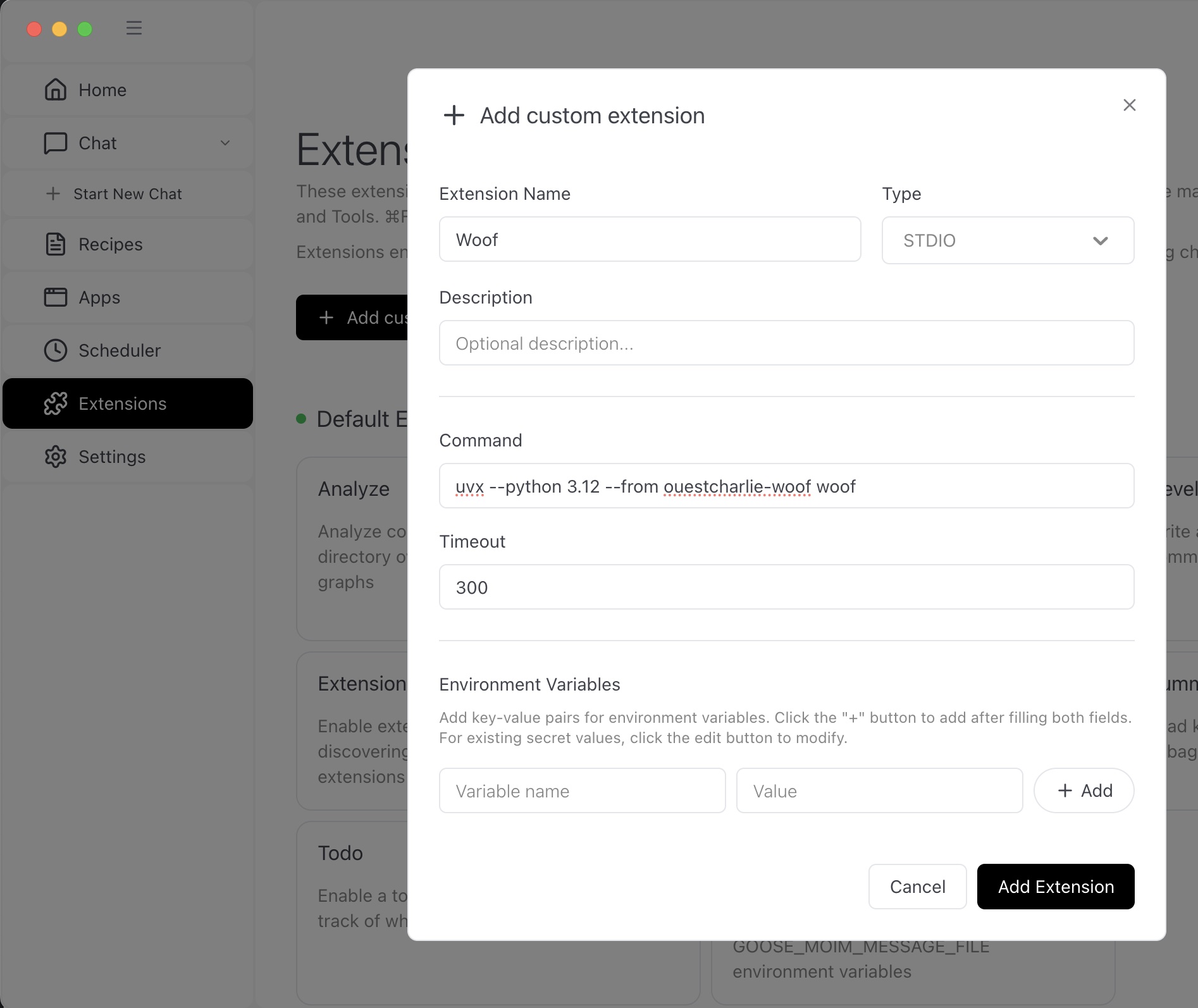
Configurar la extensión Woof en Goose
O agrega lo siguiente a tu configuración de Goose (~/.config/goose/config.yaml):
extensions:
  woof:
    type: stdio
    cmd: uvx
    args: ["--python", "3.13", "--from", "ouestcharlie-woof", "woof-bridge"]
    enabled: true
Agregar a VS Code (entorno GitHub Copilot)
Para instalar en VS Code:
- Desde la Paleta de Comandos (Ctrl+Shift+P o Cmd+Shift+P), selecciona "MCP: Add Server..."
- La forma más sencilla es usar la opción de instalación "Pip Package"
- Escribe el nombre del paquete de Woof: "ouestcharlie-woof"
- Acepta para confirmar
- El punto de entrada es woof-bridge (no woof como sugiere el mensaje)
La configuración compuesta debería ser:
{
	"servers": {
		"woof-bridge": {
			"command": "uvx",
			"args": [
				"--python",
				"3.13",
				"--from",
				"ouestcharlie-woof",
				"woof-bridge"
			],
			"type": "stdio"
		}
	},
	"inputs": []
}
Verifica si woof-bridge está activado a través de "MCP: List Servers" desde la Paleta de Comandos.
Otros asistentes de IA compatibles
Otros clientes admiten MCP Apps, por ejemplo Codex.
Consulta la Matriz de compatibilidad de extensiones MCP
Plugin de habilidades opcional
Woof proporciona habilidades opcionales con flujos de trabajo; consulta la sección de Tutoriales a continuación. Para instalar el plugin que contiene las habilidades, referencia este repositorio como ouestcharlie/ouestcharlie-woof:
- Claude Desktop, desde Configuración > "Plugins" > "Agregar" en la esquina superior derecha > "Agregar un marketplace" > "Agregar desde un repositorio"
- VSCode, desde la Paleta de Comandos > "Chat: Instalar plugin desde fuente"
Primeros pasos
1. Registra tu carpeta de fotos
Una vez que Woof esté conectado a tu cliente de IA, pídele que registre tu carpeta de fotos:
"Agrega una biblioteca local a Woof apuntando a /Users/tunombre/Pictures"
Woof admite cualquier carpeta en un disco local — incluidas carpetas sincronizadas desde iCloud Drive, OneDrive o Google Drive, siempre que los archivos estén disponibles localmente.
2. Indexa tu biblioteca
Activa el indexador para escanear tus fotos y construir el índice de metadatos:
"Indexa mi biblioteca local"
Woof lanzará el agente de indexación, que:
- Leerá los metadatos EXIF/XMP de cada foto
- Escribirá archivos sidecar XMP junto a tus originales (sin modificar nunca los originales)
- Generará miniaturas y vistas previas
- Construirá un índice rápido para consultas
La velocidad de indexación es aproximadamente de 10 a 100 segundos por cada 1,000 fotos, según el formato y el hardware.
3. Comienza a navegar
Una vez completada la indexación, solo pregunta:
"Muéstrame fotos en Woof de julio pasado"
"En Woof, muéstrame fotos tomadas cerca de París"
"Busca en Woof fotos con 'Tour Eiffel' en la descripción"
"¿Cuántas fotos tengo en Woof?"
El panel de la galería aparecerá en línea dentro de tu conversación con los resultados coincidentes.
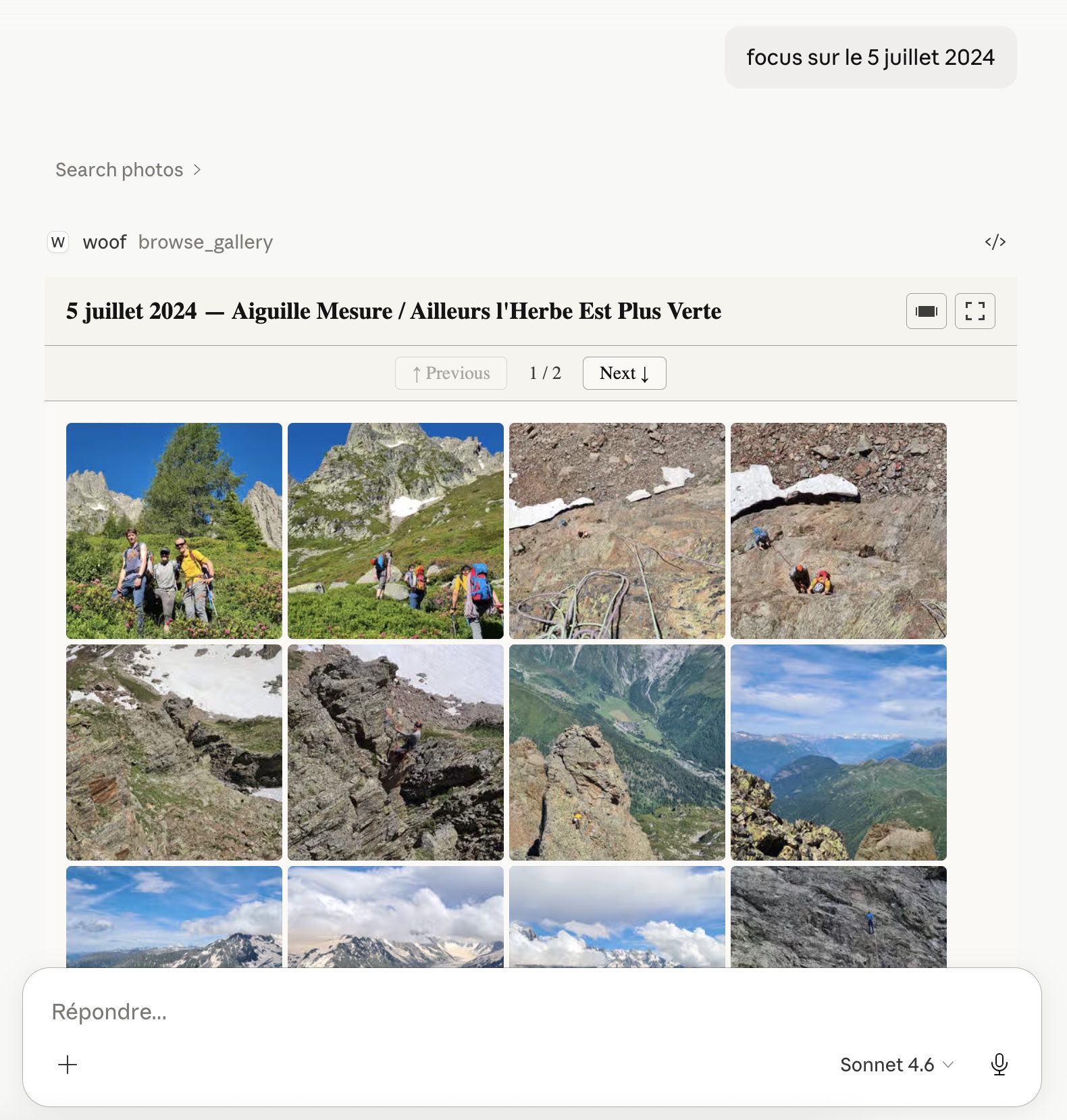
Galería de fotos de Ouestcharlie Woof dentro de Claude Desktop
Más tutoriales
- Crea tu galería de fotos personal con Claude, Strava y OuEstCharlie Woof - Versión con prompt
- Usa un flujo de trabajo de IA para ordenar y enriquecer fotos agrupándolas en clústeres
- Usa un flujo de trabajo de IA para ordenar y enriquecer fotos usando tu registro de actividad de Strava - Versión con habilidad
Almacenamiento
Woof admite bibliotecas de sistema de archivos local y montaje en la nube en macOS, Linux y Windows:
- filesystem para un disco duro local estándar o SSD, incluidos discos de red locales (por ejemplo, NAS)
- cloud_mount para una carpeta sincronizada desde iCloud Drive, OneDrive, Google Drive o Infomaniak kDrive — siempre que los archivos estén descargados y accesibles localmente
El almacenamiento nativo en la nube (S3, Azure, GCS, API de OneDrive) está planificado.
Estado
Woof es una vista previa temprana. Funciona bien hoy para navegar y buscar una biblioteca de fotos local.
Funciones actuales
| Función | Notas |
|---|---|
| Compatible con Claude Desktop, Goose, VS Code | Cualquier aplicación de escritorio con soporte para MCP App |
| Disponible en macOS, Windows, Linux | Los paquetes de Python se compilan y publican en PyPI |
| Indexación del sistema de archivos local | Los archivos deben estar sincronizados localmente |
| Fotos (JPEG, PNG, TIFF, HEIC, RAW) | HEIC y RAW dependen de las opciones de compilación |
| Soporte de video (MOV, MP4) | |
| Vista de galería como cuadrícula o vista previa | Detalles de la foto en la vista previa |
| Miniaturas y vistas previas de imágenes | Optimizadas para visualización |
| Búsqueda por descripción, etiquetas, calificación, fecha, partición | Búsqueda de texto completo en la descripción |
| Búsqueda por características de la foto (fecha, dimensiones, cuadro delimitador GPS) | |
| Búsqueda por características del video (duración, dimensiones, cuadro delimitador GPS) | |
| Búsqueda por características de la cámara (marca, modelo, apertura, lente) | |
| Orden ascendente o descendente en cualquier campo | |
| Detección de cambios / reindexación automática | Parcial — fotos agregadas y eliminadas |
Funciones planificadas
| Función |
|---|
| Álbumes y filtros inteligentes |
| Compartir fotos con el host (Claude Desktop, ChatGPT, Goose…) |
| Agentes de enriquecimiento (rostros, reconocimiento de escenas) |
| Aplicación complementaria para móvil |
| Bibliotecas nativas en la nube (S3, OneDrive, GCS…) |
Si encuentras un error o un comportamiento inesperado, por favor abre un issue.
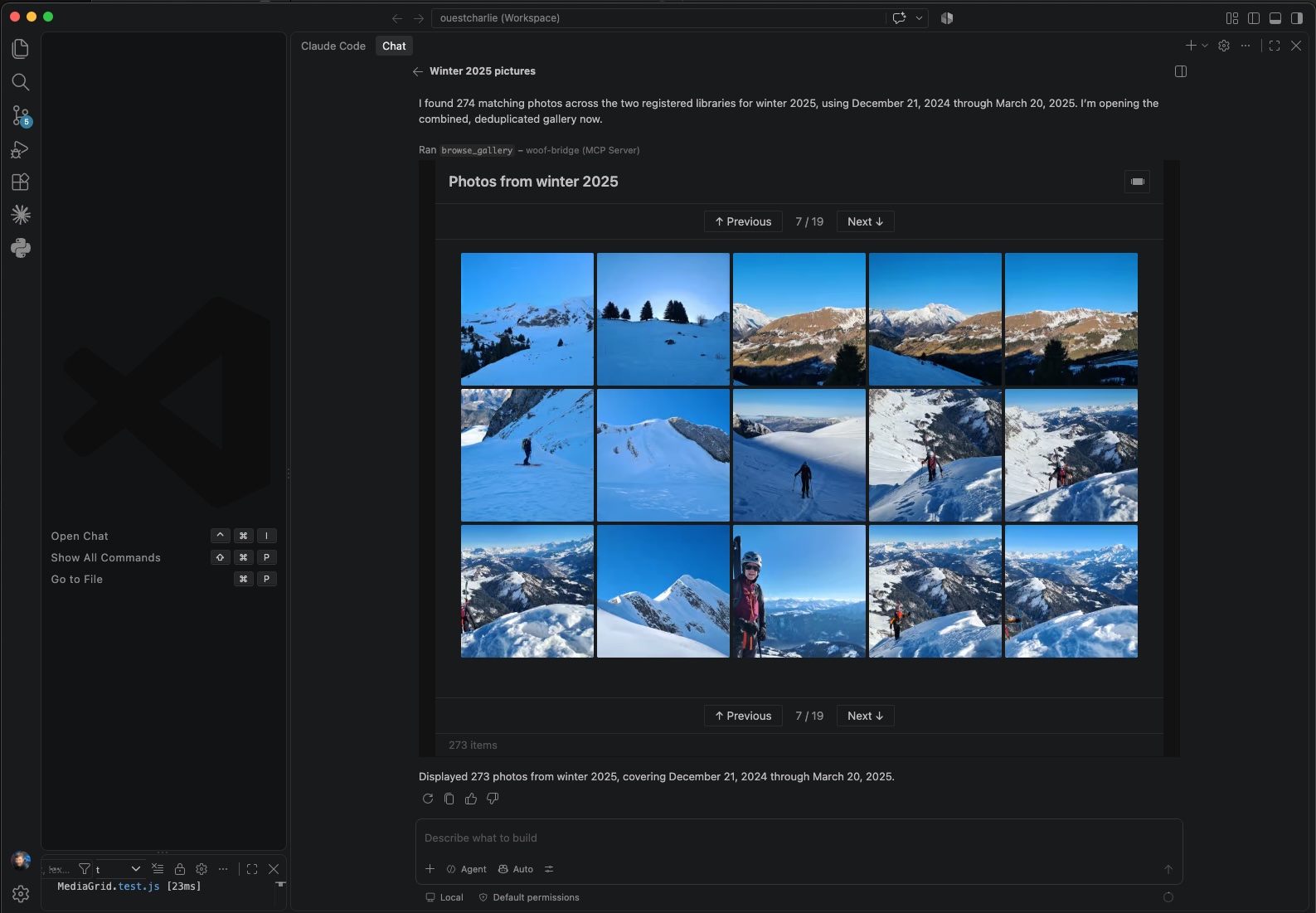
Galería de fotos de Ouestcharlie Woof dentro de VSCode, una alternativa a Claude CoWork para técnicos
Política de privacidad
Woof está diseñado con la privacidad como principio fundamental.
- Datos recopilados: Solo se leen e indexan metadatos de fotos (EXIF, coordenadas GPS, marca/modelo de cámara, fechas, rutas de archivo). No se recopila información personal ni de cuentas.
- Almacenamiento de datos: Todos los metadatos se almacenan localmente en tu propio dispositivo como archivos sidecar XMP y manifiestos JSON junto a tus fotos. No se almacenan datos en ningún servidor remoto.
- Asistente de IA: Solo se envían metadatos e imágenes en miniatura a tu asistente de IA (Claude, ChatGPT, Goose…) cuando realizas una búsqueda. Tus archivos de fotos originales nunca se suben a ningún servicio de IA a menos que los compartas explícitamente.
- Terceros: No se comparten metadatos ni datos de uso con ningún tercero.
- Retención: Todos los datos permanecen bajo tu control total. Eliminar los sidecars XMP y las carpetas
.ouestcharlie/de tu biblioteca de fotos elimina por completo todos los metadatos de Woof.
Para preguntas sobre privacidad, por favor abre un issue.
Soporte
Informes de errores y solicitudes de funciones: Issues de GitHub
Rincón de desarrolladores
Para documentación de desarrolladores y arquitectura, consulta README_DEV.md.
Contribuciones
Consulta la sección de Contribuciones en OuEstCharlie