Excel to Title Blocks for AutoCAD
Ask your AI to export every AutoCAD title block in a folder to one Excel table, edit it, and write the values back to all drawings.
Documentación
Edit one table, and every title block follows
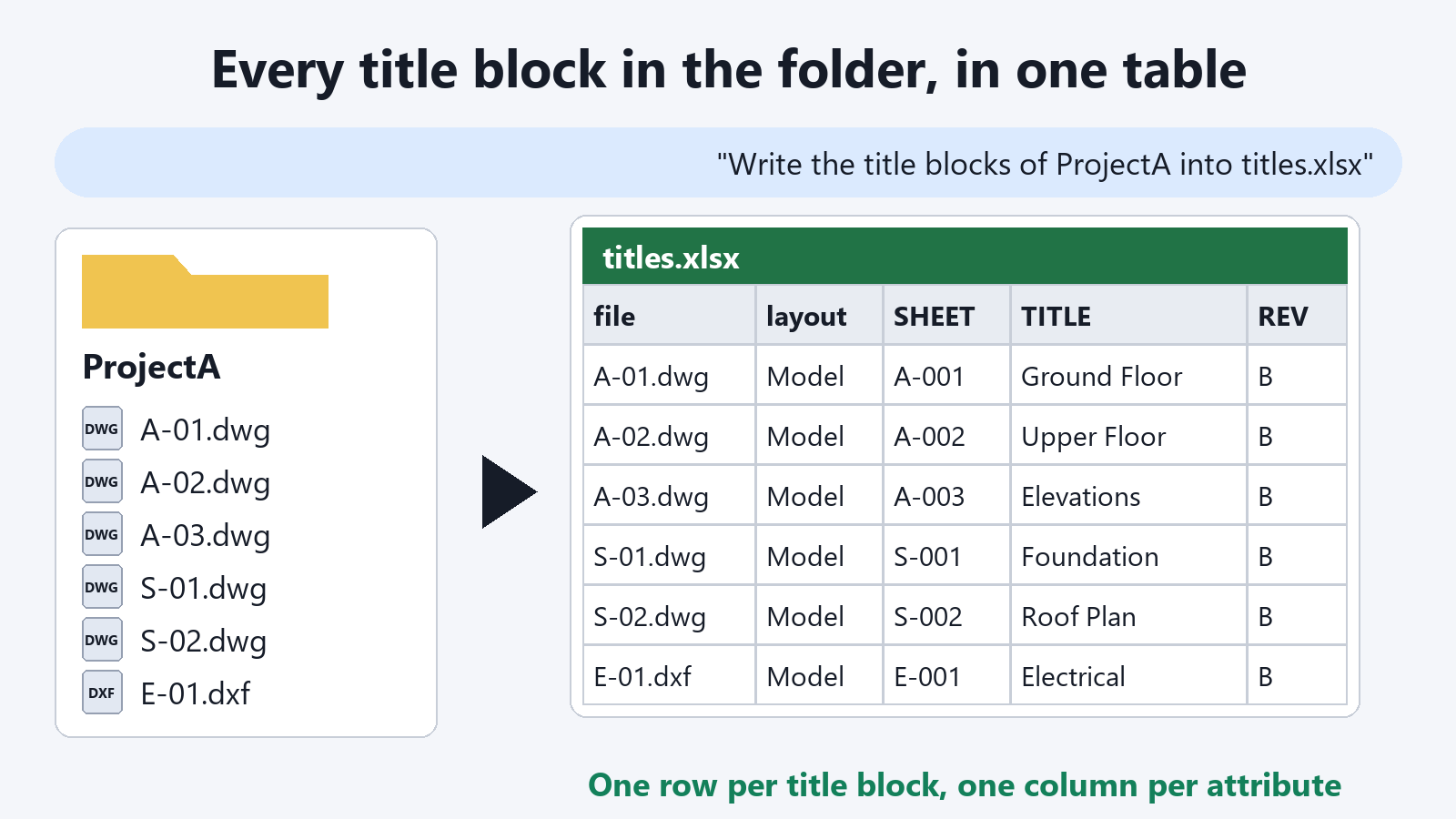
Every title block in the folder, in one table
The title blocks of all DWG and DXF files in a folder go into one.xlsx or.csv file: one row per title block, one column per attribute. It also works as your drawing list.
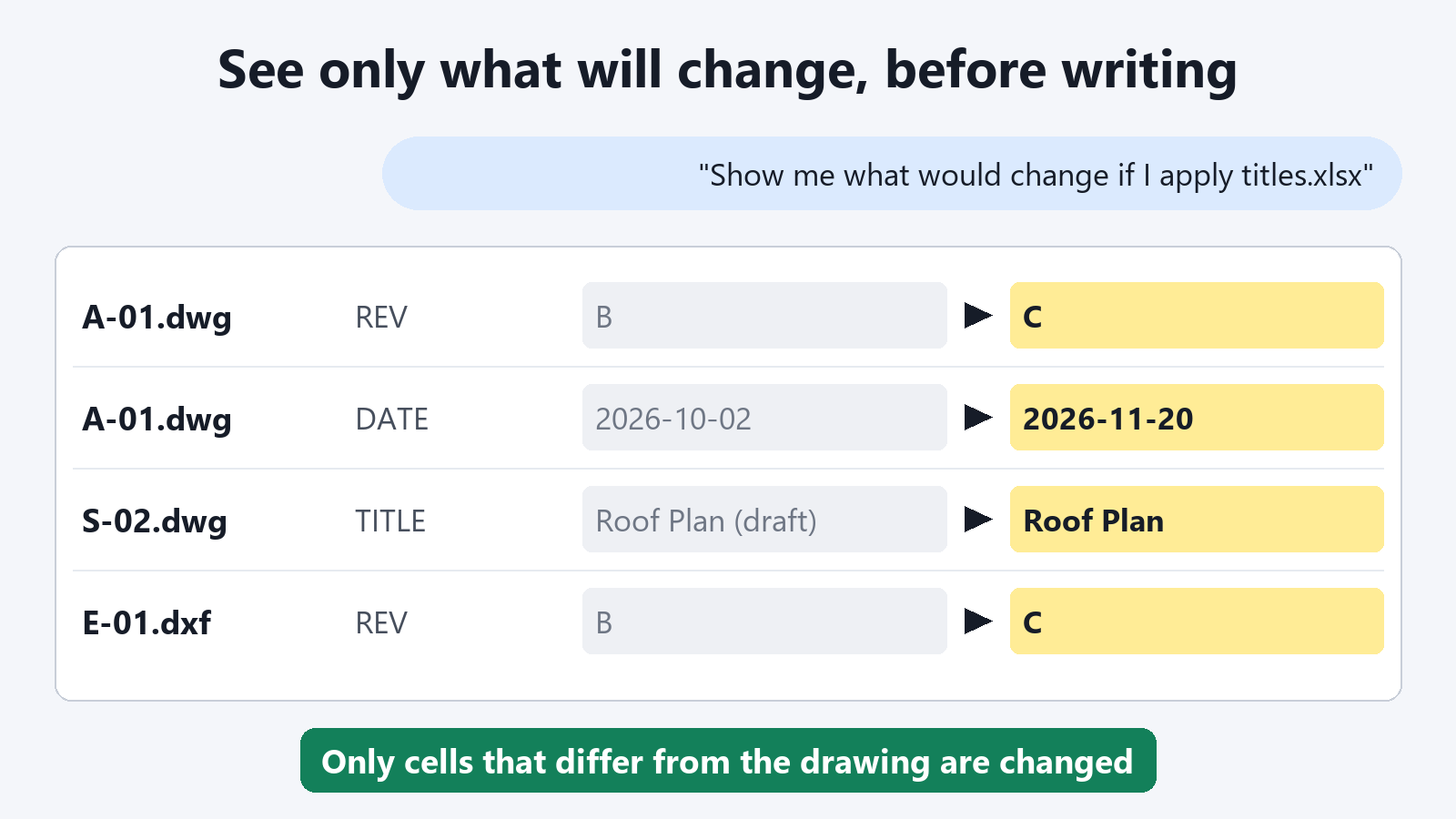
See what will change before writing back
The table is compared with the drawings, and only the cells that differ are listed. Writing back changes those cells and leaves every other attribute alone.
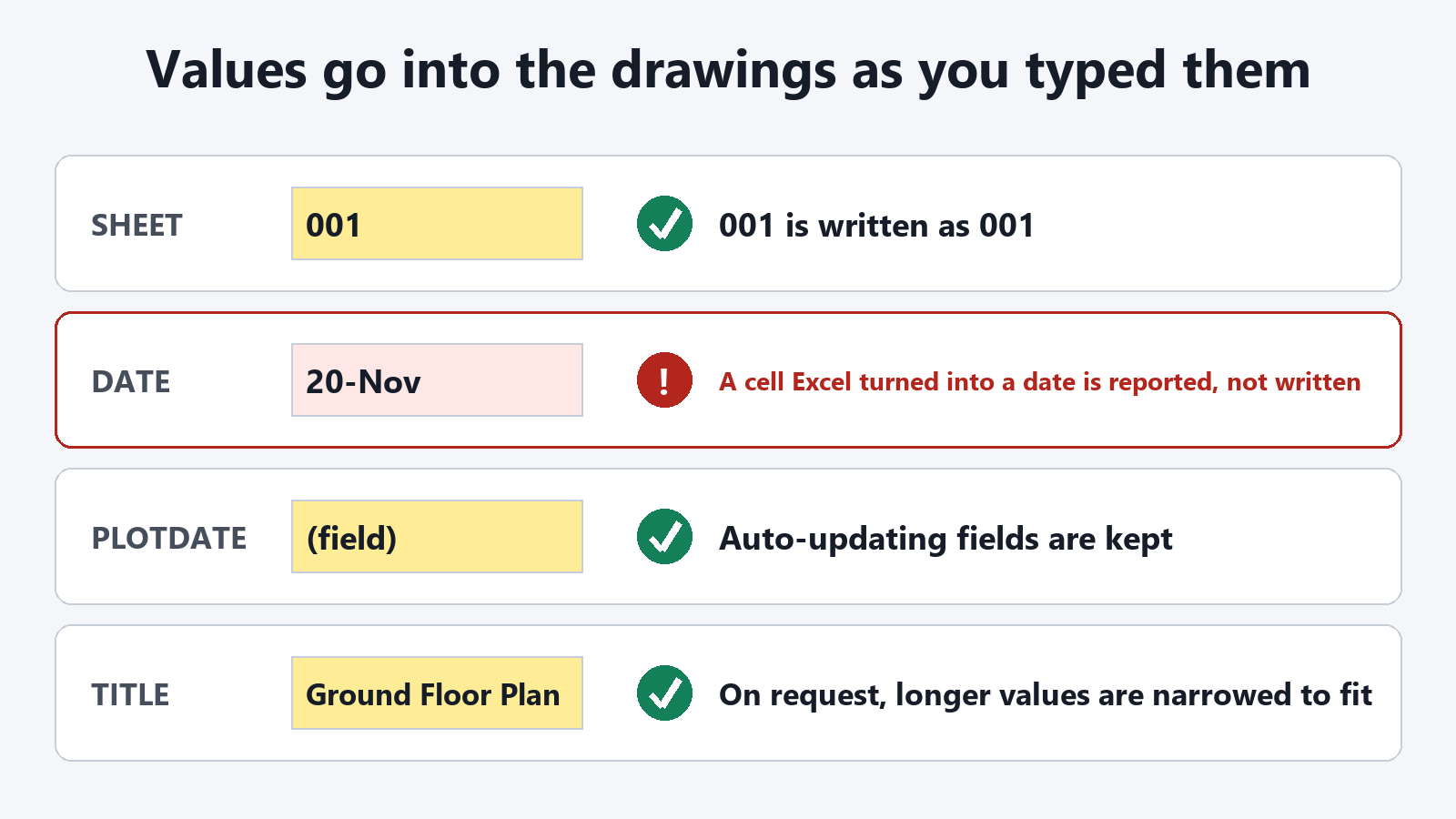
Values go in exactly as you typed them
001 stays 001. Cells that Excel turned into dates or TRUE/FALSE are reported, not written. Field attributes are kept, and longer values can be narrowed to fit.
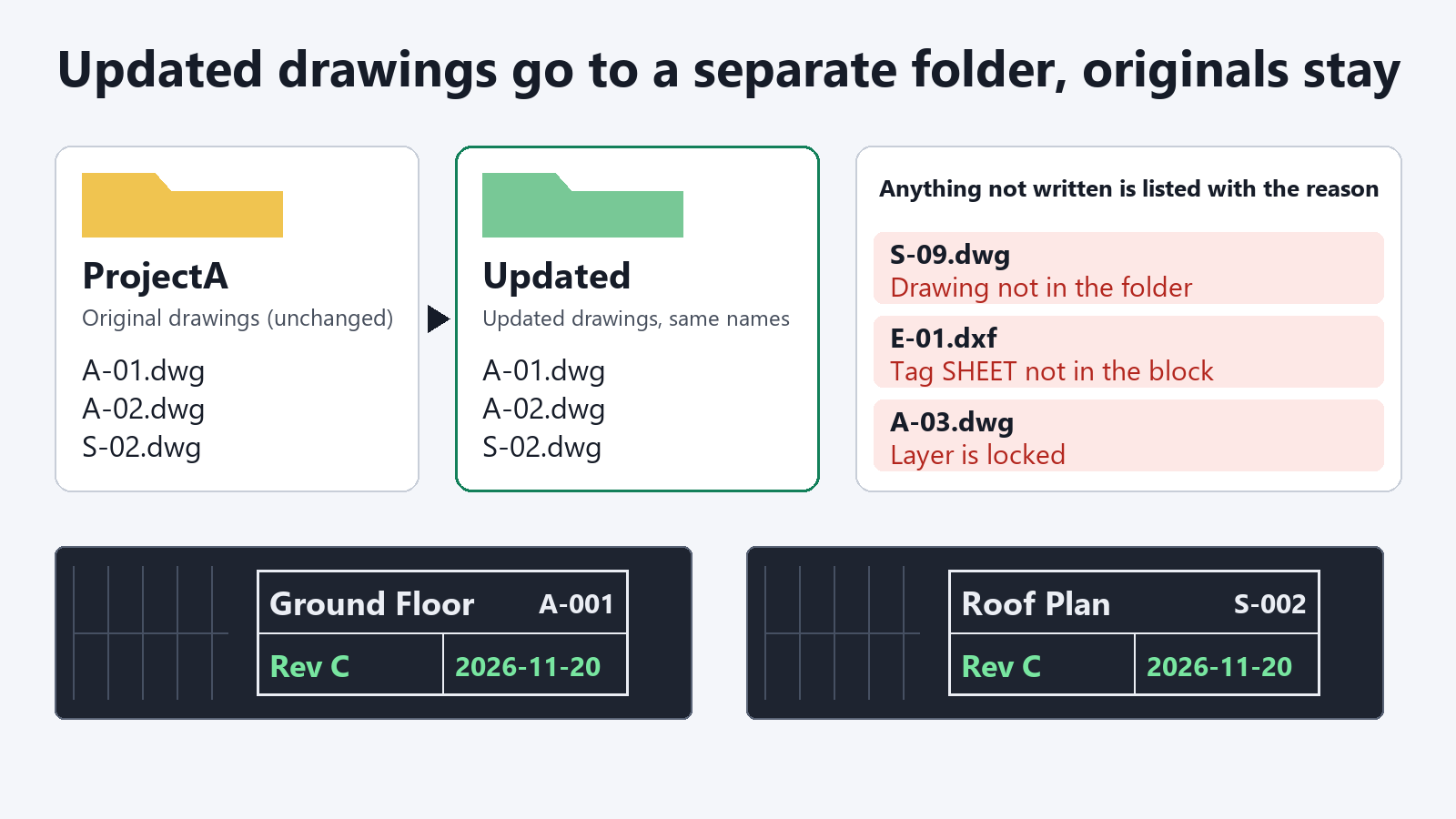
Updated drawings go to a separate folder
They are saved under the same names in another folder, and the originals stay as they are. Anything that could not be written comes back as a list with the reason. A copy is saved only when every planned value went in, so you never get a half-updated drawing.
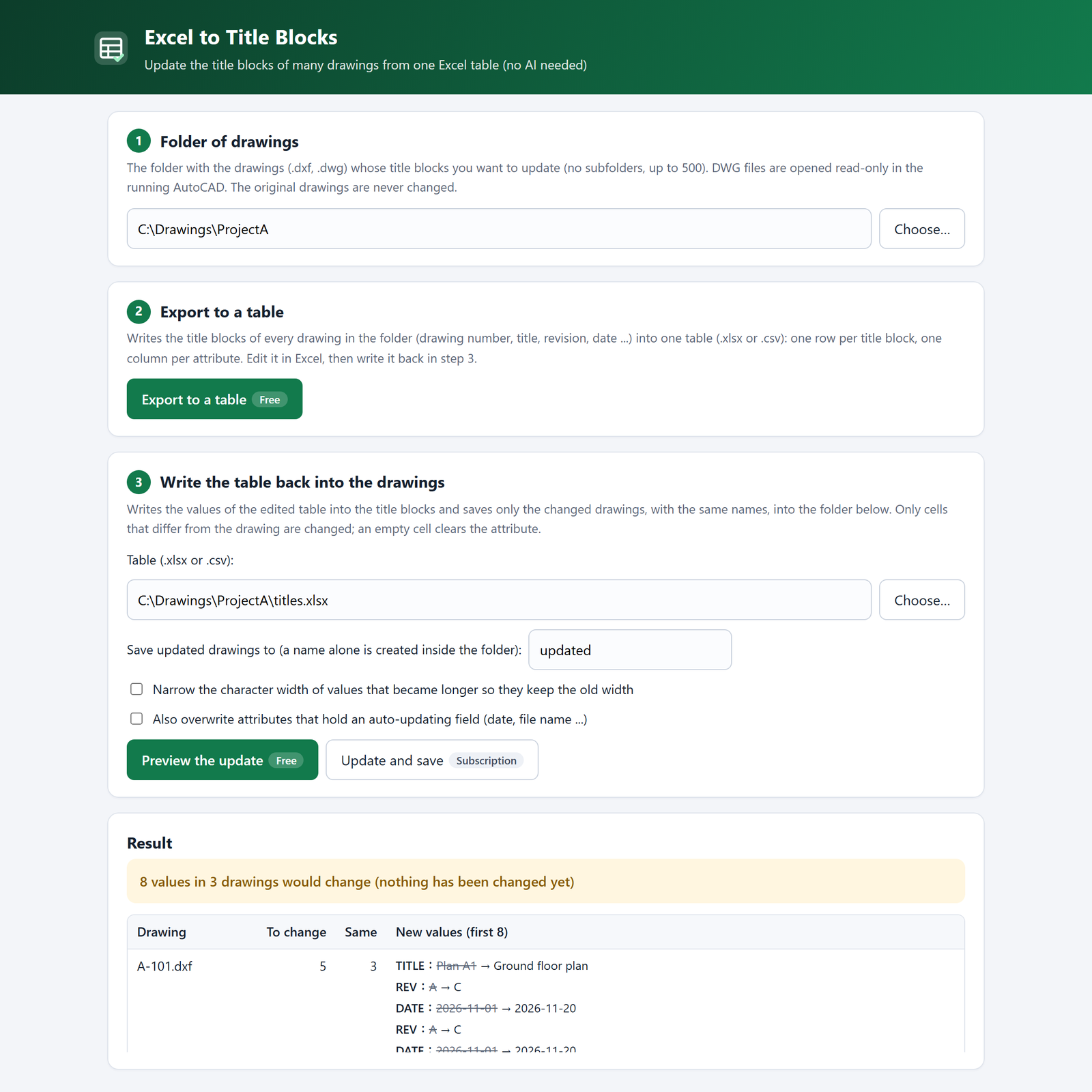
No AI app needed: export and write back from a simple screen
Double-click Excel to Title Blocks.bat in the zip, and a screen opens in your browser. Pick the folder and export its title blocks to a table. After you edit the table in Excel, press a button to preview the changes, or to write them back and save the drawings.
- Uses the same license key as your AI client
- DXF files work without AutoCAD
- Exporting and previewing are free
Free features and subscription
Free gives you the table of every title block and a preview of what would change. For ¥980 a month, the AI also writes the table back into the drawings.
Free
¥0 no card
- Exporting the title blocks of a folder to.xlsx or.csv
- Previewing what would change in each drawing
- Choosing the title block by its block name
Subscription
¥980 per month
- Writing the table back into the drawings (DWG and DXF)
- Overwriting fields and narrowing longer values when you ask
- Everything in Free
- Cancel any time; refund within 14 days
Get started
- Download Download the extension file. There is nothing to unzip.
- Add it to Claude Desktop In Claude Desktop, open Settings, then Extensions. Drag the downloaded file onto that page and press Install. There is no settings file to edit.
- Export and ask Ask your AI, "Write the title blocks of the drawings in C:\Drawings\ProjectA into C:\Drawings\titles.xlsx." For DWG files, keep AutoCAD running.
Using another AI client? Download the zip and follow README.txt in it to add the tool to your MCP settings.
Not using an AI app? Download the zip, unzip it and double-click Excel to Title Blocks.bat. The screen opens in your browser.
After you subscribe, the purchase-complete page shows your license key. Tell your AI, "My license key is tbcad_...... Please register it." and writing back is ready to use.
What to ask
- "Show me what changes if I apply C:\Drawings\titles.xlsx to the drawings in C:\Drawings\ProjectA."
- "Write it back, and save the drawings to a folder called Updated."
- "Use the block named TB-A1."
- "Write it back and overwrite the fields too."
- "Narrow the values that got longer."
FAQ
How do I change the title block of many drawings at once?
Ask your AI, "Write the title blocks of this folder into titles.xlsx", edit the table in Excel, then ask, "Write it back." Only the cells that differ are written to the drawings, and the updated drawings are saved under the same names in a separate folder. The original drawings are not changed. Writing back is part of the subscription.
Can I batch update block attributes from Excel?
Yes. Each attribute of the title block is one column of the table, and the values you edit in Excel are written back to every drawing. The title block is found automatically; if another block is the right one, tell your AI its name, for example "Use the block named TB-A1."
How do I update the revision and date on every drawing?
Edit the revision and date columns of the exported table, ask "Show me what would change", then ask "Write it back." Set the date cells to Text format before typing; a cell that Excel turned into a date is reported and not written, so no broken value goes into a drawing.
How do I export a drawing list to Excel?
Ask your AI, "Write the title blocks of the drawings in C:\Drawings\ProjectA into C:\Drawings\titles.xlsx." You get one row per title block with the sheet number, title, revision, date and every other attribute in its own column, ready to use as a drawing list. Exporting is free.
Does 001 stay 001, and do dates stay as typed?
Yes. Values are handled as text, so 001 is written as 001. When Excel has turned a cell into a date or TRUE/FALSE, that cell is reported and not written; set the cell to Text format and type the value again.
Are fields such as the plot date kept?
Yes. Attributes that contain fields that update by themselves are kept as they are. To replace them with the table values, ask "Write it back and overwrite the fields too."
Is the content of my drawings sent anywhere?
The drawing files and the table are read on your PC, and this tool does not send them anywhere. The subscription check sends only the license key. Your AI receives the results of what you ask for, such as file names and title block values.
Which AI can I use? Is the AI fee included?
Any AI app that supports MCP (the common way AI apps use outside tools), such as Claude Desktop. You keep using the AI you have now. The price of this tool does not include AI usage fees.
Can I use it without an AI app?
Yes. Download the zip, unzip it and double-click Excel to Title Blocks.bat. A screen opens in your browser where you export the title blocks of a folder to a table, preview the changes and write them back with buttons. Exporting and previewing are free. To write back, paste your license key in the Subscription box on that screen; it is the same key you would give your AI.
Does it work with AutoCAD LT?
DWG drawings need AutoCAD for Windows (not LT). With AutoCAD LT, you can export and write back DXF files, which works without AutoCAD. Try the free export first.
Can I cancel the subscription any time?
Yes. Ask your AI "I want to manage my subscription" and it gives you the link to the Stripe page for cancelling, changing the card and receipts. If you cannot use the AI, write to contact@gramshift.com from the email address on your receipt and we will cancel it. After cancelling, you can use it until the end of the month you paid for. Within 14 days of your first payment, write to us for a refund.
What you need
- Windows 10 / 11
- An AI client that supports MCP (such as Claude Desktop), or the included screen (no AI needed)
- DWG drawings: AutoCAD for Windows (not LT), kept running
- DXF drawings: works without AutoCAD
- A spreadsheet app to edit the table (such as Excel)
- An internet connection for the subscription check
Good to know
- Subfolders are not read. Up to 500 drawings per run.
- Drawings open in AutoCAD are skipped and listed.
- Attributes on locked layers are listed and left as they are.
- For a title block in an external reference (xref), apply the table to the referenced drawing.
- Drawings with nothing to change are not saved, and files already in the target folder are not overwritten.
If something does not work, or you lost your key, write to contact@gramshift.com. Feature requests are welcome; the most requested ones go into the next version first.
Excel to Title Blocks for AutoCAD (MCP)¥980 / month Subscribe