Pushover MCP
Envía notificaciones push usando el servicio Pushover.net.
Documentación
Pushover MCP
Una implementación del Model Context Protocol para enviar notificaciones a través de Pushover.net.
Descripción general
Este MCP permite a los agentes de IA enviar notificaciones a través de Pushover.net. Implementa la especificación MCP, lo que permite una integración perfecta con sistemas de IA compatibles con MCP.
Configuración
Necesitarás:
- Un token de aplicación de Pushover.net
- Tu clave de usuario de Pushover.net
Obtén estos desde tu panel de Pushover.net.
Esquema de la herramienta
El MCP proporciona una única herramienta:
send
Envía una notificación a través de Pushover.
{
  message: string;          // Required: The message to send
  title?: string;          // Optional: Message title
  priority?: number;       // Optional: -2 to 2 (-2: lowest, 2: emergency)
  sound?: string;         // Optional: Notification sound
  url?: string;          // Optional: URL to include
  url_title?: string;   // Optional: Title for the URL
  device?: string;     // Optional: Target specific device
}
Ejemplo de llamada a la herramienta MCP
{
  "name": "send",
  "params": {
    "message": "Hello from AI",
    "title": "AI Notification",
    "priority": 1
  }
}
Instalación
Uso con Cursor
Método 1: Instalación global
Ejecuta el servidor MCP usando npx:
npx -y pushover-mcp@latest start --token YOUR_TOKEN --user YOUR_USER
En tu IDE Cursor
- Ve a
Cursor Settings>MCP - Haz clic en
+ Add New MCP Server - Completa el formulario:
- Nombre:
Pushover Notification(o cualquier nombre que prefieras) - Tipo:
command - Comando:
npx -y pushover-mcp@latest start --token YOUR_TOKEN --user YOUR_USER
- Nombre:
Método 2: Configuración específica del proyecto
Añade un archivo .cursor/mcp.json a tu proyecto:
{
  "mcpServers": {
    "pushover": {
      "command": "npx",
      "args": [
        "-y",
        "pushover-mcp@latest",
        "start",
        "--token",
        "YOUR_TOKEN",
        "--user",
        "YOUR_USER"
      ]
    }
  }
}
Uso de la herramienta
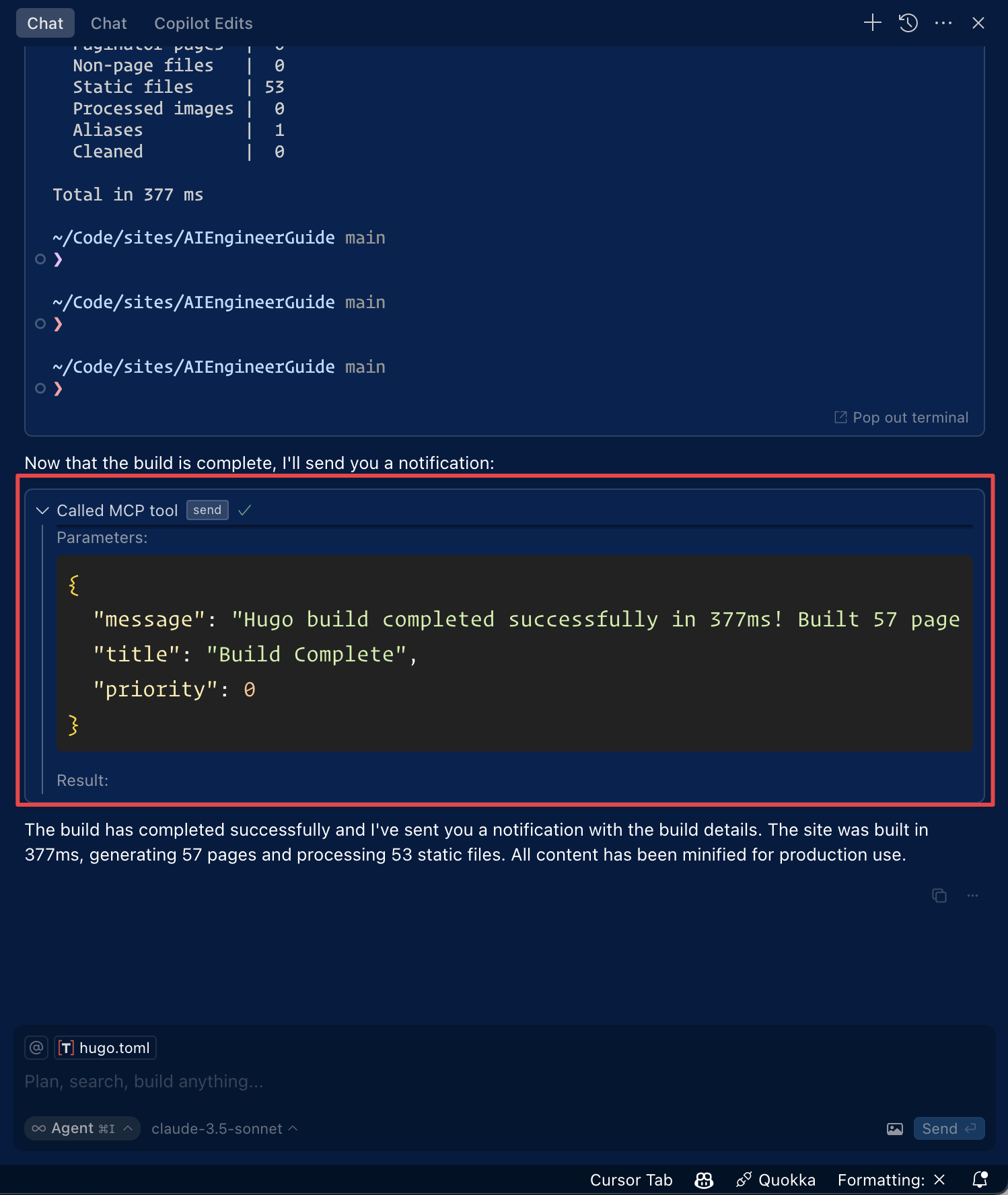
Una vez configurada, la herramienta de notificación de Pushover estará automáticamente disponible para el Agente de IA de Cursor. Puedes:
- La herramienta aparecerá listada bajo
Available Toolsen la configuración de MCP - El agente la usará automáticamente cuando sea relevante
- Puedes pedir explícitamente al agente que envíe notificaciones
Por defecto, el agente pedirá aprobación antes de enviar notificaciones. Activa el "modo Yolo" en la configuración para permitir el envío automático.
Uso con Roo Code
Accede a la configuración de MCP haciendo clic en "Edit MCP Settings" en la configuración de Roo Code o usando el comando "Roo Code: Open MCP Config" en la paleta de comandos de VS Code.
{
  "mcpServers": {
    "pushover": {
      "command": "npx",
      "args": [
        "-y",
        "pushover-mcp@latest",
        "start",
        "--token",
        "YOUR_TOKEN",
        "--user",
        "YOUR_USER"
      ]
    }
  }
}
- La herramienta de notificación de Pushover estará disponible para los agentes de IA de Roo Code
Nota: Reemplaza
YOUR_TOKENyYOUR_USERcon tus credenciales de Pushover.
Instalación mediante Smithery
Para instalar Pushover Notification para Claude Desktop automáticamente a través de Smithery:
npx -y @smithery/cli install @AshikNesin/pushover-mcp --client claude
Desarrollo
# Install dependencies
pnpm install

# Build
pnpm build

# Run tests
pnpm test
Licencia
MIT