765T Flow
Revit MCP connector: talk to your open Revit model from Claude, ChatGPT, Cursor or Antigravity. 450+ tools, every edit is one named undo step. Revit 2024–2027 · Windows. Try it free.
Servidor MCP alojado
npx add-mcp 'https://765tflow.com/mcp'Se instala en Claude Code, Codex, Cursor y más
Documentación
MCP endpoint
Every AI app points at the same address, over streamable HTTP:
https://765tflow.com/mcp
Authentication is OAuth 2.1 with PKCE in the browser: the first connect opens a 765T Flow page and you click "Authorize" once. No API key or token sits in a configuration file.
Seven hub tools
These are what an AI app sees in tools/list. The 468 Revit tools in the catalog are opened through flow_tools and run through flow_call.
-
flow_list_instances
Lists the account's connected Revit instances and their open documents, and returns the instanceId every catalog call needs. -
flow_read_result
Reads the next part of a long answer, exactly as that answer's next pointer names it. -
flow_report_issue
Sends a bug report, feedback or a feature request to the 765T Flow team when you ask for it, and returns a reference id. -
flow_tools
Browses the catalog: the tool groups, one group's members, or one tool's exact input schema. -
flow_call
Runs one catalog tool by its exact name, with arguments in the schema flow_tools returned. -
flow_find
Finds the right tool or how-to guide for a Revit job described in plain words. Read-only. -
flow_get
Reads one guide or tool entry in full, by the ref flow_find returned. Read-only.
flow_find and flow_get are listed when the hosted guide library is available.
How a write runs
The assistant you connected decides — no approval dialog sits in between.
- Preview is optional: for a tool that supports a dry run, the call sets dryRun to check first without touching the model.
- Every write lands inside one named undo step in Revit — one Ctrl+Z takes the whole write back.
- After the write, the tool reports the execution result and the list of elements it changed.
- A write whose outcome is uncertain is never blindly retried.
Install Control Center on Windows
The installer sets up Control Center and the add-in inside Revit for your Windows user only — no administrator rights are needed. Best supported on Revit 2021 and later.
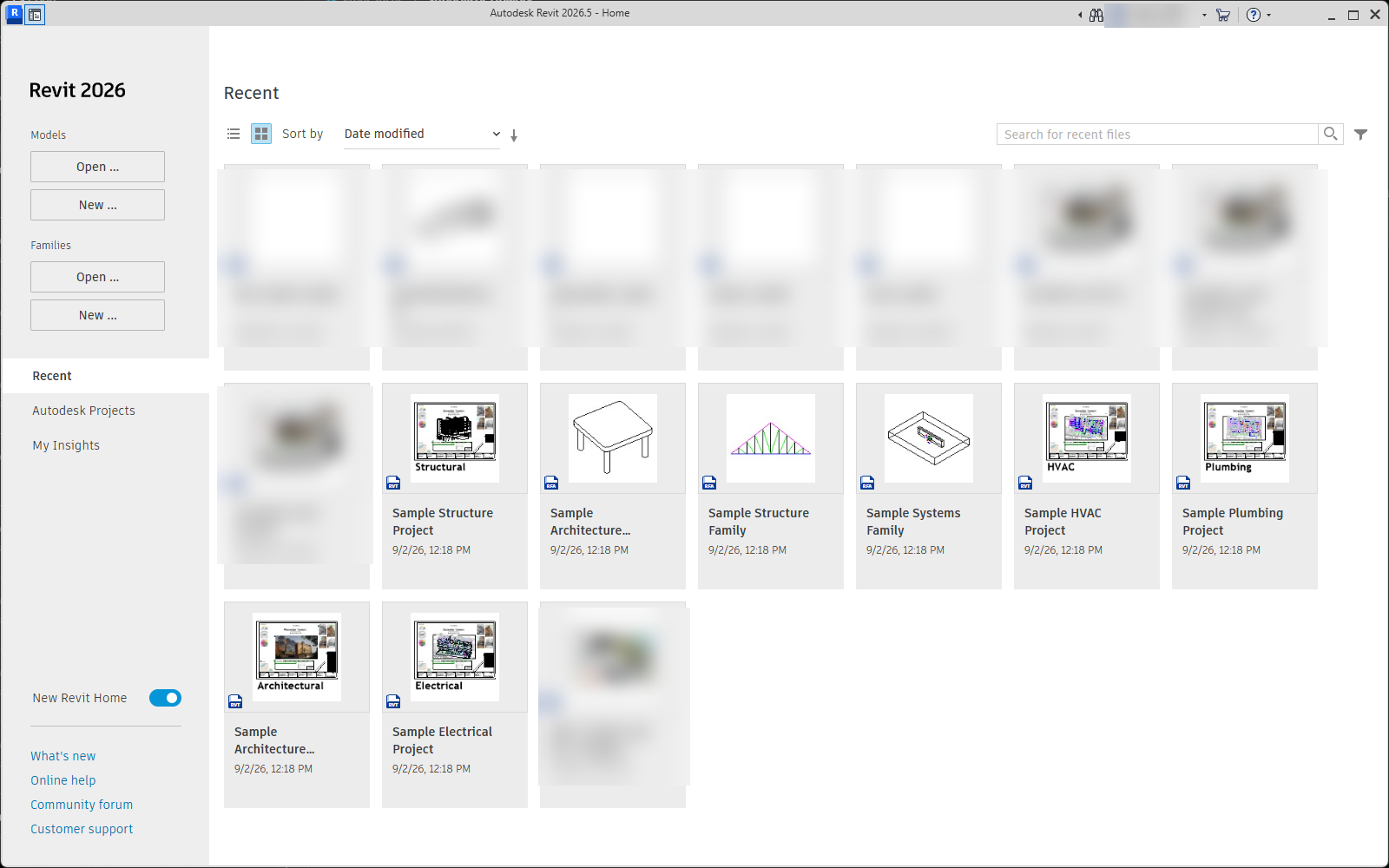
Autodesk Revit Home screen on Windows showing sample models and families
- Create a free account or sign in with Google or email on 765tflow.com, then click Download for Windows in your account. If your browser blocks the downloaded file: in Chrome, open Downloads and choose Keep; in Edge, hover the download, click the three dots → Keep → Show more → Keep anyway.
- Run the installer (if you previously installed the 0.2 beta, uninstall it first). Because the installer is not digitally signed yet, Windows SmartScreen asks you to confirm on the first run: on the blue “Windows protected your PC” box, click More info — “Unknown publisher” is expected for an unsigned build — then click Run anyway.
- Open Revit. When Revit asks about the 765T Flow add-in, choose Always Load.
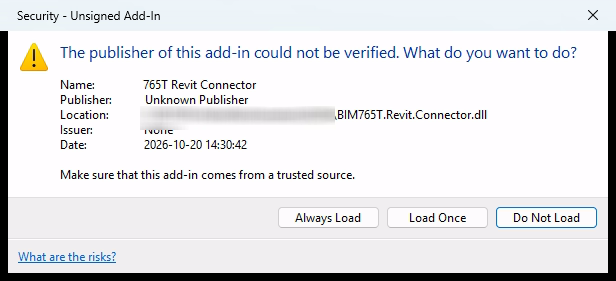
Revit Security - Unsigned Add-In dialog showing the Always Load button for BIM765T.Revit.Connector.dll
The download page, with the steps for when Windows blocks the installer
Then pair the Revit side with your account:
- Open 765T Flow Control Center.
- Press "Sign in" on the account strip.
- The browser opens this very site — click "Authorize" once. The card updates itself when the account is accepted.
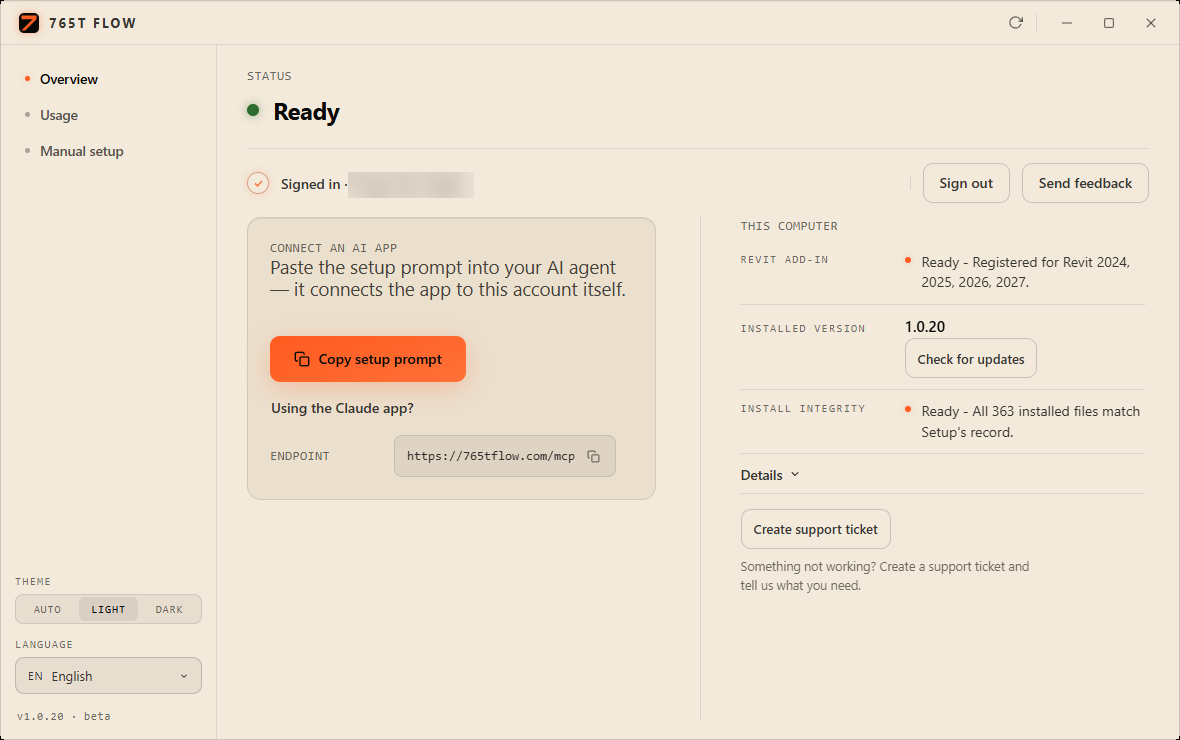
765T Flow Control Center 1.0.20 window showing Ready status, Signed in, and installed version 1.0.20
Connect Claude, Cursor or Antigravity
Each app adds the same MCP address; the first connect opens the browser for your "Authorize" click.
Claude
- In Claude — on the web or in the desktop app — open "Customize > Connectors".
- Click "+", then "Add custom connector", and paste this address:
https://765tflow.com/mcpCopy - Click "Add" — the browser asks for "Authorize" once, and that is all it asks.
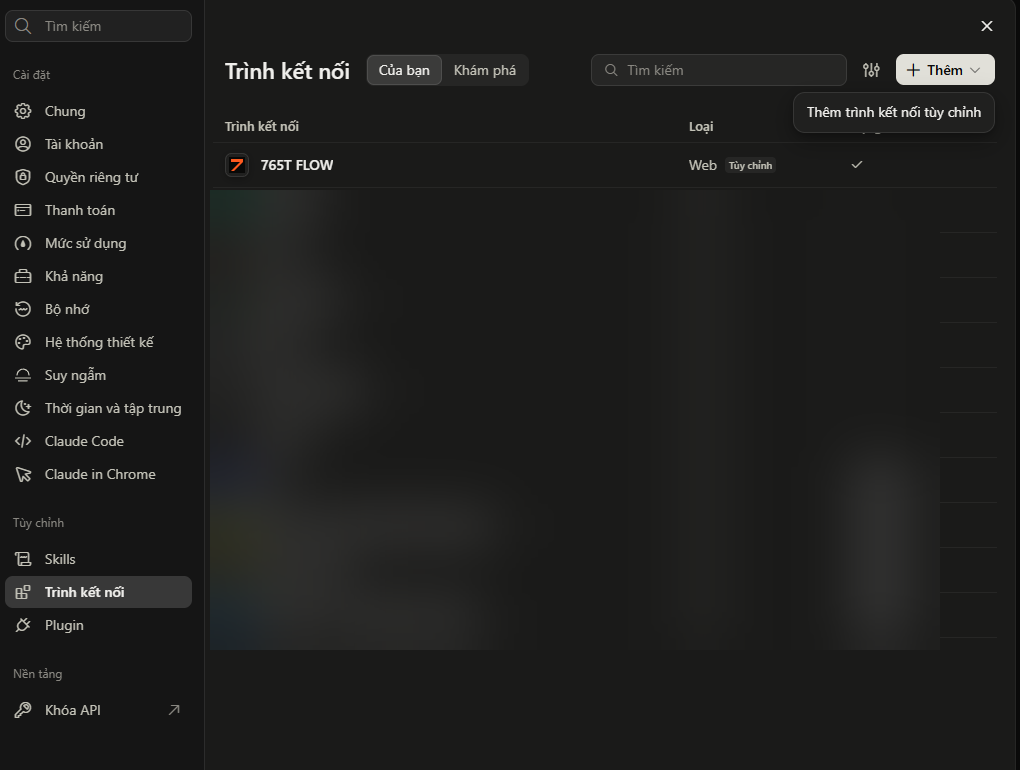
Claude Settings Connectors panel showing Add custom connector and the 765T FLOW entry
Cursor
With Cursor installed, click the button below — Cursor asks you to confirm, then adds the 765t-flow server.
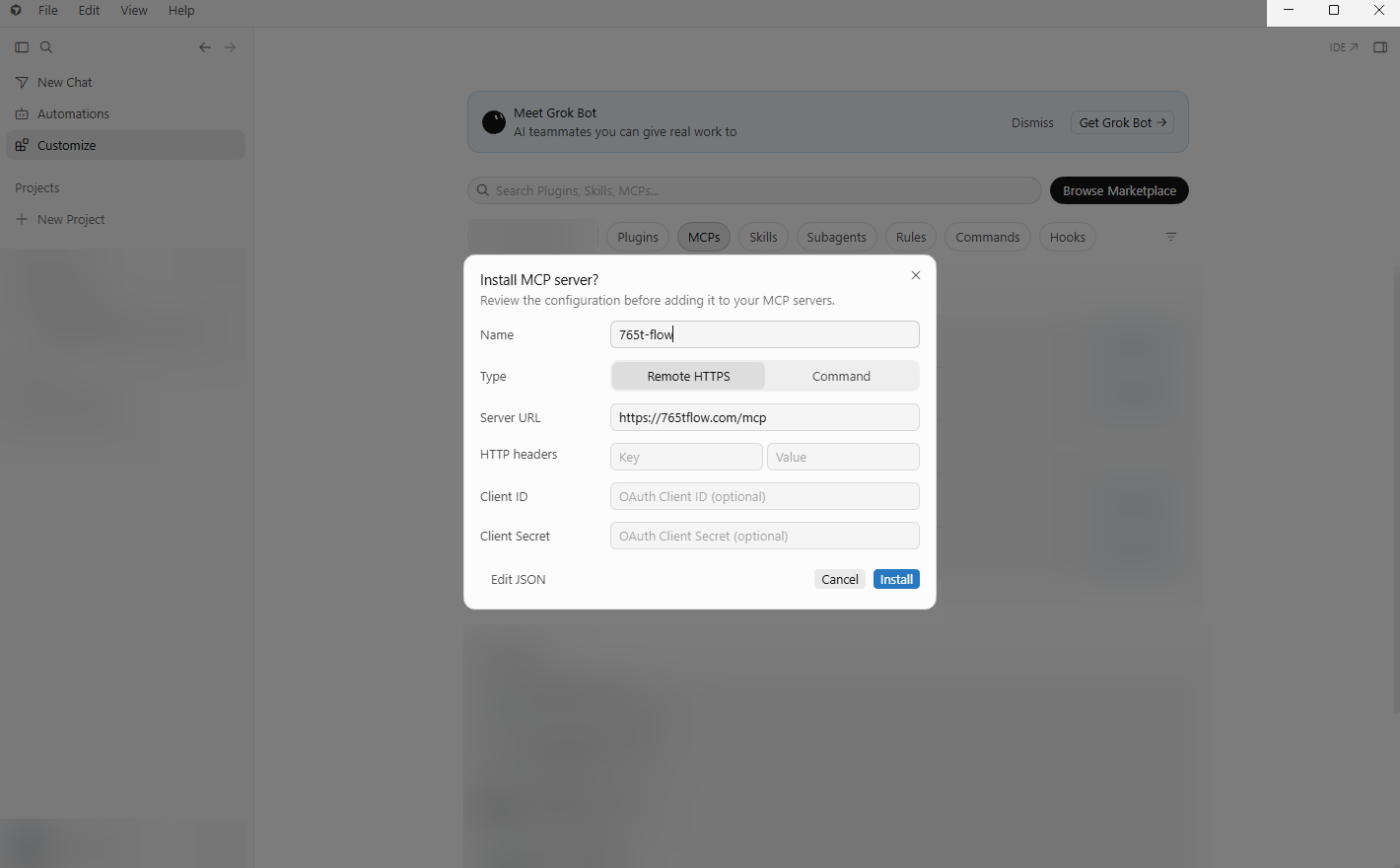
Cursor Install MCP server? confirmation dialog showing the 765t-flow configuration and Install button
Or add this block to ~/.cursor/mcp.json yourself, then restart Cursor:
{
  "mcpServers": {
    "765t-flow": {
      "url": "https://765tflow.com/mcp"
    }
  }
}
Antigravity
Antigravity reads remote MCP servers from the serverUrl field in its raw MCP configuration (mcp_config.json):
- Open mcp_config.json from the Antigravity IDE Agent side panel (… menu → MCP Servers → Manage MCP Servers → View raw config) or edit ~/.gemini/config/mcp_config.json directly.
- Add the 765t-flow server entry under mcpServers and save the file:
Copy{ "mcpServers": { "765t-flow": { "serverUrl": "https://765tflow.com/mcp" } } } - Open Agent settings (Ctrl+, on Windows) → the Customizations tab, click Authenticate next to 765t-flow, and click "Authorize" in the browser.
- After you click "Authorize", the browser lands on Antigravity's callback page (antigravity.google/oauth-callback) and shows a one-time OAuth authorization code. Copy that authorization code, paste it back into the Antigravity settings panel, and click Submit so the app on your PC receives the code from the browser and finishes connecting 765t-flow.
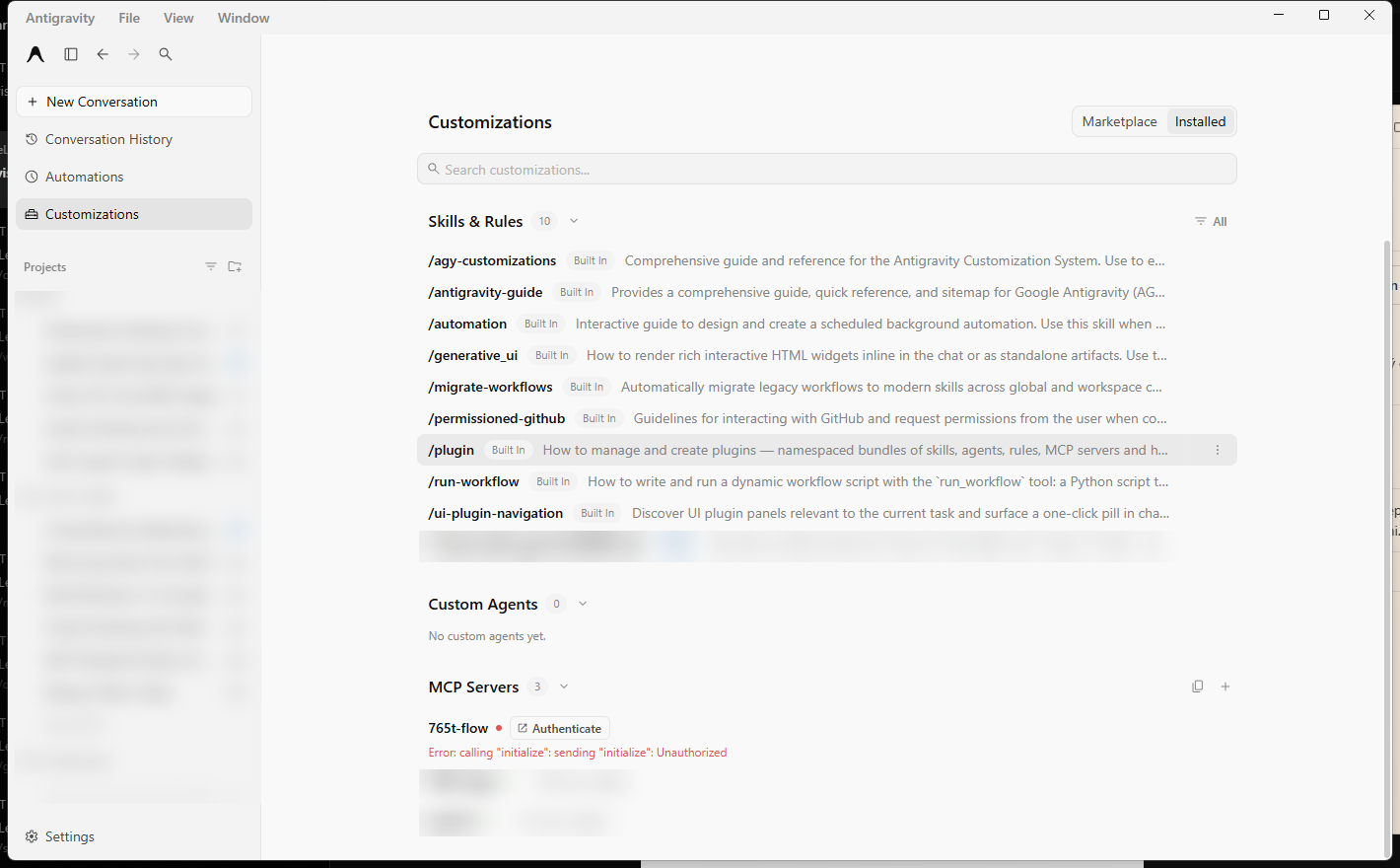
Antigravity Customizations → Installed → MCP Servers panel showing the 765t-flow server entry and Authenticate button
Other apps with remote MCP over streamable HTTP and OAuth use this same address. 765T Flow writes nothing to any app's configuration on its own, and the Add to Cursor button adds the entry only when you confirm in Cursor.
Check the connection
Ask the assistant to call flow_list_instances. The answer lists your connected Revit instances; an empty list means no add-in is online yet — open Control Center, press "Sign in" and start Revit.
Check which Revit model I currently have open through 765T FLOW.
Open a Revit model and try your first prompts
Open Revit on your Windows PC and open any.rvt model (or a Revit sample project). Keep Revit and that.rvt model open while you chat with the assistant — every read and write runs directly against your live open Revit session.
-
Read-only check — List model warnings by type
List the warning types in the current model along with the count for each type.Copy Read-only (0 model changes): the assistant uses flow_tools and flow_call to run model_warnings_list or audit_warnings_cleanup_plan and group the warnings in your open model. -
Read sheets and batch-rename with a preview table first
List all sheets in the model with their Sheet Number and Sheet Name. Then show a preview table renaming the first 4 sheets (do not apply yet), and wait for my confirmation before renaming them in one batch.Copy Reads first with sheet_list_all, previews with sheet_rename_safe using dryRun: true (0 model changes), and once you confirm, runs sheet_rename_safe with dryRun: false — the entire batch rename lands in 1 single Revit Undo entry (BIM765T.Revit.Connector::sheet_rename_safe), so one Ctrl+Z undoes the whole batch.